


- Your cart is currently empty.
How to Create a Simple Website with Mobirise

You don’t need programming skills or an artistic flair for graphic design to create a simple website. You can use a variety of tools and programmes that do almost everything for you. In today’s post, we’ll introduce you to one of the most popular free solutions – Mobirise, which will help you get your website up and running in just a few hours or even minutes.
And the best part; your website will look professional, be mobile-friendly, open very quickly and contain no ads. It’s also worth mentioning that creating a website with Mobirise is also perfect for all those users who have opted for the White Hosting package, as a website created with Mobirise does not use databases.
Table of contents
- Download and install Mobirise
- Creating a website in Mobirise
- Transferring a website to a hosting package
1. Download and install Mobirise
Mobirise is a program that you install on your computer and then use to build a website. It is available for Windows and Mac.
1. Visit https://mobirise.com/.
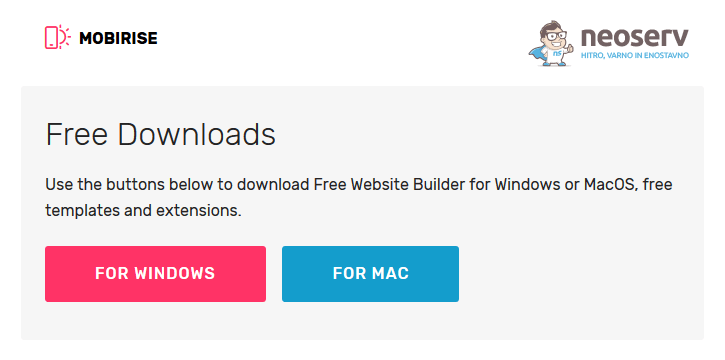
2. Click on the red DOWNLOAD FOR WINDOWS button or the blue DOWNLOAD FOR MAC button.
3. Enter your email address. You will then receive a password in your email address which you can use to download Mobirise to your computer.
4. Click on the FOR WINDOWS / FOR MAC button to start the download.
5. Install Mobirise on your computer.
6. Open the program (or it will open itself when the installation process is complete).
7. Log in with the email address and password you have received. You can also use your Google or Facebook account to log in.
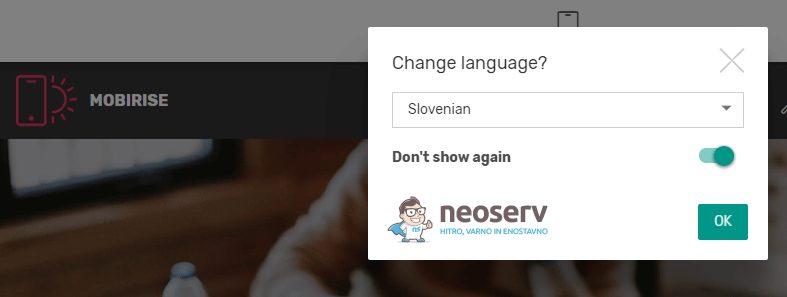
8. Select the language of the application ( Slovenian is also available).
So, now you are ready to start building your website.
2. Creating a website in Mobirise
As you will see, Mobirise’s graphical interface is extremely user-friendly, so building a website will be quick and seamless.
1. First, remove the parts or blocks of the website that will already be created after installing the program. To do this, click on each block and click on the trash icon(Remove Block) in the top right corner. Repeat this process a few times to completely “clean” the website.
2. Then click on the + in the red circle to see a list of blocks on the right-hand side.
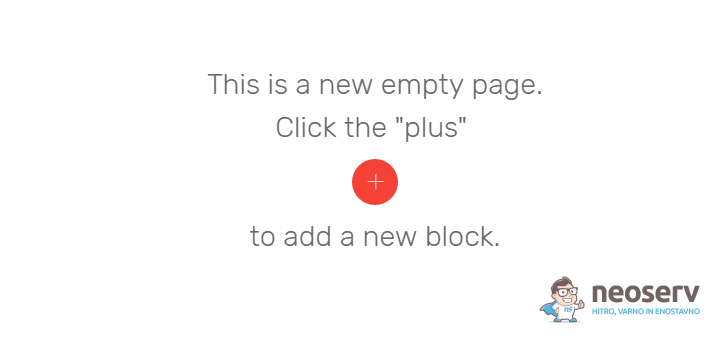
3. Drag each block from the right-hand side to the central part where you will create the web page. Start with the navigation menu, then add a cover page, introduce your products or services, add a price list, FAQs, a map and contact form, and finally don’t forget the footer. Of course, you can also add many other elements to create a site that’s completely your own.
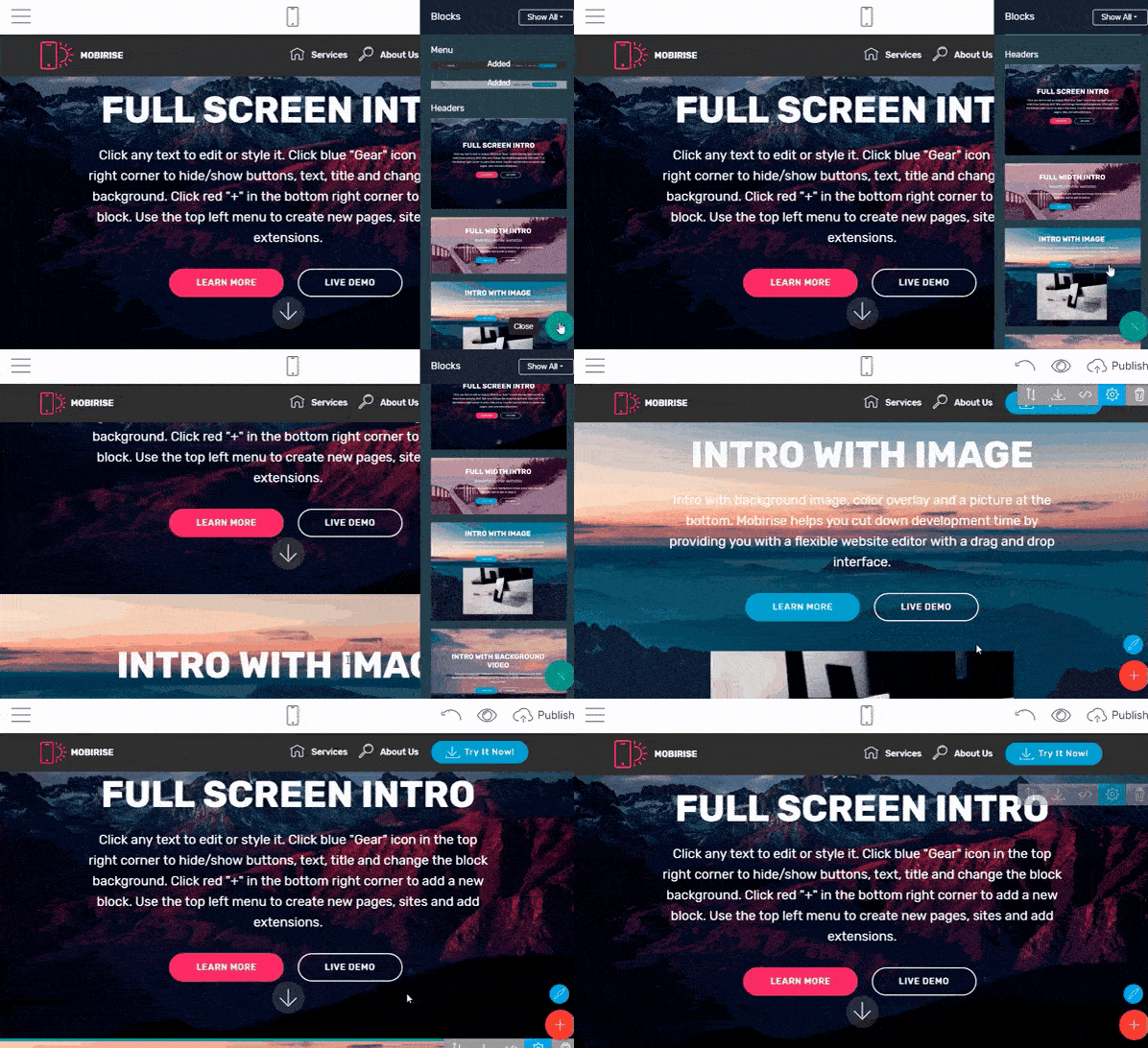
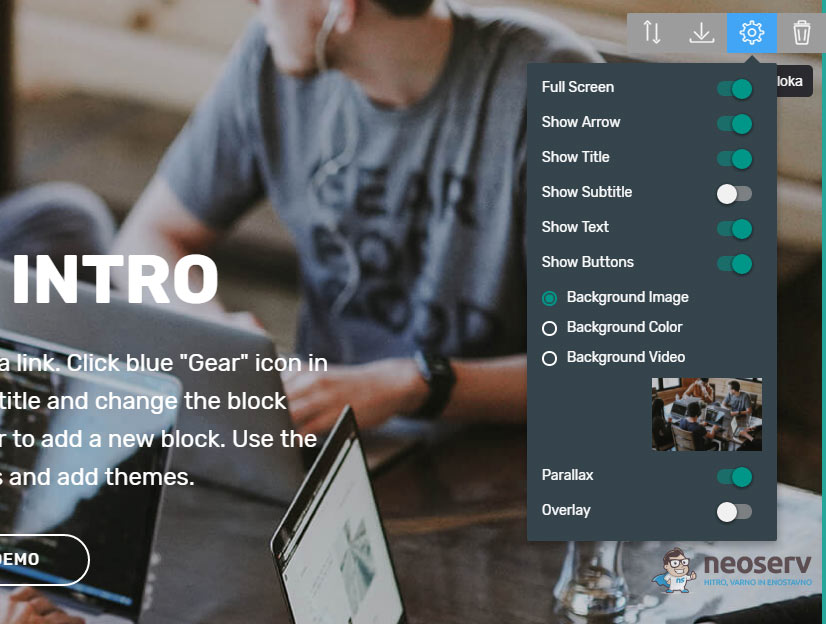
4. To edit any of the blocks you have added, simply click on it and click on the blue Block Parameters icon in the top right corner. Each block will have its own settings, so you can easily customise the website to your preferences.
5. Change the text on the website, edit the links on the buttons, replace images and make other changes to make the website look the way you want it to.
6. Hover over the menu in the top left corner and open the Pages tab. In the list you will find an existing page – click on the blue Rename Page, Edit Meta Tags icon. Here you can specify any page title and add a meta description. When setting the URL, set index.html for the landing page, and as desired for other subpages (e.g. services.html, about-us.html, contact.html, terms-of-use.html).
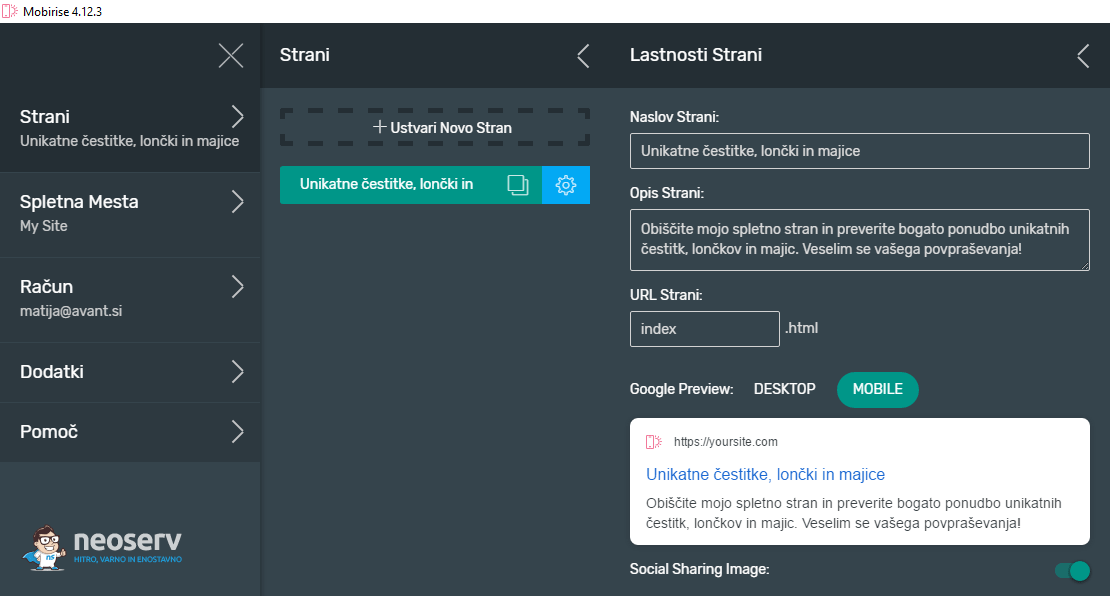
To add a new site page, hover over the menu in the top left corner and click on + Create New Page. If you want to create multiple websites, select the Websites option and click + Create New Website.
3. Transfer the website to the hosting package
Once you’ve finished building your website, it’s time to transfer it to your hosting package. This means that the website will be visible on the World Wide Web – on your domain. You have two options for transferring the website to your server:
- to download the site via the cPanel control panel,
- to download the page via an FTP connection.
Since the process of downloading a page via FTP is much easier and, above all, will make it easier and faster to update the website, we present this procedure below.
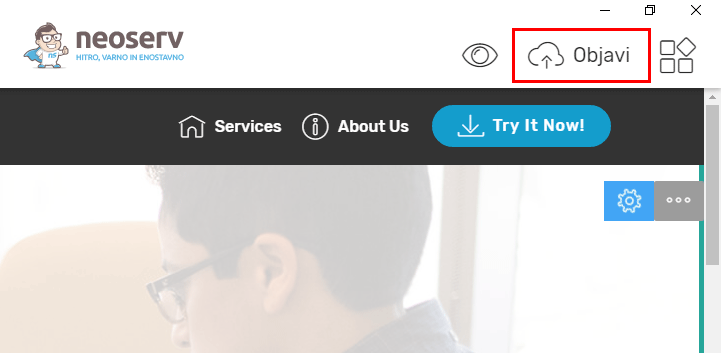
1. In Mobirise, click on Publish in the top right corner.
2. Select the FTP option and enter the name of the folder you want to download the website to in the right-hand box. If you are going to put the website on the carrier domain of the hosting package, enter public_html.
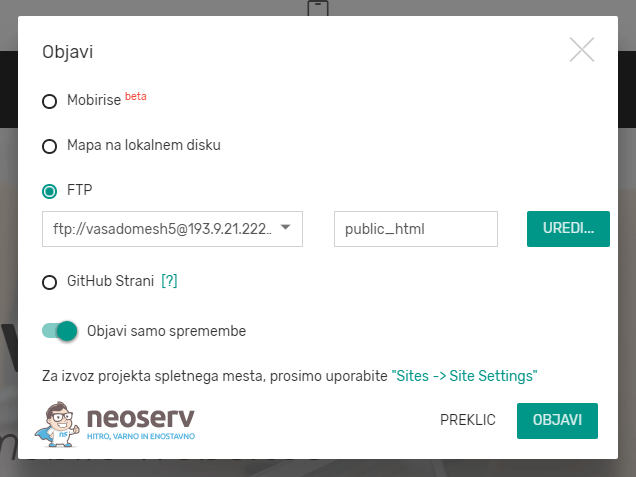
3. Click on the EDIT… button and fill in the fields for the FTP connection:
- Protocol.
- Host: enter the IP of the server (you can find this information in My NEOSERV or in cPanel)
- Port: 21
- Username: enter the username to access cPanel (information can be found in My NEOSERV)
- Password: enter the password to access cPanel (you can find this information in My NEOSERV)
4. Click on TEST CONNECTION to check connectivity. If the test is successful, save your changes by clicking SAVE.
5. The only thing left to do is to click on the green PUBLISH button.
Congratulations! You have just put your website online. Open your browser, type in the title of your web page and check how it looks.
Updating your website is also easy with Mobirise. The next time you open the software, you’ll see your website. Once you’ve made your changes, click on Publish (top right) and then Publish again. This will update your website.
COMMENT THE POST
Your comment has been successfully submitted
The comment will be visible on the page when our moderators approve it.