


- Your cart is currently empty.
Creating a WordPress Staging Site: A Step-by-Step Guide

When you make changes to your WordPress website, there is a chance that a problem may occur. Whether you want to install a new plugin, a graphic template, change page settings or WordPress system files, a problem can cause your site to become inoperable.
Check below how to create a secure Staging Environment where you can easily test any changes you want to make to your site.
What is a WordPress Staging Environment?
A staging environment is a situation where you create a copy of your site that doesn’t affect the performance of your active site. A test site looks like your active site, but (in most cases) is not publicly visible. You can create such an environment in different ways:
- Manually create a test environment on your own computer.
- Using the WordPress migration plugin to create a test site on a subdomain.
- Using dedicated plugins.
We will describe the latter option in more detail below.
Plugins for a WordPress test environment
Check below the most popular plugins for creating a WordPress test environment and how to use one of them to create a test site.
BlogVault
BlogVault offers a number of solutions for WordPress. You can create backups, use advanced WordPress management tools and even create test sites for free.
The main advantages of this plugin are:
- Free storage of the test website on BlogVault servers, so your active website is up and running.
- Protecting access to your test site.
- Support for a large number of sites that can run on different hosting packages.
For additional features, a paid version is also available to make it even easier for you to work with WordPress test sites.
WP Stagecoach
Among the plugins we’ve described in today’s post, WP Stagecoach offers the simplest solution suitable for individual site owners, web developers and webmasters.
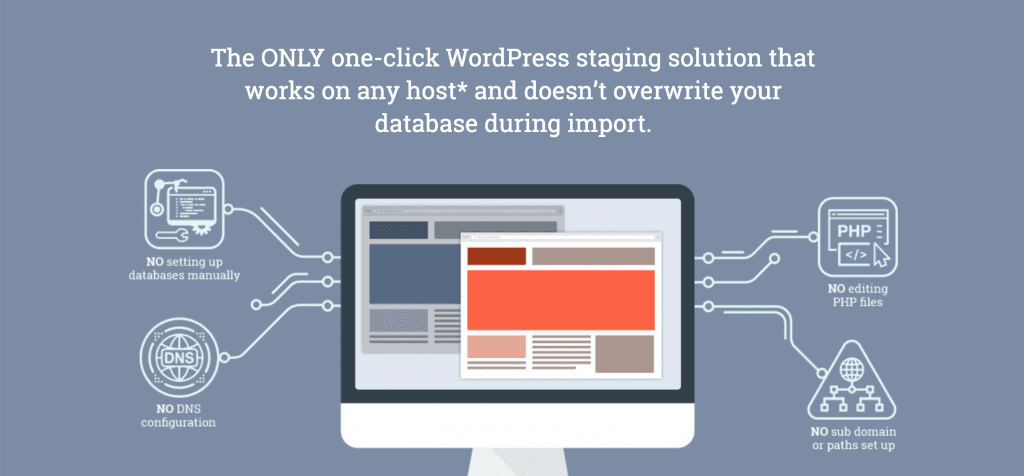
The main features of this plugin include easy test page setup, password protection of the test page, various test page setup and display options, and quick implementation of the tested changes on the active website.
The only downside of this plugin is the price, as some features are not free. If you are making a lot of changes to your site, this plugin is still a recommended choice.
WP Staging
The main feature of the WP Staging plugin is that it allows you to clone your active site (in order to create a test site) with a few simple clicks. Once created, the test site works on a subdomain, in a directory or on a separate domain. As with the aforementioned plugins, only authorised persons can see the test page. WP Staging is also available in a free version.
Check below how to use this plugin to create a test environment for your WordPress site.
Setting up a WordPress test site in six steps
- Install and activate the WP Staging plugin.
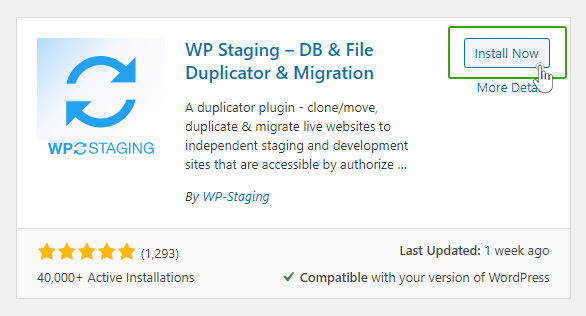
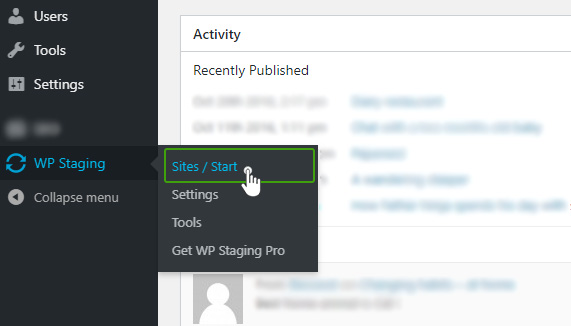
- Click on WP Staging in the menu and select Sites / Start.
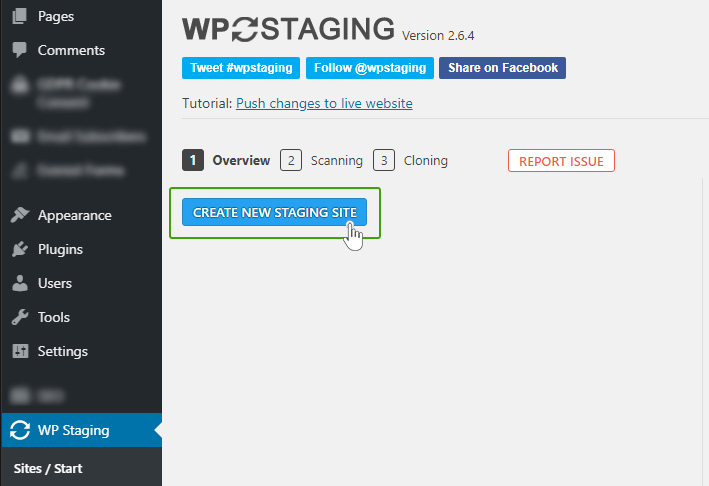
- Click on the Create new staging site button.
- In the next step, enter a name for the new site, for example test.
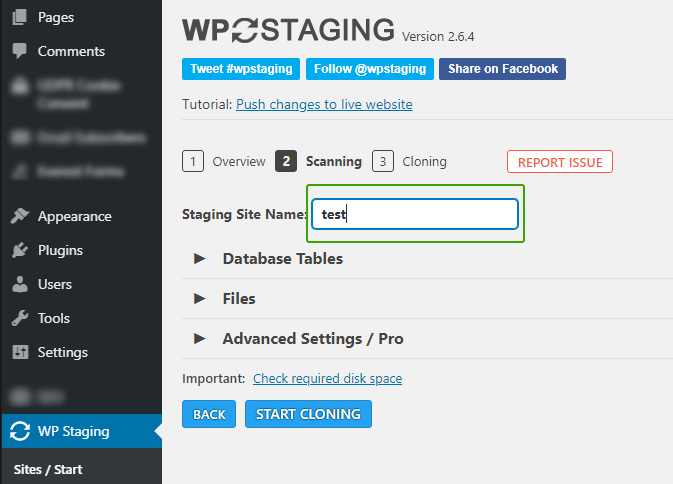
- Click on the Start Cloning button .
- Once the process is complete, click on the Open staging site button and log in with your WordPress admin credentials.
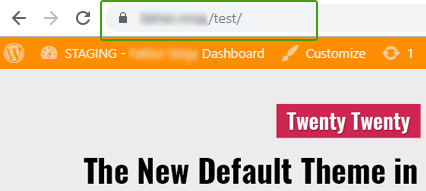
In the URL bar you will see the URL of your test site, for example mojadomena.si/test.
The WordPress test environment is suitable for both web developers and complete beginners. It’s a secure environment where you can easily test changes without compromising the performance of your active site. Using any of the plugins described here, you will set up a suitable testing environment in a few steps.
COMMENT THE POST
Your comment has been successfully submitted
The comment will be visible on the page when our moderators approve it.