


- Your cart is currently empty.
How to Set Up Cron Jobs for Faster WordPress Performance

Cron jobs are used to automate the running of scripts on a website. For example, you can use cron to set when backups are made, when the system checks for updates, when a post should be published, etc.
Example:
00 11 * * * * * /home/backups/scripts/log_backup.sh
This command tells the operating system to run a script called“log_backup.sh” every day at 11:00.
If you have a WordPress website, WP-Cron takes care of the cron jobs. Depending on the amount of web traffic, in some cases the use of WP-Cron will affect the loading speed of the website. Check below how to disable WP-Cron and use the server-side cron job instead to improve your site’s performance.
Why is WP-Cron not efficient enough?
WP-Cron checks and executes set tasks on your pages, subpages and posts every time a visitor visits your website.
Zero visitors = zero WP-Cron tasks
WP-Cron needs constant web traffic to work properly. If a site receives no or very few visitors for a certain period of time, the cron jobs cannot be executed, which in some cases leads to a WordPress system error.
More visitors = more unnecessary WP-Cron jobs
If you get 10 page views every second, in this case WP-Cron checks the job 10 times every second. This process requires the execution of PHP operations. This activates server resources and your page may slow down due to increased traffic.
How to disable WP-Cron?
WP-Cron can be easily disabled using the command in the wp-config.php file. On line 1 or before the line “That’s all, stop editing! Happy blogging.” add the following command:
define('DISABLE_WP_CRON', true);
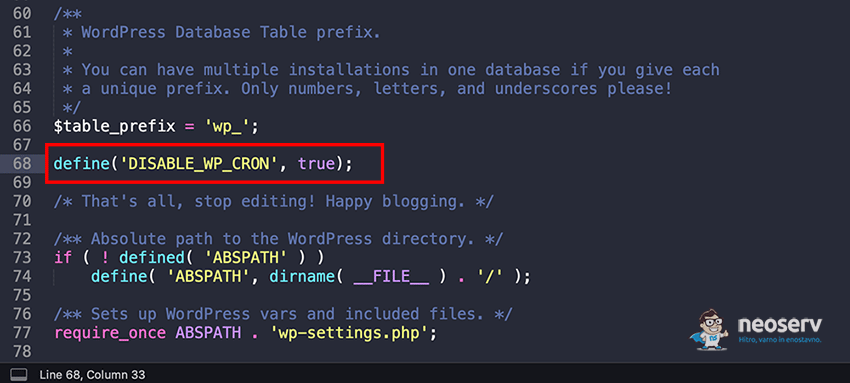
After disabling WP-Cron, it is necessary to activate cron jobs at server level.
How to set up a server-side cron job?
The server-side cron job can be configured in different ways. Check below how to do it in the cPanel control panel.
- Log in to cPanel.
- In the ADVANCED section, click on the Cron Jobs icon.
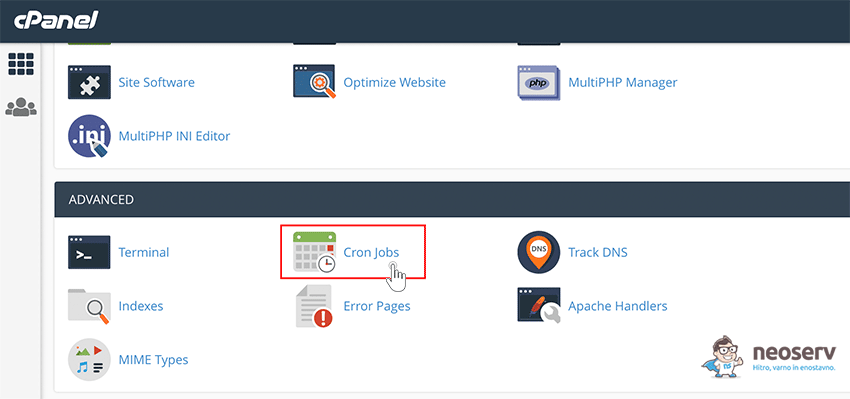
- In the Add Cron Job field you have the option to set different time intervals for cron jobs. In the example below, we have set the job to run every ten minutes. NOTE: In the case of online stores where the need to execute cron jobs is higher, we advise you to set the execution to 2-3 minutes.
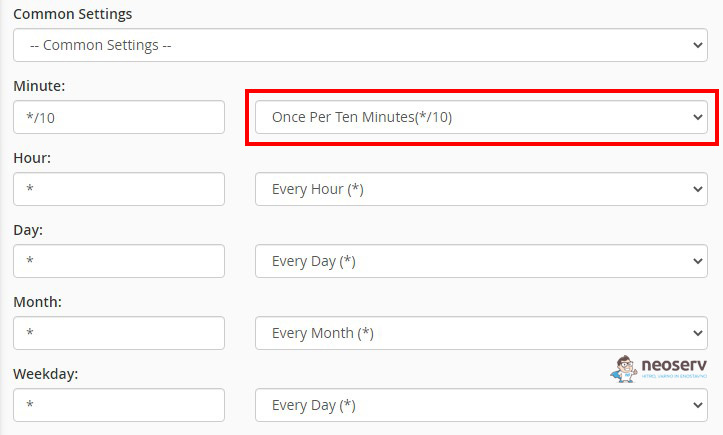
- In the Command field, add the following item( replacedomain.com with your domain):
wget -q -O - https://domain.com/wp-cron.php?doing_wp_cron >/dev/null 2>&1

- Click on the Add New Cron Job button.
If you have completed all the steps, you have successfully deactivated WP-Cron and set up a server cron job.
COMMENT THE POST
Your comment has been successfully submitted
The comment will be visible on the page when our moderators approve it.