


- Your cart is currently empty.
How DNS over HTTPS Improves Your Online Privacy


Even if you visit a website that uses the secure HTTPS protocol, your DNS query is sent over an insecure connection. For example, if you click on https://podjetje.com, web attackers can see which page you have visited. In some cases, you may be redirected to a malicious site in order to misuse your data, and you may face other harmful consequences. In this post, we’ll look at how to use HTTPS to secure your DNS query.
What do the acronyms HTTP, HTTPS and DNS stand for?
To help you understand, we’ll first look at what the basic terms mean, which we’ll use several times in this post.
HTTP
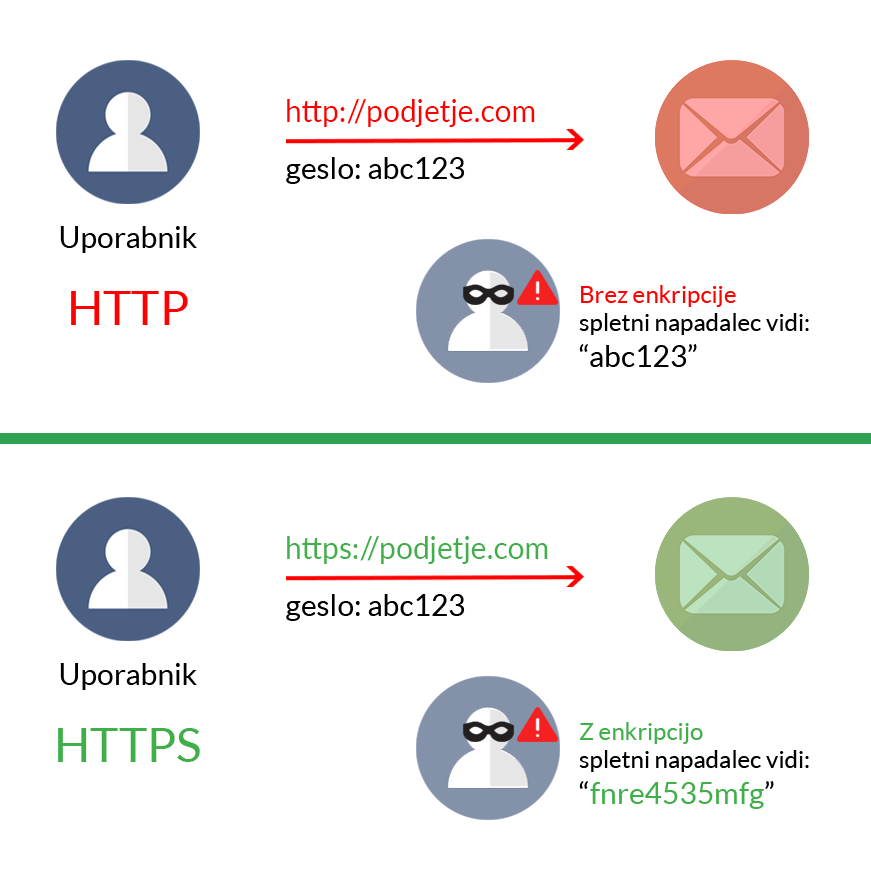
HTTP(HyperText Transfer Protocol) has been in use since 1989 and is considered the main protocol for transferring information on the web. It is primarily used for publishing and viewing HTML pages.
HTTPS
HTTPS is a secure version of the HTTP protocol. It is protected by an SSL certificate that encrypts data between the visitor and the website. This way, while the data is still visible to web attackers, the advanced protection makes it unreadable to them.
DNS
DNS (Domain Name System) is the name for computers and various services that are connected to the Internet or to a personal network (TCP/IP). DNS is responsible for translating, resolving or transforming a domain (e.g. https://podjetje.com) into an IP number (e.g. 214.288.401.21).
How does a browser display a web page?
The process from entering a web page in the browser to the actual display of the web page takes place in up to six steps:
- When you enter the desired domain in your browser, DNS first converts it to IP format. In the second step, it checks in the operating system whether the user has ever searched for that website before. If it is a known site, the operating system shows it to the user.
2. If it is a page that the user has never visited before, the browser will contact a so-called Resolver, whose settings are managed by your Internet Service Provider (ISP). The Resolver will first check its cache to see if the user has ever visited the website in question.
If the IP address of the website is not in the cache, the resolver contacts the ROOT server, which knows where each of the carrier domains, for example .COM, is located.
The root server then directs the resolver to the server of the carrier domain. This server looks up the authoritative name server, where the IP address of the web page being searched for is located.
5. With the help of the domain registrar, the name server looks up the exact IP address of the domain.
6. The obtained IP address is delivered by the resolver to the web browser, which displays to the user the searched web page located on the server of the received IP address.
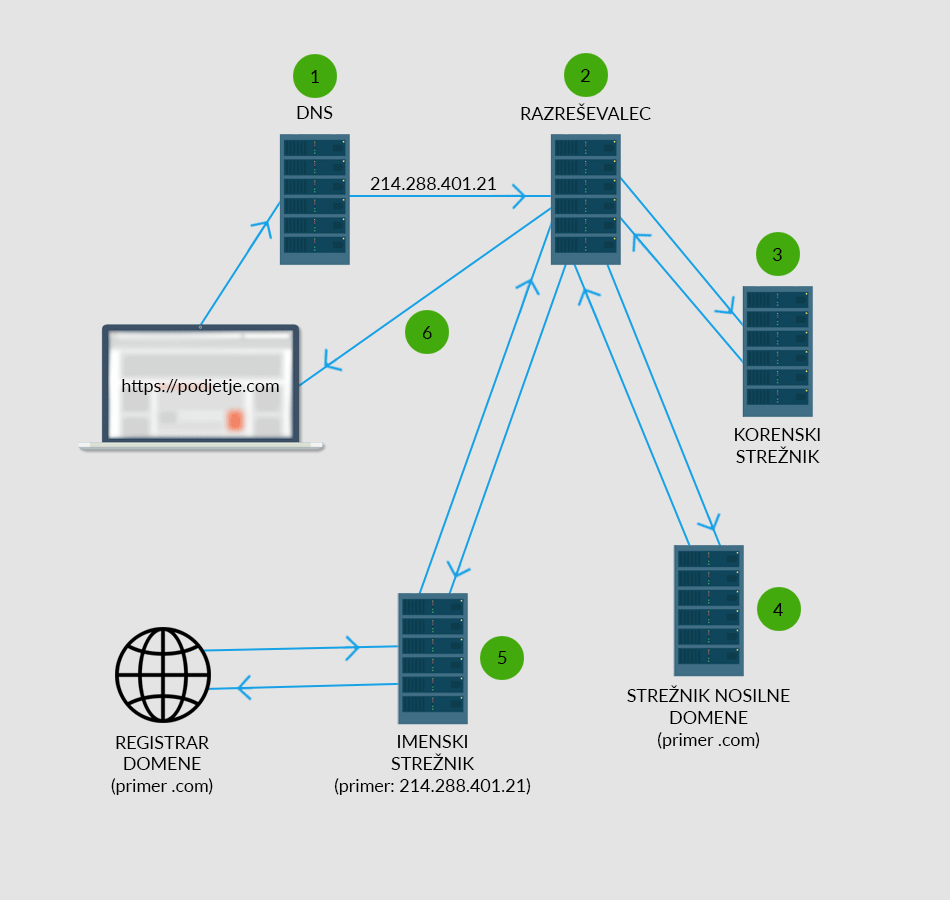
The whole process from request to website display may seem lengthy, but in fact it all happens in a matter of milliseconds. If the user has already visited a particular website, it is even quicker, as the IP address of the website is already stored in the browser’s cache.
Dangers of an unprotected DNS system
Why can a DNS system be dangerous for web users? In most cases, the resolver tells the DNS server which domain you are looking for. The request sometimes includes part, or in some cases all, of your IP address. Combined with other information, this can be used to establish your identity, which can be exploited by online attackers.
Disclosing your IP address means that any server involved in the process of finding your desired domain can see which page you are looking for. More problematic is that any unauthorised person travelling between your computer and the server can also see this information. Data misuse most often happens in two ways:
1. Tracking
As we have already written, by seeing part or all of an IP address, it is possible to find out who has sent a query to a particular website. Some online attackers collect information about all the sites you visit. Many companies are willing to pay a lot of money for this information. This is how they show you their advertisements, with the intention that you will buy their products.
2. Fraud
Between the website and the DNS servers, cyber attackers can change the path to the website. Instead of the IP address of the real website being displayed to the browser, the IP address of a malicious, fake website is displayed. For example, if you are redirected to a fake online shop and make a purchase, your credit card is misused or your personal data is stolen.
How do I set up DNS over HTTPS?
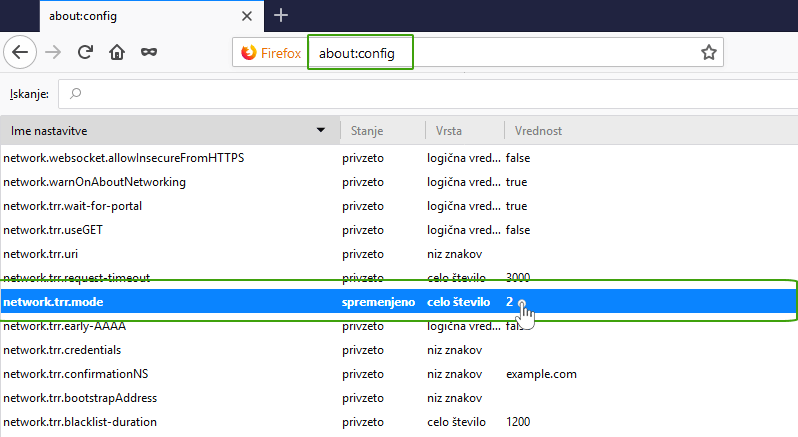
There is a two-step solution for all Mozilla Firefox users. First, you need to set up Trusted Recursive Resolver (TRR) in your browser:
- Open Mozilla Firefox and in the search bar type: about:config.
- Search for network.trr.mode and set the value to 2.
What can’t TRR protect you from?
The addition of TRR significantly reduces the number of unauthorised people who can see which websites you visit. However, the add-on does not protect against certain data leaks.
After the DNS server is started to look up an IP address, your computer still has to connect to the web server of that IP address. This action sends a request that includes information about the name of the server, which makes it clear which server you want to connect to. This request is unprotected. However, when you actually connect to the server, the data is protected. This is because once you are using a protected connection, you are securely visiting all the websites hosted on that server.
This system is part of the HTTP/2 protocol, which is based on connection reuse. It has the advantage that your browser does not make unsecured requests to the server every time you want to visit a particular website. This way, your IP address remains protected from web attackers.
Setting up your DNS system
As it is not sufficient to use the TRR alone, it is also necessary to set up an appropriate DNS system. You can choose between Cloudflare 1.1.1.1 and Google 8.8.8.8.8.
Cloudflare 1.1.1.1
DNS 1.1.1.1 provides a fast and private way to browse the Internet. It is a DNS resolver developed by Cloudflare. It is available for all popular operating systems and browsers.
How to set up DNS 1.1.1.1?
There are six steps to setting up 1.1.1.1.1 private DNS servers. In this post, we’ll look at how to set up DNS 1.1.1.1 on Windows 10.
1. Click on the Windows icon and select Settings.
2. Click on Network & Internet -> Status -> Change network adapter options.
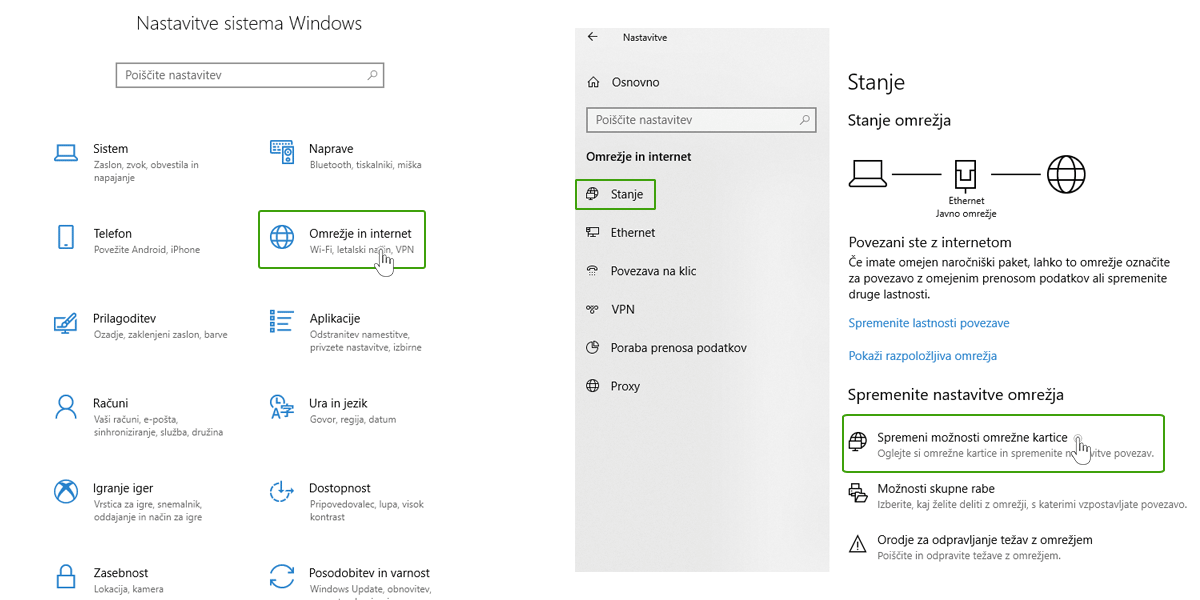
3. In the newly opened window, right-click on the network access icon and select Properties.
4. Search for Internet Protocol IPv4 or IPv6 and click on the Properties button.
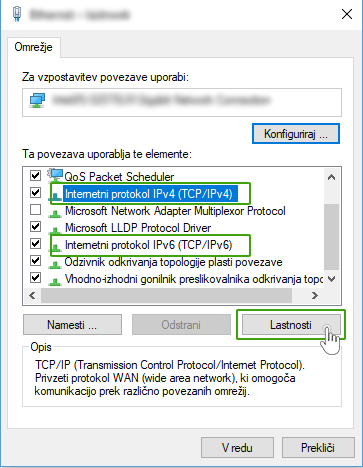
5. In the newly opened window, select “Use these DNS server addresses“.
6.Enter the details for the preferred and alternate DNS servers:
- For IPv4, enter: 1.1.1.1 (preferred DNS server) and 1.0.0.1 (alternate DNS server);
- for IPv6, enter: 2606:4700:4700::1111 (preferred DNS server) and 2606:4700:4700::1001 (alternate DNS server).
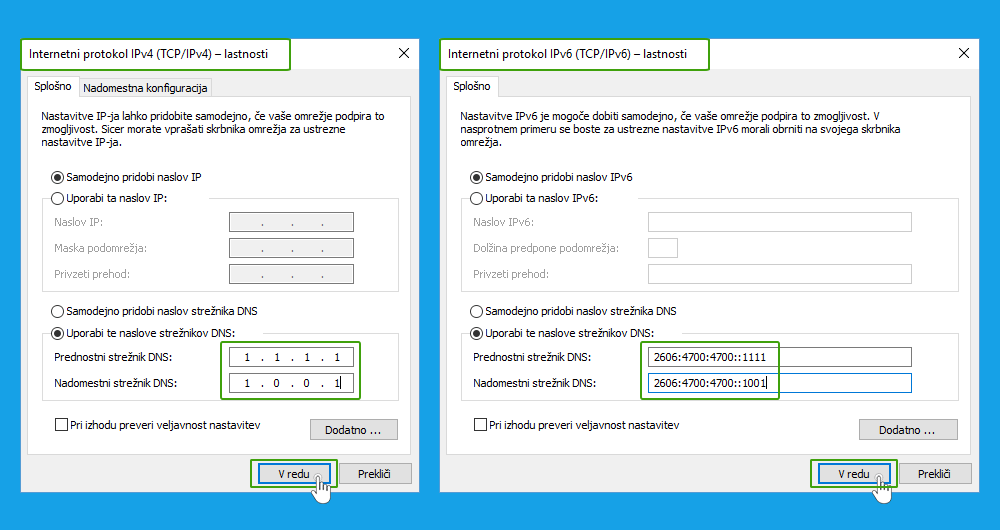
7. Click OK and restart your browser.
You have now successfully set up your private DNS servers.
Google 8.8.8.8
DNS 8.8.8.8 was developed by Google and has been available since 2009. It works in the same way as DNS resolver 1.1.1.1.1. The only difference is in step 6 of the setup, where you write the following DNS servers:
- for IPv4, enter: 8.8.8.8.8 (preferred DNS server) and 8.8.4.4 (alternate DNS server);
- for Pv6, enter 2001 :4860:4860::8888 (preferred DNS server) and 2001:4860:4860::8844 (alternate DNS server).
Conclusion
As online security and privacy are very important factors, we advise you to enable DNS over HTTPS as soon as possible if you are using Mozilla Firefox. This will help you avoid the negative consequences that can result from using an insecure DNS system. Of course, there are other precautions that are necessary for safe web browsing. Read more in our posts in the Online safety category.
COMMENT THE POST
Your comment has been successfully submitted
The comment will be visible on the page when our moderators approve it.