


- Your cart is currently empty.
Email Export & Import: Outlook, Thunderbird, Mac Mail


By exporting messages from your email client to your computer, you can avoid the awkward situation of being left without all your messages for one reason or another. This way you can have a backup of your email inbox that can be saved on a disk, USB stick or other external drive. This way, you can access your messages even if your disk or computer crashes.
The process of backing up/exporting your emails is easy, as is the import process. See below for instructions on how to export/import emails in Outlook, Thunderbird and Mac Mail.
Table of contents
- Exporting and importing emails to/from Outlook
- Export and import emails from/to Thunderbird
- Export and import emails from/to Mac Mail
Export and import emails from/to Outlook
To export an email inbox from Outlook, follow the procedure below:
1. Open Outlook and navigate to File -> Open & Export-> Import/Export.
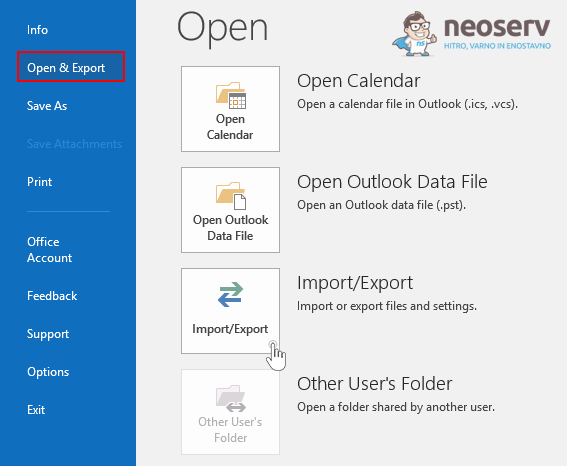
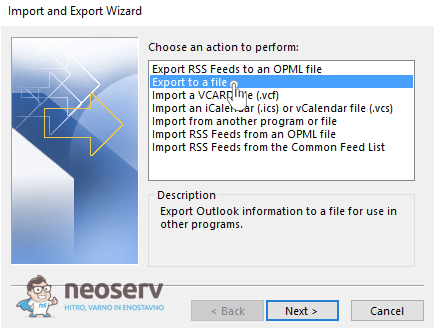
2. A new window will open, select Export to a file and click Next.
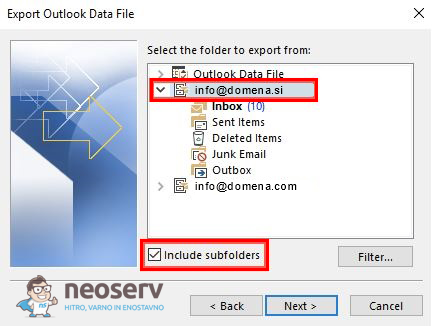
3. Select the email inbox (or multiple inboxes) you want to export to a local device (e.g. a computer) and make sure that Include subfolders is ticked. Then click Next.
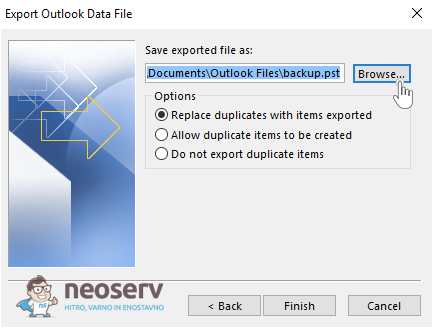
4. Click Browse . .. and select the location where you want to save the backup of your email inbox. Then click Finish.
5. In the new window, you can set a security password that you will need later when importing your emails. If you do not want to set a password, you can click Cancel.
This completes the export of the email inbox successfully.
Follow the procedure to import your email inbox:
1. Open Outlook and navigate to File -> Open & Export-> Import/Export.
2. A new window will open, select Import from another program or file and click Next.
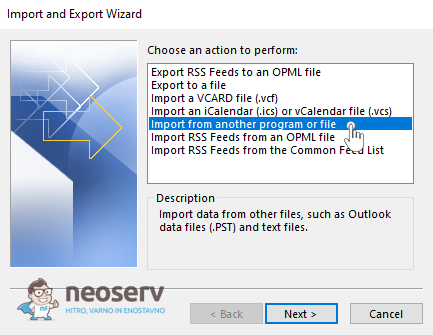
3. Select the Outlook Data File option and click Next.
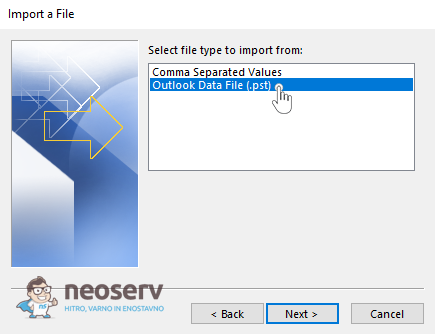
4. Click the Browse … button and select the .pst file that you saved to disk when you exported the mailbox. Confirm by clicking Next.
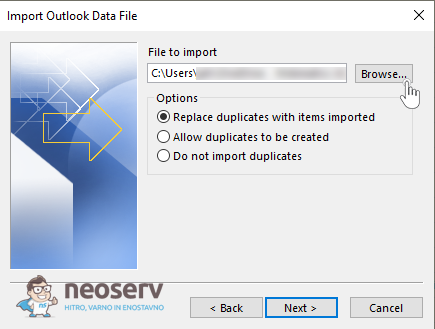
5. If you set a security password when you exported the email, you will need to enter it in this step.
6. Select the folder you want to import from the backup. Make sure you have the Include subfolders option enabled. Confirm by clicking Finish.
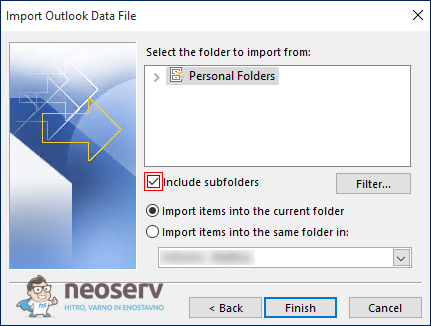
Wait for all emails to be imported into Outlook.
Export and import emails to/from Thunderbird
One possible reason for exporting emails is to transfer an email account to another computer. See below how to carry out this process if you are using Thunderbird.
On the computer where you store your email:
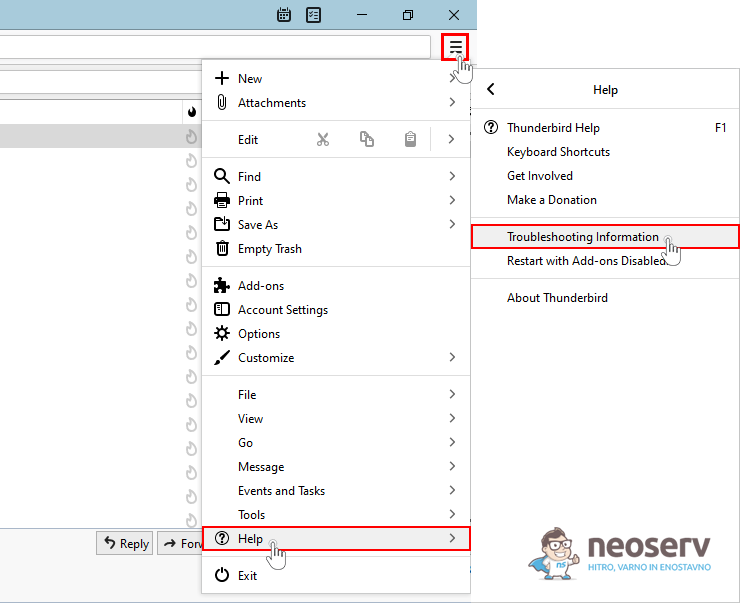
1. Open Thunderbird and click on the menu icon (three parallel lines) in the top right corner. Select Help and then Troubleshooting Information.
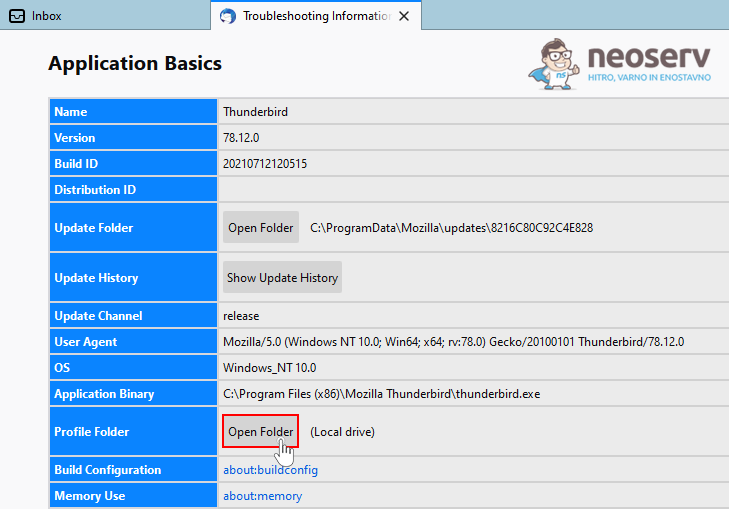
2. A new tab will open, find the Profile Folder bar and click on the Open Folder button.
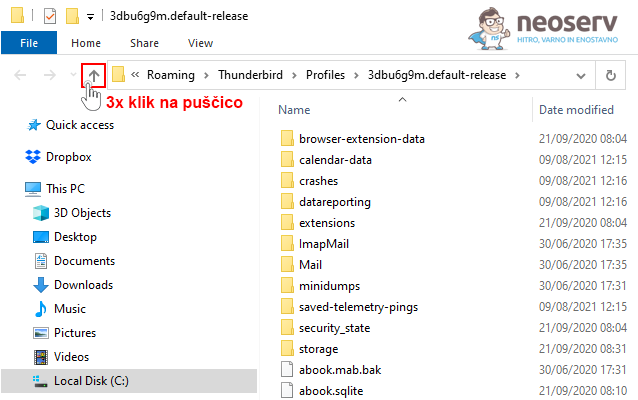
3. You will now be taken to the Explorer, where you can scroll up three levels (you will most likely end up in the Roaming folder).
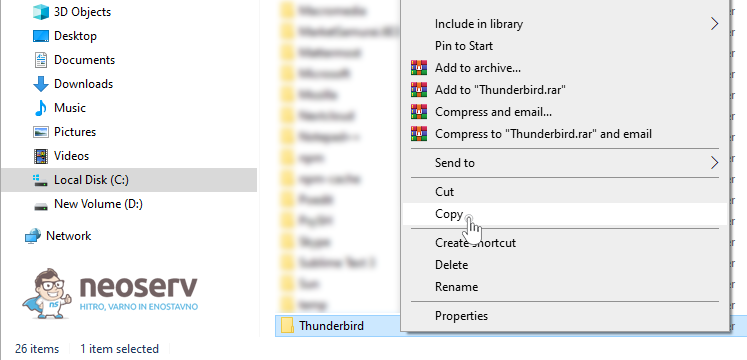
4. Right-click on the Thunderbird folder and select Copy to copy the folder.
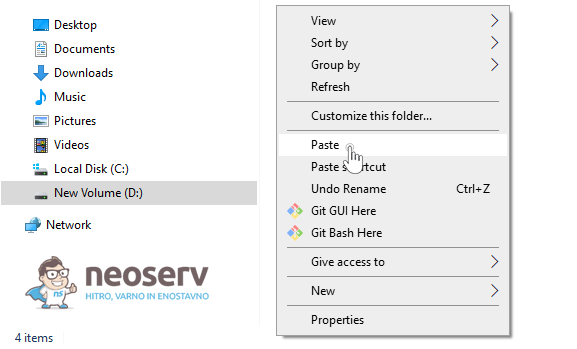
5. Navigate to the folder where you want to add the previously copied folder (e.g. on a USB stick). Right-click on it and select Paste to paste the folder.
6. If you have copied the folder to a memory stick or other external device, you can now safely remove it.
On the computer where you want to move the email:
1. connect the USB or other external device to which you copied the Thunderbird folder to the computer where you want to move your email account.
2. Right-click on the folder and select Copy to copy it.
3. Open Thunderbird. If the account setup window appears, close it.
4. Click on the menu icon (three parallel lines) in the top right corner. Select Help and then Troubleshooting Information.
5. In the newly opened tab, locate the Profile Folder row and click on the Open Folder button.
6. Close the Thunderbird email client.
7. In the Explorer you just opened, scroll up three levels, then right-click in the empty box inside the folder and select Paste to paste the Thunderbird folder.
8. When the Explorer asks if you want to replace or overwrite certain files and folders, give it a go.
You can now start Thunderbird again and check that the email account has been successfully transferred.
Export and import emails to/from Mac Mail
To export an email inbox (in MBOX format) from the Mac Mail email client, follow the procedure:
1. Open the Mac Mail application.
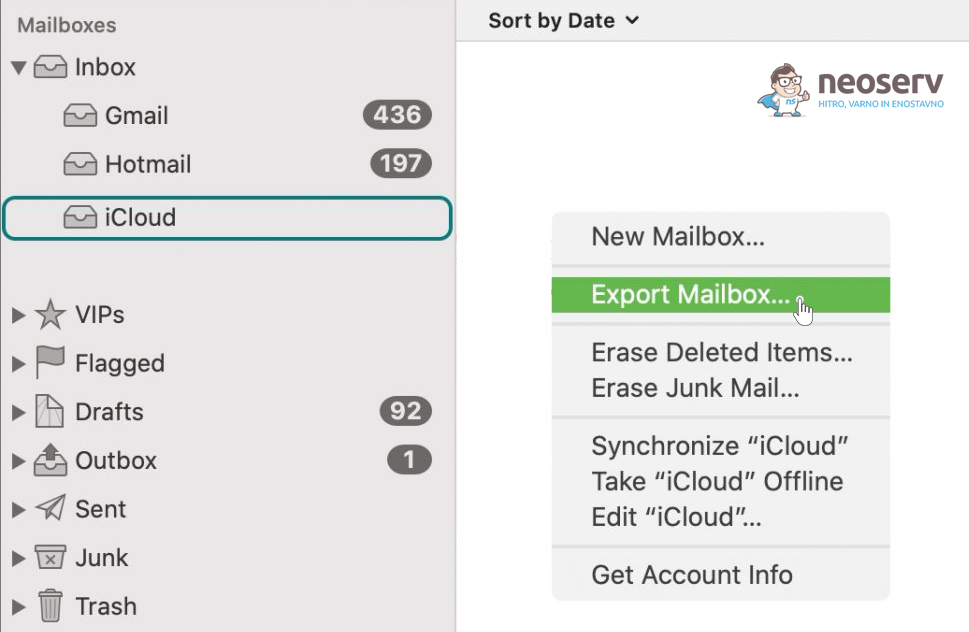
2. Select an email mailbox (or multiple mailboxes), then right-click on it and select Export Mailbox…
3. Select the folder where you want to save the MBOX file and click on the Choose button.
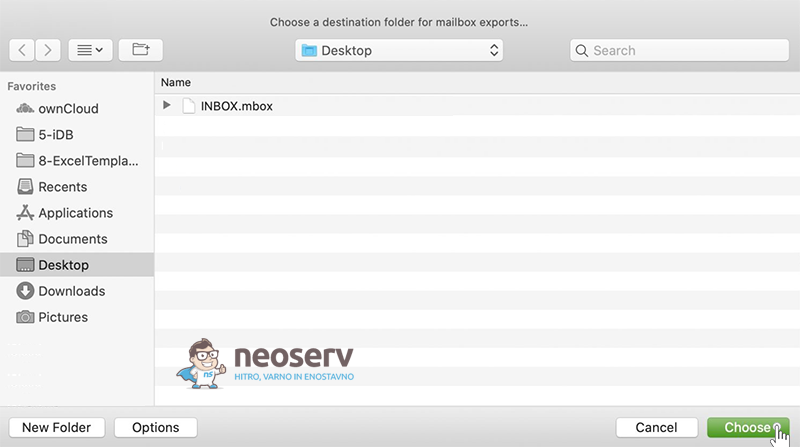
This will save the MBOX file containing your email inbox to your computer.
To import the MBOX file into Mac Mail, follow these steps:
1. Open the Mac Mail app.
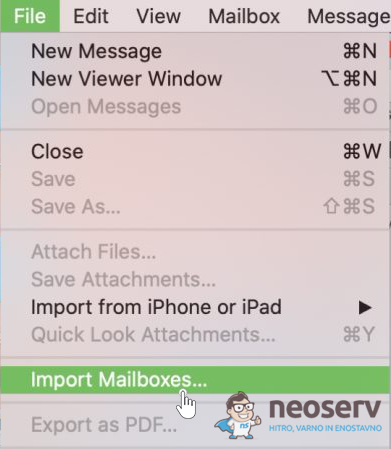
2. From the top menu, select File, then Import Mailboxes…
3. Select Apple Mail or Files in mbox format and confirm by clicking Continue.
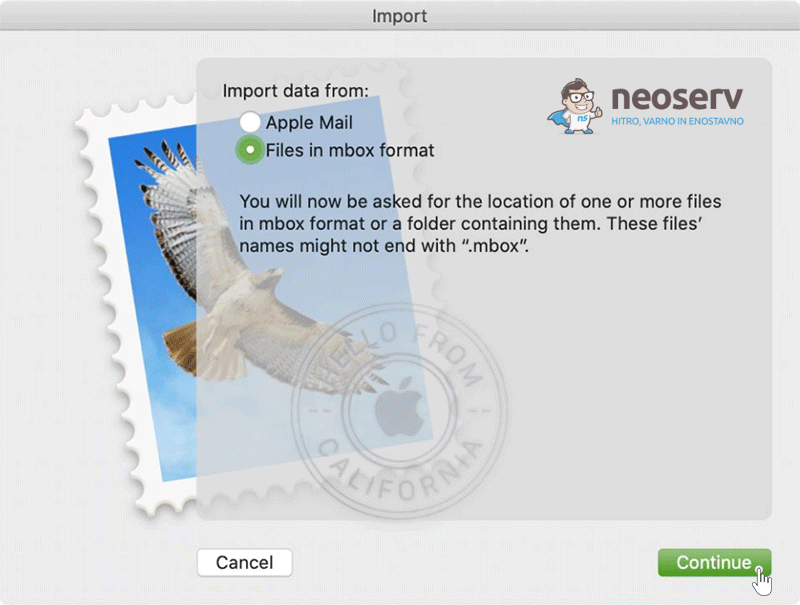
4. Specify the MBOX file and click on Choose.
Regardless of which email import option you choose, you will see a notification that the import has been successful once the data has been uploaded. You will then find a new email inbox named Import in the On My Mac section (bottom left).
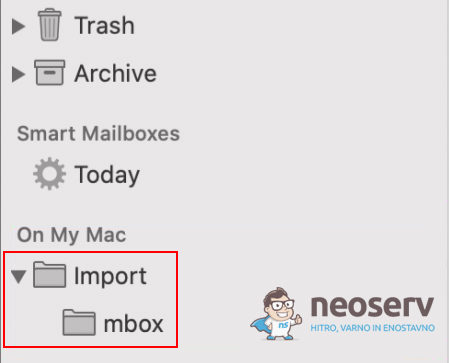
You can now move folders and messages from the Import folder to an existing or new email inbox. To do this, simply drag them from one folder to another with your mouse. When you’re done, you can delete the Import folder.
COMMENT THE POST
Your comment has been successfully submitted
The comment will be visible on the page when our moderators approve it.