


- Your cart is currently empty.
How to Configure Email Signature in Webmail (Roundcube)


Repeatedly writing a signature in emails can be quite time-consuming, especially if it is a longer and more complicated signature. If you want your signature to be nicely formatted, perhaps with a picture added, manually typing your signature is not an option. In this case, you will need to prepare a signature that is automatically added to each email you send.
See below how to add a signature to a webmail client:
Adding a signature in Roundcube
After signing in to the Roundcube web email client, follow the procedure below:
1. Click on Personal Settings in the left menu.
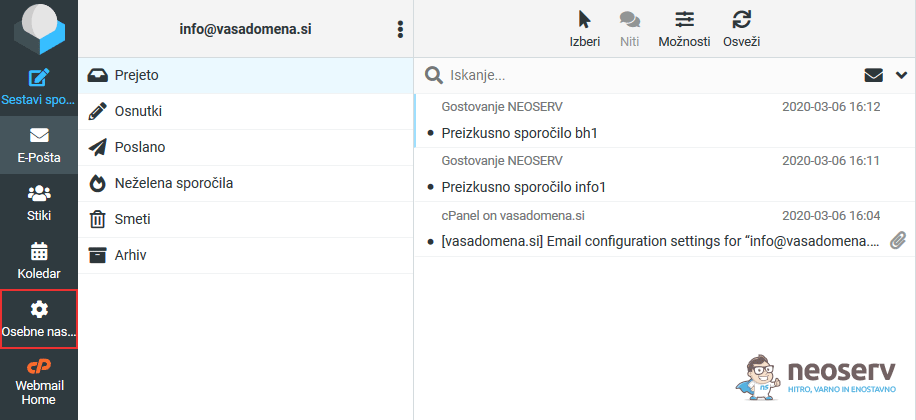
2. In the first column on the left, select Identities and in the second column, select the email address you want to add a signature to.
3. In the Signature section, add the desired signature. For more advanced signature formatting, click on the image icon to enable the HTML rich text option.
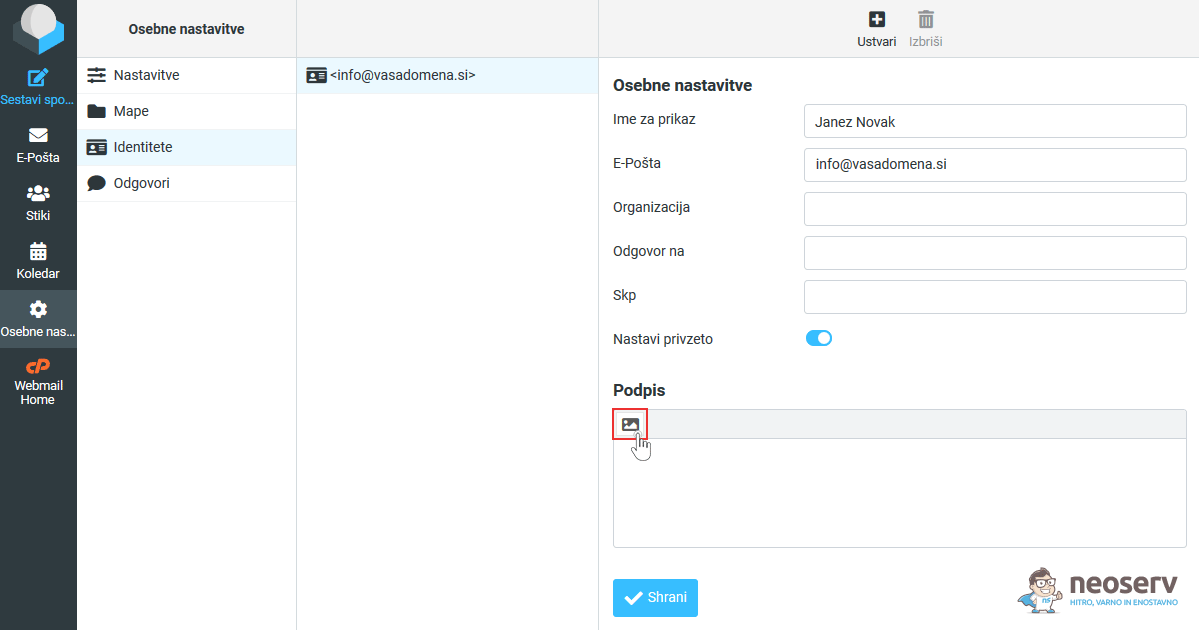
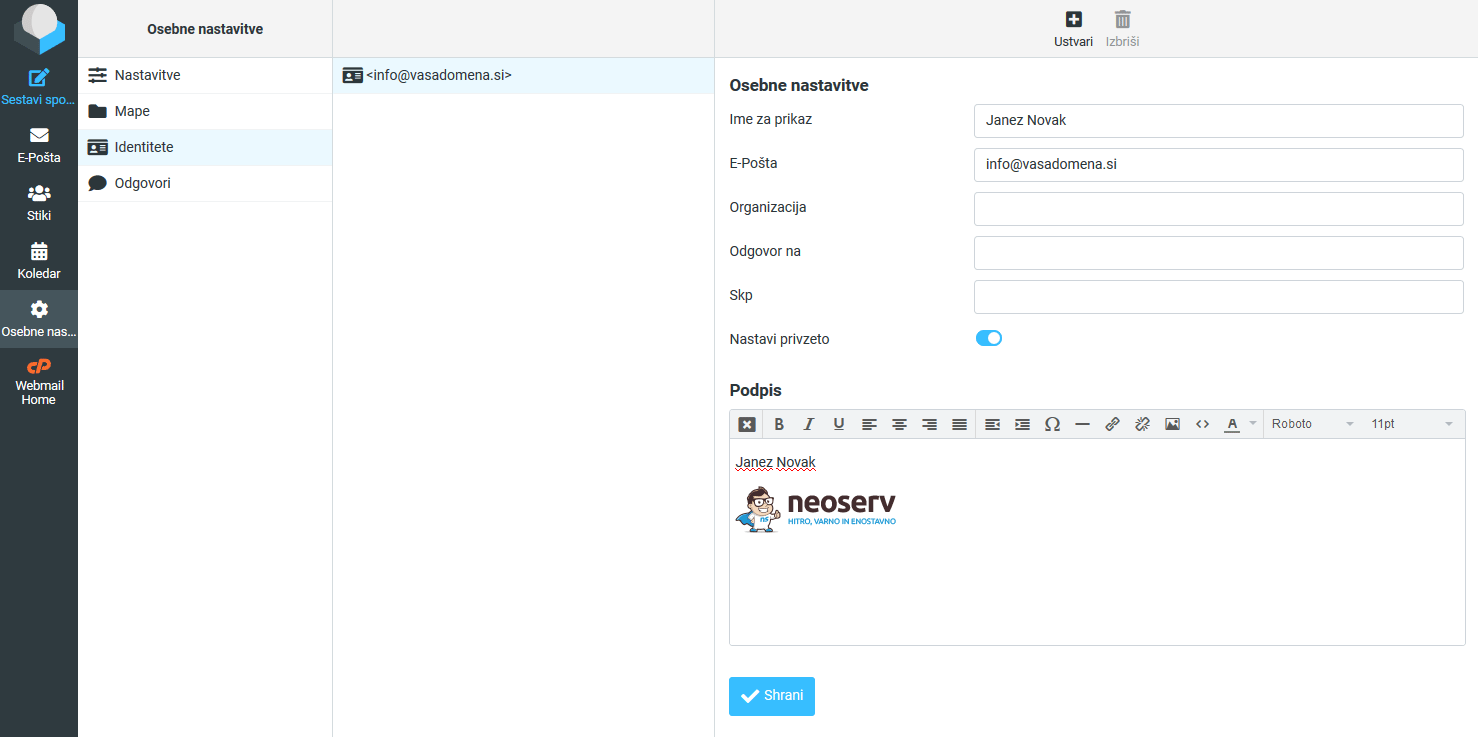
4. This will enable basic text editor functions, which means you can add any image, zoom in and out, add colours, links, etc. to your signature. When you are happy with your signature, click the Save button to save your changes.
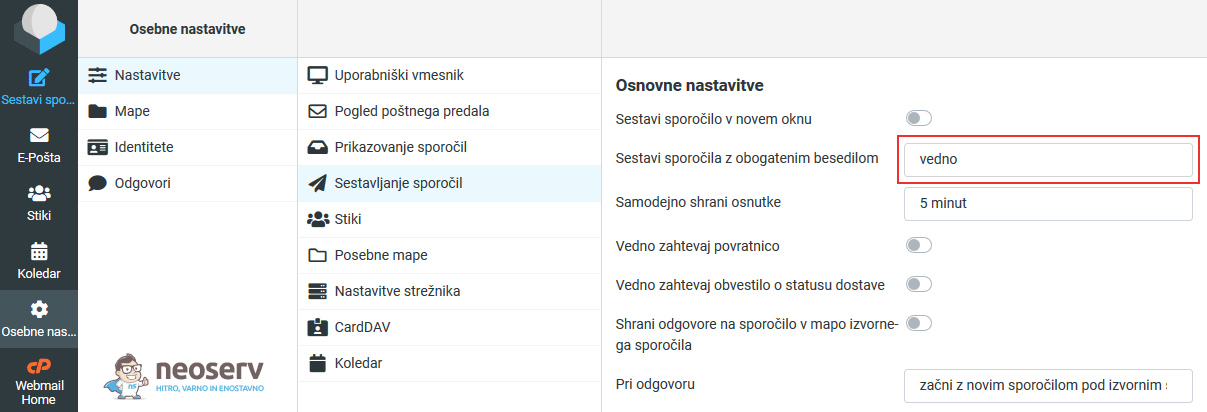
5. Then click on Settings in the left-hand menu and select Composing Messages. Then set the Compose HTML message setting to“ always“.
6. Save your changes again by clicking the Save button.
Adding a signature to Horde
After signing in to the Horde web-based email client, follow the procedure below:
1. In the top bar of the user interface, hover over the settings icon (the cog wheel) and select Preferences -> Mail.
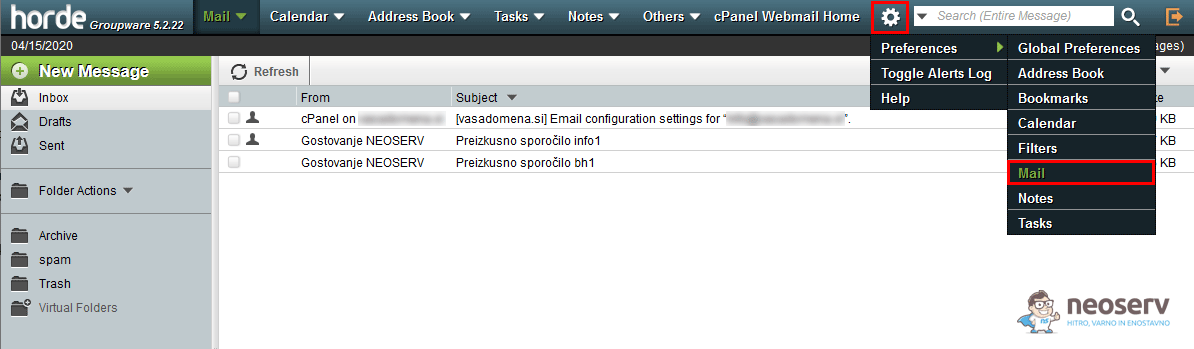
2. In the first column(General), click on the Personal Information link.
3. At the bottom you will see a window where you can enter your signature. You can also add images (e.g. company logo) and format the text as you see fit.
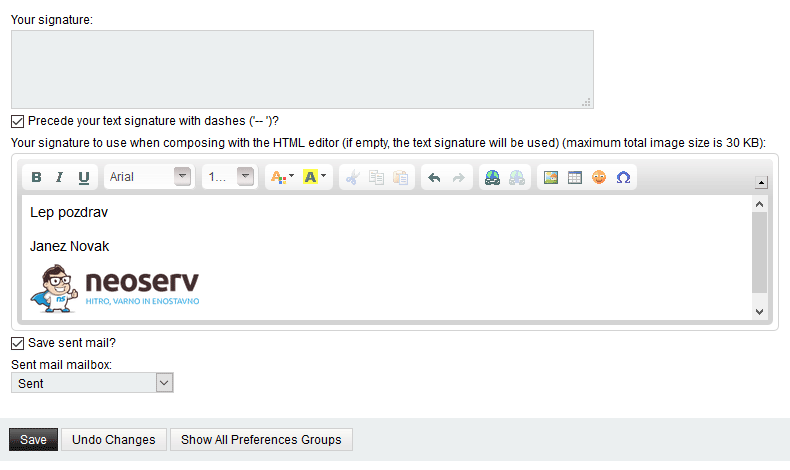
NOTE: If you just want to insert a simple text signature, you can use the top box and leave the bottom one blank.
4. Once you have edited the signature, save your changes by clicking the Save button.
5. Hover over the settings icon and select Preferences -> Mail again.
6. In the second column (Compose), click on the Composition link.
7. Tick the “Show the signature on the compose screen?” checkbox to make your signature visible while you compose the email.
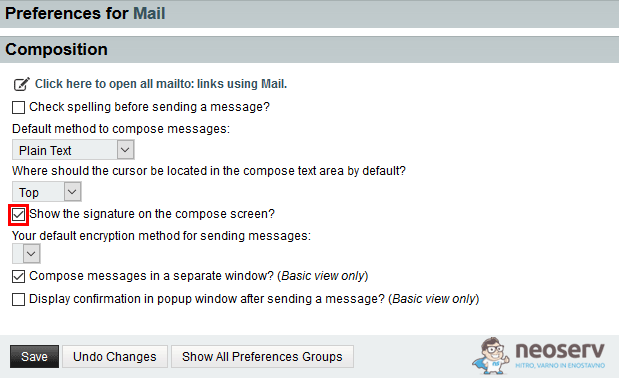
8. Click Save to confirm your changes.
Adding a signature in Afterlogic
After signing in to the Afterlogic web-based email client, follow the procedure below:
1. In the top right corner, click on Settings.
2. In the left menu, select Email accounts and click on the email address you want to add a signature to.
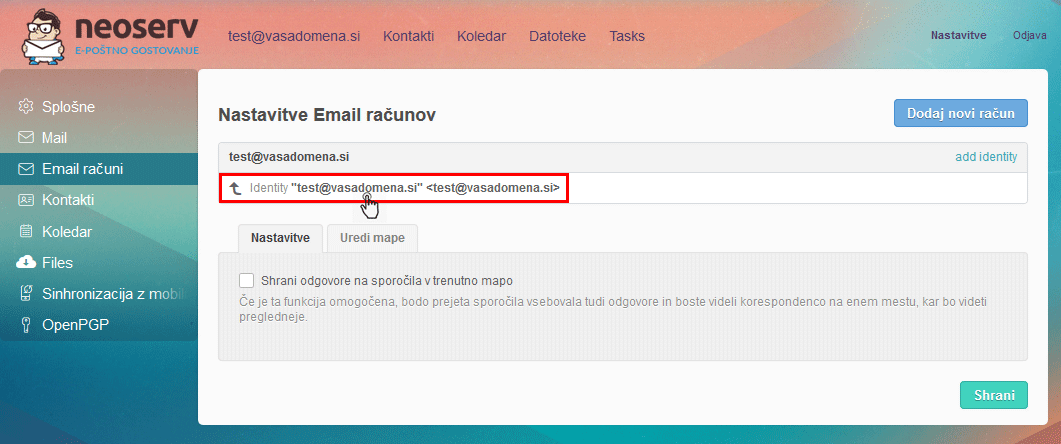
3. Select the Signature tab and then create a signature in the box below. Again, you can format the text, add images, links and so on as you like.
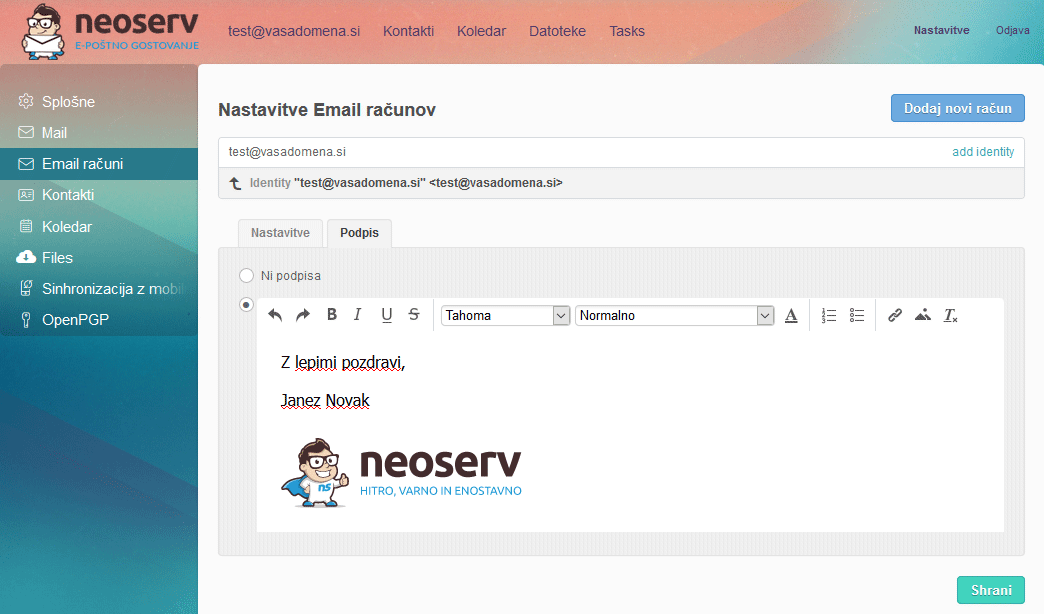
4. Save your changes by clicking the Save button.
COMMENT THE POST
Your comment has been successfully submitted
The comment will be visible on the page when our moderators approve it.