


- Your cart is currently empty.
Large File Transfers: Best Apps to Use

Most email programmes do not allow you to send large attachments via email. Gmail, for example, allows a single message with attachments to be up to 25 MB in size. Another popular programme, Outlook.com, has a limit of only 10 MB per message sent with attachments. Fortunately, both programmes offer solutions for sending larger attachments. Google via Google Drive and Outlook via OneDrive. In addition to these two, we know of many other programmes, the most popular of which we will examine in more detail in this post.
Using programs to send large files
In theory, there is no limit to how big a file you can send. It is possible to send files over the web that are larger than a few GB and still reach the recipient without any problems. In practice, however, especially when sending emails and attachments, there is a size limit.
There are two ways to send larger files:
- Save them on the web and use a download link,
- use a dedicated application.
File sharing apps
The first is Google Drive and OneDrive, already mentioned, and here we’d also like to mention the hugely popular Dropbox. All three apps work in a similar way:
- Upload files to your user account.
- Specify who can access and edit them.
- You send a link to the files to the desired recipient.
Google Drive
Google Drive gives you 15 GB of free storage space for all kinds of files. If you already use Gmail, just log in to your user profile and select Drive from the Google apps in the top right corner.
When you want to share a file with a specific person, simply follow these steps:
- Right-click on the desired file and select Share with others.
- In the new window that opens, enter the email addresses of the people you want to share the link to the selected file with.
- Click on the Send button.
OneDrive
OneDrive is a Microsoft app that gives you 5GB of storage space for free. You can use it on your computer or mobile devices, and you can access your files even when you’re not online.
As with Google Drive, sharing your files on OneDrive is a three-step process:
- Right-click on the file you want to share and select Share.
- In the newly opened window, select whether the recipient can also edit the file and until when the link is active.
Click on the Email icon and enter the recipient’s email address and, if desired, a message. - Click on the Share button.
Dropbox
Dropbox is a standalone application that, unlike Google Drive and OneDrive, is not connected to an email sending programme. The free package gives you 2 GB of storage space for your files. Dropbox is also available as an app that you install on your computer or smartphone. This way you can synchronise your files on your computer, mobile devices and the web.
Sharing files via Dropbox follows these steps:
- Highlight the files you want to share.
- Click the Share button in the right-hand column.
- In the newly opened window, enter the name of the recipient.
- Click the Share button.
To make it easier to see, we have also prepared a comparison table of the three apps and their free and paid versions.
| Google Drive | OneDrive | Dropbox | |
|---|---|---|---|
| Free version | 15 GB | 5 GB | 2 GB |
| Paid versions | 100 GB 1,99 € / month |
50 GB 2 € / month |
1 TB 9,99 € / month |
| 1 TB 9,99 € / month |
1 TB* 7 € / month |
||
| * Office 365 included | 10 TB 99,99 € / month |
5 TB* 10 € / month |
File transfer applications
Dedicated apps work in a similar way. The difference is that you can send a user all or several files, not just links to files located in your user account.
We will take a closer look at some of the most popular applications of this kind, namely WeTransfer, DropSend and MyAirBridge. All three offer their services for free or via a paid version. The disadvantage of the free versions is that the size of the files sent and their storage is limited. The paid versions offer the possibility of transferring larger files, more storage space and additional features such as sending to several email addresses at the same time, protection of the files sent, etc.
WeTransfer
WeTransfer is a free platform that allows you to send files up to 2 GB in size. It supports all types of files – from images, videos and music to documents, presentations, etc. No registration is required to use the application and the sent files are available for 14 days via a link provided to the recipient.
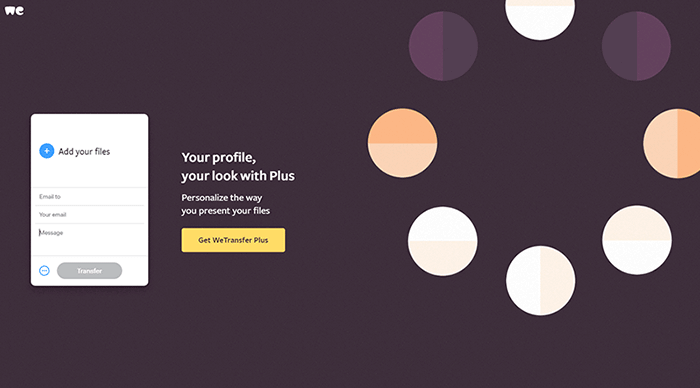
The paid version allows you to send files up to 20 GB in size, store up to 100 GB, password protect, have a unique WeTransfer URL and turn off the display of ads. The availability of sent files is extended from 14 days to one month in the paid version.
DropSend
DropSend is an app that lets you send large files in three easy steps. The free version allows you to send files up to 4 GB in size. You can use the app up to five times a month.
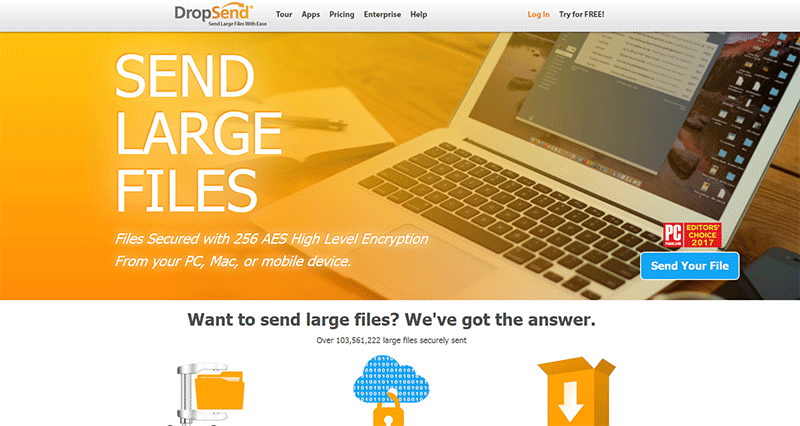
Paid packages are also available, some of which allow you to protect the files you send with high 256-bit encryption. DropSend can be used on your computer and mobile devices.
MyAirBridge
If you want to send files up to 20 GB for free, then we recommend using the MyAirBrige app. It allows you to send messages with attached files or messages with links to files. To send even larger files, there are also paid packages available that offer sending up to 100 GB.
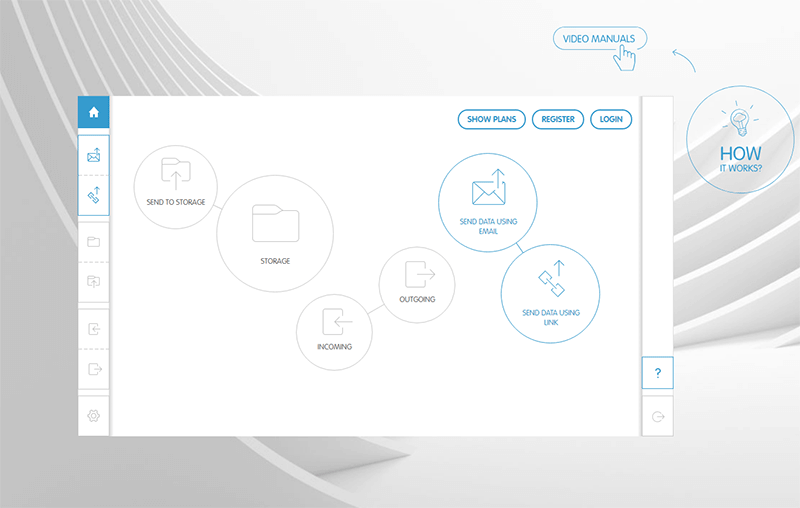
To help you choose, we’ve put together a detailed table where you can compare the free and paid versions of the file transfer apps we’ve tested.
| WeTransfer | DropSend | MyAirBridge | |
|---|---|---|---|
| Free version | 2 GB* | 4 GB* 5x monthly |
20 GB* |
| Paid versions | 20 GB* 100 GB storage 12 € / month |
8 GB* 15x per month 1 GB storage 5 $ / month |
50 GB* 100 GB storage 1,99 € / month |
| 8 GB* 45x per month 10 GB storage 9 $ / month |
70 GB* 1 TB storage 9,99 € / month |
||
| * size of each transfer | 8 GB* Unlimited use 25 GB storage 19 $ / month |
100 GB* 5 TB storage 59,99 € / month |
As we have learned in this post, email programmes are not designed to send large files. For this type of task, we recommend using a file sharing app or a file transfer app. Of the apps we’ve tested, the most user-friendly is Google Drive, which, even in its free version, offers plenty of storage space for your files and makes sharing them with other people very easy.
COMMENT THE POST
Your comment has been successfully submitted
The comment will be visible on the page when our moderators approve it.