


- Your cart is currently empty.
Managing Email Accounts in cPanel Made Easy

One of the most user-friendly control panels in the world is undoubtedly cPanel. In addition to the ease of adding new domains to a hosting package, editing files and databases, quickly installing websites, viewing statistics, easily using backups and many other tools, cPanel is also designed for creating email inboxes.
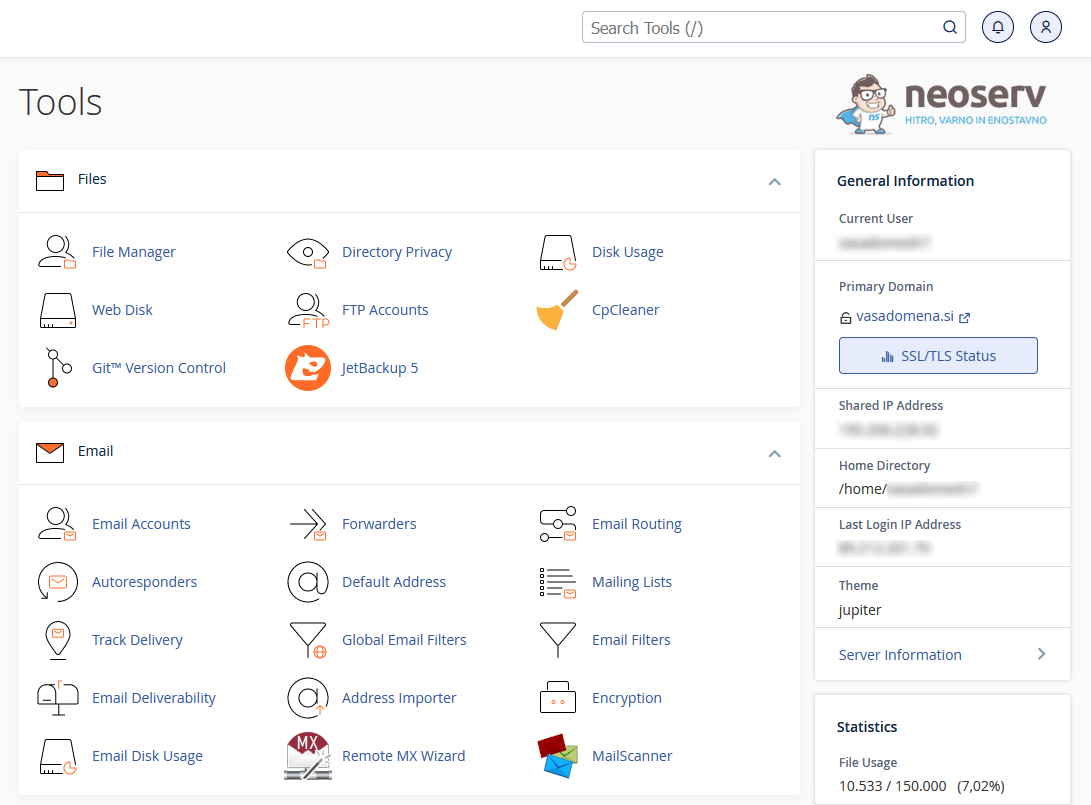
The cPanel Control Panel is offered by all major web hosting providers due to its outstanding functionality and ease of use. So do we. Every one of our shared hosting customers gets access to cPanel, which looks like this.
So today we’ll cover everything you need to know about cPanel and email inboxes. If you don’t feel at home in the IT world, don’t worry. Creating an email account is so easy that your new mailbox will be created in just a few minutes. Once you’ve read the full article, you’ll be able to redirect messages to another mailbox and set up an autoresponder.
Table of contents
- How do I create an email inbox?
- How do I access my email inbox in my browser?
- How do I set up redirection of messages to another email inbox?
- How do I activate an autoresponder?
- Would you like to know more about cPanel?
How to create an email inbox?
The cPanel Control Panel will help you create an email inbox in just four steps.
1. On the landing page, look for the “Email Accounts” icon and click on it.
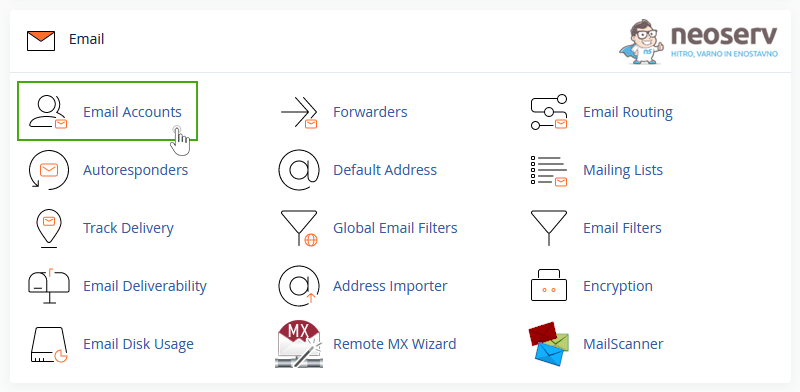
After clicking on the icon, you will be redirected to a page where you can create a new email account.
2. Name your email account and enter your password twice.
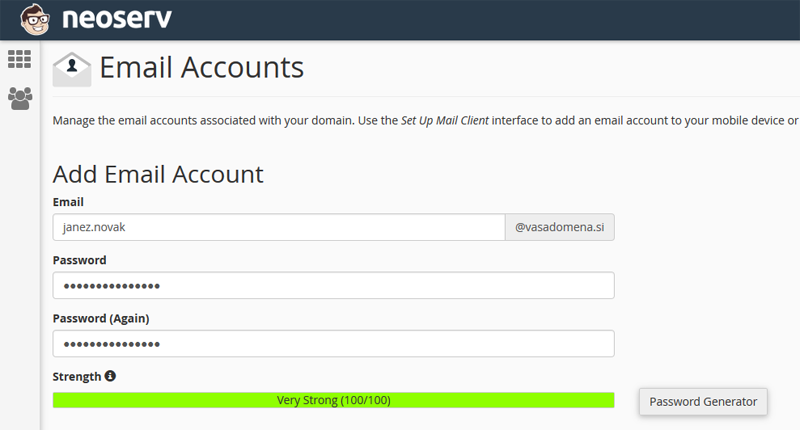
Use a strong password with letters, numbers and special characters that will turn the bottom indicator green. You can also use a password generator – click on the “Password Generator” button to the right of the indicator.
3. Specify the size of your email inbox.
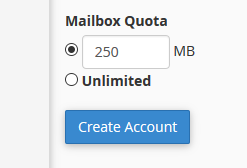
You can start with the default of 250 MB, but if you find yourself short of space later, you can easily increase the size.
4. All you have to do is click on the blue “Create Account” button.
Forgot the password to access your email account?
No worries. Although you won’t be able to access your old password, you can always set a new one. Click on the “Password” next to your email account and create a new password.
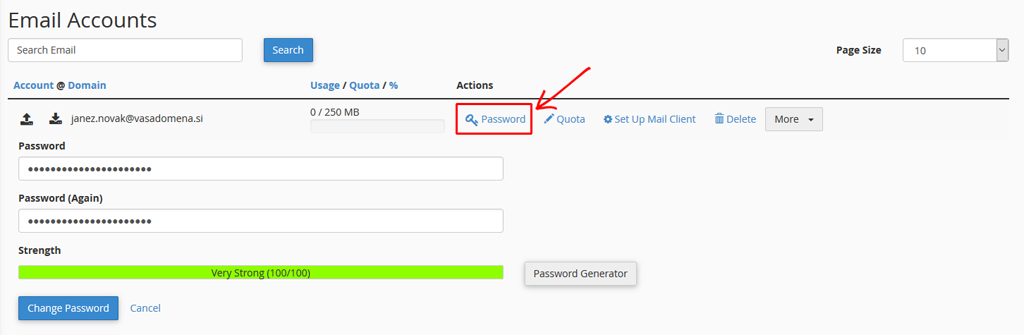
How do I access my email inbox in the browser?
Do you normally use an external client such as Mozilla Thunderbird or Microsoft Outlook to access your email? Both are great, but how will you access your email inbox when you don’t have your computer with you?
One option is to use Webmail, which you can access directly in your web browser. This means you can access your emails from any computer connected to the World Wide Web.
There are two ways to access Webmail:
1. log in to the cPanel control panel, click on the “Email Accounts” icon, then click on the “More” button next to the email account and select “Access Webmail“.
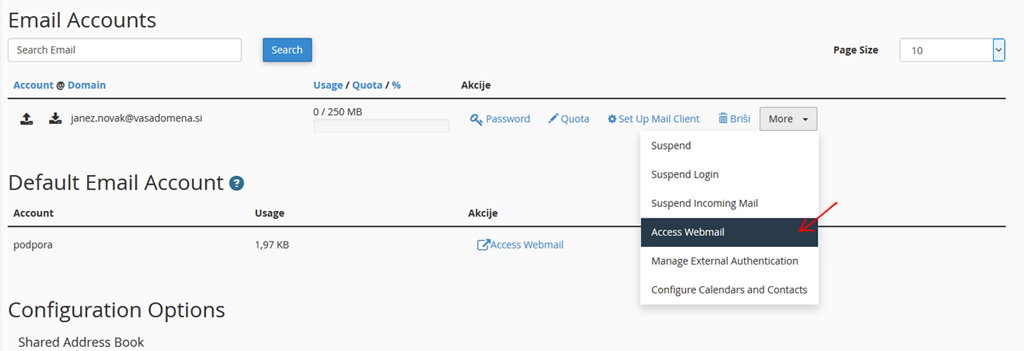
A new window will open where you can select the Roundcube app to view your email inbox.
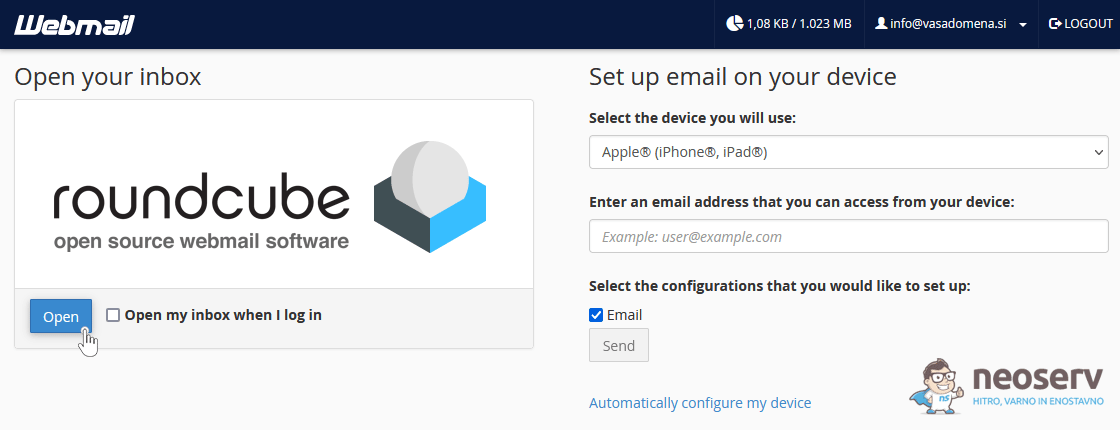
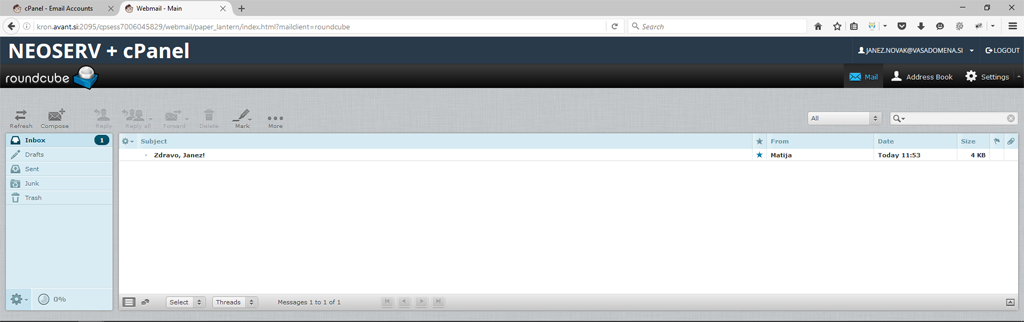
2. If you have a web hosting account with us, you can also access the Webmail webmail client by entering your domain in your browser and adding the /webmail entry.
Example: www.vasadomena.si/webmail
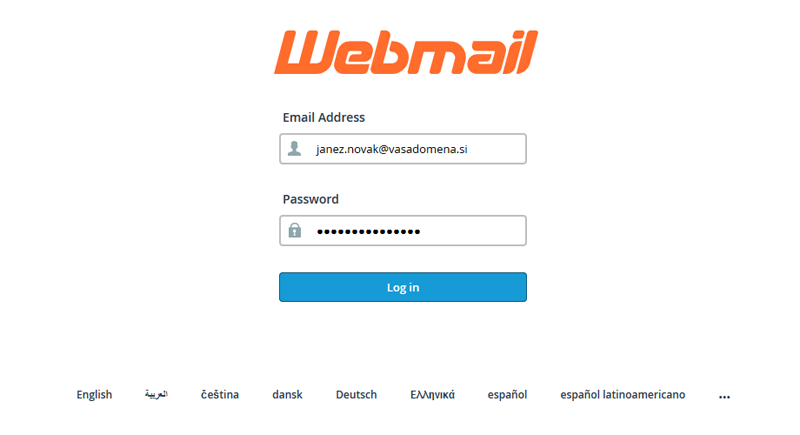
As you can see, you will be presented with a login page where you will be asked to enter your email address and password.
How do I set up message forwarding?
Would you like to redirect all the messages you receive in your email inbox to another email address? For example to Gmail?
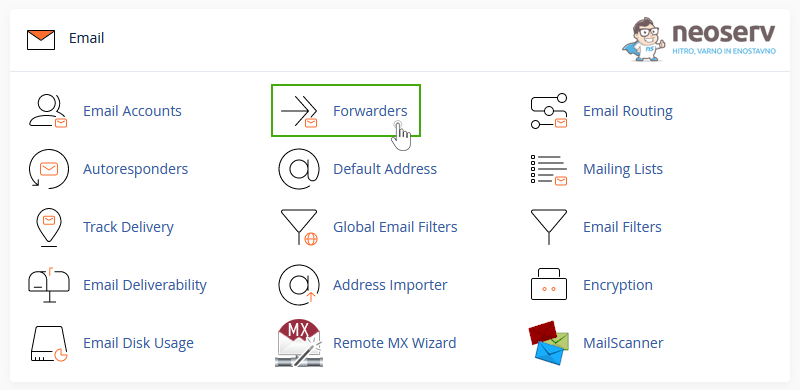
The process is completely simple. Find the “Forwarders” icon on the cPanel landing page and click on it.
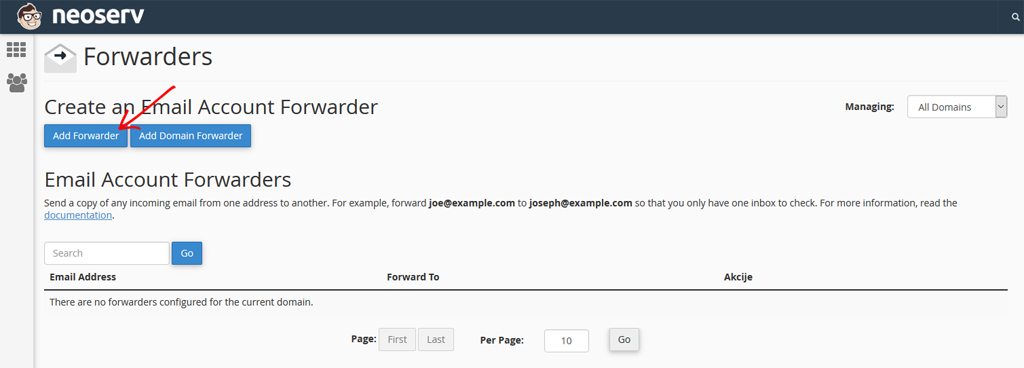
A new window will open. You will see a blue “Add Forwarder” button on the top left. Click on it.
Enter your email address in the first box (the part before the @), and if you have more than one domain on your hosting package, select the appropriate domain in the second box.
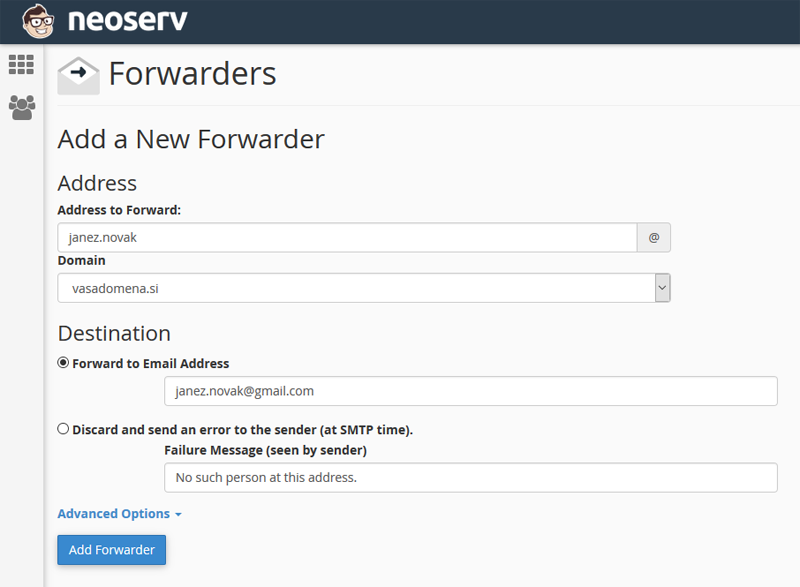
As you can see in the picture above, all you have to do is enter the email address you want to forward the messages to in the “Forward to Email Address” box and click on the “Add Forwarder” button below.
If you would like to forward mail to multiple email addresses, simply repeat the above process and add new target email addresses.
How do I activate the autoresponder?
Autoresponder is a cPanel functionality that allows you to automatically send a pre-prepared reply to emails you receive.
This is extremely useful when you are away from your computer for a longer period of time, for example when you go on holiday. So where can I set up an autoresponder?
Click on the “Autoresponders” icon on the main page of cPanel.
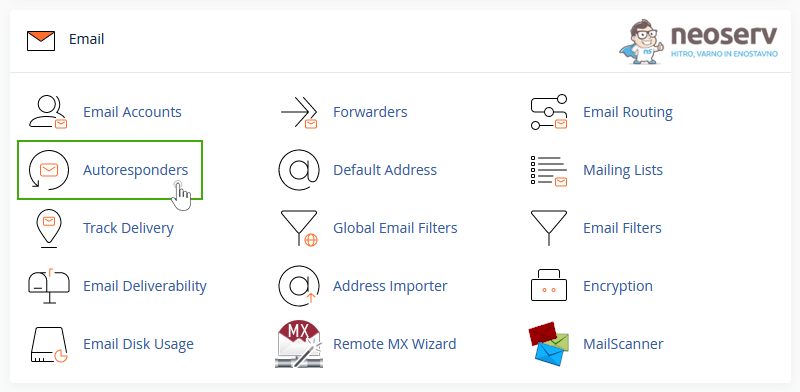
In the new window, click on the blue “Add Autoresponder” button.

So, now it’s time to set up your autoresponder.
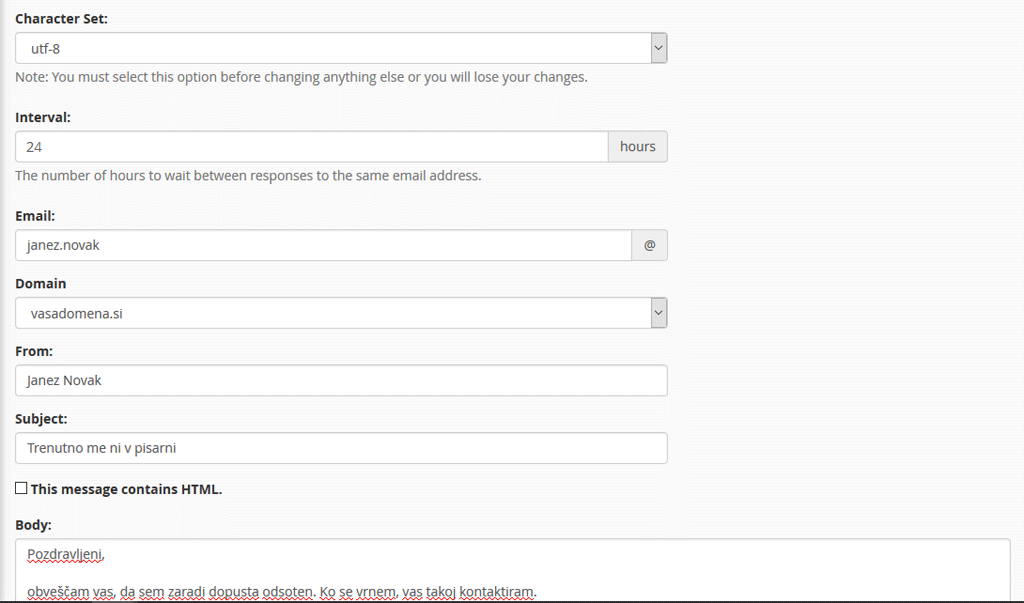
In the table below you can see a brief overview of the settings available to you.
| Setting | Setting description |
|---|---|
| Character Set | The standard character set is “utf-8”. |
| Interval | Here you set the hours of pause between sending messages to the same recipient. Use as large a time interval as possible so that the sender is not bombarded with messages too often. We advise you to set the interval to at least 24 hours. |
| Enter the email address for which you want to create an autoresponder. | |
| Domain | If you have multiple domains, select the one to which your email inbox is linked. |
| From | The text that will be displayed to the recipient from whom they received the autoresponder. |
| Subject | Enter the subject of the email (example: I am currently out of the office). |
| HTML | Tick the box if you will include HTML elements in the email. |
| Body | Main box in which to enter any message. |
| Start | Choose whether you want to activate the autoresponder immediately or on a specific date. |
| Stop | Select whether you do not want to switch off the answering machine or select any date. |
Have you filled in all the required fields? Click on the blue “Create/Modify” button at the bottom of the page and your autoresponder will be created.
Would you like to know more about cPanel?
If you’ve made it through today’s post, you’ll probably agree that cPanel is really quite easy to use.
There are lots of cPanel tutorials in our Support Centre, where you’ll learn about many other features that are just as useful as creating email accounts.
Still can’t find a solution to your problem? Contact us at info@neoserv.si or call us on 059 335 000. We will be happy to help you!
COMMENT THE POST
Your comment has been successfully submitted
The comment will be visible on the page when our moderators approve it.