


- Your cart is currently empty.
Node.js: Background Tasks, Cron and the PM2 Process Manager
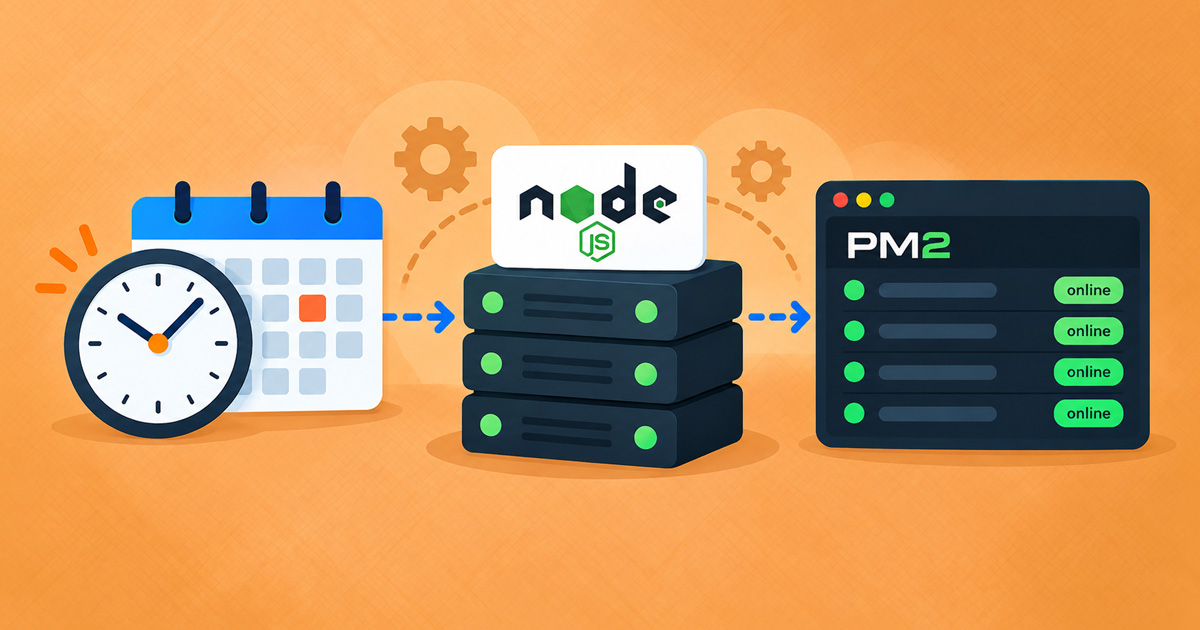

Sending emails, generating reports, importing data, a Discord or Telegram bot that constantly listens for messages: almost every application has tasks that run in the background, independently of website visitors.
In this article, you’ll learn when a standard Node.js application is sufficient, when to use cron and when to use the PM2 process manager. We tested everything on the Green and Turbo hosting plans.
Table of Contents
- Do You Really Need PM2
- Choose the Right Solution
- Cron: Tasks Scheduled at Specific Times
- PM2: A Process That Runs Continuously
- Web Application with PM2 (Advanced)
- What Should You Keep in Mind
- Frequently Asked Questions
Do You Really Need PM2
Often, you don’t. An application created in Setup Node.js App:
- does not stop when inactive but continues running,
- automatically restarts on the next visit if it crashes,
- uses fewer resources than PM2 (PM2 itself consumes around 70 MB of memory and 11 threads).
PM2 does not speed up applications created in Setup Node.js App or keep them active, as they are managed by the web server.
Choose the Right Solution
| What You Need | Solution |
|---|---|
| A website or API | Setup Node.js App |
| A task at a specific time (report, cleanup, import) | cron |
| A task triggered by a visit that takes a few seconds | Within the application, asynchronously |
| A process that runs continuously without visits (bot, queue worker) | PM2 |
Cron: Tasks Scheduled at Specific Times
In cPanel, open Cron Jobs and add a job. Use node from the application’s virtual environment to run it, so the script has access to the application’s installed packages and environment variables:
/home/username/nodevenv/myapi/22/bin/node /home/username/myapi/tasks/report.jsAccording to our Terms of Use, a cron job can run no more than once every 30 minutes.
PM2: A Process That Runs Continuously
PM2 lets you manage Node.js processes that need to run continuously in the background, even when no one is visiting the application. The following steps explain how to install and configure it.
Step 1: Install PM2
Via SSH or the Terminal application in cPanel:
export PATH=/opt/alt/alt-nodejs22/root/usr/bin:$PATH
mkdir -p ~/pm2 && cd ~/pm2
npm install pm2
The pm2 command is not added to the system commands, so you’ll need to call it using its full path, ~/pm2/node_modules/.bin/pm2, in the following steps.
Step 2: Start the Process
export PATH=/opt/alt/alt-nodejs22/root/usr/bin:$PATH
export PM2_HOME=~/pm2/.pm2
~/pm2/node_modules/.bin/pm2 start ~/mybot/bot.js --name mybot --cwd ~/mybot
~/pm2/node_modules/.bin/pm2 save
Install the packages for ~/mybot using the same export PATH=... and npm install in the ~/mybot directory.
Useful commands (with the same two export lines as above):
~/pm2/node_modules/.bin/pm2 list          # process list
~/pm2/node_modules/.bin/pm2 logs mybot    # logs
~/pm2/node_modules/.bin/pm2 restart mybot
~/pm2/node_modules/.bin/pm2 delete mybot
Processes started with PM2 continue running even after you close your SSH session.
Step 3: Automatic Startup After a Server Restart
Processes stop during server maintenance. To have PM2 restart them, create the ~/pm2/startup.sh script:
#!/bin/bash
export PATH=/opt/alt/alt-nodejs22/root/usr/bin:$PATH
export PM2_HOME=$HOME/pm2/.pm2
PM2=$HOME/pm2/node_modules/.bin/pm2
# Restore the saved state (pm2 save) if no process is running
$PM2 jlist | grep -q '"status":"online"' || $PM2 resurrect
and add two cron jobs:
@reboot /bin/bash $HOME/pm2/startup.sh >/dev/null 2>&1
*/30 * * * * /bin/bash $HOME/pm2/startup.sh >/dev/null 2>&1
The first job starts the processes when the server starts, while the second checks every 30 minutes whether they are running. Remember to run pm2 save whenever you change the processes. Create the script in the cPanel File Manager or upload it as a file.
Note: checking with the ps ... | grep node command, which you may find online, is not reliable on our hosting because it also detects applications running through Setup Node.js App. Instead, use the script above to check whether the process is running.
Web Application with PM2 (Advanced)
If you run an application with PM2 as a web server (for example, because you need more than 12 concurrent long-running requests), it must listen on 127.0.0.1 and the port assigned to your account:
echo $((20000 + $(id -u)))Use only this port and always the 127.0.0.1 address, never 0.0.0.0:
app.listen(Number(process.env.PORT), '127.0.0.1');PORT=$((20000 + $(id -u))) ~/pm2/node_modules/.bin/pm2 start ~/myapp/server.js --name myapp --cwd ~/myapp
~/pm2/node_modules/.bin/pm2 saveForward requests from the domain to the process using an .htaccess file in the directory where the application will be accessible (for example, public_html/app/ or the subdomain’s document root). Replace the port with your own:
RewriteEngine On
RewriteCond %{HTTP:Upgrade} websocket [NC]
RewriteRule ^(.*)$ ws://127.0.0.1:21073/$1 [P,L]
RewriteRule ^(.*)$ http://127.0.0.1:21073/$1 [P,L]
The first rule is required for WebSocket. If the process is not running, visitors receive a 503 error.
What Should You Keep in Mind
Keep the following recommendations in mind when running background tasks:
- A continuously running process uses memory from your hosting plan at all times (the Green plan provides 1 GB) and counts towards the process and thread limit (100 on the Green plan). For continuously running processes, we recommend Turbo Hosting, which provides more memory and CPU cores.
- A worker should not continuously consume CPU resources in a loop. It should wait between checks (
setTimeout,setInterval) and process tasks as they arrive. - According to our Terms of Use, web hosting is not intended for applications that continuously consume system resources (data processing and collection, analytics). For such applications, we recommend a VPS Server.
Frequently Asked Questions
Discover the answers to some frequently asked questions about using cron and PM2.
Can I use BullMQ or another Redis-backed job queue?
This requires a Redis server, which is not provided with Web Hosting. For smaller applications, a simpler solution is a MySQL-backed job queue and cron. For larger systems, we recommend VPS Hosting.
Does a process started with nohup node ... & stop when I close SSH?
No, the process keeps running. However, nothing restarts it if it crashes or the server restarts, which is why we recommend PM2.
How can I tell whether cron is working?
Redirect the output to a file (>> ~/cron.log 2>&1) or enter an email address in cPanel → Cron Jobs to receive the output from each execution.
If you need help setting up background tasks, we’re here to help.
COMMENT THE POST
Your comment has been successfully submitted
The comment will be visible on the page when our moderators approve it.