


- Your cart is currently empty.
Python App and MySQL (MariaDB): SQLAlchemy, SQLite and Remote Access
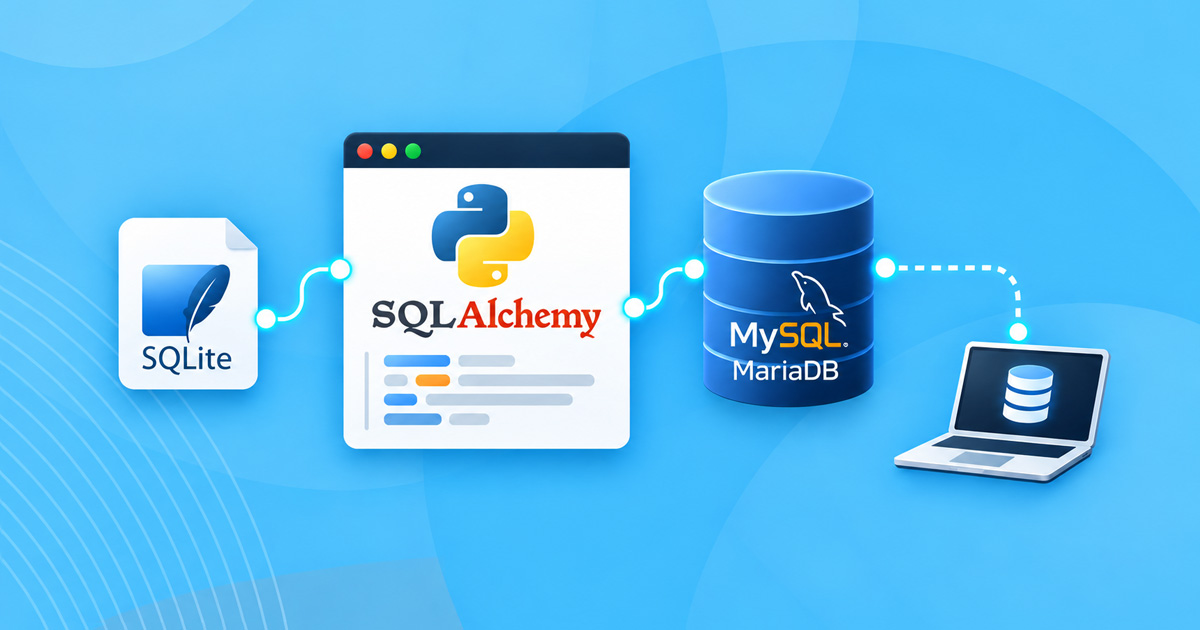

Almost every web application stores data in a database. Applications built with an AI assistant often use SQLite by default, but when deploying them, you may wonder whether MySQL would be a better choice. In this article, you’ll learn how to connect a Python application to a database on our hosting and what to watch out for.
Our hosting plans include MariaDB, which is fully compatible with MySQL. You use the same Python packages and commands as you would for MySQL. PostgreSQL is also available on the Green plan and higher.
Table of Contents
- SQLite or MySQL
- Step 1: Create a Database and User
- Step 2: Install PyMySQL
- Step 3: Connect with SQLAlchemy
- Limitations
- Remote Database Access
- PostgreSQL
- Common Errors
SQLite or MySQL
| SQLite | MySQL / MariaDB | |
|---|---|---|
| Setup | None; the database is a single file | Create a database and user in cPanel |
| Best suited for | Smaller applications, prototypes, few concurrent writes | Applications with more users and more data |
| Backups | The database file is included with your files | The database is included in your hosting backups |
| Management | SQLite tools | phpMyAdmin in cPanel |
SQLite works well on our hosting even with multiple concurrent requests. Keep the database file in your application directory (outside public_html) and set a timeout:
import os
from sqlalchemy import create_engine

DB_PATH = os.path.join(os.path.dirname(__file__), "app.sqlite3")
engine = create_engine(f"sqlite:///{DB_PATH}", connect_args={"timeout": 15})
Step 1: Create a Database and User
In cPanel, open MySQL Databases (or Manage My Databases):
- Create a new database, e.g.
username_myapi. - Create a user with a strong password.
- Add the user to the database and grant ALL PRIVILEGES.
Database and user names have a prefix matching your account username.
Step 2: Install PyMySQL
Install PyMySQL in your application’s virtual environment:
pip install pymysqlPyMySQL is written entirely in Python and installs without compilation. If your requirements.txt includes mysqlclient and installation fails (with the error rpm: command not found), replace it with PyMySQL or install it using the following command:
MYSQLCLIENT_CFLAGS="$(mysql_config --cflags)" MYSQLCLIENT_LDFLAGS="$(mysql_config --libs)" pip install mysqlclientStep 3: Connect with SQLAlchemy
Store your database connection details in a .env file in the application directory (not in public_html or in code you publish on GitHub):
DATABASE_URL=mysql+pymysql://username_myapi:password@localhost/username_myapi?charset=utf8mb4Set the file permissions to 600 so that only your user can read it.
In your application (using the python-dotenv package):
import os
from dotenv import load_dotenv
from sqlalchemy import create_engine

load_dotenv(os.path.join(os.path.dirname(__file__), ".env"))

engine = create_engine(
    os.environ["DATABASE_URL"],
    pool_pre_ping=True,   # check the connection before use
    pool_recycle=170,     # recycle connections before they expire
)
The pool_pre_ping and pool_recycle settings are important. The server closes connections that have been idle for 3 minutes. Without these settings, the application may occasionally return the error “MySQL server has gone away” or “Lost connection to MySQL server” after a period of inactivity.
If you use Django, set ENGINE to django.db.backends.mysql in settings.py, and add the following at the beginning of the file:
import pymysql
pymysql.install_as_MySQLdb()
Migrating from SQLite to MySQL
If you developed your application with SQLite and use SQLAlchemy or Django ORM, changing the connection string is usually enough. Create the tables with Base.metadata.create_all(engine) (SQLAlchemy) or python manage.py migrate (Django). Transfer the data by exporting and importing it (e.g. using python manage.py dumpdata and loaddata).
Limitations
When using databases on web hosting, keep the following limitations in mind:
- Each database has a size limit (e.g. 2 GB on the Green, Blue and Red plans, and 10 GB on Turbo Hosting plans). See the Terms of Use for details.
- The number of concurrent database connections is limited (e.g. 50 on the Green plan). By default, SQLAlchemy opens up to 15 connections per process, so if you run multiple processes, configure a smaller connection pool:
create_engine(..., pool_size=3, max_overflow=2).
Remote Database Access
You can also access the database from another server or your own computer, for example when your application’s backend runs elsewhere or when you want to manage the database with a tool such as DBeaver or MySQL Workbench.
- In cPanel, open Remote MySQL.
- Add the public IP address of the server or computer you will connect from.
- Use your hosting server’s hostname (available in cPanel) as the database host, and port
3306.
The connection is encrypted (TLS 1.3). The database server uses a self-signed certificate, so the client must be configured not to verify the certificate. PyMySQL version 1.2 and later automatically encrypts the connection (verified), while older versions do not. Therefore, add pymysql>=1.2 to requirements.txt. Check the installed version with pip show pymysql.
Tips
- Only add IP addresses you actually need, and remove them when they are no longer required.
- For an application running on another server, every database query is slower due to network latency. Whenever possible, run the application on the same hosting plan as the database.
- If you need a verified certificate or custom database settings, we recommend a VPS Server.
PostgreSQL
If your application uses PostgreSQL, create the database and user in cPanel under PostgreSQL Databases (available on the Green plan and higher). Install the driver in your virtual environment; it requires no compilation:
pip install "psycopg[binary]"Connection string in .env:
DATABASE_URL=postgresql+psycopg://username_myapi:password@localhost/username_myapiUse the same settings as for MySQL (pool_pre_ping=True) and a small connection pool (pool_size=2), since the server’s connection limit is shared among all users. Manage the database with phpPgAdmin in cPanel.
Only applications on your hosting plan can access the database; remote access (such as Remote MySQL) is not available.
Newer servers run PostgreSQL 16, while older servers run PostgreSQL 13. You can check the version in phpPgAdmin or with psql --version. Current Django versions (5.2 and later) require PostgreSQL 14 or later, so on a server running PostgreSQL 13, use MariaDB (MySQL) with Django.
We tested Django with PostgreSQL 16 (Django 6.1). In settings.py, set ENGINE to django.db.backends.postgresql and HOST to localhost. We also recommend CONN_MAX_AGE = 60 and CONN_HEALTH_CHECKS = True.
After changing the connection details in .env, restart the application (RESTART in Setup Python App). Until then, existing processes may still use the old connection details.
Common Errors
When connecting a Python application to a database, you may encounter the following errors:
Access denied for user: check the database username and database name (including their prefixes), the password and whether the user has permissions on the database.MySQL server has gone away/Lost connection: the connection has been idle for too long. Usepool_pre_ping=Trueor open a new connection for each request.Too many connections: reducepool_sizeand close connections after use.- Errors when importing the application: do not open a database connection or execute queries when importing
passenger_wsgi.py. Instead, do so only in functions that handle requests. The server loads the application once and then starts multiple processes that would otherwise share the same connection. - Installing
mysqlclientfails (Failed to build 'mysqlclient'): use PyMySQL. Applications that expectmysqlclient(e.g. Django) work with PyMySQL if you addimport pymysqlandpymysql.install_as_MySQLdb()at the beginning. - The application returns a 500 error: details can be found in the
stderr.logfile in the application folder.
If you need help connecting your application to a database, we’re here to help.
COMMENT THE POST
Your comment has been successfully submitted
The comment will be visible on the page when our moderators approve it.