


- Your cart is currently empty.
Is My Web Hosting Password Secure Enough

In the past, when I was even less skilled in “informatics” and all that goes with it, I found some of the slogans downright bizarre. At first I thought it was just some geek competition to see who could come up with the weirdest password. These were passwords with unusual characters, not only lowercase letters, but also random capital letters, and of course not even numbers.
What kind of password is secure?
And that’s what a secure password is! Let’s look at an example:“BLQgK%)K,ww!“. Yes, that’s it. Including the % sign, the comma, even the exclamation mark at the end. If you were to throw that password into a random text that wasn’t talking about a secure password, you’d probably think it was some kind of profanity, too, wouldn’t you?
There are endless similar passwords. Let’s list a few more for you:
- mHu#l-Knx3PP
- RV*&aDPbp/7L
- I~GgJbNI=l/$
- Yes9FQnPjQ:,
- C(&n-9D7qF@*
How do I create a secure password to access the server?
Let’s go through the steps in order and illustrate them with screenshots.
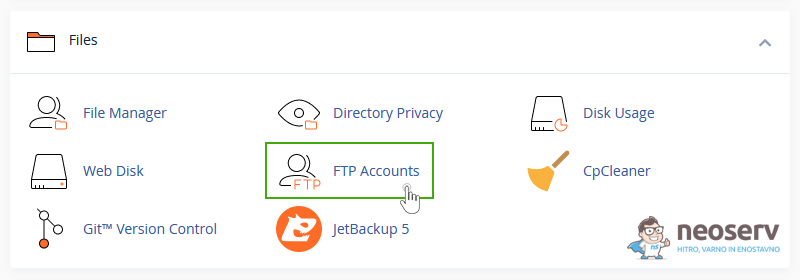
1. After logging in to cPanel, look for the Files tab and click on the FTP Accounts icon.
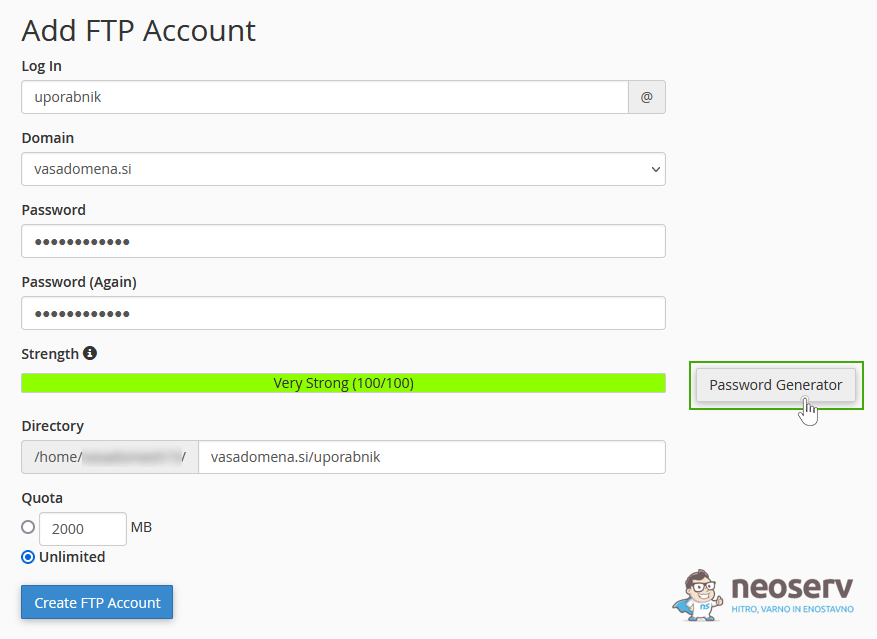
This will open a form to create a new FTP account. In the first box we enter our username, in the second we choose a domain, and in the third the system asks us for a secure password.
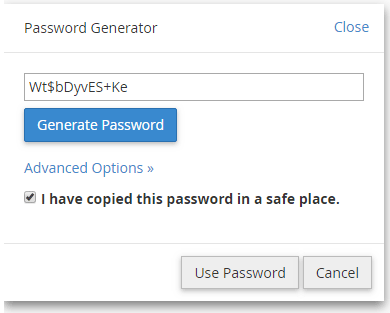
We will help ourselves by clicking on the Password Generator button. A new window will open with the password already provided. Optionally, you can also select Advanced Options:
- Length (password length)
- Uppercase (uppercase)
- Lowercase (lower case)
- Numbers
- Symbols (special characters)
If you want to re-generate a password to your liking, click the Generate Password button.
What settings and password length should I choose?
Of course, it’s virtually impossible to remember the strong and secure password that this little app offers. And that’s the point. We recommend that you write it down and keep it safe. Keep your password as long as possible, say 12 characters is recommended.
But if you want a password that you can still remember (which, of course, is often a requirement in practice), then we strongly recommend that you include at least numbers and capital letters in your password. This will go a long way towards keeping your server secure and protecting you against possible hacker attacks in the form of password theft.
Once you have successfully created a password and have saved it in a safe place, tick the I have copied this password in a safe place. box and click the Use Password button. The window will close and your password will be entered in both password fields.
As you can see, your password is now entered, along with a colour scale to indicate how secure and strong your password really is. In our case, a positive and full green scale (100/100) tells us that the password is extremely strong.
And you should choose a secure web hosting password like this to protect yourself from unwanted intrusions!
To complete a new FTP account, you also enter a quota, which can be very high. Because our hosting packages are so large and affordable, you’ll never have to save on space.
COMMENT THE POST
Your comment has been successfully submitted
The comment will be visible on the page when our moderators approve it.