


- Your cart is currently empty.
Setting a Profile Picture in Email Clients

In the world of email, a profile picture is more than just an aesthetic addition. A proper avatar can improve the visibility of an email message by helping recipients to quickly identify the sender, as well as contributing to a more professional impression. A profile picture also helps to communicate in a more personal way with business partners, customers and colleagues.
Setting up a profile picture is a straightforward process in most popular email clients and does not require any special technical knowledge. Below you will learn how to add or change a profile picture in your email clients step by step:
1. Gmail
Follow the steps below to set up your profile picture in Gmail (Google Mail).
- Sign in to your Gmail email account.
- Click on the profile picture in the top right corner to open a pop-up window.
- Click on your profile picture again in the pop-up window.
- Select Add profile picture or, if you want to change an existing profile picture, click Change.
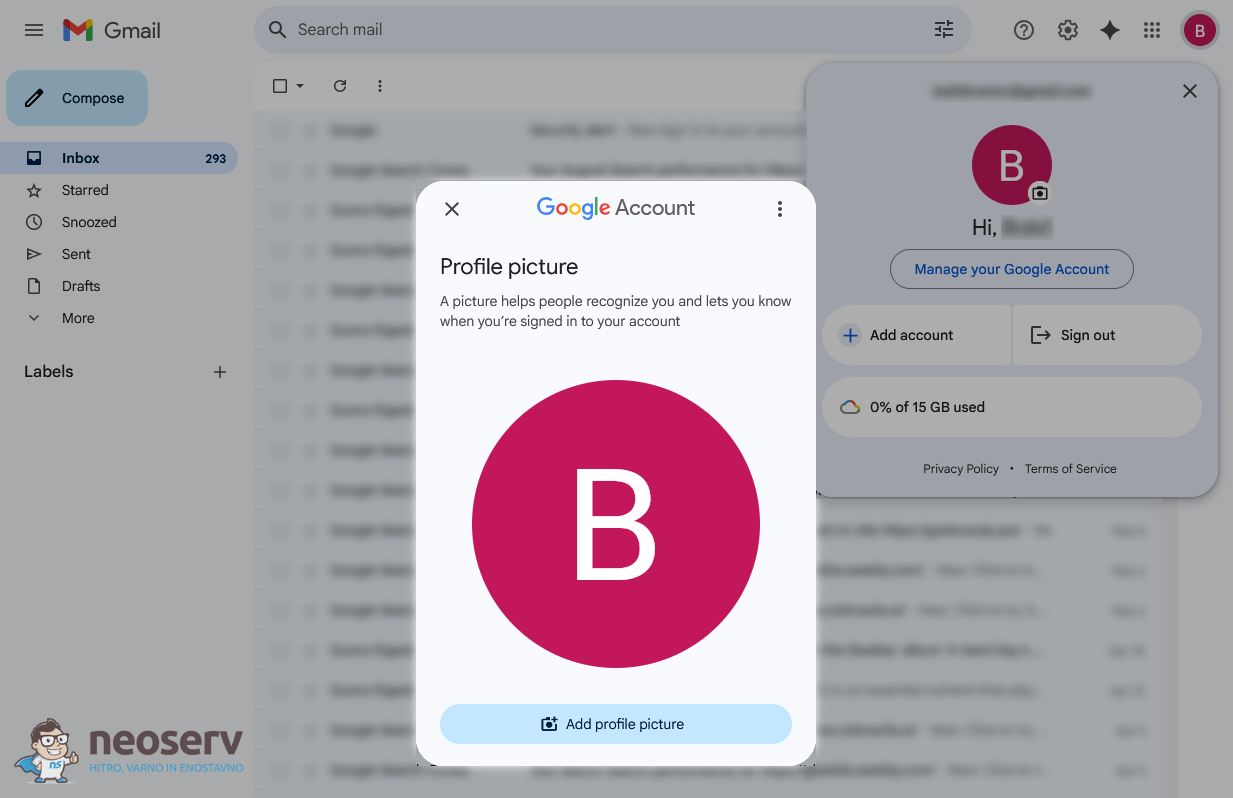
- Scroll to the From computer tab and click on the Upload from computer button.
- Select an image, crop it if necessary, then set it by clicking Save as profile picture.
Important: Make sure you have the visibility of the image set to Visible to anyone.
Outlook.com
Follow the steps below to set up your profile picture in Outlook.com.
- Open Outlook.com and log in to your email account.
- Click on the profile picture or initials in the top right corner and select My Profile.
- In the Your info tab, click on Add photo or, if you want to change an existing photo, click on Change photo.
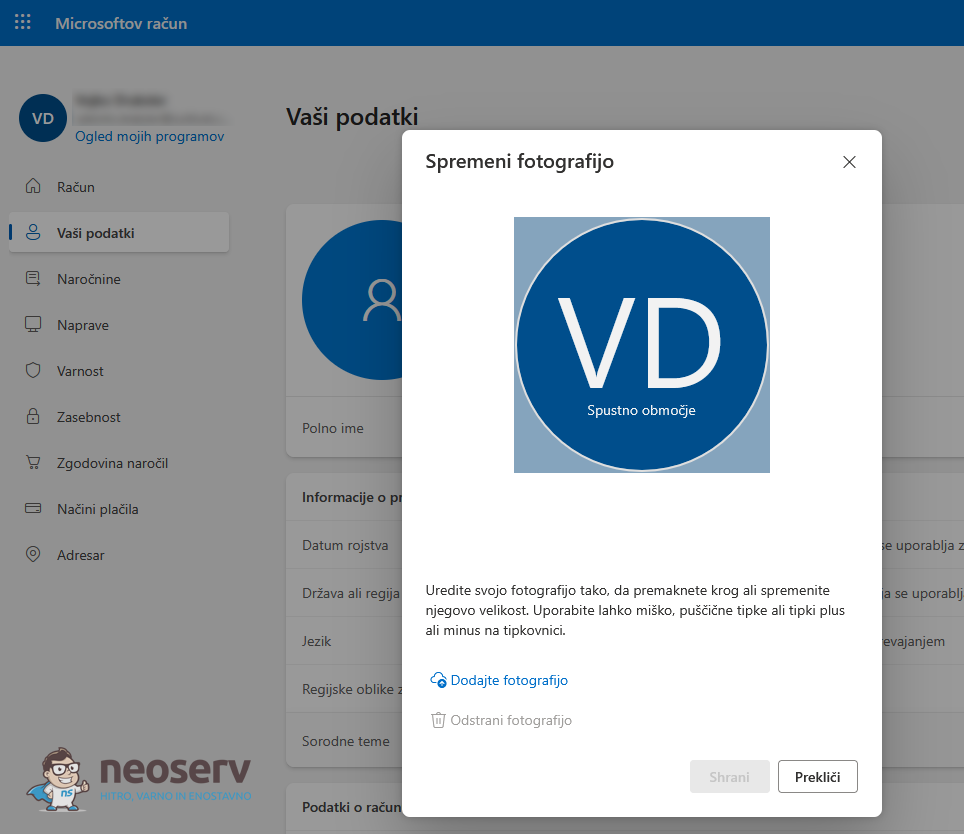
- Click on Choose File, select the desired image on your computer and upload it.
- Crop or adjust the image if necessary, then click Save.
The new profile picture will also appear in Outlook and other Microsoft applications.
3. Yahoo Mail
Follow the steps below to set up your profile picture in Yahoo Mail.
- Open Yahoo Mail and log in to your account.
- Hover over your name and click on Account info.
- In the Personal info tab, click on Upload profile photo or, if you are replacing an existing profile photo, click on Update profile photo.
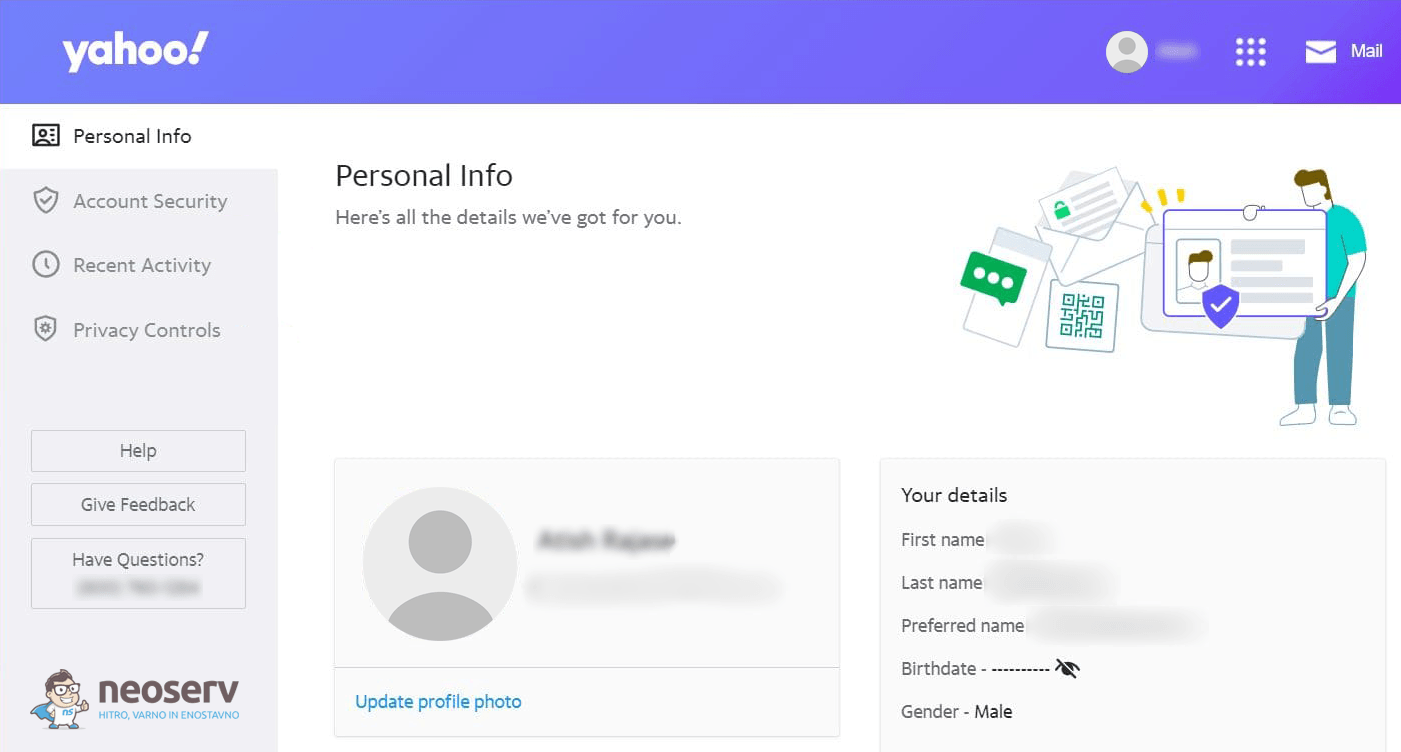
- Click on Upload from device to upload the photo and edit it if necessary.
- Click on the Save changes button.
The profile picture will appear on all Yahoo services to which you are subscribed (e.g. Yahoo Sports and Yahoo Finance) and next to comments you post on Yahoo News articles.
4. Zoho Mail
Follow the steps below to set up your profile picture in Zoho Mail.
- Open Zoho Mail and sign in to your account.
- Click on the avatar in the top right corner.
- Hover over the avatar and click on Change.
- On the Zoho Account Settings page, click on your avatar and upload a profile picture from your computer.
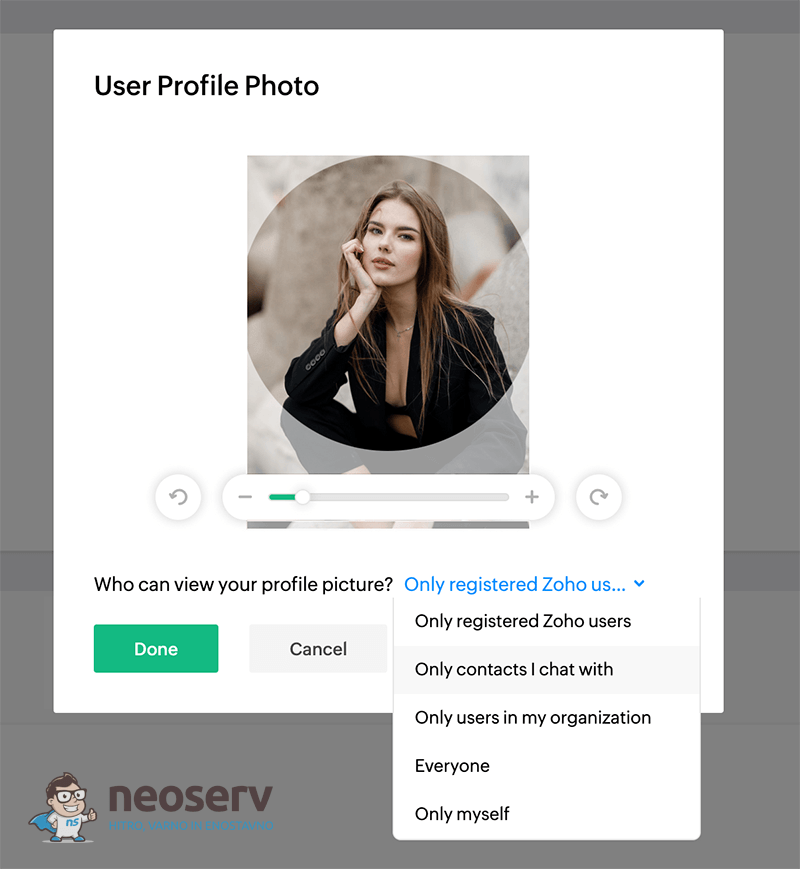
- Set permissions on who can see your profile picture.
- Click Done to set your new avatar.
Make your emails stand out
Adding a profile picture to your email client is a simple and practical way to make it easier for recipients to recognise you. A properly configured picture will make your communication more professional and friendly, while avoiding the situation where your emails look anonymous or unrecognisable.
Setting up a profile picture within a specific email client is particularly suitable for personal email accounts, while for a general company email inbox (e.g. info@moje-podjetje.com) the BIMI protocol offers a better solution. This allows the selected logo to be displayed in different email clients, thus significantly enhancing brand awareness.
Read more about this advanced option of using the company logo as an avatar or profile picture in emails in the article:
COMMENT THE POST
Your comment has been successfully submitted
The comment will be visible on the page when our moderators approve it.