


- Your cart is currently empty.
Which FTP Program Should You Choose

We can recommend the free FTP program FileZilla. CoreFTP, WinSCP and Cyberduck are also free and quite satisfactory, and you can even use a web browser plug-in for your FTP needs.
How do I download FileZilla FTP?
Click here to go to the FileZilla website. Then click on the large Download FileZilla Client button. All you need is the so called Client, but not the server.

Working with FileZilla FTP
Once you have successfully downloaded the setup file and installed your new FileZilla FTP program, quickly open it. Because, here we go with our “crash course” or, as our northern neighbours would say,“schnellkurs”.
I suggest that you always save your FTP data or FTP server access data. To do this, first select File -> Site Manager from the top menu or use the shortcut CTRL + S. This will open a new window where you can edit all the data about the individual connection to the server.
To get started, you can add a connection by clicking on the New site button. In the left part, we will see a new line where we can enter a name to remember which server it is. I suggest you use your own domain, e.g. mojadomena.si.
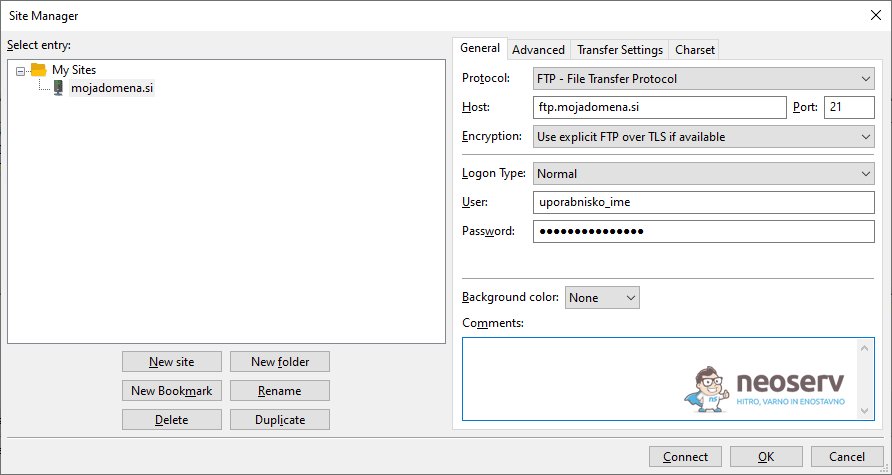
Then, in the right part, fill in the details of the link you just created:
- In the Host field, enter the FTP address, which is usually
www.mojadomena.sior more specificallyftp.mojadomena.si. - In the Protocol drop-down menu, select
FTP - File Transfer Protocol. - Under Logon Type, select
Normal. - Enter the User name and Password to access the server.
- Click the Connect button to connect to the server.
Once connected to the server, (by default) the local files (files on our computer) are displayed on the left side of the screen and the files on the server are displayed on the right side. To transfer files from our computer to the server, simply drag and drop them from the left-hand side to the right-hand side – to the desired folder on the server.
COMMENT THE POST
Your comment has been successfully submitted
The comment will be visible on the page when our moderators approve it.