


- Your cart is currently empty.
Understanding WordFence Alerts for Unauthorized Login Attempts

If you are using one of the most popular WordPress security plugins, it is possible that you are receiving email notifications about unauthorised attempts to enter your WordPress account. With the most popular security plugin , Wordfence Security, the messages look like this:
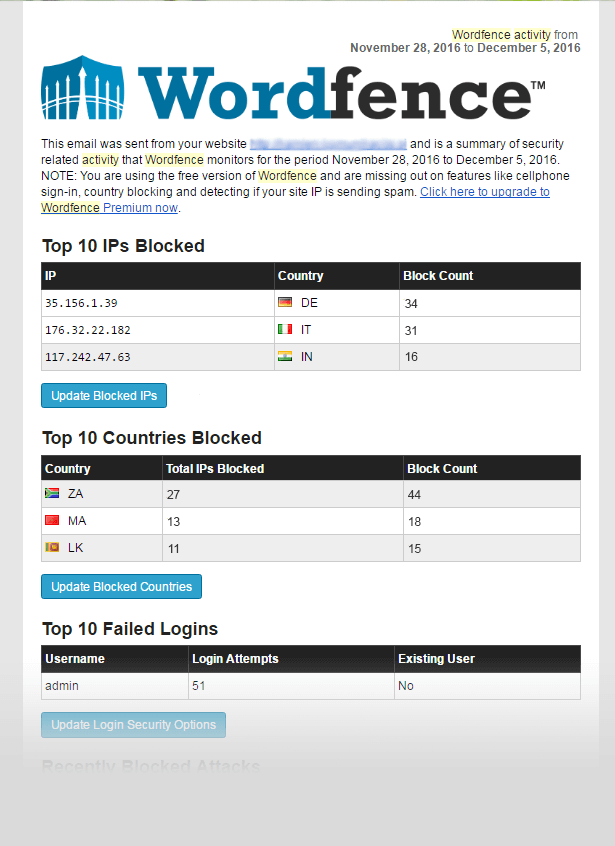
Purpose of the safety plug-in notification
If you receive such messages, you should not be concerned about the security of your website. The purpose of the security plugin is also to inform you of all activities related to your website and user account. When you receive such a message, it only means that the plugin is working properly and that it is effectively logging all activity.
Frequency of intrusions and web virus activity
Intrusion attempts are quite common, with every active website experiencing at least ten of them per hour. How is this possible? In 99.99% of cases, these are so-called automated hacking attempts (”Brute Force” attacks). These are not carried out by hackers or other malicious actors, but by web viruses that search endlessly for unpatched WordPress sites and test the most common usernames and passwords. This makes it even more important to use a secure username and password to sign in to WordPress. You can read more about using secure credentials in this post.
Setting up notifications of hacking attempts
The security plugin will log all hacking attempts in any case, but you can turn off receiving notifications of unauthorised activity. We will see how you can disable this feature in the Wordfence Security plugin in four simple steps.
1. Log in to your WordPress Dashboard.
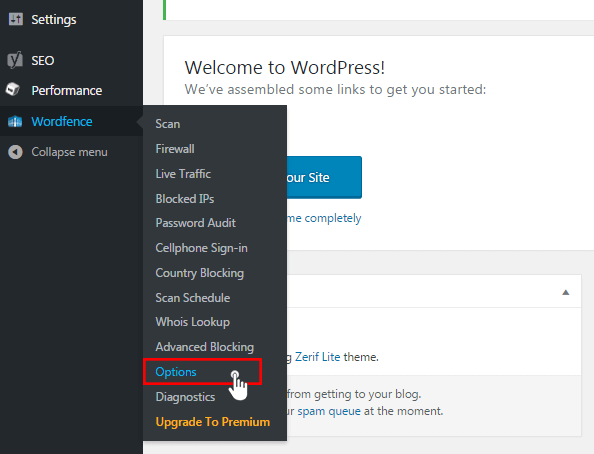
2. Under Wordfence, click on Options.
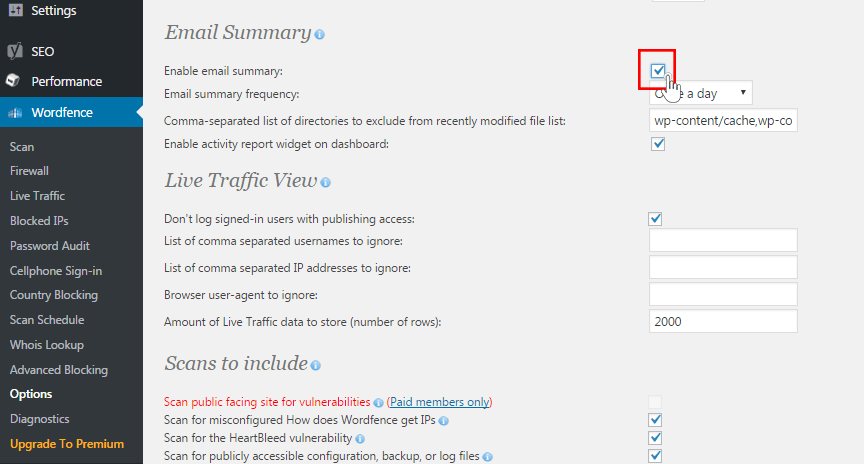
3. In the Email Summary section , remove the tick from Enable email summary.
4. Click on the Save Changes button.
If you still want to receive notifications, you can set how often you want to receive them in the Email Summary section. You can choose to receive them daily, weekly or monthly.
Setting to block “Brute Force” attacks
To protect against ”Brute force” attacks, the Wordfence Security plug-in already sets limits on unsuccessful login attempts. With a few clicks, you can adjust the limits to suit your needs.
1. Click on the Wordfence plugin and select the Options section.
2. Look for Login Security Options.
2. In the Lock out after how many login failures section, set to 4.
3. In Lock out after how many forgot password attempts, set to 4.
4. In the next window, set the time interval between each failed login attempt ( Lock out after how many forgot password attempts) to 10 minutes.
5. Additionally, you can set the Amount of time a user is locked out. We recommend that you set this lockout to 1 hour.
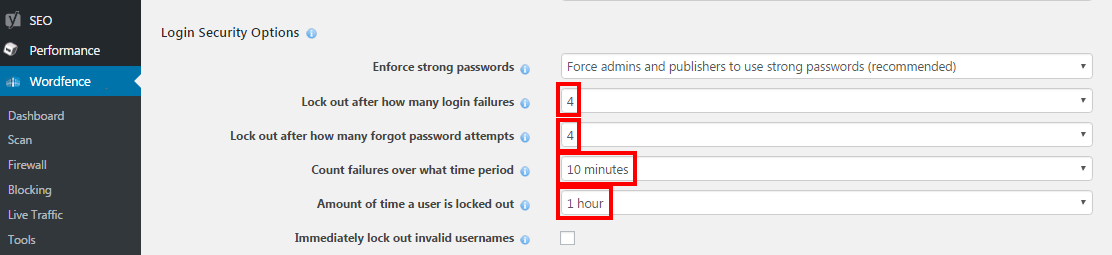
6. Finally, confirm your changes by clicking on the Save Options button.
COMMENT THE POST
Your comment has been successfully submitted
The comment will be visible on the page when our moderators approve it.