


- Your cart is currently empty.
Top 4 Plugins to Backup Your WordPress Site

How much time did you spend creating and editing your website? Not just writing blog posts, but also choosing the theme and plugins, all the settings, editing comments, finding the perfect image for each post, etc. Do you realise how quickly you can lose everything you’ve created? Imagine visiting your website tomorrow and finding that it’s gone. All you see is a blank screen and a worrying warning that your website files and database cannot be found.
To avoid this situation, it is vital that you have regular backups of your website. If you have arranged hosting for your WordPress site with us, then you can rest easy as we will take care of the backups for you.
The fact is that these kinds of problems occur more often than you might think. There could be several reasons for this:
- The website has been infected with malware and has been shut down by the hosting provider.
- The website has been accessed and misused by unauthorised users.
- You have not renewed your hosting package.
- An unknown error in the code of your website has caused the website to stop working.
- You have accidentally deleted files or parts of the database.
We recommend that you also take care of backups yourself, but only via the appropriate plugins that will allow you to safely export a copy of your WordPress site to applications such as Dropbox, Google Drive, Amazon S3, Google Cloud Storage and others. We should also mention at this point that storing additional backups on the hosting package is not allowed.
There are many plugins available for making backup copies of WordPress sites, and we’re going to show you four of the most popular ones.
UpdraftPlus WordPress Backup Plugin
 UpdraftPlus is the most popular of the selected plugins, having been installed more than 900,000 times. Its main advantage is that it makes it easy to create backups and restore your data. You can also specify the backup schedule and which files and databases should be backed up.
Let’s take a look at the other important benefits of this plugin:
- Backup to the cloud, to the most popular applications such as Dropbox, Google Drive, Amazon S3, Rackspace Cloud, Openstack and Swift.
- Restore your data with a single click.
- Larger sites can be split into individual archives.
- Supports all PHP versions from 5.2 onwards.
- The paid version allows you to store backups on Microsoft OneDrive, Microsoft Azure and Google Cloud Storage.
- Advanced encryption of backups in the paid version.
Duplicator
 The most popular backup plugin is closely followed by Duplicator with more than 800,000 installations. Its biggest feature is the ability to migrate, copy or clone a website. The plugin also makes it easy to transfer a WordPress site to a local computer and easily install it back on the server.
The paid version also allows you to:
- Dropbox, Google Drive and Amazon S3.
- Perform backups on a predefined schedule.
- Create backups for multiple sites at the same time.
- Professional support.
BackWPup
 With 500,000 installations, BackWPup is another highly functional plug-in. It makes it easy to save your entire website and upload it to any of the most popular cloud apps Dropbox, Amazon S3, Google Drive, etc. The plugin also offers other useful features:
- Optimization, database checking and repair.
- Send reports via email.
- Compression to zip, tar, tar.gz and tar.bz2.
BackUpWordPress
 More than 200,000 installations have the BackUpWordPress plugin, which allows a simple, pre-planned backup of the database and all website files. The plugin also features minimal use of server memory.
Other benefits of the plugin:
- Creation of multiple backup schedules.
- No advanced settings to edit during installation.
- Selecting folders and files to perform backup.
- Works on Windows and Linux servers.
- Uses zip and mysqldump for faster backups.
Installing the Data Backup Plugin
WordPress is known for its easy-to-install plugins, and the same applies to the above. The plugin can be installed in three simple steps.
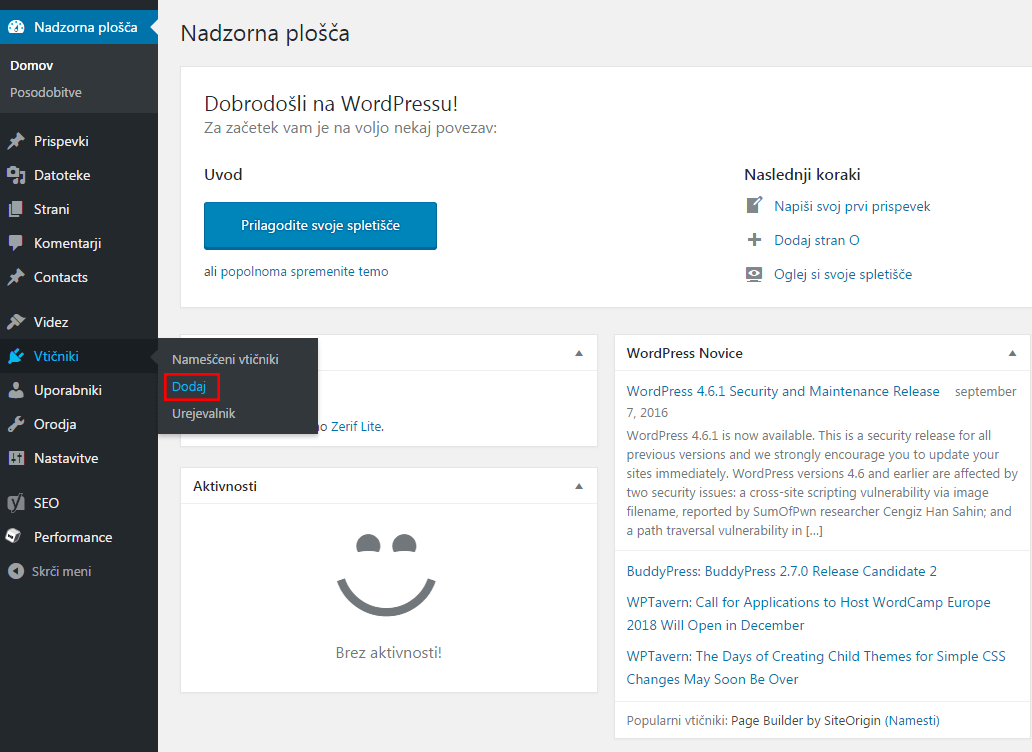
1. In the WordPress administration, find the Plugins tab and select Add New.
2. Type the name of the plugin you want into the search box, then click Install Now.
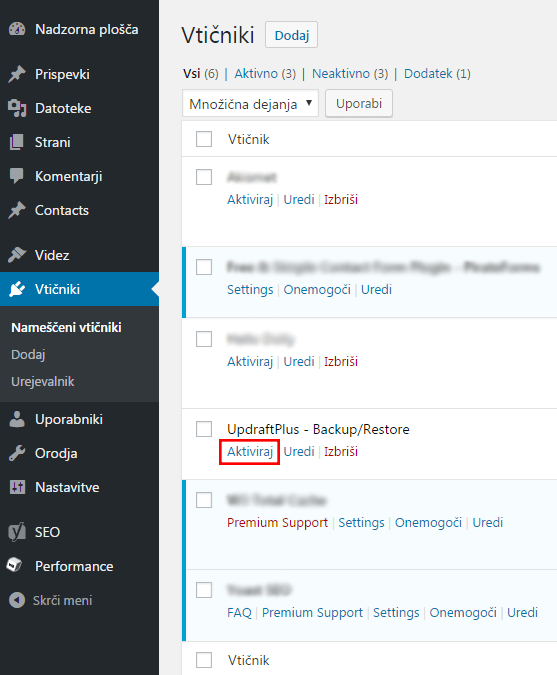
3. Once the plugin is installed, all that’s left to do is activate it. To do this, click on the Activate button.
COMMENT THE POST
Your comment has been successfully submitted
The comment will be visible on the page when our moderators approve it.