


- Your cart is currently empty.
How to Fix the Image Upload Failed Error in WordPress


When you try to upload an image to your WordPress site, you may get an error message saying that the upload failed. The error is often displayed in the way shown in the image:
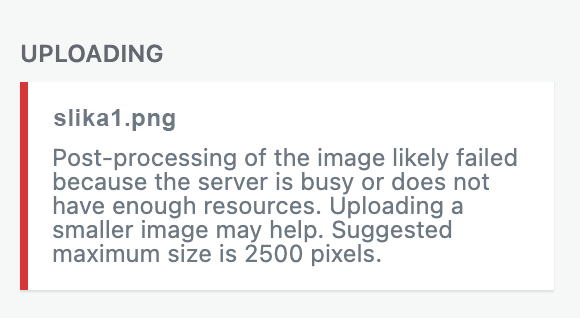
In most cases, it’s not a WordPress error, but a misconfiguration or compatibility issue. Check below how you can remedy the situation in different ways.
1. Upload your images via another browser
The easiest way to check how it works is to try uploading an image to your website via another browser:
- Open another browser.
- Log in to the administration of your WordPress site.
- Upload the image via Media > Add New.

If this option doesn’t work, clear your browser cache and try uploading the image again. If you are still unable to upload images, open the Incognito window and repeat points b. and c. of the previous paragraph.
2. Rename the image
In rare cases, you may be unable to upload an image because of characters in the name, in case the image contains hyphens, punctuation or special characters. Rename it, using only the letters a to z (without semi-colons) and/or the numbers 0 to 9. Try again to upload the image.
Example: change the old image name prikaz-@našepodjetje.png to show-our-company.png.
3. Check the upload limits
Image upload restrictions are occasionally one of the common reasons for this error. Check what your site has in the following steps:
- Click on Media.
- Move to Add New.
- Check the amount displayed in the Maximum upload file size field.

If you upload images that are larger than the preset value, change it. There are several ways to do this, one of which is to add the following code to your .htaccess file:
# BEGIN Increase upload max filesize
php_value upload_max_filesize 128M
php_value post_max_size 128M
# END
You can also change the setting in the cPanel control panel:
- Log in to the cPanelcontrol panel.
- In the SOFTWARE section, click on Select PHP Version.
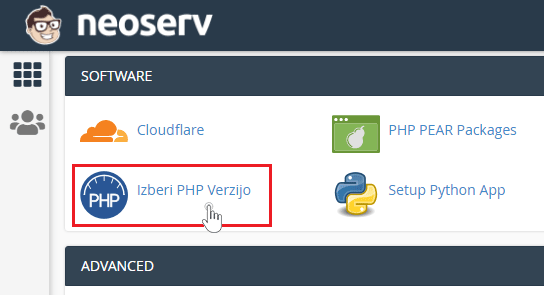
- Select the Options tab and in the upload_max_filesize field in the drop-down menu, select the desired (higher) value.
4. Check the server resources
Even though the error message says: “… because the server is busy or has insufficient resources.” ( because the server is busy or does not have enough resources, it is almost never because the server is busy or does not have enough resources. However, you can check this too.
- Log in to the cPanel control panel.
- In the STATISTICS section, check that the server resource usage is not close to the maximum allowed.
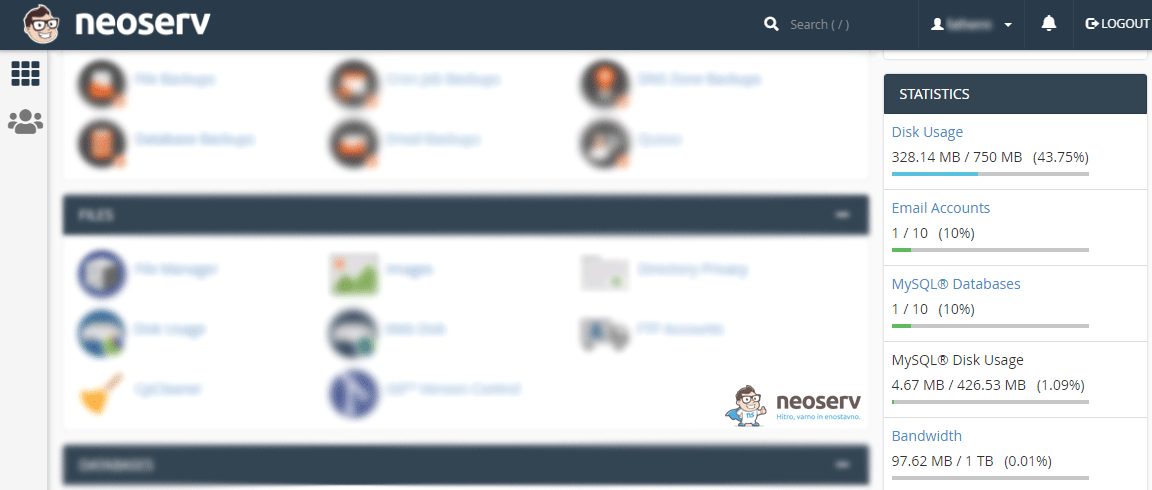
In case the set value of resource usage is low, it is advisable to increase this value. If you have access to the php.ini file, add the following value:
memory_limit = 512M
Or you can also add the following value in .htaccess:
# BEGIN Increase memory limit
php_value memory_limit 512M
# END
Or in wp-config.php:
define( 'WP_MEMORY_LIMIT', '512M' );
5. Choose a SECOND PHP version
In some cases, the problem is caused by the wrong PHP version. Select a different version and test whether the image can now be uploaded:
- Log in to the cPanel control panel.
- In the SOFTWARE section, click on Select PHP Version.
Caution, changing the PHP version may cause your site or parts of it to not work properly. In this case, revert to the previous PHP version and try one of the other options to fix the problem with loading images.
In any case, check that you have activated the imagick option and mod_fcgid (if available) for the PHP version.
6. Disable Clouflare
Do you use the Cloudflare platform? If you do, its settings in combination with WordPress can cause a problem when uploading images in some cases. Temporarily disable Cloudflare to check if it is blocking the upload of images.
If uploading images is now possible, change your Cloudflare settings.
7. File permissions
If none of the above steps work, check the file permissions.
- In the cPanel control panel, click File Manager.
- Open the wp-content folder inside your WordPress installation (example: public.html > wp-content).
- Right-click on uploads > Change Permissions.
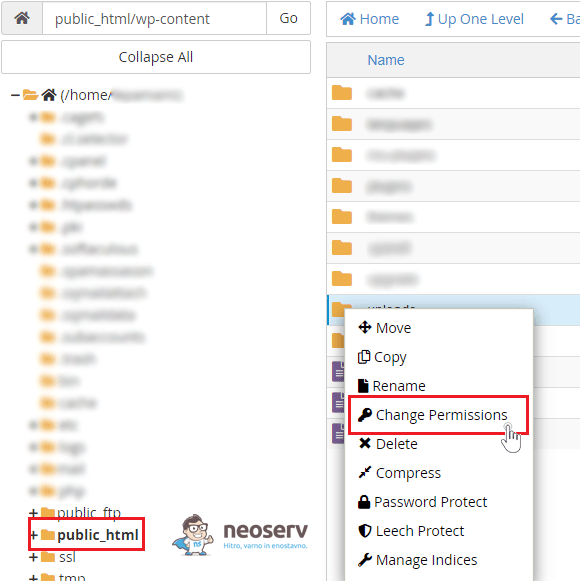
- Check that the value for the upload directory is set to 744. If setting this value does not help, try 755. Click on the Change Permissinons button.
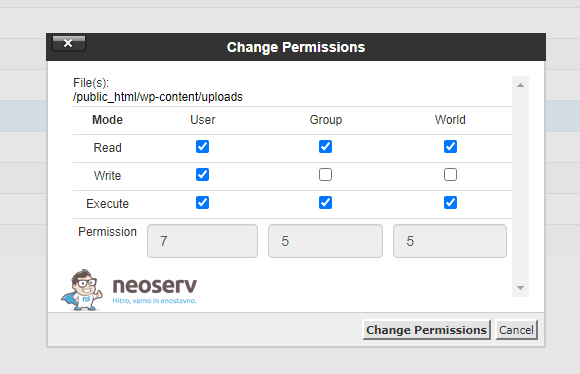
Once you have changed the file permissions, try uploading the images again.
COMMENT THE POST
Your comment has been successfully submitted
The comment will be visible on the page when our moderators approve it.