


- Your cart is currently empty.
WordPress Security: A Secure Username and Password
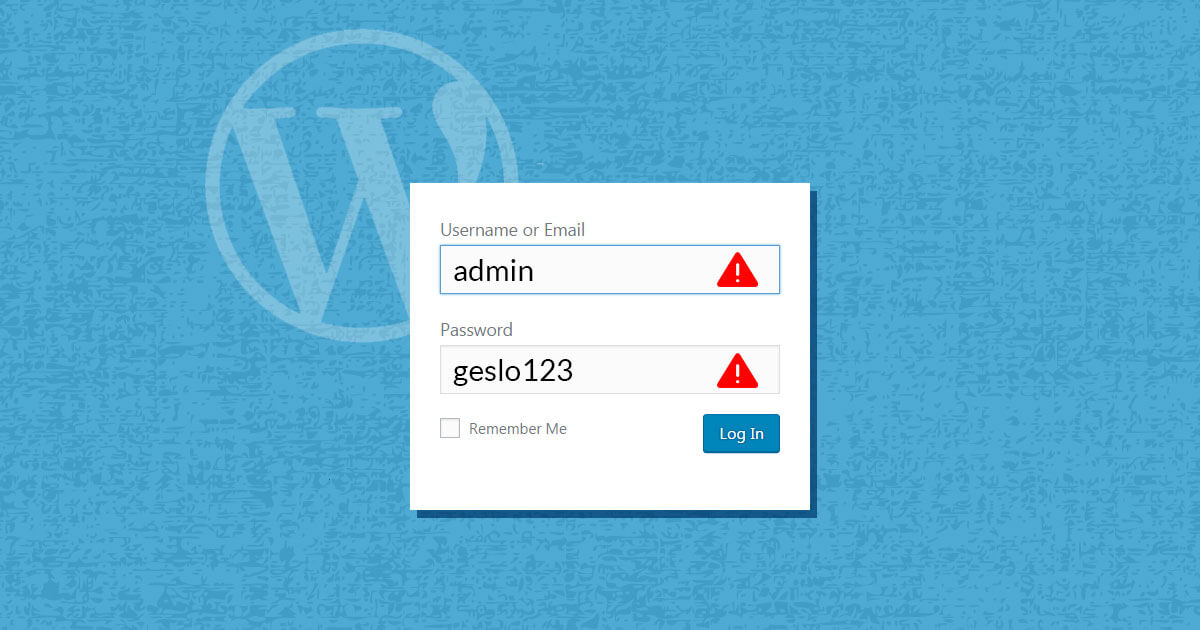

WordPress is the most popular free tool for building a website without any prior knowledge. Online attackers are well aware of this, and try to break into unprotected sites in a variety of ways. Their aim is to:
- stealing personal and other sensitive information,
- redirect visitors to their website,
- adding unwanted links,
- changing the content or deleting the website.
You certainly don’t want any of these scenarios to happen to your website, so it’s important to make sure you have the right protection in place. The basis of protection is a secure username and password.
You can check how secure your current password is on the password checker page.
Secure username for new websites
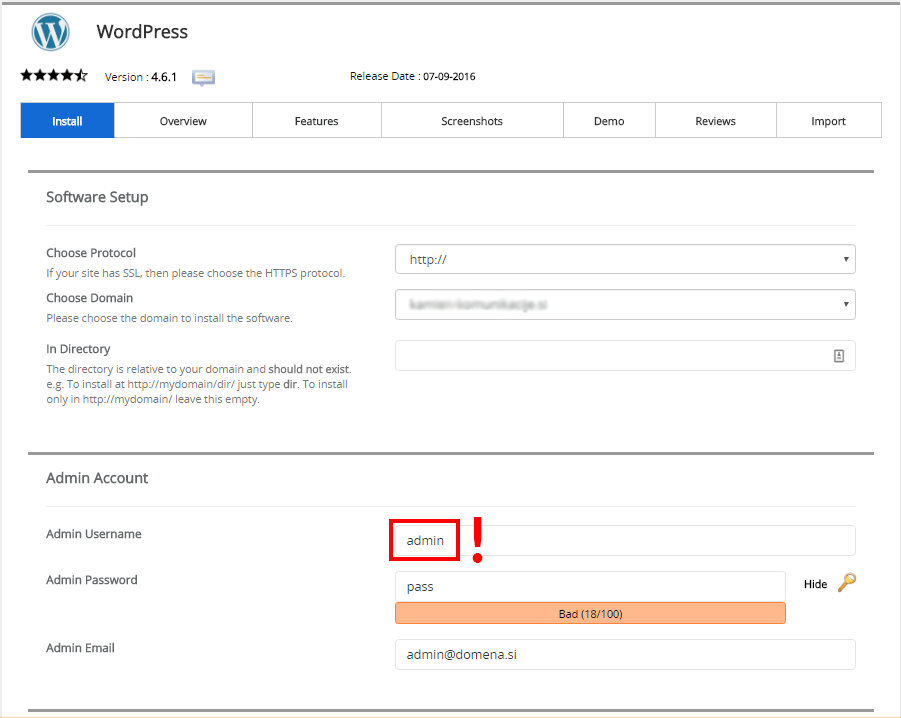
When you install WordPress on your domain, you have a pre-set admin username that most users never change. This is also exploited by online attackers who use malicious scripts to test username and password combinations to gain access to your site. This is also known as a bruteforce attack. If you use the username admin, you are doing the attackers a favour, because in this case it will be easier for them to find the correct username and password combination that will allow them to access your site.
When you create your page, enter a different name instead of admin. You can use your own name and add a few more characters, for example: your-name$2016. This will make it very difficult for attackers to gain access.
 Changing the username on existing WordPress sites
If you already have a website and you are using the admin username, you can change it in the database or with the Username Changer plugin. In this post, we’ll show you how to change it in the database in five steps.
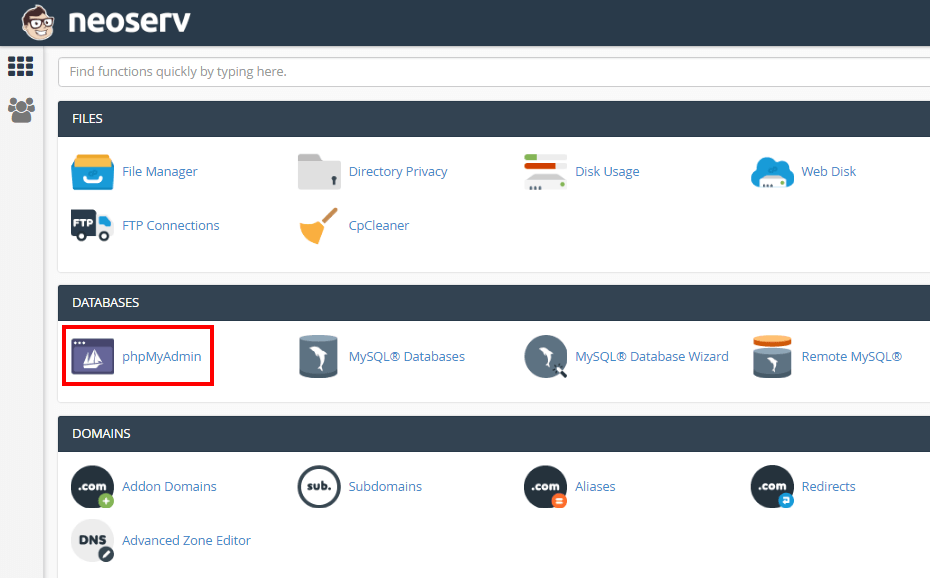
1. In your cPanel dashboard, look for the Databases section and click on the phpMyAdmin icon.
2. Within phpMyAdmin, select the appropriate database on the left hand side, expand it by clicking the + button and then select the wp_users table (it is possible that your database has a different prefix).
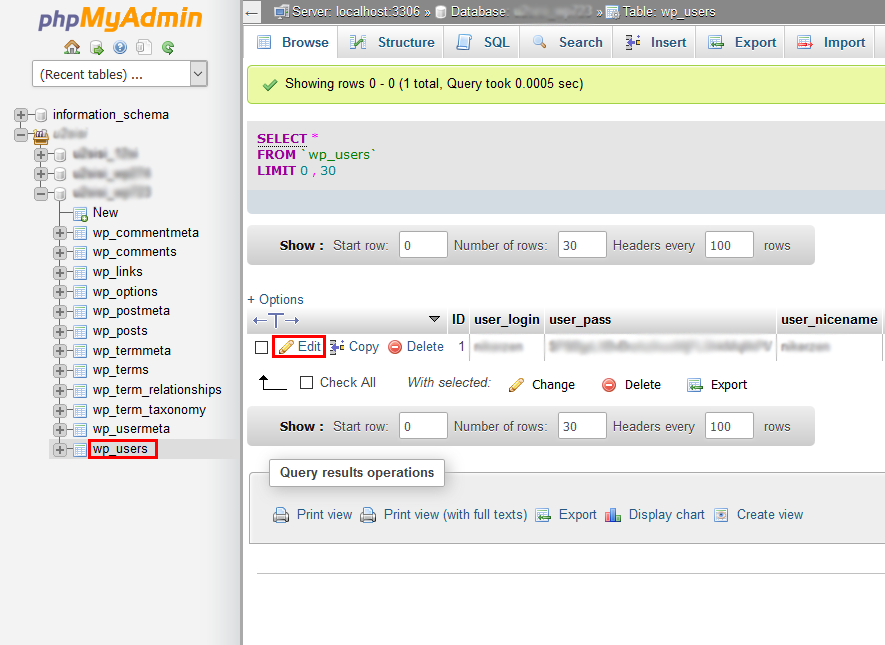
3. In the admin user table, click on the Edit button.
4. In the user_login column, change the admin username to a new, secure username.
5. Save the change by clicking on the Go button.
You can now log in to your WordPress administration with your new username.
Secure password for new WordPress websites
In addition to your username, you also need a secure password. If you’re installing WordPress via Softaculous, you can click on the key icon to create an automatically generated secure password with a rating of 60/100. You may not think this is practical, but it has all the features of a secure password.
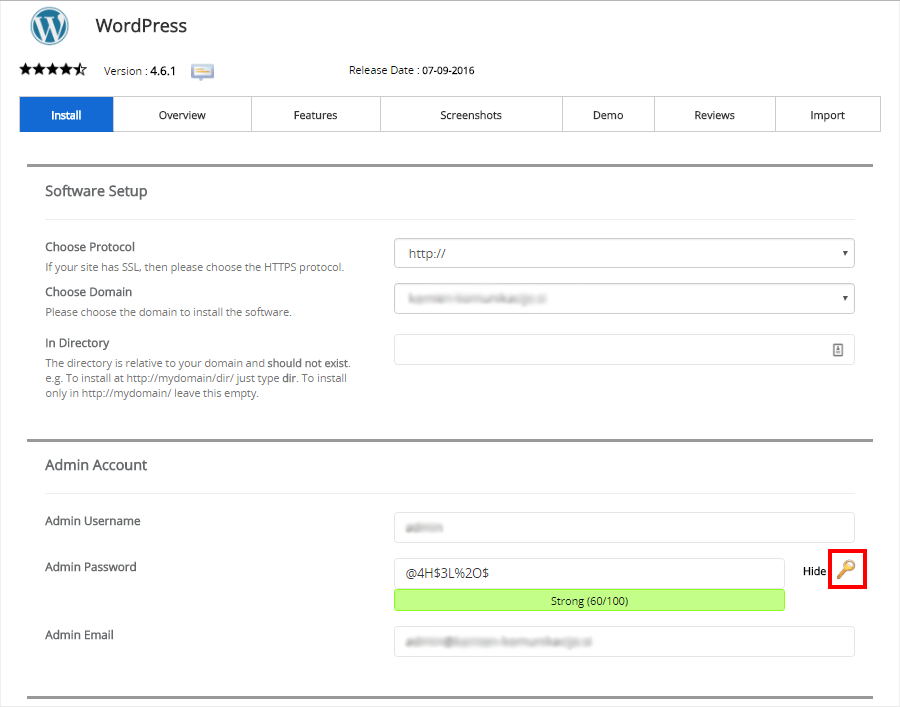
If you want to create your own password, we recommend that you follow the guidelines that apply to secure passwords:
- Passwords should be a minimum of 12 characters (longer is better).
- Passwords should contain at least one character from each of the following groups:
- lowercase letters (a to z),
- capital letters (a to z),
- numbers (0 to 9),
- special characters (for example: @, {, %, §, …).
To help you get an idea, here are some examples of secure passwords:
- B9@8I#%MSWawdad1
- Q$75E@$$F0#renayj
- H#G%#$V@7$645jfg
By following the rules above, you can create a secure password that is easy to remember. Use a longer random word, add a multi-digit number and a few special characters. This way you will create a memorable password with a 100/100 rating.
Replacing a password on an existing page
Even on an existing site, it is important to use a secure and effective password. If your password is not secure, you can change it in three steps.
1. In your WordPress user profile, look for the Users section and select Edit from the admin.
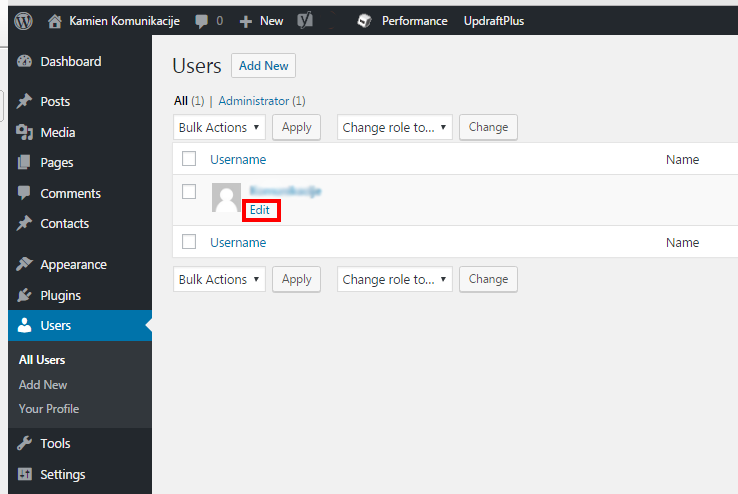
2. Locate the Account Management section and click on the Generate Passowrd button.
3. Click the Update Profile button at the bottom of the page and your new secure password will be successfully saved.
By using a secure username and password, you will protect your website from bruteforce attacks and other unauthorised access 99.9% of the time.
COMMENT THE POST
Your comment has been successfully submitted
The comment will be visible on the page when our moderators approve it.