


- Your cart is currently empty.
WP All Import: How to Import WooCommerce Products


If you want to add new products to a WordPress store that supports WooCommerce, you can do it manually or with CSV or XML files. In case you want to import more than 100 or even more than 1,000 products, it is not recommended to do this process manually.
There are several plugins available that allow you to import products automatically, but only certain ones allow you to do a complete import without any inconvenience. One of them is the WP All Import plugin. We’ll introduce the latter in this post, and show you what it looks like in practice.
WP All Import plugin
There is a free version of this plugin, but for more advanced users and those who want to import a larger number of products and also need advanced features, there are also paid versions.
Below we will take a look at how to import products with this plugin.
Creating a new import
Follow the steps below to import products successfully:
1. From the menu, select All Import > New Import. Here you can upload an XML or CSV file ( Upload a file), download from URL or use an existing file.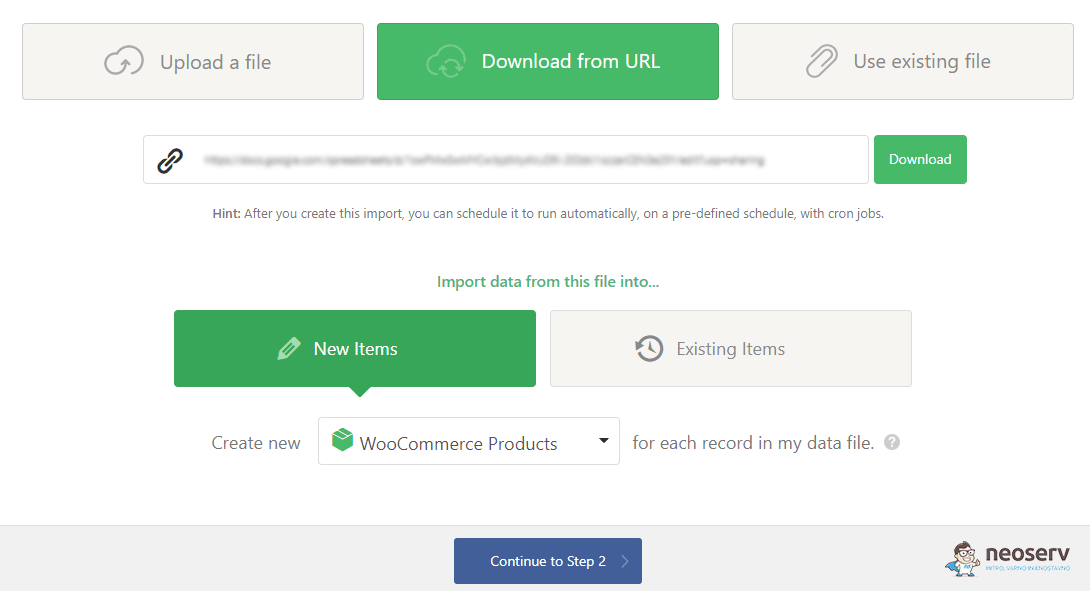
2. For new products, select New Items > WooCommerce Products and click Continue to Step 2.
You can also specify the criteria based on which WP All Import should import your products.
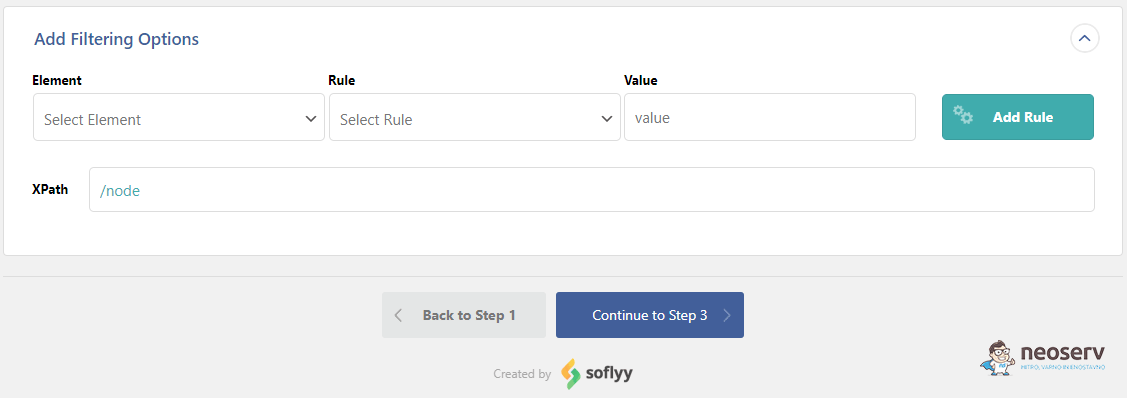
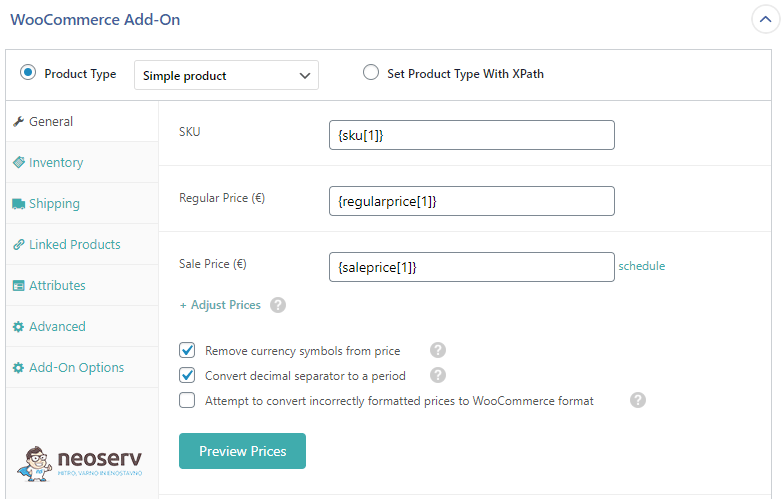
3. Next, use the Drag&Drop function to adjust the downloaded items on a tab-by-tab basis:
- General: import product code, prices, sales prices, etc.
- Inventory: you can manually set your inventory, or have it automatically set by WP All Import.
- Shipping: package weight, dimensions, shipping class.
- Linked Products: set up linked products.
- Attributes: you can edit the attributes of each product, for example colour and size.
- Advanced: in the “Advanced” tab you can set user reviews, catalogue visibility, etc.
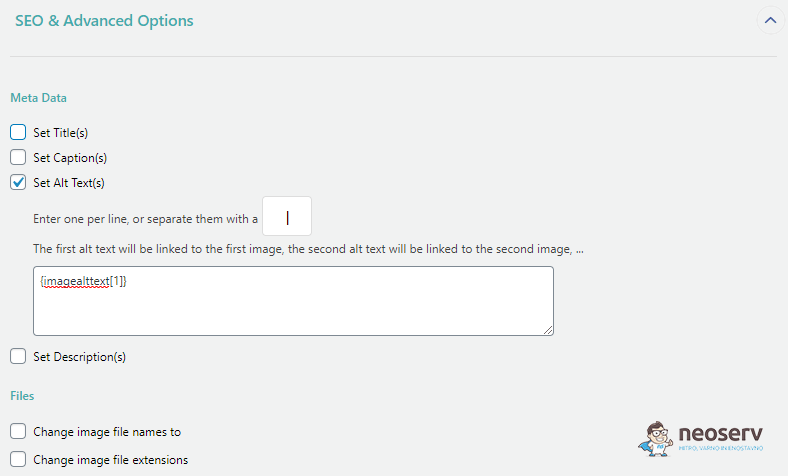
4. Once you have set up all the product information, it’s time to import the images. WP All Import allows you to upload images via URL, media library, or use existing images on the server. You can set up a main image and additional images.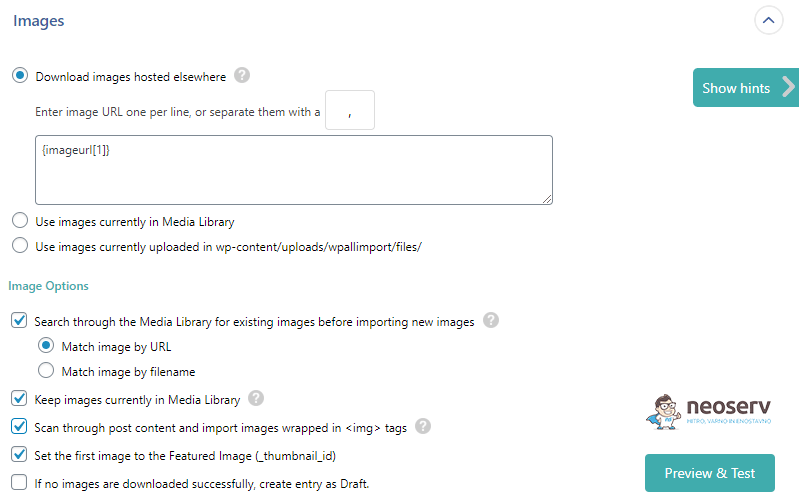 Additionally, you can set the plugin to scan all <img> tags and import them to the corresponding images. You can also import the SEO settings of the images.
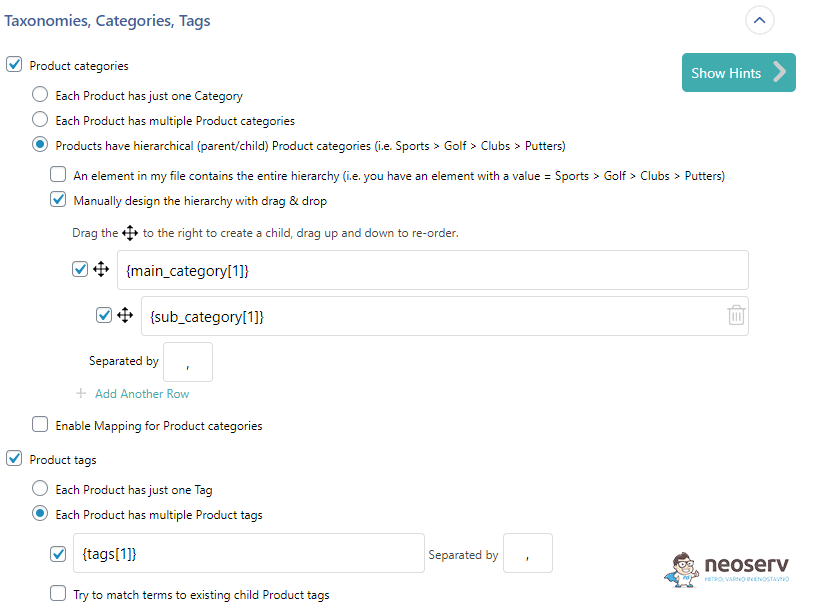
5. In the next step, set the appropriate categories and tags for the imported products. If the plugin cannot find existing categories and tags for a product, it will add new ones to those products.
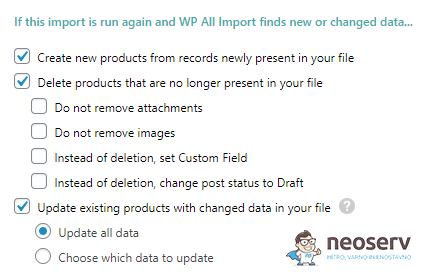
6. The last step before the plugin starts importing all the data is to specify whether to make new products, update existing products or remove products that you have removed from the file later. This function is only valid if you use the Download from URL or Use existing file option when you set the first step in the import.
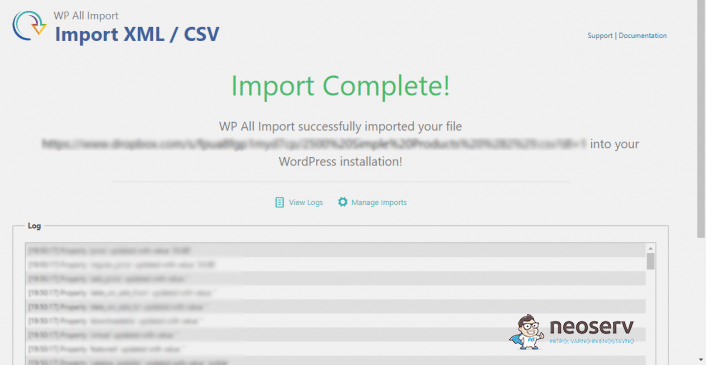
7. Start the import and review the products. Congratulations, you have successfully configured your settings and now it’s time for the plugin to do its job. Once the import is complete, move to the Products tab in the menu and check that your products have been successfully imported.
With the WP All Import plugin, you can import your products in seven steps. The process will only take you a few minutes, compared to manual entry, which can take several hours or even longer.
COMMENT THE POST
Your comment has been successfully submitted
The comment will be visible on the page when our moderators approve it.