


- Your cart is currently empty.
Blocking Website Access with .htaccess
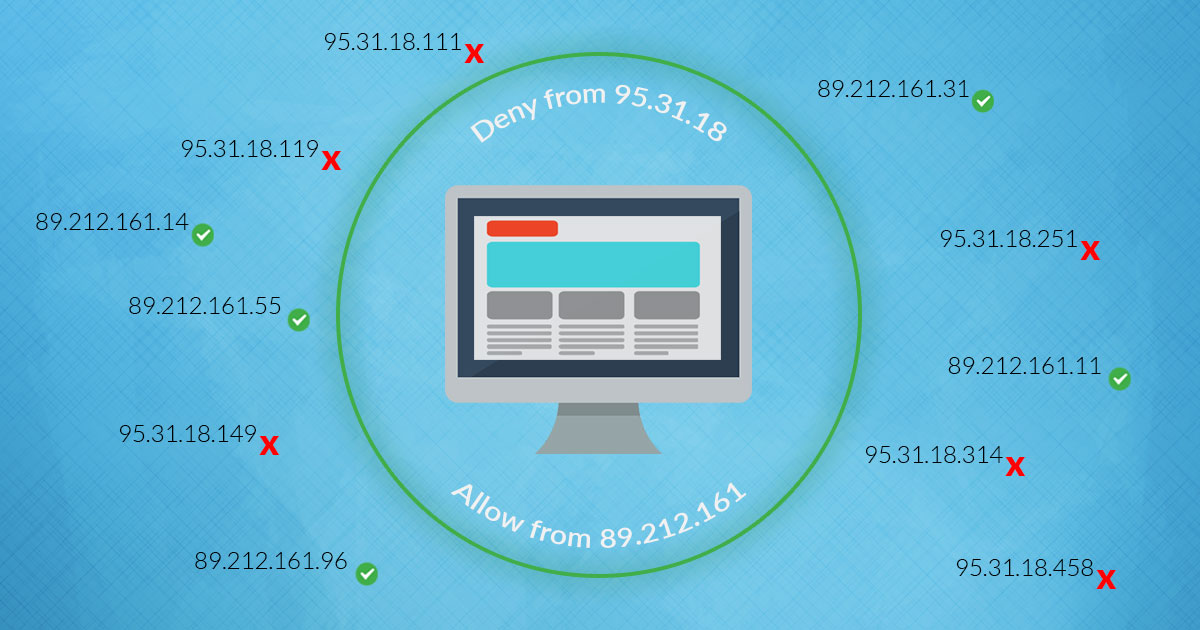

Wondering why you would want to stop anyone from accessing your website? Isn’t it better to let as many people as possible know about your website, to increase the likelihood of its success? Unfortunately, this is not entirely true. You should be aware that your website can also be visited by hackers, bad bots and automated scripts that automatically fill in contact forms, leave unsolicited comments, collect email addresses to sendspamand so on.
The main reasons for preventing unwanted visitors are the following:
- Increased security,
- less load on the server,
- better control over visitors.
Let’s dwell a bit on these reasons. If you detect suspicious or malicious behaviour on your site (e.g. someone trying to log into your CMS), it makes sense to block them. If your server, and therefore your website, is being overloaded and slowed down by a mass visit from Russian bots, you can block the whole country. Finally, if any controls (e.g. web analytics or error reporting in a dedicated software) suffer from such behaviour, preventing access to the website is also very useful.
There is a simple solution to block access by unwanted visitors. All you need to do is add a few lines of code to the .htaccess file, which is located in the umbrella folder of your website. You can find out more about where to find this file and how to edit it here.
Here’s how:
- How to block access to individual visitors?
- How do I block access to everyone but myself?
- How to block access to the whole country?
Do you have several websites, each in its own language and on its own domain? If you are interested in how to redirect visitors from a specific country to a specific domain you own, you will find instructions in this article.
How do I block access to individual visitors?
You block individual visitors or bots that you do not want to allow access to your site based on their IP addresses. You can therefore block access to only one IP or to the whole spectrum. You can also block an entire range of IP addresses, with certain exceptions.
Let’s illustrate the three options in practical examples.
1. You have found that a user with IP 95.31.18.119 is continuously posting unsolicited comments on your blog with suspicious links. In this case, add the following entry to the very top of the .htaccess file:
# BEGIN Block IP address
<RequireAll>
    Require all granted
    Require not ip 95.31.18.119
</RequireAll>
# END Block IP address
2. Now you have found that the unsolicited comments are coming from different IP addresses, separated by the last sequence of numbers: 95.31.18.111, 95.31.18.125, 95.31.18.149, 95.31.18.205, etc. You can block the whole range of IP addresses with the following command:
# BEGIN Block IP zone
<RequireAll>
    Require all granted
    Require not ip 95.31.18
</RequireAll>
# END Block IP zone
3. There may also be situations where you would like to block the entire range of IP addresses, except for a specific one (or more) in that particular zone. A command in the .htaccess file can be used to take care of this case:
# BEGIN Block IP range with exceptions
<RequireAny>
    <RequireAll>
        Require not ip 123.123.123.
    </RequireAll>
    # Excluded IP addresses
    Require ip 123.123.123.100
    Require ip 123.123.123.101
</RequireAny>
# END Block IP range with exceptions
When you want to add a block to .htaccess, first make sure that the command works. The easiest way to check this is to use your IP address(Deny from your_IP). If you find that the block does not work, add the ErrorDocument 403 default line to .htaccess.
How do I block access to everyone but myself?
Sometimes you may need to block access to a page only for yourself, but deny access to everyone else. For example, one of the reasons for this setting is related to testing new features of the website.
You may have a completely different reason. Either way, the following lines of code in .htaccess will allow only you to access your website (assume your IP address is 51.38.64.208. Use the following command:
# BEGIN Allow access to wp-admin for IPs
<IfModule mod_maxminddb.c>
    <FilesMatch "(wp-login)\.php$">
        Require all granted
        RewriteCond %{REMOTE_ADDR} !(51.38.64.208)
        RewriteRule ^ - [F,L]
    </FilesMatch>
</IfModule>
# BEGIN Allow access to wp-admin for IPs
In the last line, replace the test IP address with your real IP address. Not sure how to find out which IP address is assigned to you? The quickest way to find out is to type “My IP Address” into Google and click on one of the hits. You can just click on the first one.
Were you able to access your site yesterday without any problems, but today you see “Forbidden” (error 403)? In all likelihood, your ISP has assigned you a new IP address when you reconnect. If your IP is dynamic, you will need to modify .htaccess.
How do I block access to an entire country?
Russia, Ukraine and China are just some of the countries that more and more administrators want to block from accessing their websites. These are countries that are hotbeds for hackers, bots and malicious or unwanted automated scripts that their authors want to exploit in one way or another.
With a directive in the .htaccess file, it is possible to block visits from an entire country. In fact, we should be cautious about this claim, since the IP addresses of individual countries are stored in so-called GeoIP databases, which are not 100% accurate. Problems arise especially with free databases, as they often remain unupdated. It can therefore happen that an IP from Russia is detected as an IP from Slovenia, or vice versa.
At NEOSERV we use licensed (paid) GeoIP databases, which, with regular updates, ensure a high level of accuracy. Of course, you can also use your own database to block IP addresses, but we warn you to avoid free databases.
If you wanted to block visitors from certain countries, you would add the following command to your .htaccess file:
# BEGIN Disallow specified countries
<IfModule mod_maxminddb.c>
    MaxMindDBEnable On

    SetEnvIf GEOIP_COUNTRY_CODE CN BlockCountry
    SetEnvIf GEOIP_COUNTRY_CODE VN BlockCountry
    SetEnvIf GEOIP_COUNTRY_CODE HK BlockCountry
    SetEnvIf GEOIP_COUNTRY_CODE BR BlockCountry

    <RequireAny>
         <RequireAll>
             Require all granted
             Require not env BlockCountry
        </RequireAll>
    </RequireAny>
</IfModule>
# END Disallow specified countries
What if you want to disallow access to all but selected countries? In this case, add one of the following two codes to .htaccess.
Syntax for:
Apache 2.4+
Apache up to 2.4, LiteSpeed
# BEGIN Allow specified countries
<IfModule mod_maxminddb.c>
	MaxMindDBEnable On

	SetEnvIf GEOIP_COUNTRY_CODE SI AllowCountry
	SetEnvIf GEOIP_COUNTRY_CODE HR AllowCountry

	<RequireAny>
		<RequireAll>
			Require all granted
			Require env AllowCountry
		</RequireAll>
	</RequireAny>
</IfModule>
# END Allow specified countries
# BEGIN Allow specified countries
<IfModule mod_maxminddb.c>
MaxMindDBEnable On
SetEnvIf GEOIP_COUNTRY_CODE SI AllowCountry
SetEnvIf GEOIP_COUNTRY_CODE HR AllowCountry
Deny from all
Allow from env=AllowCountry
</IfModule>
# END Allow specified countriesThe full table of two-letter country codes can be found here.
Did you encounter problems editing your .htaccess file? Is your website blocking you but you don’t know what exactly the problem is? We at NEOSERV will be happy to help you!
COMMENT THE POST
Your comment has been successfully submitted
The comment will be visible on the page when our moderators approve it.