


- Your cart is currently empty.
10 Common WordPress Issues: How to Fix Them – Part 1

More than 25 million websites are built on WordPress. It’s a free tool that allows you to build your own website using a wide range of graphical templates and plug-ins. During the creation process and even afterwards, you may encounter some problems that can cause you a lot of grey hairs. We’ve compiled a list of the 10 most common problems and the solutions that will get your website working properly again.
1. White screen
Older Windows systems often crashed with a “Blue screen of death” error that could only be solved by restarting the computer. Did you know that WordPress can also surprise you with a similar error – the “White screen of death”? There are three common reasons for this. Let’s take a closer look.
a. problems related to one or more plugins
If you have installed a new plugin, it may not be compatible with your WordPress settings.
Disable the latest plugin and restart the site. If the site still doesn’t work, disable all your plugins. Reactivate them one by one, checking each time that your site is working.
Go to your FTP server and rename your plugins folder to e.g.:“plugins_old_version“. This will deactivate all plugins without changing their settings. If your site is now working (with limitations due to disabled plugins), the problem is with the plugin. Unfortunately, you have to manually activate each one individually to find out which one is giving you problems. There are 2 ways to solve this:
1. Rename all plugins (“pluginname1_old_version“, “pluginname2_old_version“, etc.) and then rename them back to their original name one by one to activate them. After changing each plugin, check that your website is working.
2. You can also do the reverse. Rename each one individually and check that your site works.
Unfortunately, these two ways are the only way to solve the problem with the plugin. If your page still doesn’t work, the problem must be somewhere else.
b. problems related to the graphic template
Your theme (graphic template) in WordPress may be incompatible. Check this by disabling your theme and activating the default theme for your WordPress site. If you have already deleted it, you can download it again here. Upload it via FTP to the“wp-content/themes folder“.
Rename the graphic template folder to“yourtheme_old_version“. Once you have done this, WordPress will automatically activate the default theme. If your site works now, it means that the problem was with the graphic template.
c. file problems
There may be a problem with your WordPress website’s umbrella files.
Download the latest version of WordPress and the new“wp-admin” and“wp-includes” folders via FTP. Make a backup copy of all your data before uploading the new version.
2. “INTERNAL SERVER ERROR” or “HTTP 500 INTERNAL SERVER ERROR” error
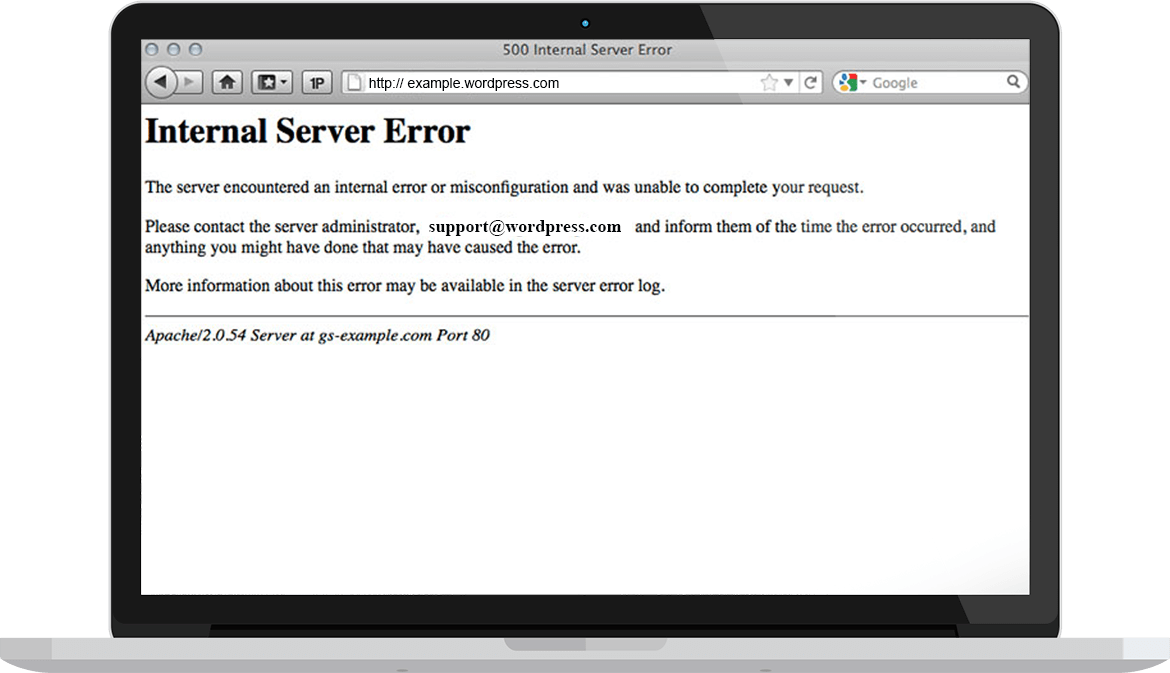
The error occurs due to problems with plugins, themes, database or due to errors in the “.htaccess” file.
There are three steps you can take to solve the problem:
1. refresh your page(CTRL + F5), and if the problem is still present:
2. clear your browser cache, close and reopen your browser, refresh your web page. If the problem still persists, then:
3. open the page in another browser. If the page still does not work, then it is probably one of the following scenarios.
a. incorrect settings in the “.htaccess” system file.
Connect via FTP to your website’s umbrella files. Locate the “.htaccess” system file and rename it to e.g.: “.htaccess_old_version“. Now refresh the website. If the site works, the problem is with this file.
Log in to your WordPress control panel. Go to Settings -> Options -> Permalinks and click the Save button. WordPress will generate a new “.htaccess” file.
b. wrong file permission
Some files and folders may not have the correct access permissions set. Edit the permissions by clicking on the File/Folder via FTP. Note the following rules: 755 for folders and 644 for files.
c. conflict with plugins or files
Even when installing a new plugin or updating an old one, the above error may occur. The same problem can occur with files.
For the solution, please refer to paragraph 1.a. and 1.c.
If none of the above solutions help, please contact your hosting provider. They will check your server log and help you find the source of the error.
3. “SYNTAX ERROR” error
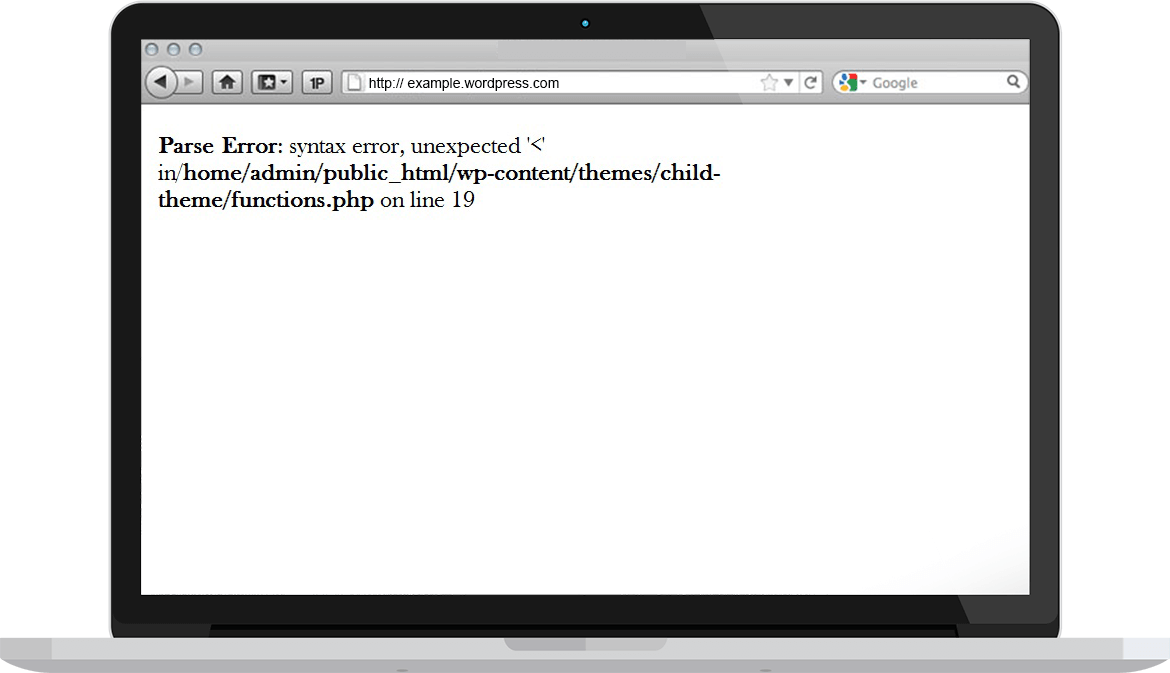
This problem occurs due to an error in the programming code. There is a part of a specific file or line that does not conform to the valid PHP syntax, so the code cannot be executed properly.
In the example shown in the figure, you can see that the error is in the“functions.php” file, namely in line 19 of the code.
Please download the file via FTP and correct the syntax where the error occurs. Upload the file to the server again. The problem should now be resolved.
Error “ERROR ESTABLISHING A DATABASE CONNECTION”
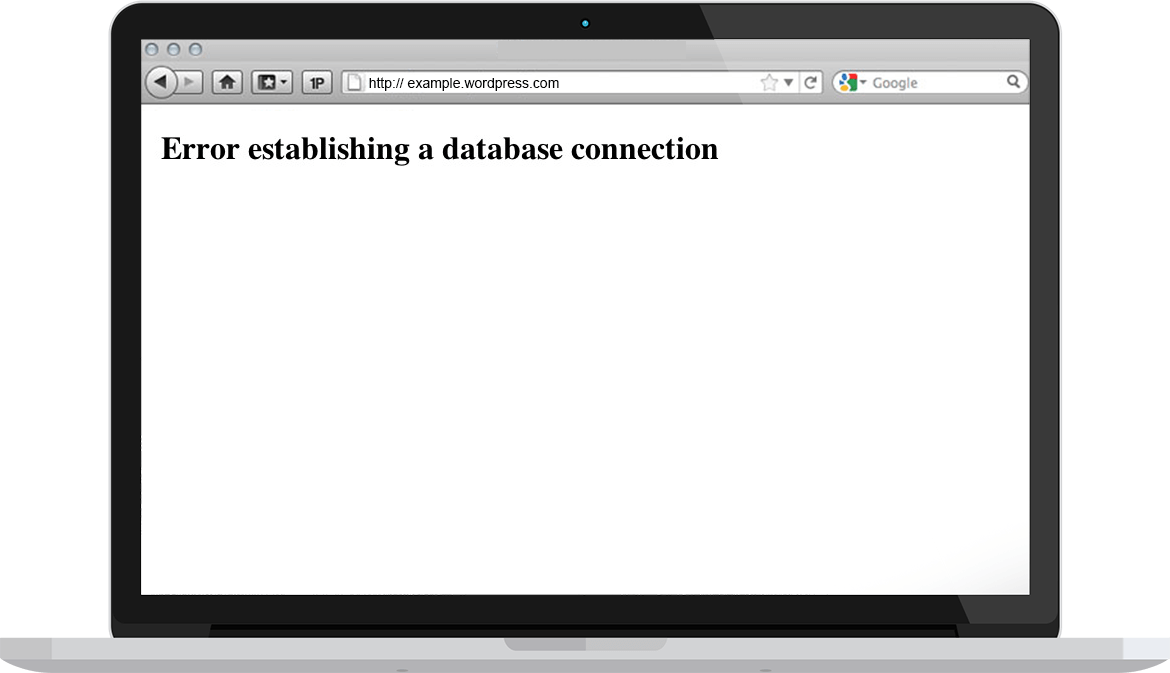
The problem is related to incorrect information in your“wp-config.php” file. It may look like this:
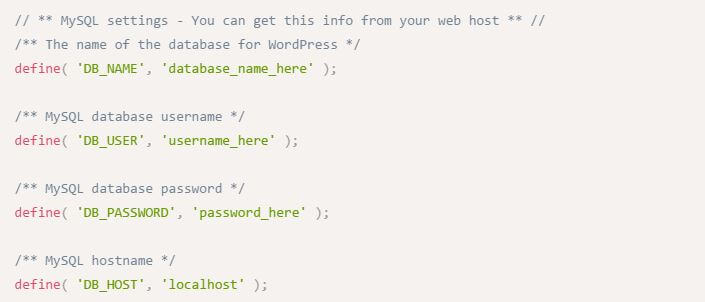 Since you are unable to connect to the database, please check the values set in the“wp-config.php” file.
If you don’t find any errors, it may also be related to your hosting provider. It may be a problem on their side or your database may have been corrupted. This error may occur when you try to access the“/wp-admin” control panel. If it happens then, it means that the database will need to be repaired. To do this, add the command define (‘WP_ALLOW_REPAIR’, true)to the file“wp-config.php” ;
Then go to“vasa_page/wp-admin/maint/repair.php” and select the repair method that suits you. You do not need to be logged in to perform this action.

Once you have completed the process, re-open the“wp-config.php” file and remove the line you added earlier. If the database repair does not work, please contact your hosting provider.
5. “CONNECTION TIMED OUT” error
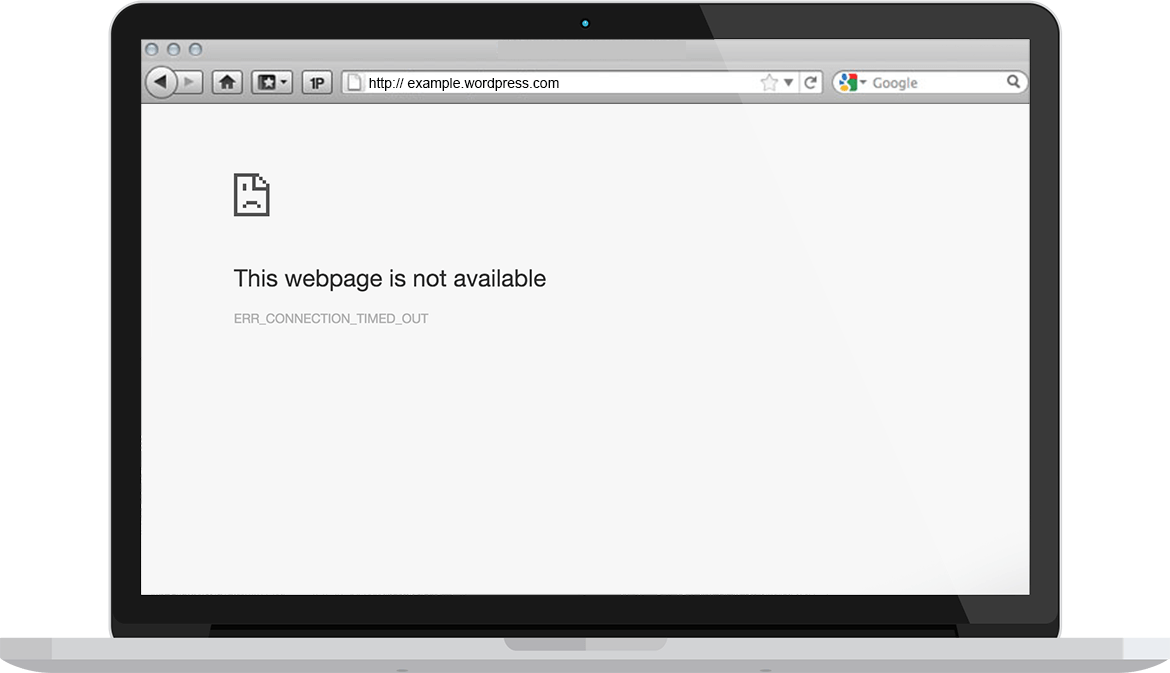
If you encounter an ERR_CONNECTION_TIMED_OUT error, the problem is almost certainly at the DNS level.
We recommend that you contact your hosting provider, as you will most likely not be able to fix the error yourself.
The next 5 errors can be found in Part 2.
COMMENT THE POST
Your comment has been successfully submitted
The comment will be visible on the page when our moderators approve it.