


- Your cart is currently empty.
10 Common WordPress Issues: How to Fix Them – Part 2

In Part 1 of this article, we looked at five WordPress errors and how to fix them. This time, we’ll take a look at the other five errors that could be causing you problems with your WordPress site.
Error “BRIEFLY UNAVAILABLE FOR SCHEDULED MAINTENANCE. PLEASE CHECK BACK IN A MINUTE”
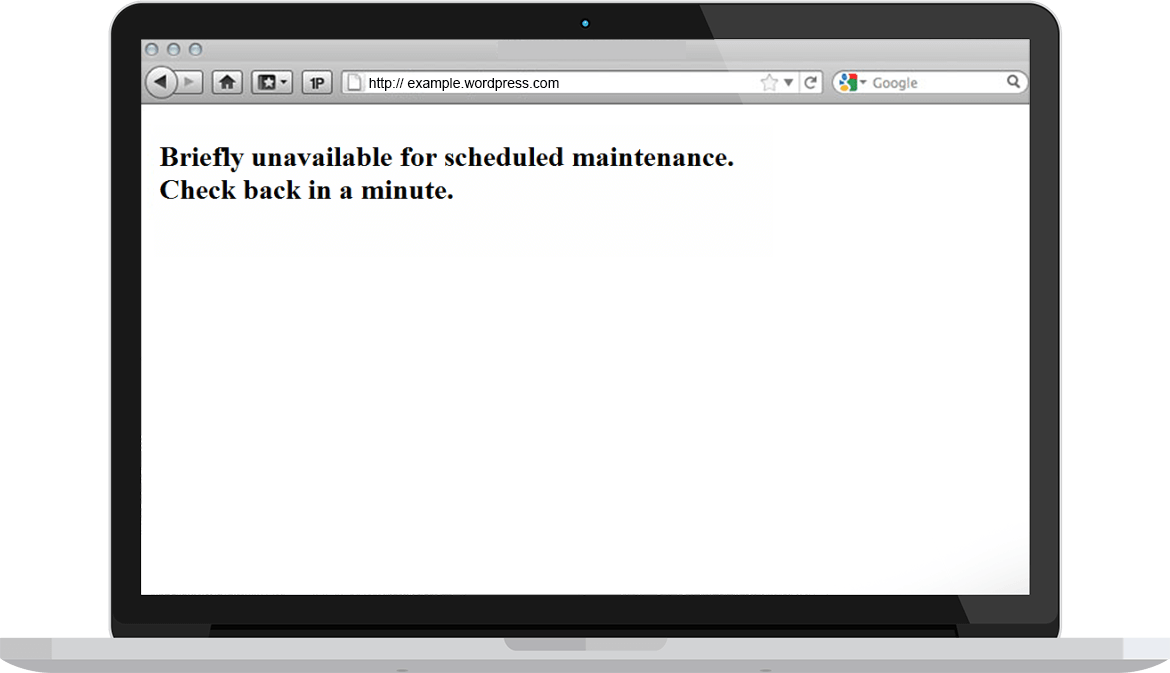
Updates are an important part of keeping your WordPress site functional. From version 2.7 onwards, the umbrella files can be updated automatically, which is why the above error sometimes occurs.
Find the “.maintenance” file among your umbrella files and delete it. It is located in the same folder as the“wp-config.php” file. Depending on your settings, “.maintenance” will probably be a hidden file.
You can find it by selecting View in your FTP client (e.g. FileZilla) and selecting Show hidden files. In newer versions, select the Server tab and then Force show hidden files.
Sometimes this problem occurs when WordPress updates its umbrella files. In this case, it’s not actually an error, you just need to wait for the page to finish updating and the problem will be fixed.
7. error “FAILED AUTO-UPGRADE “FATAL ERROR UNDEFINED FUNCTION IS_NETWORK_ADMIN()””
In the case of this error, there was a problem with the automatic upgrade of WordPress. It usually occurs in“/home/website/public_html/wp-admin/admin-header.php on line 16“. Although this is a so-called fatal error, there is no reason to panic.
The automatic update has therefore not completed successfully. The cause could be a broken network connection, incorrect file permission settings or a bug in the WordPress umbrella files.
Please install the upgrade manually:
- Download the latest version of WordPress from WordPress.org,
- deactivate all plugins,
- rename“wp-includes” and“wp-admin” to, for example,“star-wp-includes” and“star-wp-admin“,
- upload the new folders“new/wp-includes” and“wp-admin“,
- upload the files from the“new/wp-content” folder to the existing“/wp-content” folder. Overwrite the existing files (do not delete“/wp-content“, just upload the new files over the existing ones),
- Upload a new version of the rest of the files from the root directory to the existing WordPress root directory,
- log in to your WordPress user interface. You will be redirected to a URL similar to this: “http://domain.com/wp-admin/upgrade.php”. Then just follow the instructions.
Once the update has been downloaded, everything should work, otherwise clear the cache.
Warning: ‘CANNOT MODIFY HEADER INFORMATION – HEADERS ALREADY SENT BY
This error may occur if you have empty space in“wp-config.php“,“functions.php” or any other file. You can fix this in four steps:
- access via FTP and download the file mentioned in the error message,
- open it with a text editor (we recommend Sublime Text),
- remove all empty space before the “<?php” tag or after the “?> tag,
- upload the edited file back via FTP.
This error may also be related to other files. Please read the error message carefully to correct the correct file.
9. Unable to upload an image to WordPress
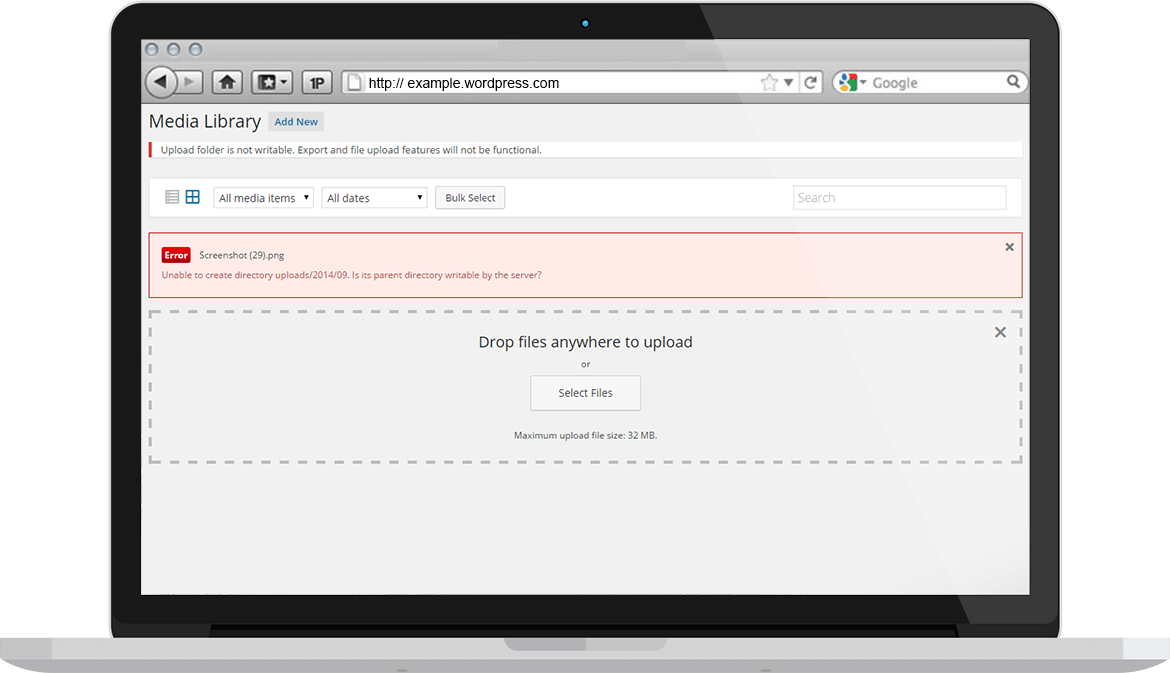
Your site is running smoothly, without any problems, when you get the message Unable to create directory /wp-content/uploads/.
Most of the time the error is related to the folder having the wrong permissions set. WordPress is therefore unable to create new folders or modify files within them.
- Deactivate and reactivate all your plugins. This will fix any problems with your plugins(instructions in the previous post, point 1.a).
- Set the default theme of the website to eliminate problems caused by your theme(instructions in the previous post, point 1. b).
If none of these solutions helps, it’s time to check and edit the permissions in your ‘‘/wp-content/uploads/” folder.
Set the parameters for the folder to 755 and 644 for the files. Do not set the permissions to 777 as this will compromise the security of your WordPress site.
You can also find further instructions on setting permissions here.
10. Nothing is working and you are not sure what happened!
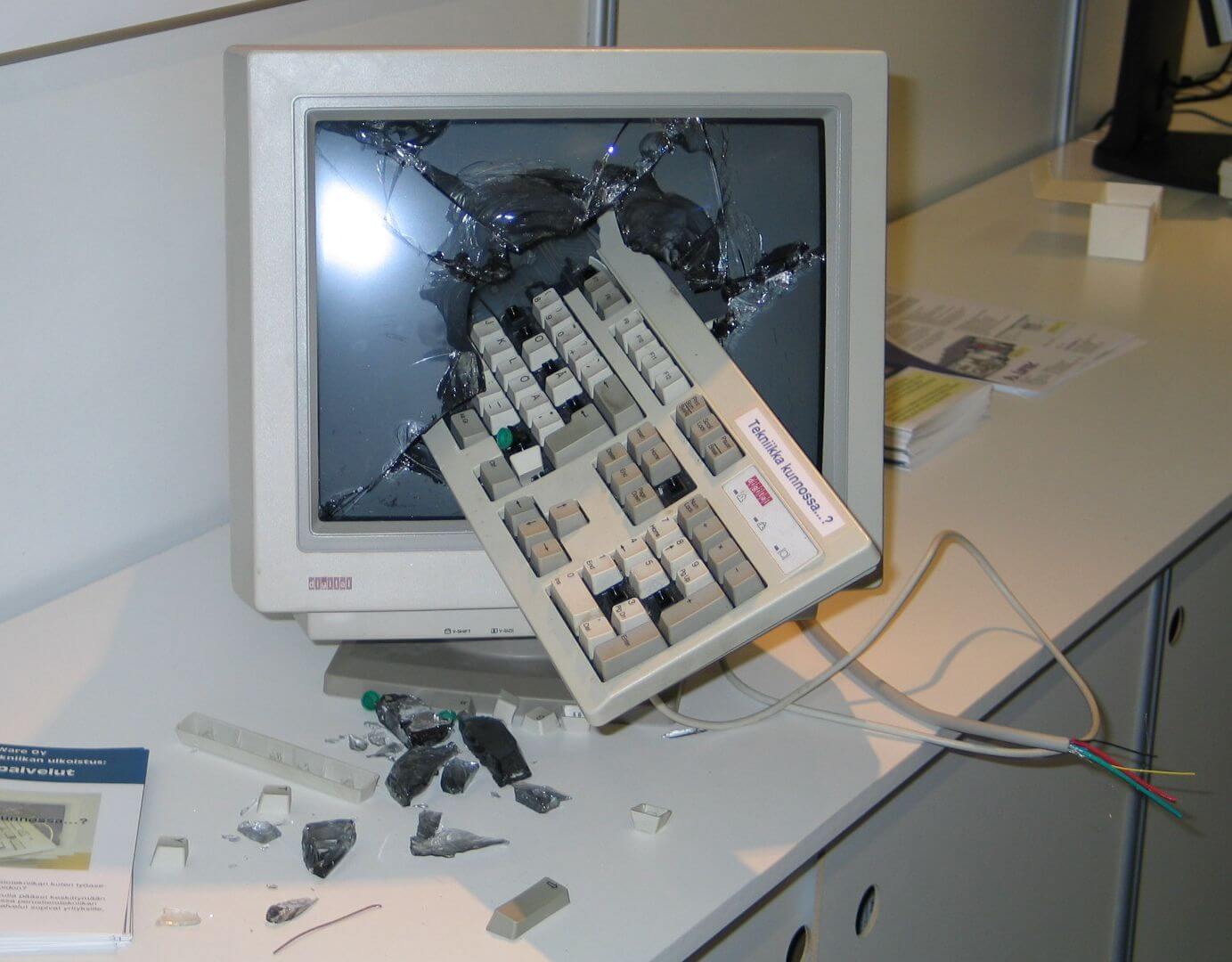
If you have done as shown in the picture above, then your computer hardware will need to be replaced.
If your website is not displaying and you don’t know what is wrong, there are many sources of help available to you.
If it’s not one of the problems listed above, you can help yourself with a Google search. If you think it is a problem with your website hosting, please contact your hosting provider. If you have arranged hosting with us, we will be happy to help.
Every time you face a new problem and manage to solve it, you’ve upgraded your WordPress knowledge. That’s the best you can take away from every problem you encounter.
COMMENT THE POST
Your comment has been successfully submitted
The comment will be visible on the page when our moderators approve it.