


- Your cart is currently empty.
Email Archiving in Outlook, Thunderbird and Mac Mail

Receiving and sending a large number of emails every day can quickly fill up your inbox. This happens especially quickly if the messages include attachments. One solution is to delete messages regularly, but you probably want to avoid this because you never know when an older message will come in handy.
If you use Outlook, Thunderbird or Apple Mac Mail, there’s a friendlier solution. All of them offer the option to archive your emails. Using archiving will give you better control over your emails, while also freeing up space on your server.
See below how email archiving works in Microsoft Outlook, Mozilla Thunderbird and Apple Mac Mail.
1. Archiving emails in Outlook
Using archiving will allow you to transfer your emails locally to your computer or to the device where you have Outlook installed. This will free up space on your server while keeping access to all archived messages.
Messages can be archived manually or automatically. You can set which messages or folders to archive, where to store them, and how old the messages need to be before they are moved to the archive.
Manually archiving emails
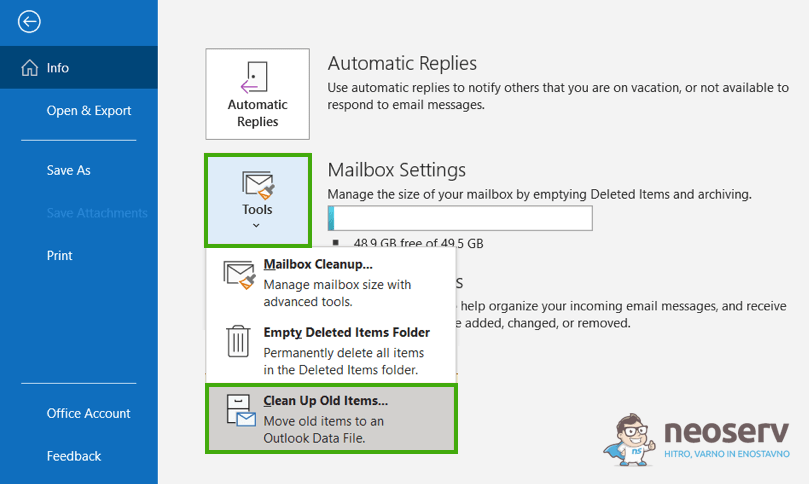
- Open Outlook and click on the File tab.
- In the Info tab, select Tools and then Clean Up Old Items.
Archiving and automatic storage may not be available if your email account connects to an Exchange server. It is also possible that your company uses email storage settings that disable automatic archiving. In this case, please contact your system administrator.
- In the pop-up window, tick Archive this folder and all subfolders.
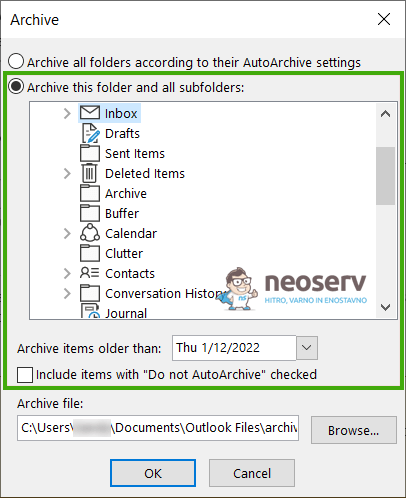
- Select the folder you want to archive (e.g. “Inbox”).
- For the Archive items older than setting, specify how old the messages will be moved to the archive.
- Tick the Include items with “Do not AutoArchive” checked option if you want to enable archiving of messages or folders that are exempted from automatic archiving.
- Click Browse and specify the location of the archived file (.pst) and confirm your choice by clicking OK.
Once the archiving is complete, the e-mails will be removed from the Inbox folder and the associated subfolders. They can then be accessed by clicking on Archives in the left menu of the Outlook client.
Automatically archive emails (AutoArchive)
- Go to File -> Options.
- Select Advanced from the left menu and click on AutoArchive Settings.
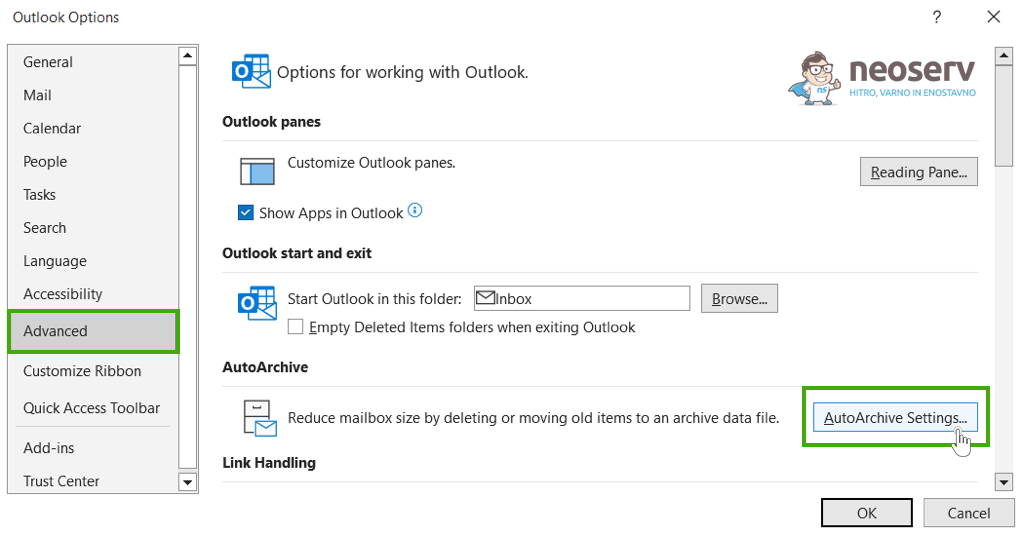
- Enable the Run AutoArchive every X days option and adjust the desired settings (e.g. age of items).
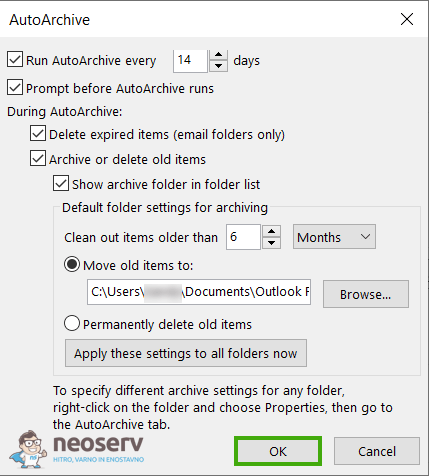
- Confirm the settings by clicking OK.
To manage the AutoArchive function at the level of individual folders, right-click on the selected folder (e.g. Inbox) in the left menu where the folders are located and select Properties. Then, under AutoArchive, edit the desired archiving settings.
Access archived emails
Archived emails are saved as a .pst file that can be opened in the Outlook client.
- Select File-> Open & Export-> Open Outlook Data File.
- Locate the archive file with the extension .pst.
2. Archiving emails in Thunderbird
The Thunderbird email client allows you to manually archive your emails, while automatic archive creation is not possible. You can specify whether the archive will remain accessible on the server or whether it will be created locally. Since the primary purpose of archiving e-mails is to save space on the server, we will show you how to archive messages to a local device below.
- Open Thunderbird and navigate to Tools -> Options -> Account Settings.
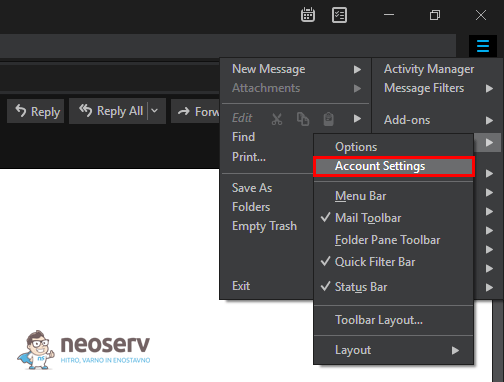
- A new window will open, select Copies & Folders on the left-hand side.
- In the Message Archives settings, tick Keep message archives and then select Local Folders under “Archives” Folder on.
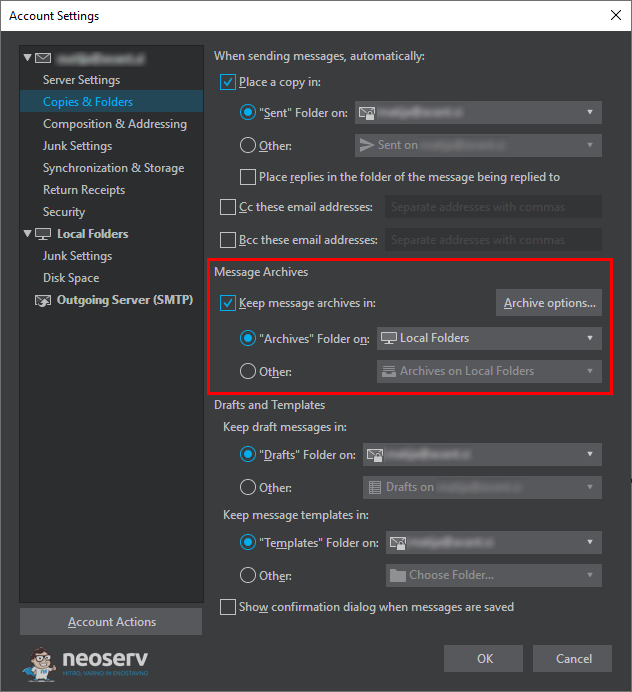
- By clicking on the Archive options… button you can also specify the structure of how the archive folders should be organised (one folder, by year, by month).
- Click OK.
- Now that you have your archiving settings in order, you can move the messages you want to archive to a local archive, saving space on your server. Highlight any messages and click on the Archive button at the top of the Thunderbird client or press the A key on your keyboard.
3. Archiving emails to Apple Mac Mail
Apple Mac Mail users can also archive their emails in a simple way. Just follow the steps below.
1. Open Mac Mail. Right-click Inbox and select New Mailbox…
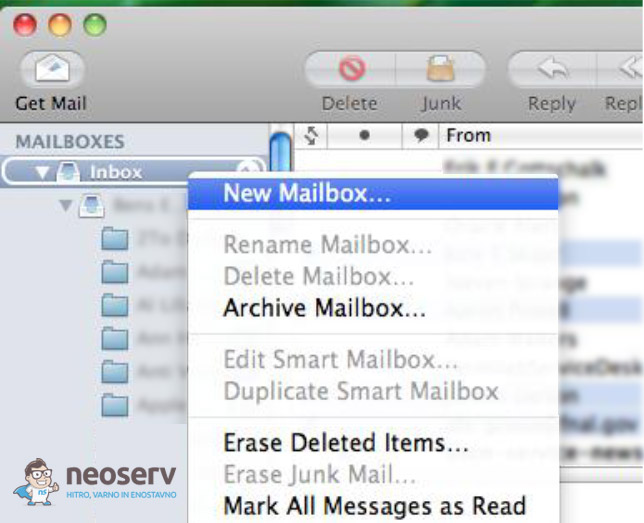
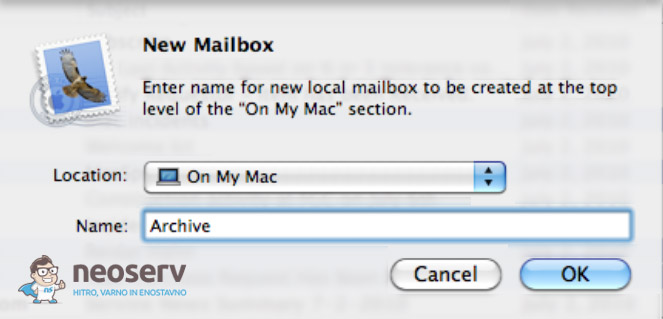
2. In the newly opened pop-up window, select Location. In the Name: field, enter a logical name for the archive folder, for example Archive. Confirm by clicking OK.
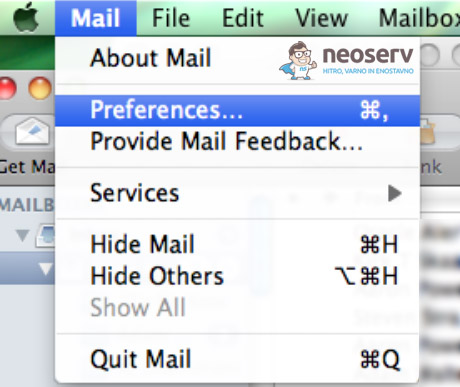
3. In the top menu of your email client, click on Mail and select Preferences…
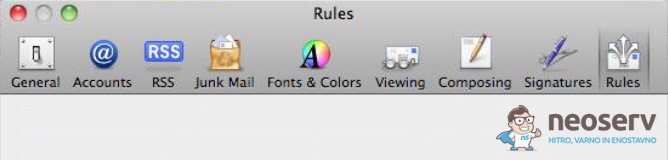
4. A pop-up window will appear where you can edit your preferences. Click on the Rules icon.
5. Select the rule that will determine which e-mails are moved to the archive folder or when they are moved to the archive folder. Add the rule by clicking the Add Rule button.
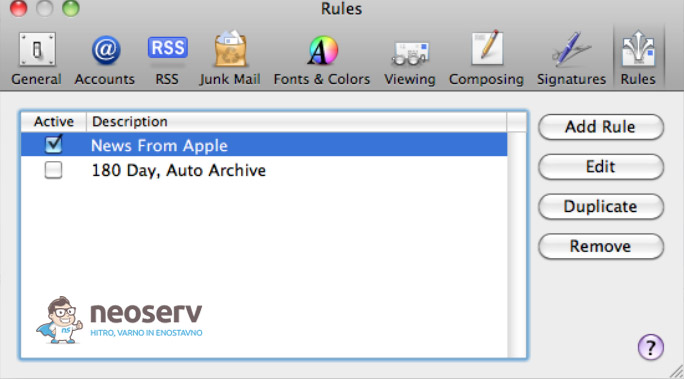
6. For example, if you wanted to move messages older than 180 days to the archive folder, you would edit the settings as shown in the figure below.
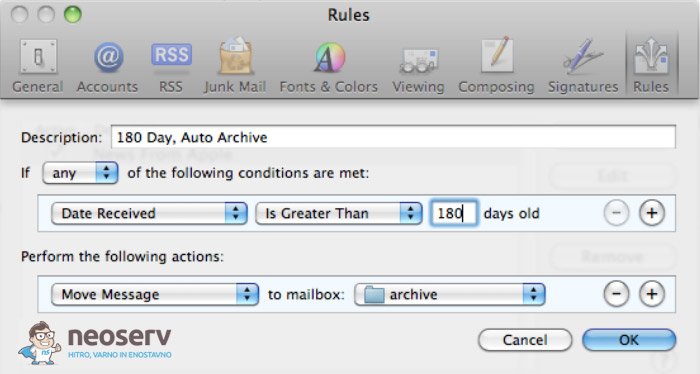
You would then edit the settings as follows:
- Decription: this is the name or description of the rule
- If:
any - Date Received Is Greater Than
180days old - Move Message to mailbox:
archive
Confirm the new settings by clicking OK.
COMMENT THE POST
Your comment has been successfully submitted
The comment will be visible on the page when our moderators approve it.