


- Your cart is currently empty.
Gmail Warning: “This Message Seems Dangerous”

Do the emails you send in your Gmail email client get the warning “This message appears to be unsafe”? Check below how to make sure your emails don’t have such warnings attached to them.
Why does my sent email get the warning “This message appears to be unsafe”?
Google automatically adds the “This message appears to be unsafe” flag to emails that may be suspicious. There are several different warnings that Gmail can attach to potentially unsafe emails:
- This message appears to be unsafe. Similar messages have been used to steal users’ personal data. Avoid clicking links, downloading attachments or sending a reply with personal information.

- Why is this message in the spam folder? This is similar to messages that have been treated as spam in the past.

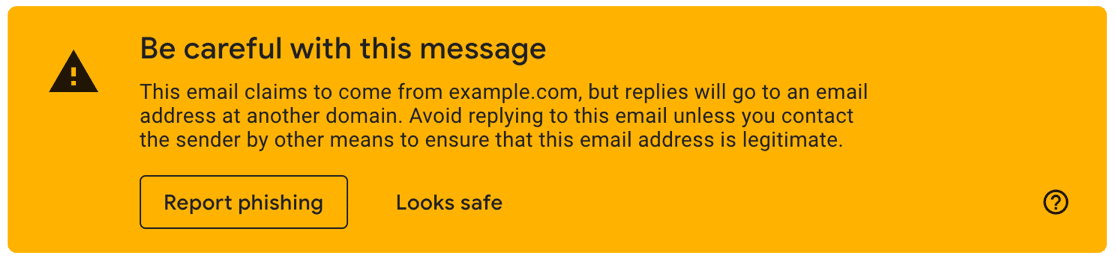
- Be careful with this message. This email claims to come from example.com, but replies will go to an email address at another domain. Avoid replying to this email unless you contact the sender by other means to ensure that this email address is legitimate.
- This may be a spoofed message. The message claims to have been sent from your account, but example.com Mail couldn’t verify the actual source. Avoid clicking links or replying with sensitive information, unless you are sure you actually sent this message. (No need to reset your password, the real sender does not actually have access to your account!)
- Gmail couldn’t verify that example.com actually sent this message (and not a spammer).
In some cases, a cross or exclamation mark is displayed instead of a picture of the sender, as shown in the picture:
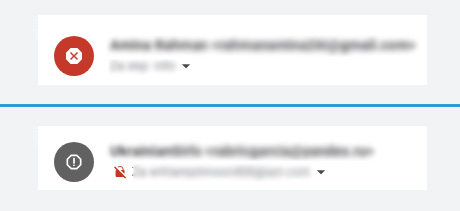
Even if your sent e-mails receive such a mark, they will still be delivered. However, you should not ignore these Gmail alerts because:
- Recipients of these messages think they have received a SPAM or dangerous message.
- In this case, the deliverability of your emails is greatly reduced.
- Messages with such a marking are often sent to the spam folder of the recipient.
You cannot completely disable emails with such warnings, but you can significantly reduce them with the right settings.
How do I remove the “This message appears to be dangerous” warning?
There are three steps you can take to reduce the chances of your emails getting the above label:
- Check DMARC, DKIM and SPF records
- Check the email address for outgoing mail and any plug-ins
- Use different email addresses for outgoing and incoming mail
1. Check your DMARC, DKIM and SPF protocols
If your website is based on WordPress, you can use the WP Mail SMTP plugin to send emails via an external service. This way you can easily improve the deliverability of your emails and reduce the chance of your emails getting any of the above warnings.
For this plugin to work properly, you also need the DMARC, DKIM and SPF security protocols configured correctly on your domain.
The DMARC, DKIM and SPF protocols add verification information to the header of the email message. Without these records, Gmail assumes that the email is of suspicious origin because the “Sent From” address is not the same as the server from which the email was actually sent.
Even if you do not use the above plugin, it is recommended that you check and configure the DMARC, DKIM and SPF security protocols accordingly. You may find the post Why and how to configure SPF, DKIM and DMARC helpful.
2. Check the outgoing email address and all plugins
If you use WordPress, then your website may use different settings for sending emails. For example, your contact form plugin sends emails from a personal email address, while another plugin sends emails from an admin email address, for example. For example, the popular Contact Form 7 contact form plugin has a preconfigured email address for sending wordpress@moja-domena.si.
We recommend that you set the same e-mail address for outgoing mail for all plugins. For example info@moja-domena.si.
3. Use different e-mail addresses for outgoing and incoming mail
If you use a plugin to send e-mail notifications, or if you also send e-mail to colleagues who use the same e-mail address with the same domain, you may find that some recipients receive a “This message appears to be unsafe” notification. This happens because the “Sent from” field and the “Received from” field contain the same domain.
If you are using a plugin to send email notifications, set a different email address to send email notifications.
If you are also sending e-notifications to people within the same organisation, you should only use recipients with a different domain in their e-mail address than the one from which you are sending the e-mail. For example: if the sender’s email address is vodstvo@moja-domena.si and the recipient’s email address is uporabnik@moja-domena.si, you should use the recipient’s email address uporabnik@gmail.com.
If you have followed the above three points, then you should no longer see the message “This message appears to be unsafe” next to your emails, or the number of such messages should be significantly reduced.
COMMENT THE POST
Your comment has been successfully submitted
The comment will be visible on the page when our moderators approve it.