


- Your cart is currently empty.
Google Ads Campaign Disabled Due to Website Malware

Have you ever come across a website while browsing the web that displayed a security warning that the site had a web virus? Have you checked the security exception and visited the site despite the warning? Probably not. Why risk your computer catching a virus … In fact, modern browsers don’t even allow you to visit a site that has a web virus installed.
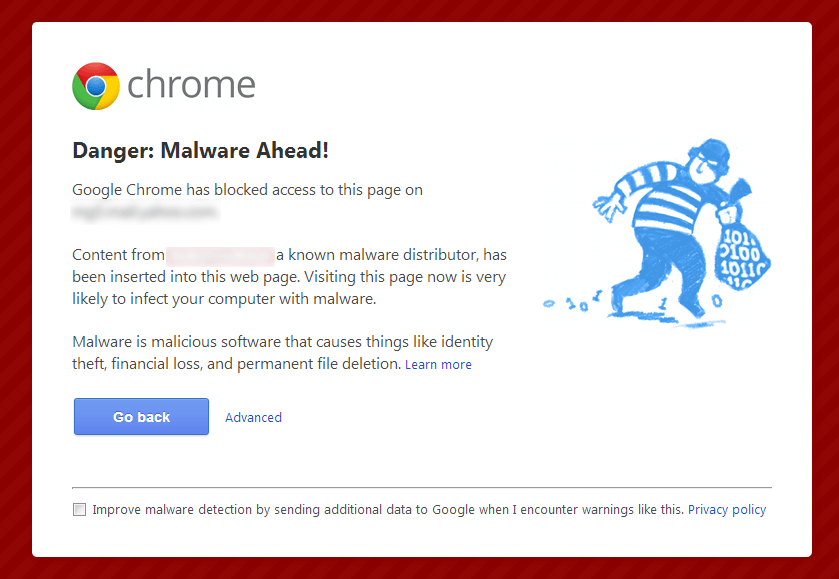
Can you imagine if such a situation were to occur on your website? Or worse – in your online shop? It could mean a huge loss of revenue, and even later, when the site has been cleaned of the virus, you could still feel the effects:
- The virus could cause your website to be ranked lower in Google search or removed from search results altogether. It’s also possible that, even after the virus has been eliminated, Google may not rank your website as highly as it did before the virus appeared for a long time. This, of course, means a drop in visitors, enquiries and orders.
- In the case of a compromised site with a virus, Google may also stop all active campaigns in Google AdWords. In the worst case, it can suspend your entire advertising account!
Read on to find out what you can do to get your Google AdWords ads showing again as quickly as possible. And don’t miss our tips on preventive measures that will help you protect your website from web viruses.
Google does not allow advertising on websites with malicious code
Google is very strict about advertising. There are a few rules that must be followed or your ads will not be approved. Often, breaking the rules leads to account suspension and the inability to advertise again. A large number of unapproved adverts, which may be the result of a virus on the website, can lead to account cancellation.
Unfortunately, many website owners are not aware of the seriousness of this problem. As long as the website is functioning normally, they do not see the need for high security. But when they see a security warning in AdWords…

… or maybe one of these …
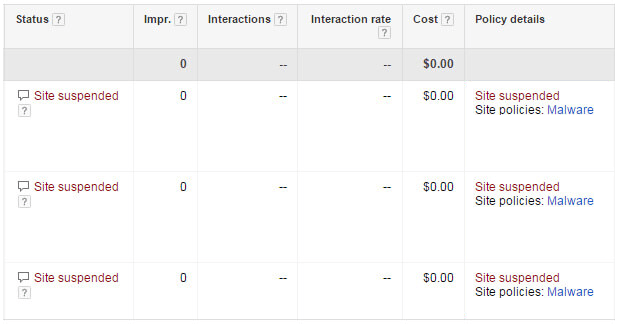
… they quickly become interested in additional security measures and, in particular, how to get their ads re-approved as quickly as possible.
Google does not allow websites to advertise with malware or unwanted software that could compromise a visitor’s computer or device. This includes computer viruses, Trojan horses, worms, ransomware, spyware, keystroke loggers and the like.
What should I do in the event of a security alert?
If you are experiencing a security warning on your website or if your Google AdWords ads have stopped working because of a web virus, please follow the steps below.
1. Sign up for the GSC (GSC Webmaster Centre)
In Google Search Console, select your website and click on the Security Issues link in the left-hand menu. Here you can check if your website is in any way compromising the security of web users. This link also shows details with sample links to malicious (sub)pages.
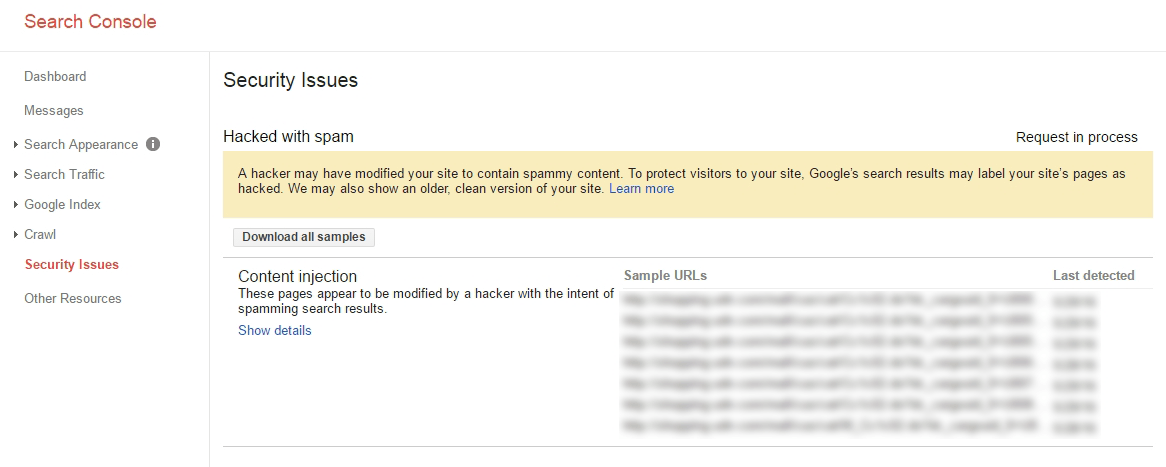
If you haven’t added your website to Google Search Console yet, do it now. Click on the red ADD TAG button in the top right corner and enter the URL of your site in the window that appears. Verify the ownership of the page using one of the options provided (e.g. by installing a file on the server).
Is Google Search Console telling you that there are currently no security issues detected related to the content of your website? However, there is a possibility that Google’s systems have detected a security issue that is not (yet) displayed in the Webmaster Centre.
2. Prevent access to the website and clean it of viruses
Use the information from Google Search Console to remove all malware and unwanted software. You can help by following the instructions on how to clean up a web virus that we have published in the NEOSERV Support Centre.
Make sure that the virus is completely removed. If you use subdomains on your website, check these as well. They can cause problems, as website owners often forget about them – for example, when they install a WordPress test on a subdomain, which they soon forget about and therefore don’t update with the necessary security patches.
If you are not experienced in virus cleaning yourself, please contact your website maintenance service. Of course, you can also contact our team for help.
3. Tell Google that your website is virus-free
When you are sure that your website is completely free of viruses, malware or unwanted software, please notify Google. Before that, remove the website block you set up in step 2.
There are two ways to notify Google that the problem has been fixed:
A) Request a review via Google Search Console
This is when web browsers (Chrome, Firefox, Opera, Safari, etc.) display a security warning to visitors instead of the content of the website.
Visit the Security Issues link in the Webmaster Centre. Under the list of errors, tick the box next to the statement that you have fixed the problem and click on the red REQUEST A REVIEW button.
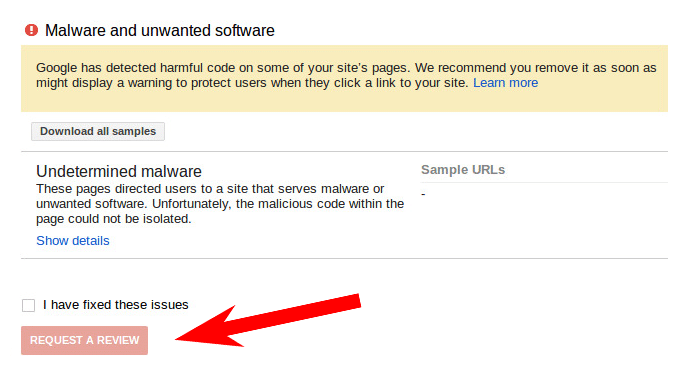
A new window will pop up, where you can explain in a few sentences to Google’s team of experts exactly how you cleaned the site of the virus and what you’ve done to make sure the same situation doesn’t happen again.
It usually takes a few days to review a website that has been compromised by malware or unwanted software. If Google finds that your site is safe again, you will be notified via the Webmaster Centre. Browser security warnings will disappear within 72 hours.
B) Request a review via the AdWords Support Centre
If a virus has stopped your website from displaying Google AdWords ads, you can request a review via https://support.google.com/adwords/contact/site_policy.
The information required by Google for this purpose is as follows:
- the type of landing page (website or app),
- the name of the owner of the website or app,
- contact email address,
- AdWords account ID number,
- names of campaigns with unapproved ads,
- type of response (phone or email).
You can also add an image to your request showing the error message.
A team of Google experts will check within a few days that the virus has been completely removed and the site is safe to use again. If the virus has been fixed, your ads will start to appear again and the security warnings in Google AdWords will disappear.
How do I protect my website from a virus?
Since you are reading this article, you are probably experiencing the problem of a virus on your website and non-functioning Google AdWords ads. Maybe you’re just here because you want to learn something new, but otherwise your website is in a perfectly “healthy” state.
Either way, taking thorough care of your website’s security is extremely important. It doesn’t matter whether your site has been the victim of a virus in the past or not. Follow these five tips to make sure your website is well protected.
1. Update your website regularly. Do you use WordPress, Joomla, Magento, PrestaShop, OpenCart or similar? Always have the latest version installed, as updates often include security patches that leave your website vulnerable. Keep the core system up to date, as well as plugins, extensions and graphic templates.
2. Delete all unnecessary web pages. We’ve already mentioned that sometimes old installations of websites end up on subdomains. These can, of course, also be present in directories. As they are most often left unupdated, they can quickly be attacked by a web virus. Check your hosting package and remove all old and unnecessary websites.
3. Choose a hosting provider with good antivirus protection. The number of website hacks is increasing year by year. That’s why we at NEOSERV have made sure that we have effective antivirus protection that automatically detects security holes and patches them automatically. Because the system runs completely unobtrusively in the background, it does not affect the quality of the user experience on the site.
4. Set strong passwords and change them regularly. Use passwords with upper and lower case letters, numbers and special characters. Use a password generator to help you create your passwords and store them in a secure software environment such as KeePass. If possible, use two-factor authentication (2FA). Change your passwords regularly for added security.
5. Always have backups available. Just as you regularly “backup” your important documents and images, you should also back up your website. These will come in handy when you want to restore a compromised website to its pre-virus state.
If you choose NEOSERV hosting, you don’t need to worry about this. We automatically create backups for all of our subscribers, and they are available to you on a daily, weekly and monthly basis.
COMMENT THE POST
Your comment has been successfully submitted
The comment will be visible on the page when our moderators approve it.