


- Your cart is currently empty.
How to Detect and Remove Malware from a Website
Search results for: ""
If you haven’t taken thorough care of your website’s security, your hosting package could fall victim to an online virus. The most common reasons for this are:
- hacking into a website due to bad login credentials (read more about secure passwords),
- an un-updated website (e.g. core system, plugins, graphical template),
- Use of unverified plugins and graphical templates,
- a virus on your computer.
For more information on the causes and prevention of web viruses, see How to protect your website from intrusions and viruses.
Have you found that your website has fallen victim to a web virus? Then you will need to clean your hosting package. The advanced antivirus system we use at NEOSERV will be a great help in finding the virus, but you may need to find and clean some files manually.
How do I identify a web virus?
A compromised package is most often identified by files with suspicious names. In this case, the files are new files that should not exist in the package. Alternatively, it may be a modification of otherwise legitimate files, where the only thing that needs to be removed is the malicious code. There may also be a web virus in the database.

Have you found files on your hosting package in a similar state to the one shown in the picture above? Check below how to find and clean a web virus.
Finding a web virus with an antivirus system
On NEOSERV servers we use an antivirus system that regularly scans files and detects web viruses automatically. It adds the extension .infected to files with malicious code, but does not modify the content of the files themselves. The system therefore serves as an aid in finding web viruses, as you can quickly find them with a simple search query “.infected”.
1. Log in to the cPanel control panel.
2. Open the File Manager.
3. In the top right corner, search for File Finder, type .infected and click the blue Go button.

4. Wait a moment for the system to scan all the files on your hosting package. When the search is complete, you will see a window with the search results.
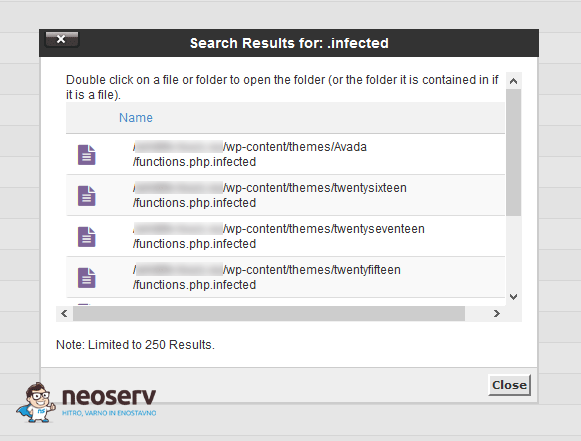
5. Manually check all files with the extension .infected and remove the malicious code from them. Once you have saved your changes, the antivirus system will check the files again and, if the web virus has not been completely removed, will mark them again with the aforementioned extension.
As new web viruses are constantly emerging and existing ones can change, no antivirus system is perfect. This may result in a web virus being present on your hosting package that is not detected by the antivirus system. In this case, it will also be necessary to manually search for and clean the malicious code. More on this below.
Manually scan for a web virus with SSH commands
Use SSH commands to help you find a web virus. You can search based on commands that are bound to a time frame. For example, with the …
find . -name "*.php" -mtime -5 -print | less
… to find all files that have been modified in the last five days.
You can also search for files by their location. If you wanted to find all .php files within the /uploads directory, you would use the following command:
find . -path "*/uploads/*.php" | less
With SSH commands, you can also search by the content of the files. For example, you can use the following commands:
grep -rlF --include=*.php "base64_decode" . | less
grep -rlF --include=*.php "*/incl" . | less
grep -rlF --include=*.php "Array('1'" . . | less
The first of these commands searches for all .php files in the hosting package that contain the base64_decode record. This is because many web viruses include such a record in their malicious code. We have shown just three examples, as there are many more common notations that web viruses often include.
SSH commands will also find many files that do NOT contain malicious code. Such an event is called a“FALSE POSITIVE“. Therefore, unless you are 100% sure that the file is malicious, a thorough manual check is also required for all files. You should also be aware that the SSH commands shown may not find all compromised files, as web viruses are constantly changing and adapting. To clean up web viruses effectively, you need to have the appropriate knowledge in this area.
We also recommend checking the raw logs in the cPanel control panel to see which .php files were last modified.
Cleaning compromised hosting package files
With the above SSH commands you will find three different types of files:
- files that are entirely malicious,
- legitimate files, compromised with malicious code inserted,
- legitimate files that do not contain malicious code (“false positives”).
Delete the first files (point 1) containing nothing but malicious code in their entirety.
The other files (point 2) must be cleaned manually. To do this, open the file in a code editor (you can also use the cPanel editor) and remove the malicious code manually.
Legitimate files (point 3) can be ignored. These files only appear in the results of a search because they contain similar characters to the compromised files, but are not actually harmful.
Finding a web virus with Virus Scanner
It is also worth mentioning the Virus Scanner tool, which can be accessed via the cPanel control panel. It is a graphical interface to the open-source anti-virus system ClamAV. You can scan emails, the entire Home directory, public_html (Public Web Space) or public_ftp (Public FTP Space).


Virus Scanner only finds rare and older forms of web viruses, so you should not expect to find all compromised files using it. A web virus can only be thoroughly removed from a hosting package using SSH commands.
For further assistance, please call us on 059 335 000 or email us at info@neoserv.si.

COMMENT THE POST
Your comment has been successfully submitted
The comment will be visible on the page when our moderators approve it.