


- Your cart is currently empty.
How to Set Up Google Analytics in Joomla


Are you interested in how many visitors your Joomla website receives, which subpages are the most visited and how long on average people stay on each subpage of your website? Use the Google Analytics web platform, which gives you insights into many more things than just these.
For details on what Google Analytics can do for you, how to create and activate your new account, and where exactly to get your tracking ID, read our post on using Google Analytics. And later in this article, find out how to enter the code into a Joomla website.
Table of contents
- Method #1: entering GA code in index.php
- Method #2: use Joomla extension
- Google Analytics code performance test
Method #1: entering GA code in index.php
The flow of data into the Google Analytics web platform is facilitated by tracking code that must be added to the header of each sub-page of your website. One way to do this in Joomla is to insert the GA tracking code into the index.php file.
The process of entering GA code in this way is not always exactly the same, as it depends on which graphical template you are using. Here is the procedure for the Beez3 graphical template.
1. Log in to the administration of your Joomla website.
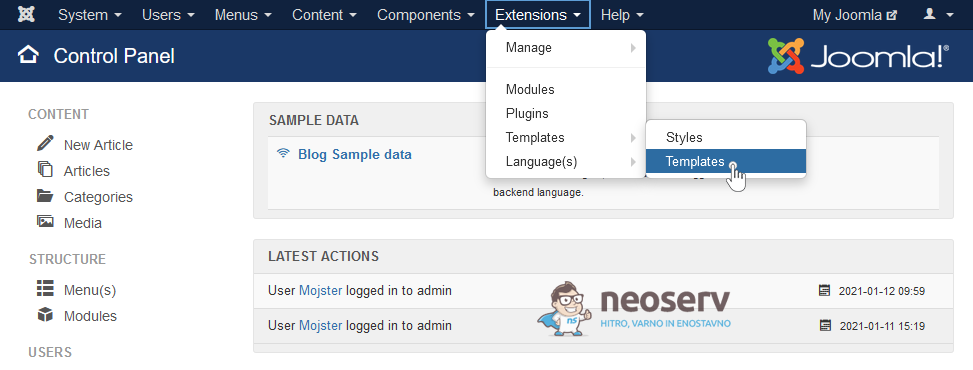
2. In the top menu, go to Extensions -> Templates -> Templates.
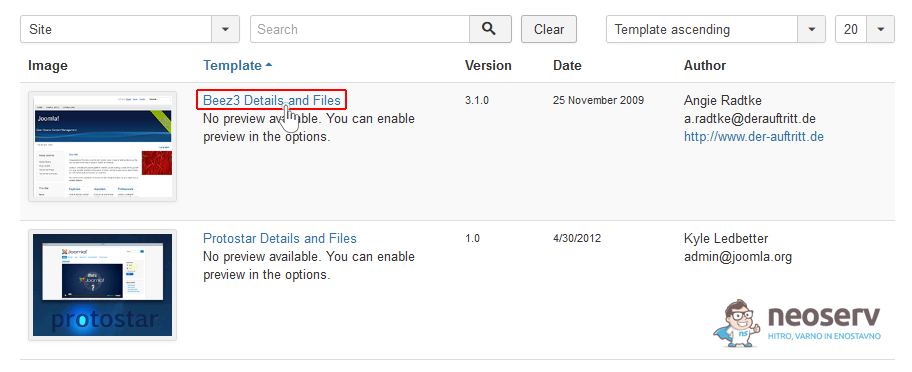
3. In the list of graphic templates, click on Beez3 Details and Files to access the template files.
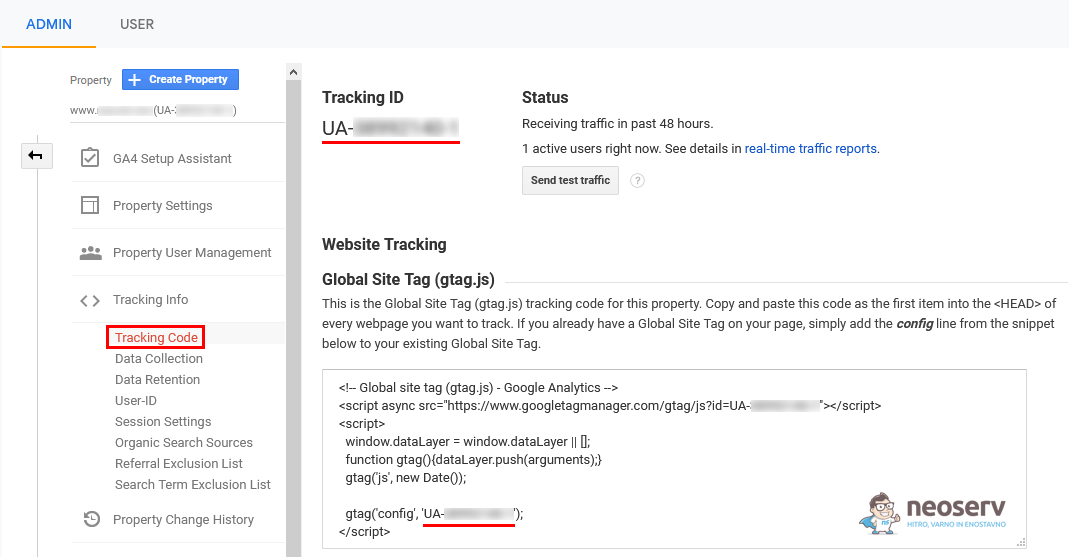
4. In a new tab, open the Google Analytics web platform and search for the tracking code. You will find it under Admin-> Property-> Tracking Info-> Tracking Code.
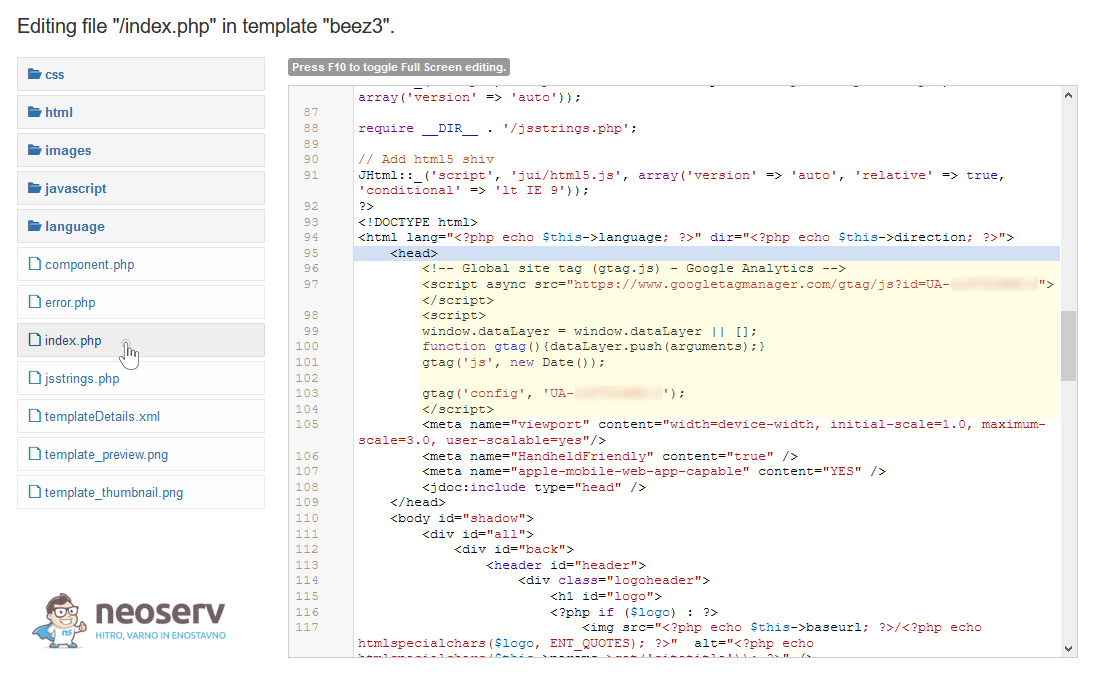
5. In the admin area of the website, select the index.php file in the left column. Find the <head> record and paste the full tracking code immediately after it on the next line.
6. Click the Save button in the top left corner to save your changes.
Again, the above procedure is linked to the Beez3 template. If you are using another template, the procedure will be similar but not identical. Some graphical templates support entering GA code in a dedicated field, so editing the index.php file is not even necessary.
Method #2: use Joomla extensions
You can also use an extension to add Google Analytics code to your Joomla website, for example the Google Analytics extension (by Peter Bui).
Download the extension to your computer.
2. In the top menu of the Joomla administration, navigate to Extensions -> Manage -> Install and install the extension.
3. Navigate to Extensions -> Plugins and search for System – Google Analytics.
4. In the Options tab, in the Google Analytics Web Property ID box, enter the tracking ID (in the format UA-XXXXXXXXXXX-X).
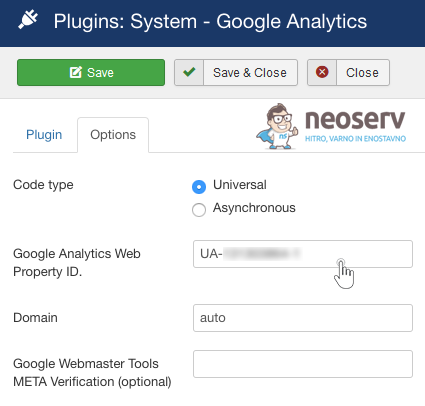
5. Click Save to save your settings and make sure the extension is enabled.
Not happy with the extension we’ve shown above? There are many additional extensions available for your Joomla website that are related to web analytics in one way or another.
Google Analytics code performance test
Whichever way you choose to enter your Google Analytics tracking code, now is the time to check that it is working correctly.
Follow this simple procedure:
1. Open your website in Private / Incognito browsing mode or on your phone. It is essential that you view it when you are not logged in to the Joomla Control Panel at the same time.
2. Open the Google Analytics web platform and check your site traffic in real time. Scroll to Realtime -> Overview.
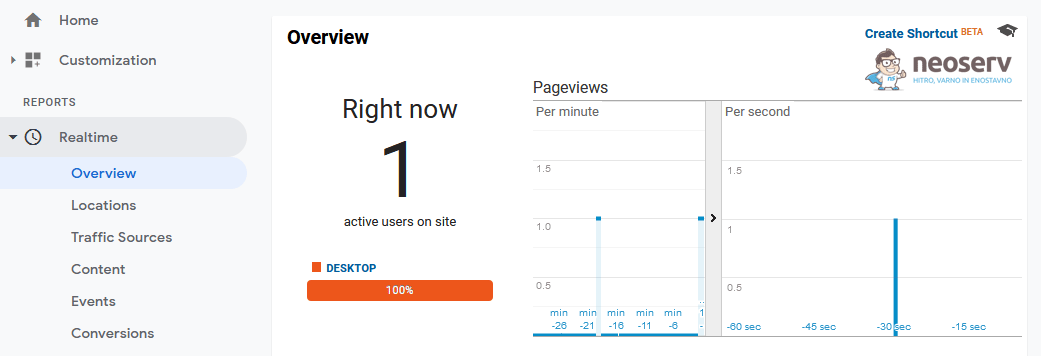
As shown in the screenshot above, you should now have a visitor (yourself) logged. Move through the different subpages of your Joomla site and watch the data change in real-time in Google Analytics.
COMMENT THE POST
Your comment has been successfully submitted
The comment will be visible on the page when our moderators approve it.