


- Your cart is currently empty.
Google Analytics: Enhancing Your Website with Traffic Analysis
Search results for: ""
Google Analytics is a free, powerful and cutting-edge website statistics/analysis viewer. You can monitor the statistics of multiple websites at the same time through one account or dashboard and it also supports graphical display for easier and faster viewing!
The interface is user-friendly and highly customizable, and also offers you the possibility to create custom reports. Real-time statistics and a view of mobile visits are great advantages. Through the interface, you can get all the information you need to convince your visitors to come back to your website, which is especially important for online shops, because this will increase your profits!
You will also find all the information about Google Analaytics in English on their official website (you can change the language in the bottom right corner if you wish).
Through the app you can, among other things:
- the number of visits and the number of unique visitors to your website,
- the percentage (%) ratio between new and existing visitors,
- recent visits,
- duration of visits,
- overview of visits by hour/day/week/month/year,
- display of the number of visitors by location (country),
- maximum number of visits,
- most popular pages,
- entry and exit pages,
- overview of the pages from which visitors came to your site (external links),
- traffic sources (search traffic, referral traffic, direct traffic, advertising campaigns),
- the list and ratio of browsers through which visitors arrived,
- the list and ratio of search engines through which visitors arrived,
- the keywords entered in the search,
- page analysis (average page load time, average redirect time, etc.),
- Conversion management,
- includes AdSense (earning by displaying targeted Google ads on the site),
- and much more!
HOW DO I ACTIVATE GOOGLE ANALYTICS?
You need a Google account to activate the service. If you don’t have an account, you can create one here (top right).
1. Go to https://www.google.com/intl/sl/analytics/ and sign in with your Google account.
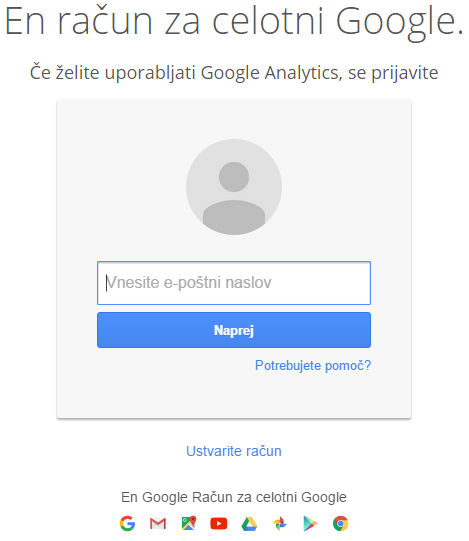
2. On the next page, click the Sign in button again.

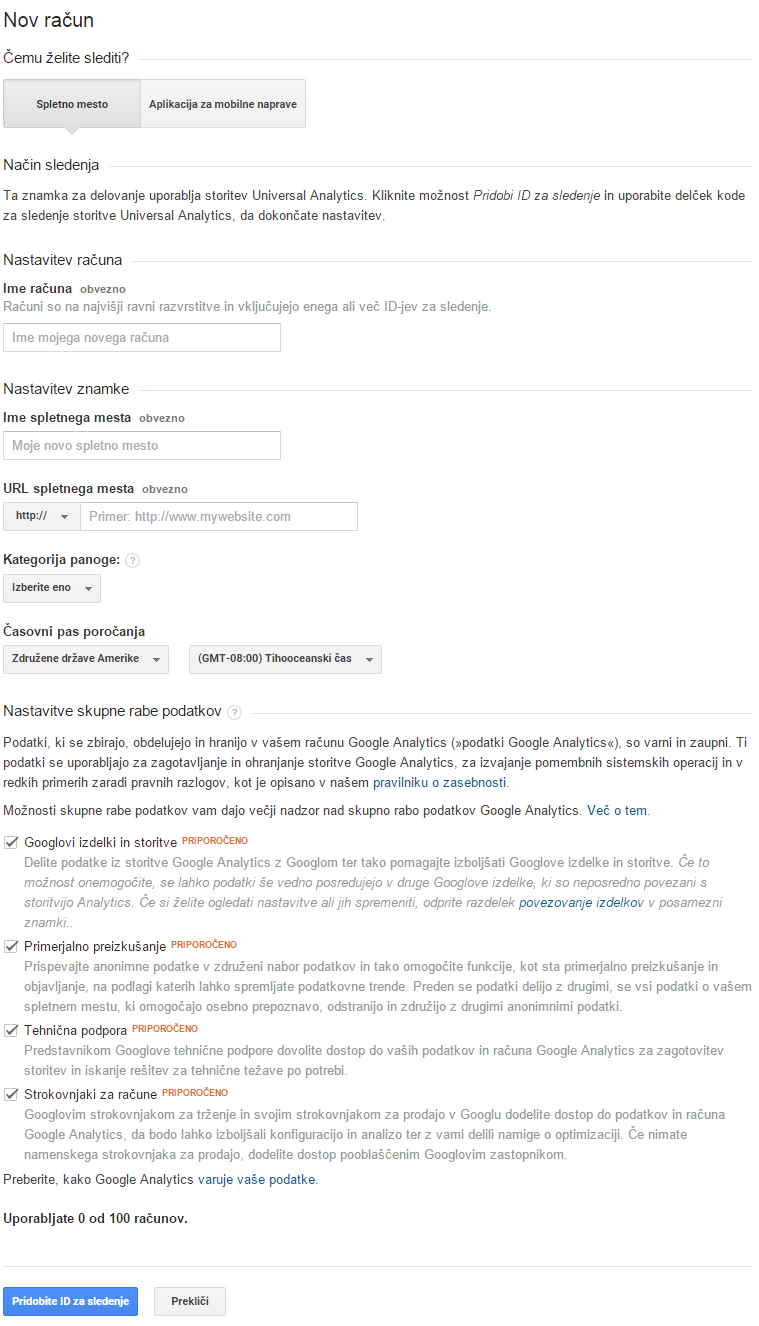
3. Select your account type and enter your basic details. Once you have filled in all the necessary information, click Get Tracking ID.
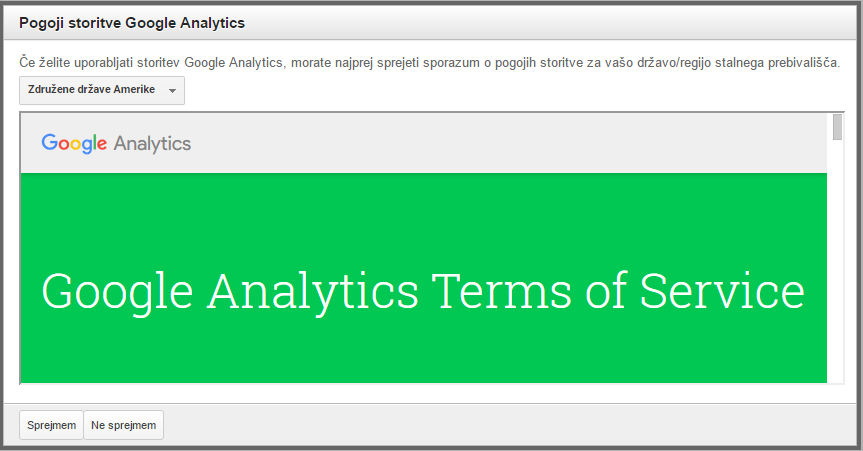
4. Accept the Google Analytics Terms of Service.
5. Once you have added your website to the Analytics interface, all you need to do is add the tracking code to the content (files) of your website. You can add the code in HTML or PHP format. You can find more information on how to add it here, or you can find all the information you need in your administrator (Administrator tab —> Tracking information).
Please also check:
- How to add Google Analytics code to WordPress?
- How to add Google Analytics code to Joomla CMS?
- How to add Google Analytics code in OpenCart?
- How to add Google Analytics code in PrestaShop?
- How to add Google Analytics code in Magento?
We wish you lots of visits (and earnings)!
* You are also welcome to take a look at the article about Awstats statistics, which is included in the cPanel dashboard itself.
We are also always available by phone or email for any further questions.

COMMENT THE POST
Your comment has been successfully submitted
The comment will be visible on the page when our moderators approve it.