


- Your cart is currently empty.
How to Set Up Google Analytics in Magento


Have you set up an online shop in Magento? It is highly recommended that you connect it to the Google Analytics platform, which gives you a detailed insight into the traffic to your online shop. What’s more, using this tool, you’ll be able to analyse which products visitors view most often, how long they stay on your site, how often they abandon their online shopping cart during the purchase process, and so on.
The process of connecting your Magento store to Google Analytics is quite simple, but of course it is a prerequisite that you have a Google Analytics account. Read how to create one and then add a new website in it in this article. And see below how to add Google Analytics code to Magento 2 and Magento 1.9.
Table of contents
- How to add GA code in Magento 2?
- How to add GA code in Magento 1.9?
- How to check GA code performance?
How to add GA code in Magento 2?
To add a Google Analytics tracking code to your Magento 2 store, follow the procedure below.
1. Log in to the administration of your Magento online store.
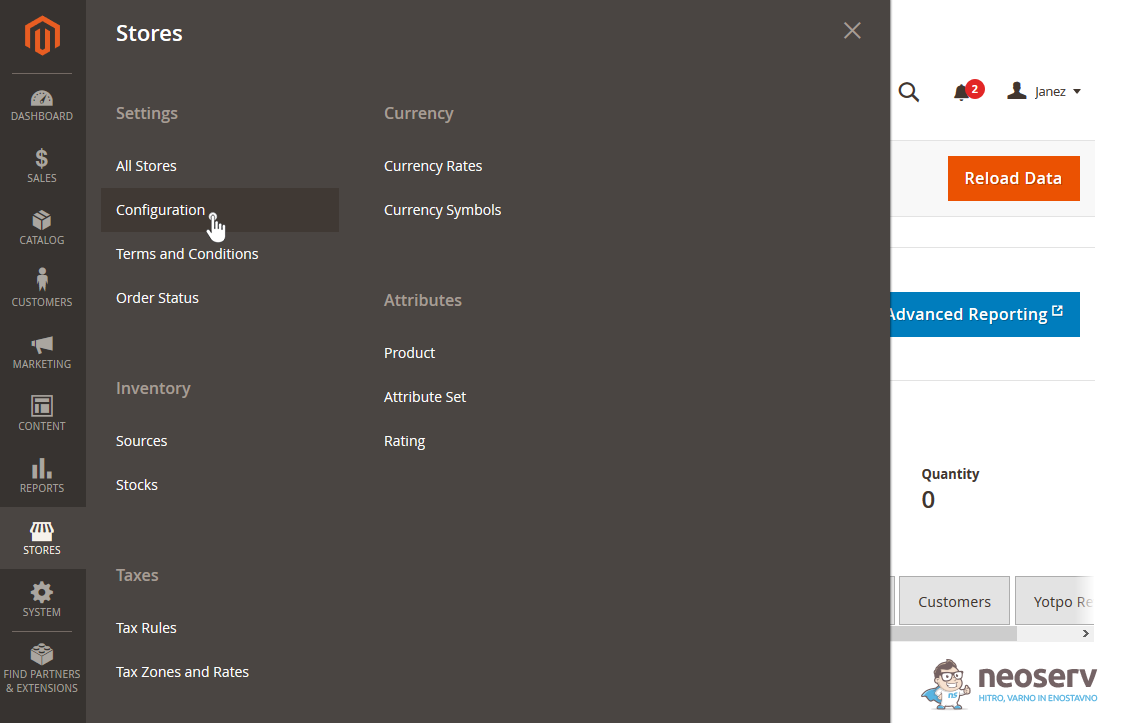
2. In the menu on the left side, hover over STORES, then under Settings, click on Configuration.
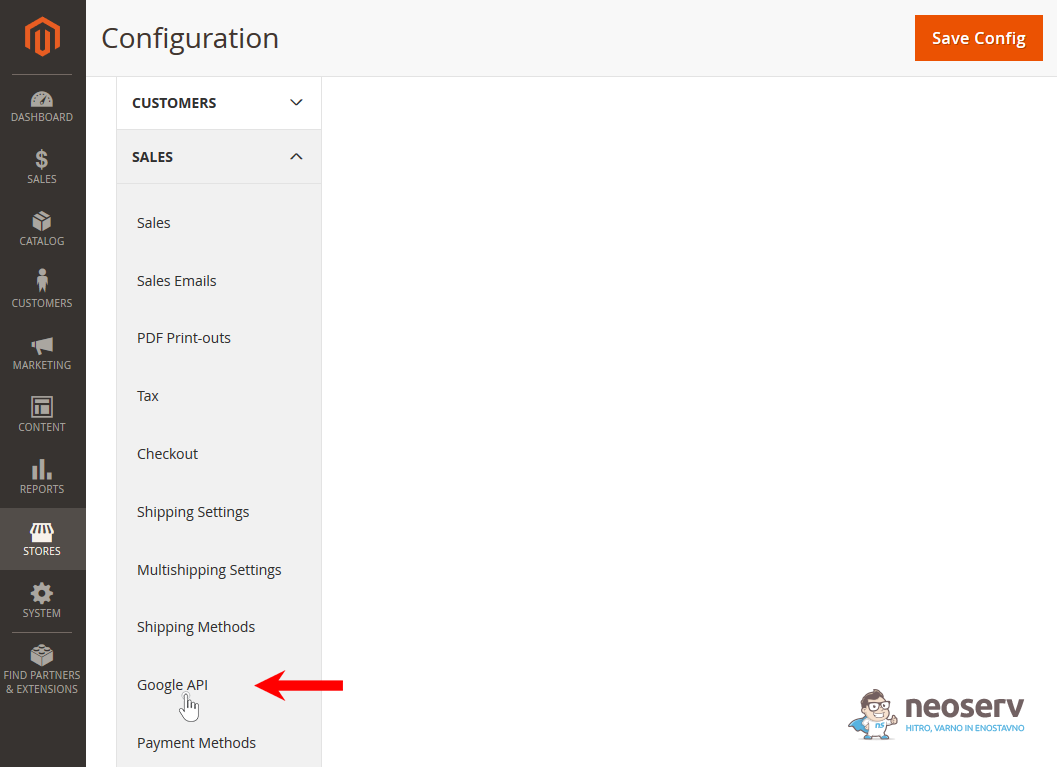
3. Under SALES, find the Google API and click on it.
4. In a new browser tab, sign in to the Google Analytics platform and find your tracking code. You will find it under Admin-> Property-> Tracking Info-> Tracking Code.
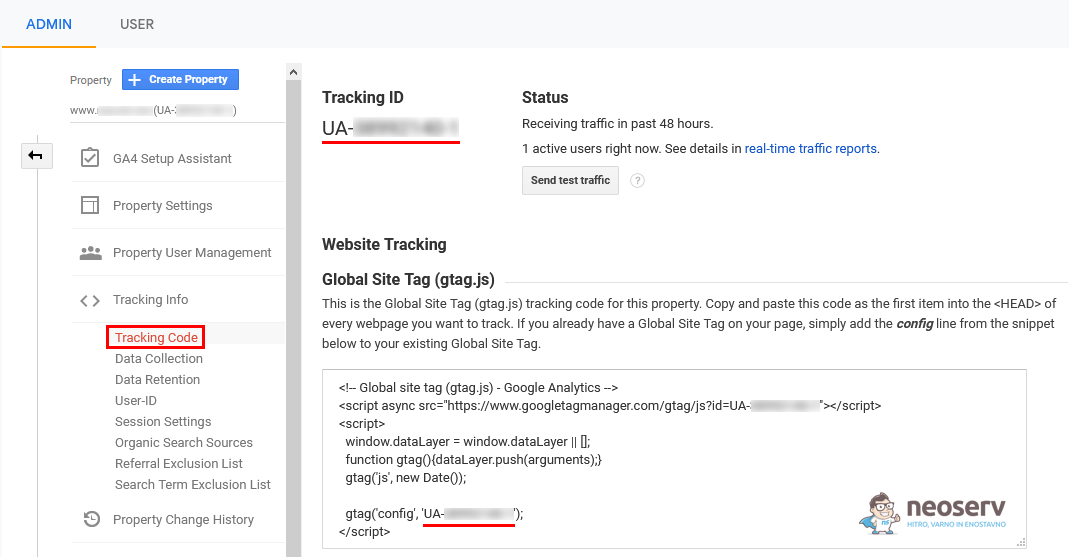
5. In the Magento admin, expand the Google Analytics settings, set the Enable option to Yes, and under Account Number, enter your Tracking ID code (UA-XXXXXXXXXXX-X) that you found in the previous step. If you want to anonymize the IP addresses of your visitors, set the Anonymize IP option to Yes.

6. Save your changes by clicking the Save Config button.
How to add GA code in Magento 1.9?
To add a Google Analytics tracking code to Magento 1.9, follow the procedure below.
1. Log in to the administration of your Magento online store.
2. In the top menu, hover over System and then select Configuration.
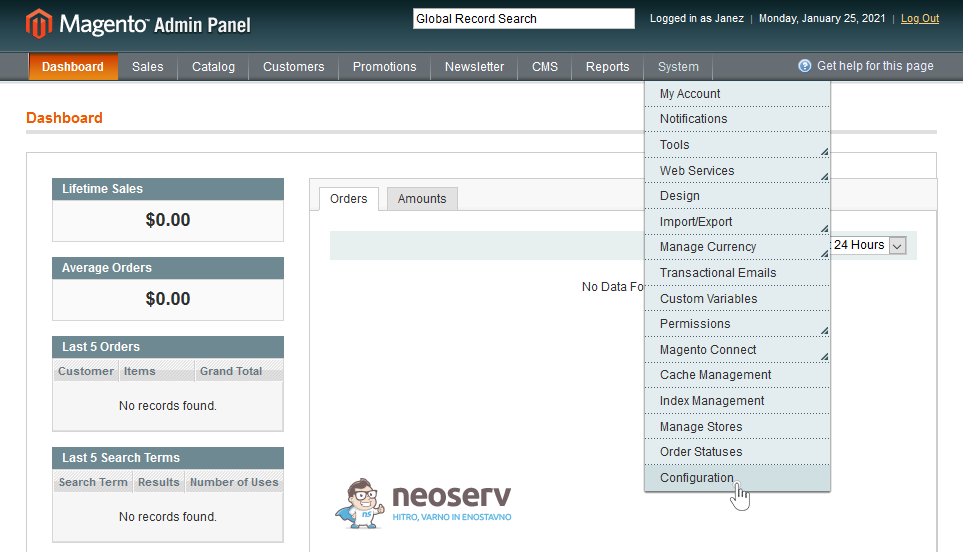
3. In the left menu, find the SALES section and click on the Google API link.
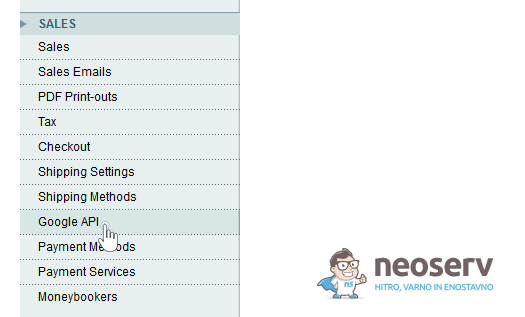
4. In a new browser tab, sign in to the Google Analytics platform and find your tracking code. You will find it under Admin-> Property-> Tracking Info-> Tracking Code.
5. In the admin area of the webshop, click on the Google Analytics box, then set the Enabled option to Yes, under Type select the type of tracking code and in the Account Number field enter your Tracking ID code that you found in the previous step. If you want to anonymize visitors’ IP addresses, set the Anonymize IP option to Yes.
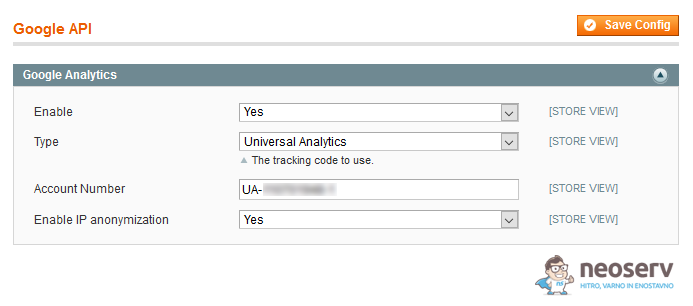
6. Confirm the settings by clicking the Save Config button.
How do I check the GA code is working?
Have you followed one of the steps described above to enter a Google Analytics code in your Magento store? Now it’s time to check if the tracking code is working properly.
1. Open the webshop in Private / Incognito browsing mode or on your phone. It is essential that you open it in a browser where you are not logged in to the Magento administration at the same time.
2. Log in to the Google Analytics platform and check the traffic to your online shop in real time. The latter can be found under Realtime -> Overview.
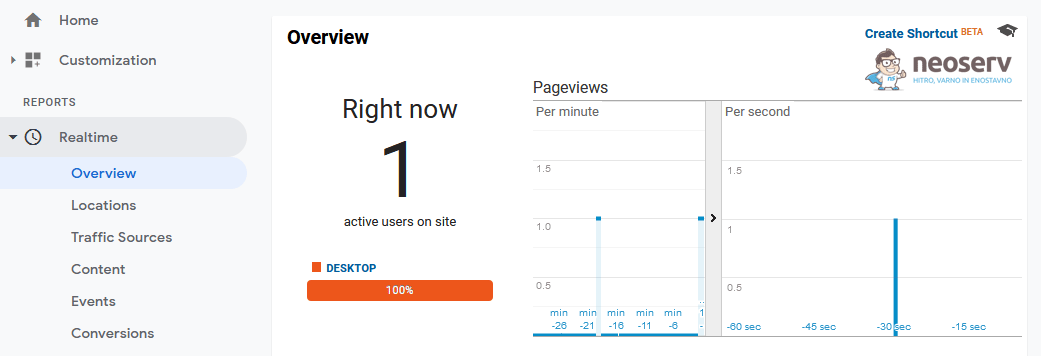
As shown in the image above, you should now already have recorded yourself as a visitor in realtime. Move around the different subpages of your online shop and keep checking how the data is changing in Google Analytics.
Does Google Analytics show you that your online shop currently has no visitors? In all likelihood, the problem is related to caching. We advise you to clear the cache in the Magento store administration and refresh the page.
COMMENT THE POST
Your comment has been successfully submitted
The comment will be visible on the page when our moderators approve it.