


- Your cart is currently empty.
How to Set Up Google Analytics in OpenCart


You’ve set up an online shop in OpenCart and now you don’t know how much traffic it’s getting? If you’re not using Google Analytics yet, it’s definitely time to start. It will also allow you to track a lot of other data, such as how many visitors are present at the moment, how long on average they stay in your online shop, which products they view the most, etc.
To track all of this (and more), you’ll need to add a tracking code to the source code of your webshop, which you’ll receive when you create an account and add a new website to the Google Analytics platform. Read more about this in this post, where we explain exactly how to take your first steps in Google Analytics.
Sitemap
- Adding code in OpenCart 3.x
- Adding code in OpenCart 2.1, 2.0 and 1.5
- Testing how Google Analytics code works
Adding code in OpenCart 3.x
The process of adding Google Analytics code to OpenCart 3.x is quite simple:
1. Log in to the administration of your OpenCart webshop.
2. In the left menu, select Extensions -> Extensions.
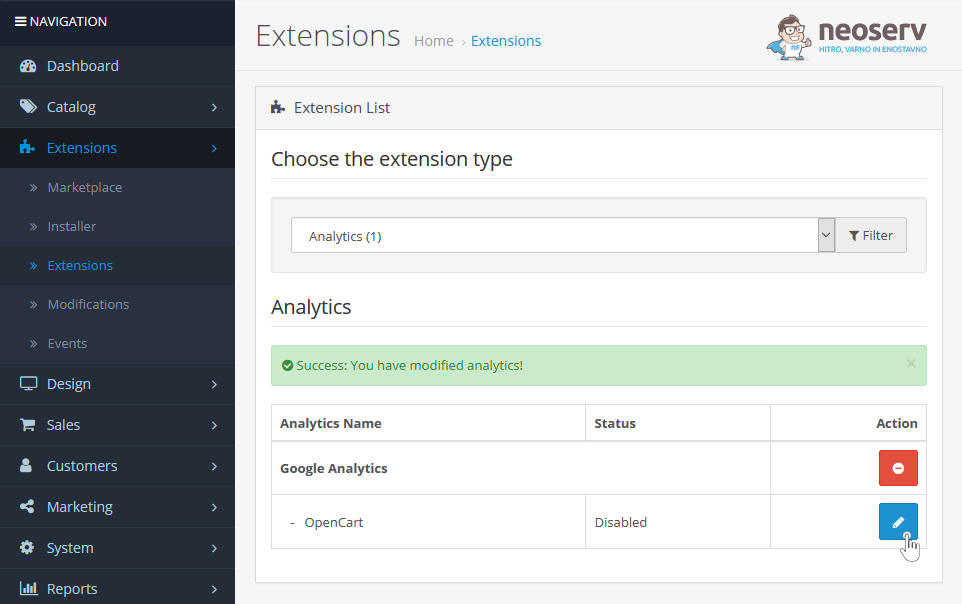
3. Under Extension Type, select Analytics to display Google Analytics in the list of extensions. Then click on the green “+” icon to install the extension.

4. When you receive a notification that the extension installation has been successfully completed, click on the blue “pencil” icon to configure the extension accordingly.
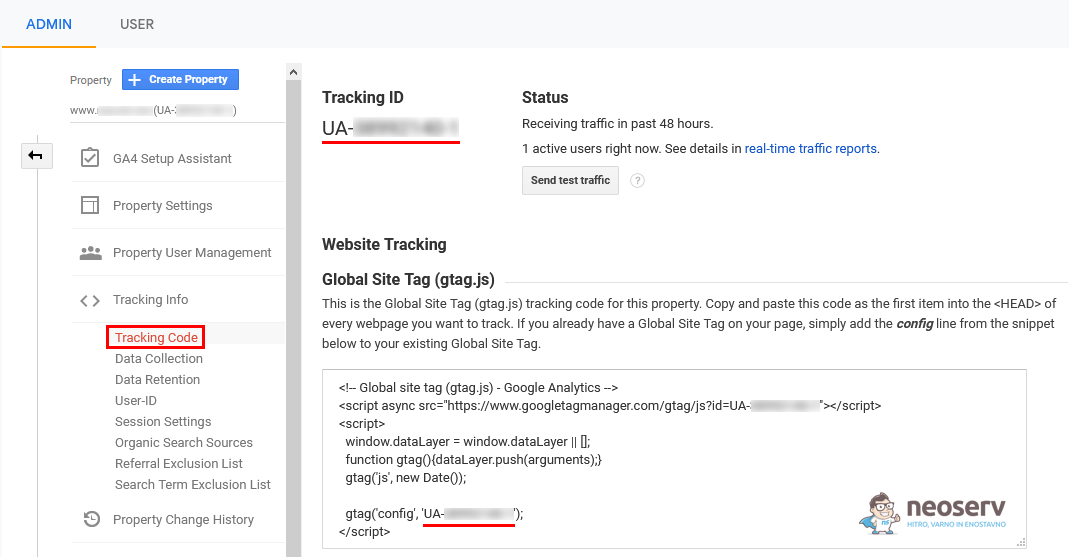
5. Log in to the Google Analytics platform and find your tracking code. You will find it under Admin-> Property-> Tracking Info-> Tracking Code.
6. Copy the whole code (ctrl+c) and paste it (ctrl+v) into the Google Analytics Code box – in the OpenCart admin. In addition, set the setting under Status to Enabled.
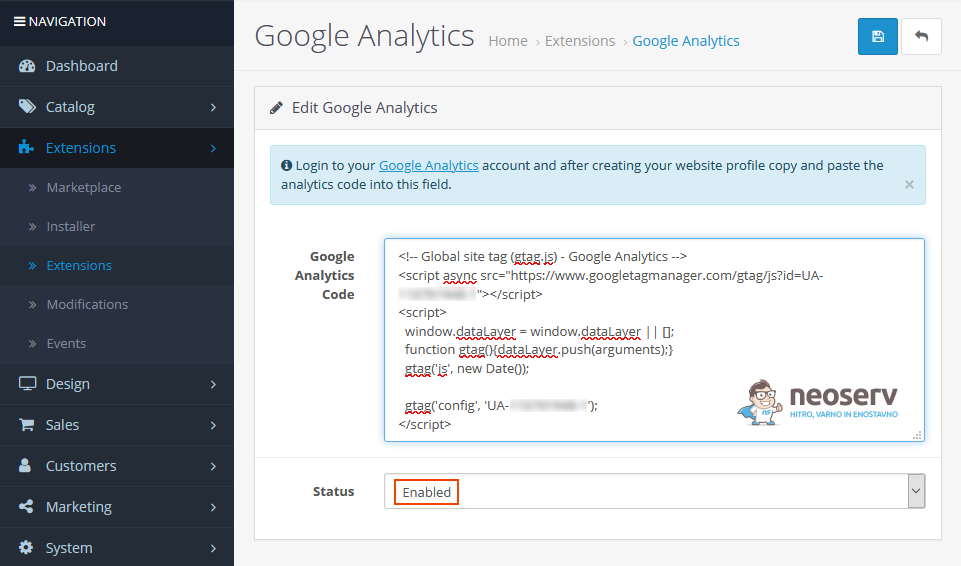
7. Save your changes by clicking on the blue “floppy disk” icon in the top right corner.
Adding code in OpenCart 2.1, 2.0 and 1.5
The process of adding Google Analytics code is very similar to the one described above for OpenCart 2.1, but slightly different for OpenCart 2.0 and 1.5. You can see the procedures for all three versions below.
OpenCart 2.1
- Log in to the OpenCart administration.
- Click on the “puzzle” icon in the left menu and select Analytics.
- Find the Google Analytics extension and install it by clicking on the green “+” icon.
- Click on the blue icon with the pencil symbol.
- Paste your Google Analytics code into the Google Analytics Code box.
- Set thestatus to
Enabledand confirm your changes by clicking on the blue floppy disk icon.
OpenCart 2.0
- Sign in to the OpenCart administration.
- Click on the gear icon in the left menu and select Settings.
- Select your store and click on the blue icon with the pencil symbol.
- Select the Google tab.
- Paste your tracking code into the Google Analytics Code box (in the Google Analytics section).
- Select
Enabledin the Status setting and save your changes by clicking on the blue “floppy disk” icon.
OpenCart 1.5
- Log in to the OpenCart administration.
- From the top menu, select System -> Settings.
- Select your store and click Edit on the right side.
- Scroll to the Server tab.
- At the very bottom you will find the Google Analytics Code box where you enter your tracking code.
- Save your settings by clicking the Save button in the top right corner.
Testing how the Google Analytics code works
As you can see, adding Google Analytics code to your OpenCart webshop is easy – no matter which version of the system you are using. However, we advise you to check that the tracking code works after you have entered it.
To do this:
1. Open the webshop in Private / Incognito browsing mode or on your phone. In short, it is essential that you view it in a browser where you are not logged in to the OpenCart administration at the same time.
2. Log in to the Google Analytics platform and check the traffic to your site in real time. The latter can be found under Realtime -> Overview.
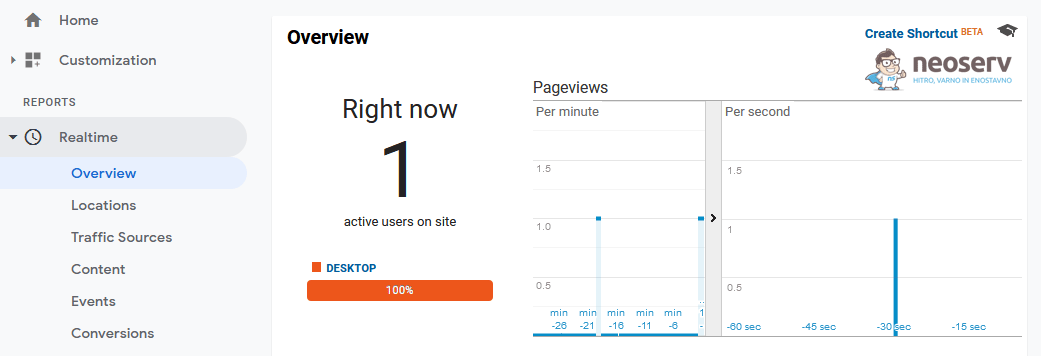
You should now be able to record yourself as a visitor in real time. Move around the different subpages of the webshop and watch the data change in Google Analytics.
Web analytics not working for you? Is the number of visitors displayed always 0? If you are using the caching extension in your OpenCart webshop, please clear your memory and try again.
COMMENT THE POST
Your comment has been successfully submitted
The comment will be visible on the page when our moderators approve it.