


- Your cart is currently empty.
How to Set Up Google Analytics in PrestaShop


Have you recently set up a new online shop in PrestaShop? One of the first steps after the store has gone online should definitely be to implement Google Analytics tracking code. This allows you to view a wide range of statistics that can be used to optimise the online purchase process and thus improve the performance of your business.
We’ve written more about what the Google Analytics platform can do for you in this article. You can also find out how to activate your Google Analytics account, how to add a new website and how to get a tracking ID code here. Read on to find out how to add this code to your favourite online shop – PrestaShop.
Sitemap
Adding code in PrestaShop 1.7
If your online shop is based on PrestaShop version 1.7, please follow the procedure below:
1. Download the Google Analytics PrestaShop Module to your computer. The module is free to download, but you will need to register on the website before downloading it.
2. Log in to the administration of your PrestaShop webshop.
3. In the left menu of the administration select Modules -> Module Manager.

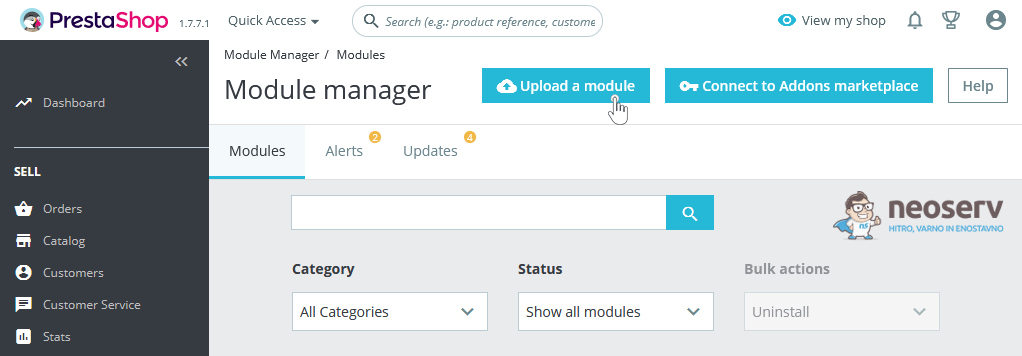
4. Click on the Upload a module button and select the file (ht_googleanalytics.zip) that you downloaded to your computer in the first step.
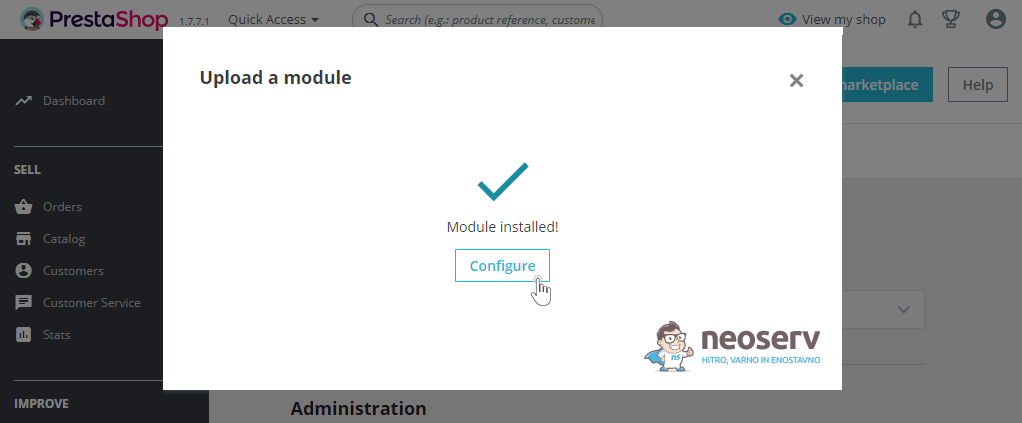
5. Wait a moment for the module to install successfully, then click on the Configure button.
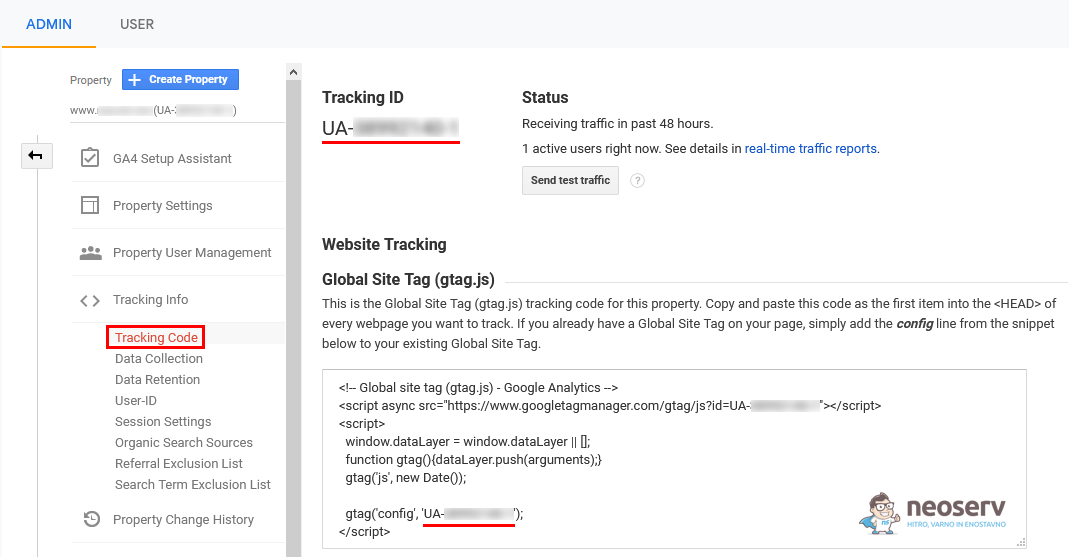
6. In a new browser tab, sign in to the Google Analytics platform and find your tracking code. You will find it under Admin-> Property-> Tracking Info-> Tracking Code.
7. Return to the tab where you have PrestaShop Administration open and enter the Tracking ID code (in the format UA-XXXXXXXXXXX-X) you found in the previous step in the Google Tracking ID field.
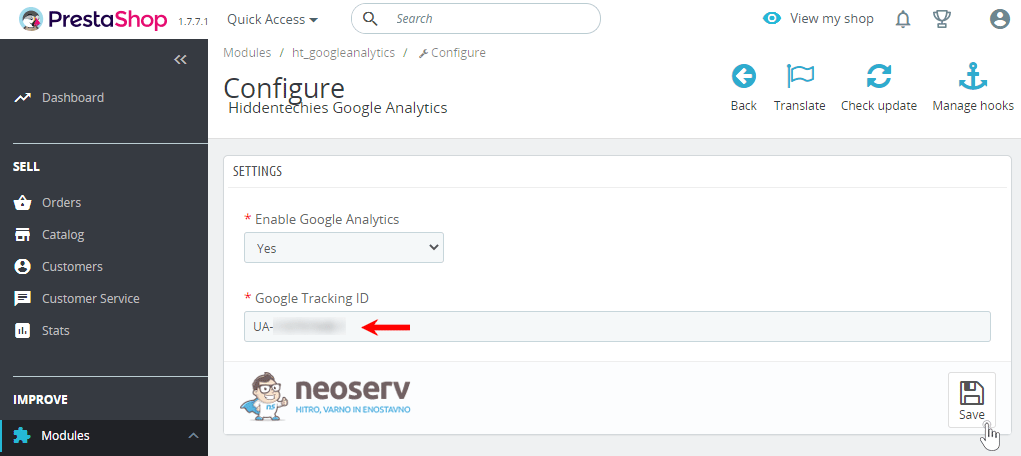
8. Make sure that you have set the Enable Google Analytics setting to Yes and confirm by clicking the Save button.
Adding code to PrestaShop 1.6
If your online shop is based on PrestaShop version 1.6, follow these steps:
1. Download the Google Analytics Module. The download is free, but you will need to register before downloading the module. Please make sure that you select the correct version of the module when downloading.
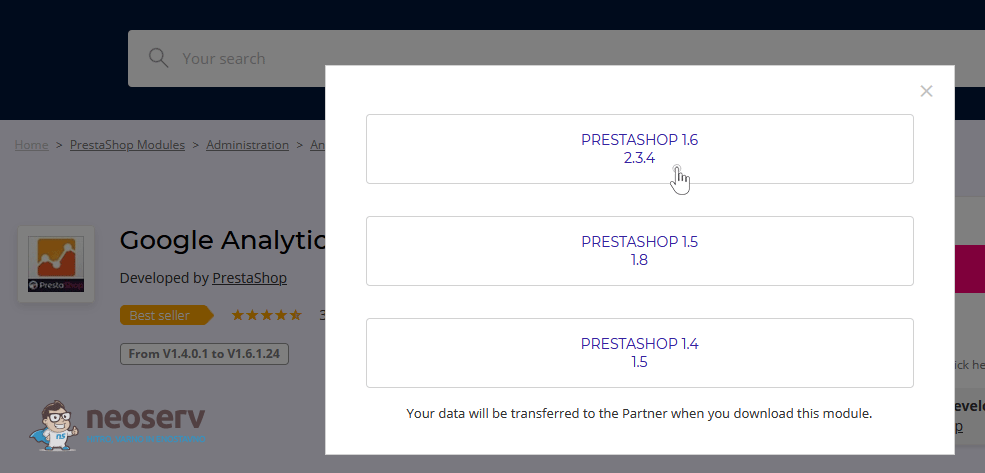
2. Log in to the administration of your PrestaShop webshop.
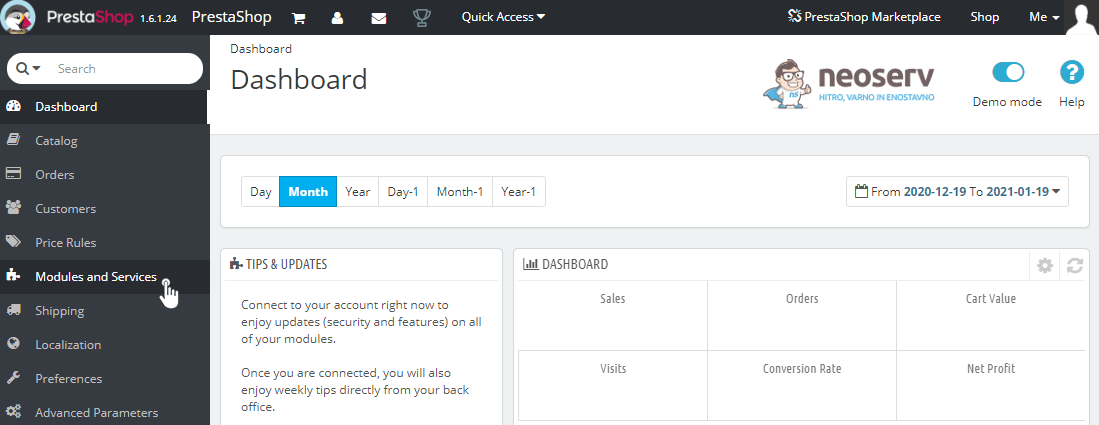
3. Select Modules and Services from the left menu of the administration.
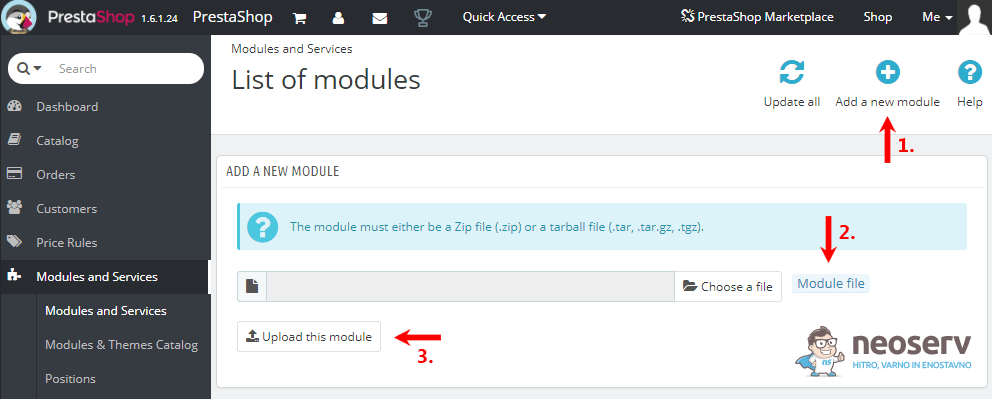
4. In the top right corner, click Add a new module. Then click on Module file and select the .zip file you downloaded to your computer in the first step. Confirm the installation of the module by clicking on the Upload this module button.
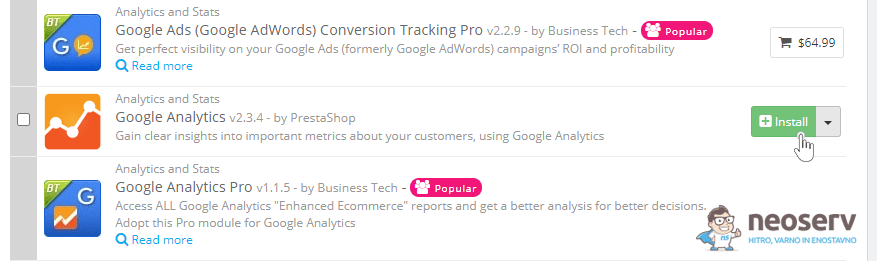
5. After successful installation, locate the Google Analytics module in the MODULES LIST and click on the green Install button. You will find it in the Analytics and Stats module collection.
6. In a new browser tab, sign in to the Google Analytics platform and find your tracking code. You will find it under Admin-> Property-> Tracking Info-> Tracking Code.
7. Return to the tab where you have PrestaShop Administration open and enter the Tracking ID code (in the format UA-XXXXXXXXXXX-X) you found in the previous step in the Google Analytics Tracking ID field.
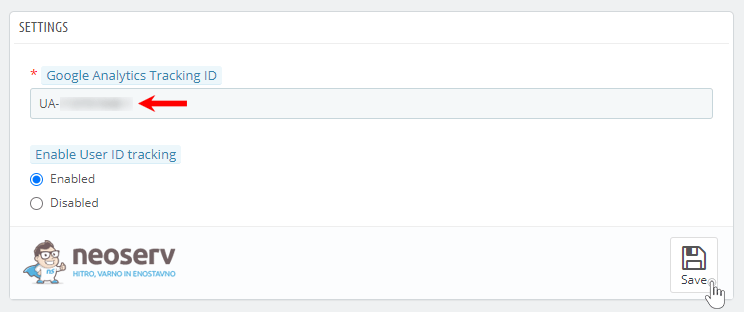
8. Make sure that you have set the Enable User ID Tracking setting to Enabled and confirm by clicking the Save button.
How do I check that the GA code is working?
Have you followed one of the steps described above and successfully added the Google Analytics tracking code to the source code of your PrestaShop webshop? There is a very simple way to make sure that the code is working.
1. Open the webshop in Private / Incognito browsing mode or on your phone. In other words, open it in a browser where you are not logged in to the PrestaShop administration at the same time.
2. Log in to the Google Analytics platform and check the traffic to your online shop in real time: Realtime -> Overview.
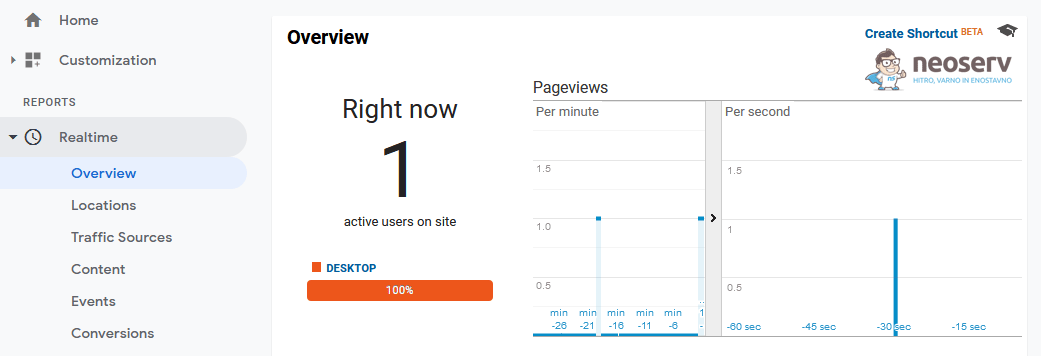
As you can see in the image above, you should now already have recorded yourself as a visitor in real-time. Move around the different subpages of the webshop and keep an eye on how the data changes in Google Analytics.
Does Google Analytics still show you “0” in the section that shows the number of visitors in real time? The problem is probably related to caching. If you are using the caching module in your PrestaShop webshop, please clear your memory and try again.
COMMENT THE POST
Your comment has been successfully submitted
The comment will be visible on the page when our moderators approve it.