


- Your cart is currently empty.
How to Set Up Google Analytics in WordPress


If you want to keep track of how many people visit your WordPress website, which subpages get the most clicks, how long visitors stay on each subpage on average, and so on, you can use the free web tool Google Analytics.
You can find out more about what the tool does for you, how to activate your account and how to get an ID tracking code in this post. Today, we’ll take a look at how you can enter the code into a WordPress website.
Sitemap
- Method #1: Using the WordPress Plugin
- Method #2: insert GA code in the header of the website
- Are you sure the GA code you entered works?
Method #1: use the WordPress plugin
The key to being able to view your website’s traffic and usage statistics is to have Google Analytics code added to your website’s source code. There are a number of ways to do this. The simplest way is certainly by installing a dedicated plugin.
There are many plugins available today that can help you. Some of them are quite comprehensive, allowing you to view statistics and various analyses right inside the WordPress administration. Others are much simpler, just allowing you to enter some code and some basic settings.
Since the latter are much less burdensome on the website itself, here’s how to implement the Google Analytics code using one of the plugins in this group – GA Google Analytics.
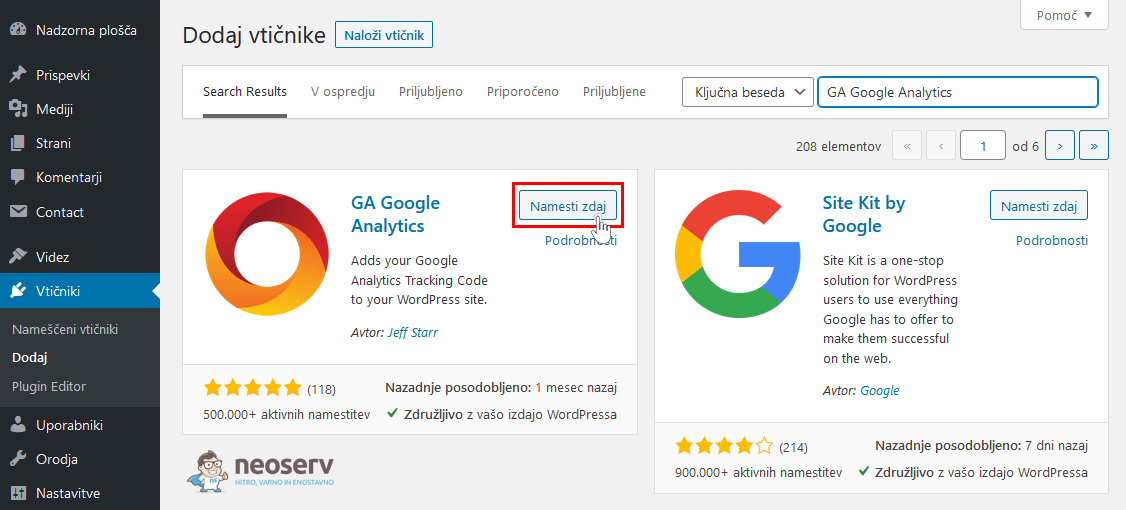
1. After logging in to the WordPress administration, on the left side select Plugins-> Add New.
2. Find the GA Google Analytics plugin, install it and activate it.
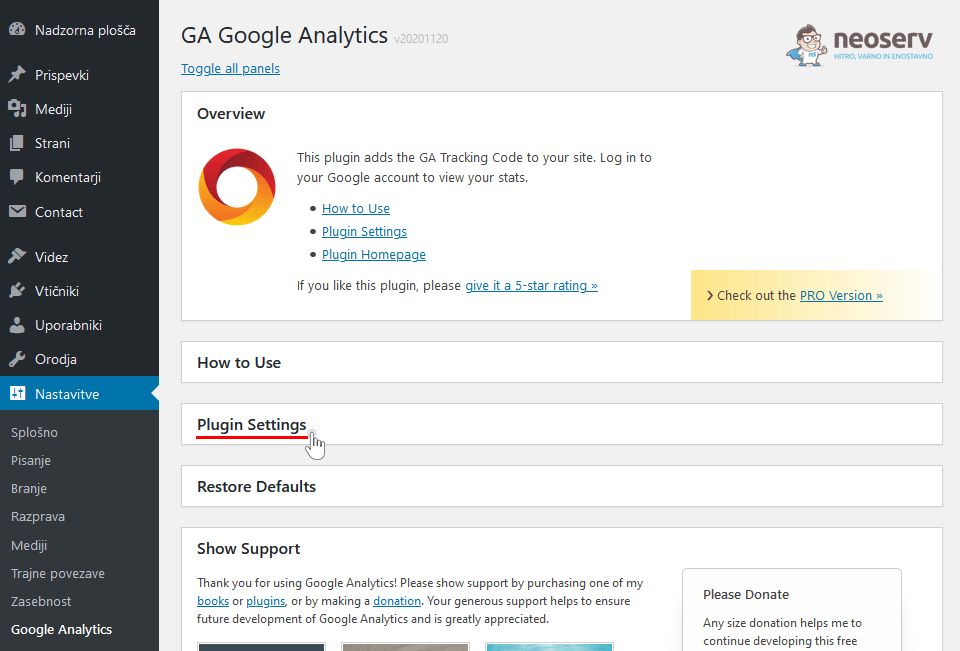
3. Navigate to Settings-> Google Analytics. Then click on Plugin Settings.
4. In the Google Analytics web tool administration, search for the tracking ID code. You will find it under Admin-> Property-> Tracking Info-> Tracking Code.
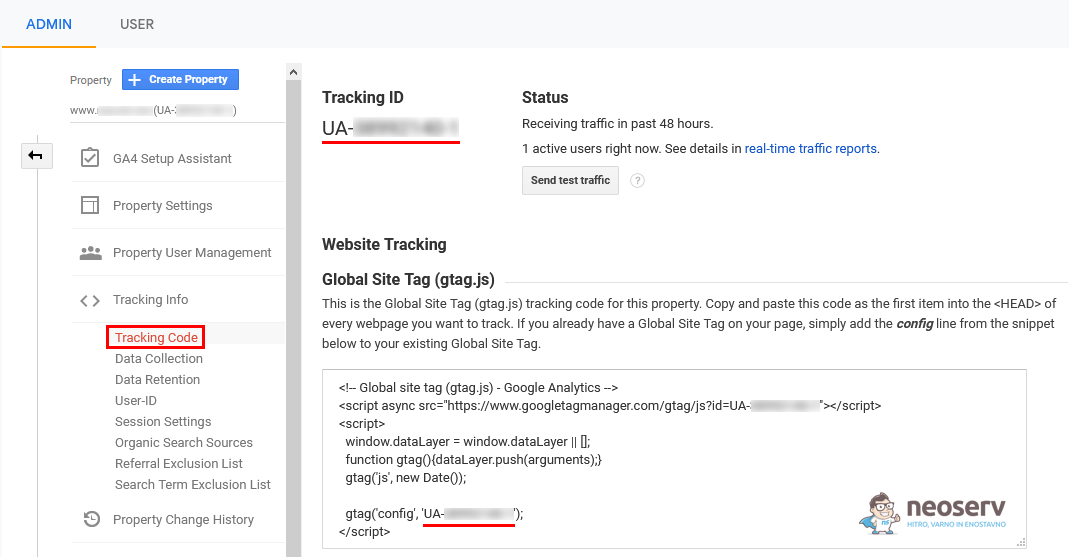
Copy the Tracking ID code (written in the format UA-XXXXXXXXXXX-X) and paste it into the top field of the GA Google Analytics plugin in the WordPress admin.
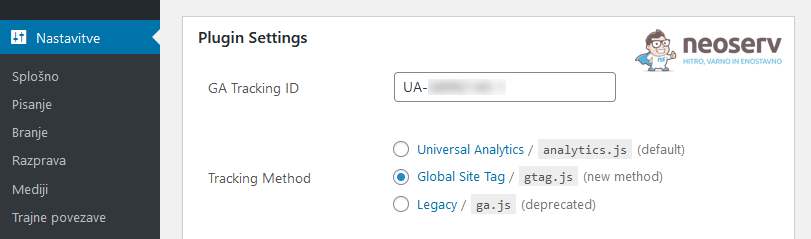
6. Select the appropriate Tracking Method – in our case it’s the Global Site Tag (gtag.js) code, so as you can see in the screenshot above, we chose the 2nd option offered.
7. Configure any additional settings you wish and then click on the blue Save Changes button below.
Some of the easier free WordPress plugins for implementing Google Analytics code include Analytics Cat and Meow Analytics. The more complex paid ones that also provide a view of statistics within the WordPress administration include MonsterInsights, ExactMetrics and Analytify. You can also find free versions of these plugins in the WordPress plugins catalogue, subject to certain restrictions.
Method #2: insert GA code in the header of the website
Alternatively, you can enter the Google Analytics tracking code directly into the header of the web page. There are at least two ways to do this – using a plugin or by entering the code in the header.php file.
1. Using the plugin
You can use the Insert Headers and Footers plugin.
1. In the WordPress administration, via Plugins-> Add New, install and activate the plugin.
2. Navigate to Settings-> Insert Headers and Footers.
3. In the box above (Scripts and Header), copy all the tracking code you find in Google Analytics.
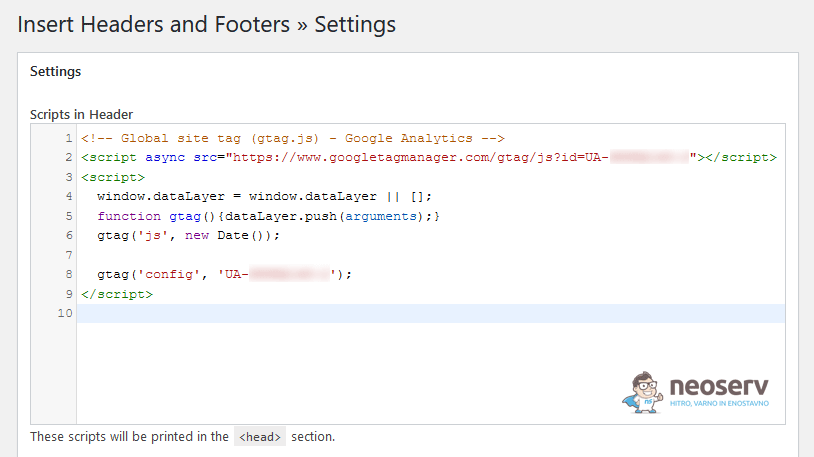
4. Click the Save button in the bottom left corner to save your changes.
If you use a caching plugin on your website, don’t forget to clear the cache.
2. By entering the code in header.php
You can also enter the Google Analytics tracking code directly into the header.php file.
1. In the WordPress admin, navigate to Appearance-> Theme Editor.
2. On the right-hand side, locate the header.php file and click on it.
3. Locate the <head> record where the header of the website source code starts and copy the Google Analytics tracking code into it.
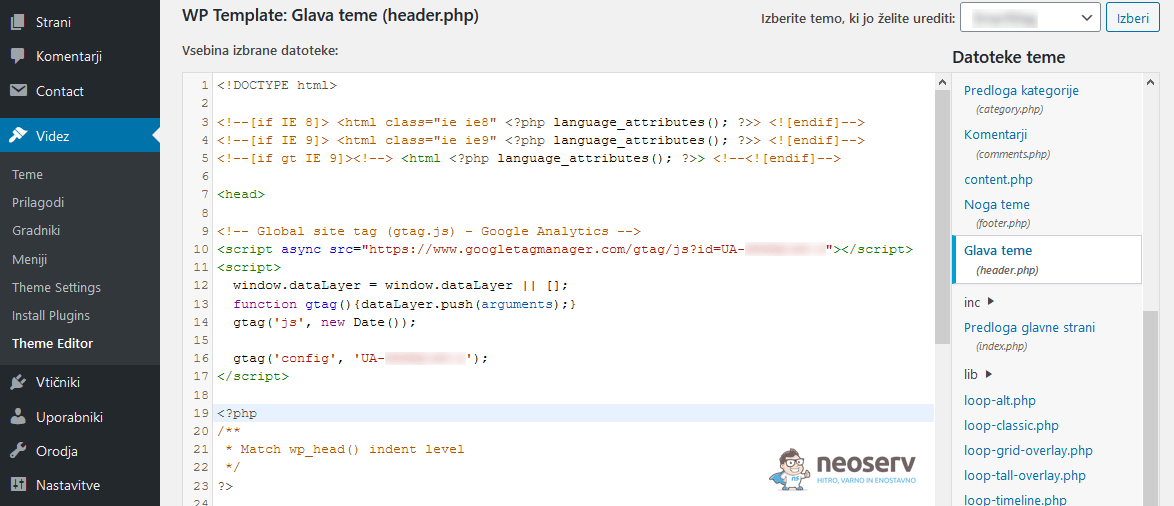
4. Save your changes by clicking the Update File button.
If you decide to enter your Google Analytics code in this way – i.e. by editing the header.php – we advise you to edit the changes in the child WordPress theme. Read more about this in our post: WordPress child theme: why and how to create one?
Is the GA code you entered sure it works?
It is best to check that the code you have entered works after you have completed the process of entering your Google Analytics code into the website. The easiest way to do this is to:
1. Open your website in Private/Incognito browsing mode or on your phone. In short, make sure you are viewing it when you are not logged in to the WordPress administration at the same time.
2. Open Google Analytics on your computer and check your page traffic in real time: Realtime -> Overview.
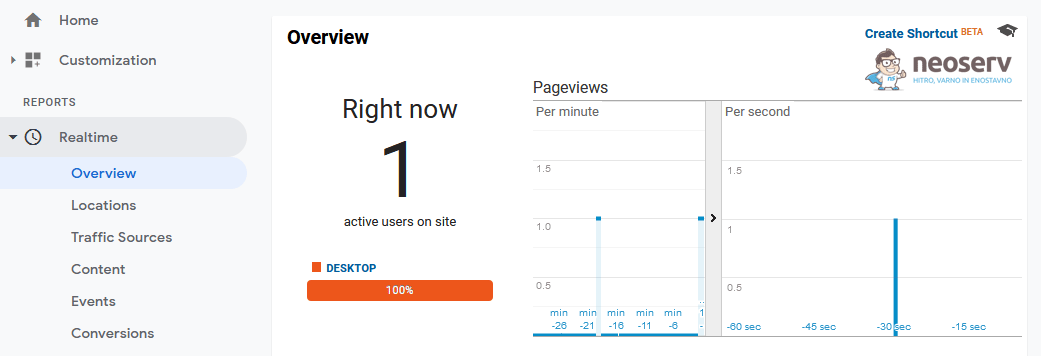
As you can see in the image above, you should now have recorded yourself as a visitor in real-time. Move around the different subpages of the website and keep an eye on how the data changes in Google Analytics.
COMMENT THE POST
Your comment has been successfully submitted
The comment will be visible on the page when our moderators approve it.