


- Your cart is currently empty.
LiteSpeed Cache for OpenCart: Installation and Configuration


Have you heard that our hosting packages now allow you to get your websites and shops up and running even faster? We have recently replaced our Apache servers with more modern and faster LiteSpeed servers, which, combined with LiteSpeed plugins for various systems, enable extremely efficient caching at the server level.
This is also the case with the free OpenCart extension, one of the most popular systems for setting up an online shop. According to Wikipedia, there are currently just under 350,000 online stores on the platform, which puts OpenCart just behind WooCommerce, Shopify and Magento.
Below we present LiteSpeed Cache for OpenCart – an extension that will help you take your NEOSERV hosting to a whole new level.
Sitemap
Installing LiteSpeed Cache
Installing the LiteSpeed Cache extension on your OpenCart webshop is easy. Follow these steps:
1. log in to your OpenCart store administration and check which version of the system you are using at the very bottom. The LiteSpeed Cache extension is available for OpenCart versions 2.3 and 3.x.
2. Open the official LiteSpeed Technologies website where you can download the LiteSpeed Cache extension. Click on Download for the appropriate version.
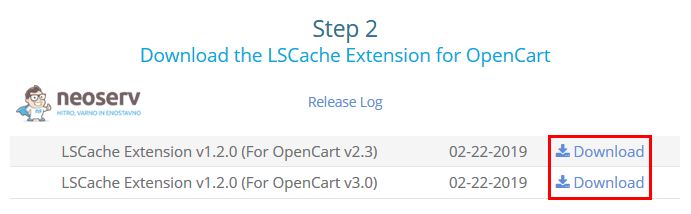
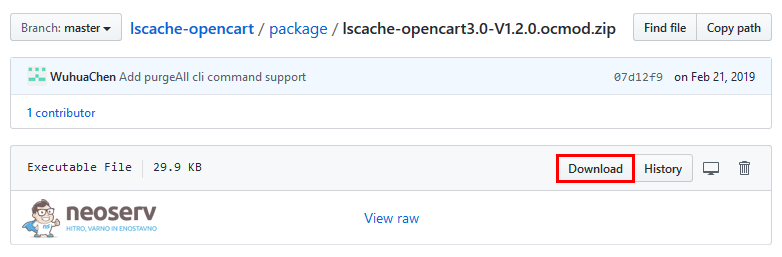
3. After clicking, you will be redirected to GitHub, where you can also click on the Download button to download the extension to your computer.
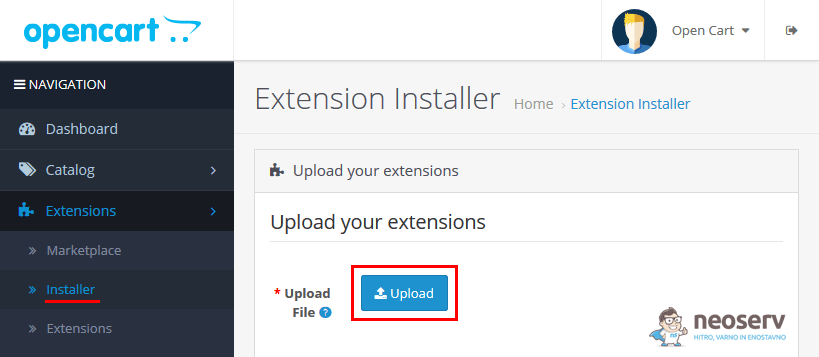
4. In the left menu of the OpenCart administration, navigate to Extensions -> Installer. Click on the blue Upload button and select the .ZIP file you downloaded to your computer in the previous step.
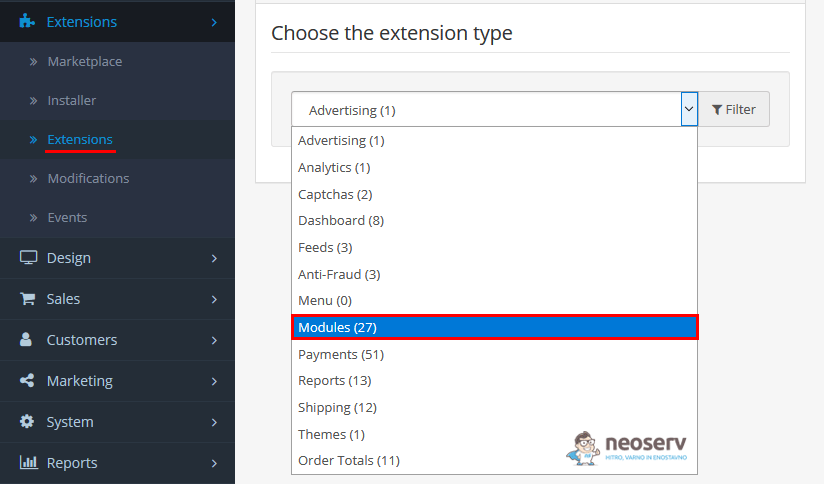
5. After the extension has been successfully installed, select Extensions -> Extensions from the left menu. In the field to select the type of extension, select Modules.
6. In the list of modules, search for LiteSpeed Cache and click the green button(+) to finally install and activate the extension.
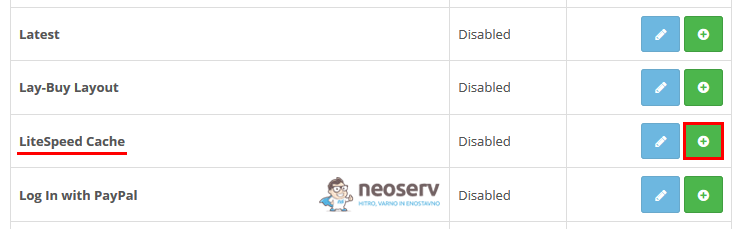
Thus, the installation of the LiteSpeed Cache extension, which allows you to significantly speed up your OpenCart webshop, is now complete.
LiteSpeed Cache settings
If you have had problems with caching extensions so far because of the complexity of the settings, let us write down right away that there will be no problems with the LiteSpeed Cache extension. The developers have provided default settings that are optimal for the vast majority of OpenCart stores. This means that just by activating the extension, your online store should already be running much faster.
Are you a more advanced user and would still like to adjust the settings to suit your needs? In that case, look for LiteSpeed Cache in the list of modules and click on the blue button with the pencil icon.
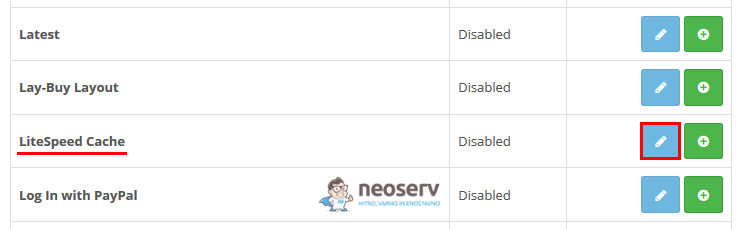
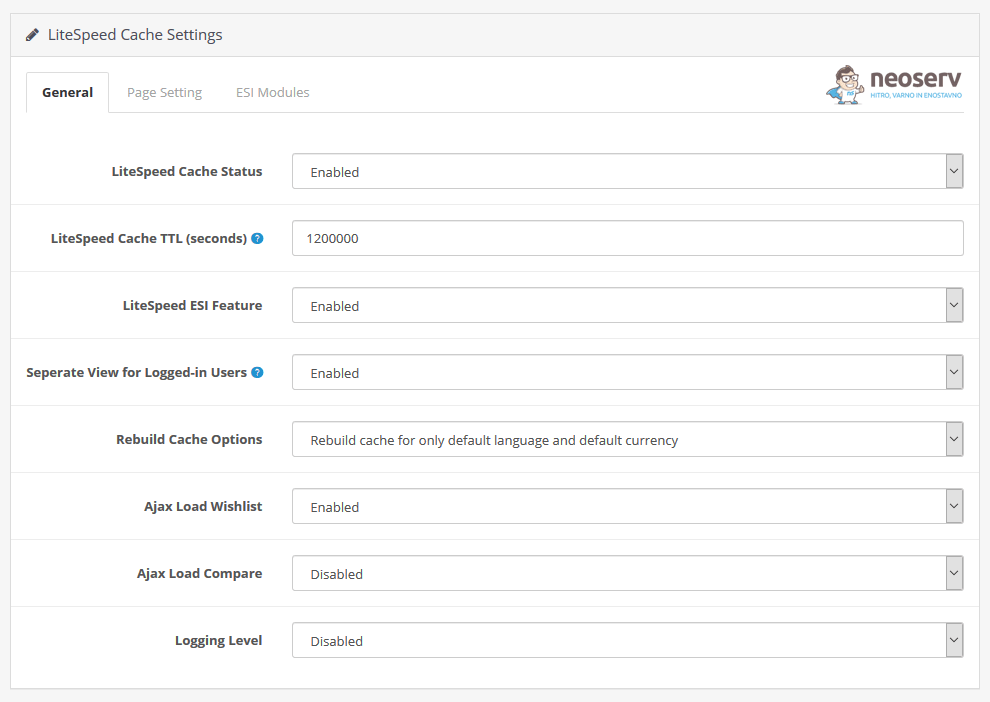
As you will see, the extension offers you several settings, which are divided into three sets:
- General,
- Page Setting,
- ESI Modules.
If you enable product comparison functionality on your webshop, we advise you to leave the Ajax Load Compare setting disabled.
We would also like to mention the settings at page level, where you can specify whether or not to cache individual page types (landing page, categories, products, information, contact, site map, brands).
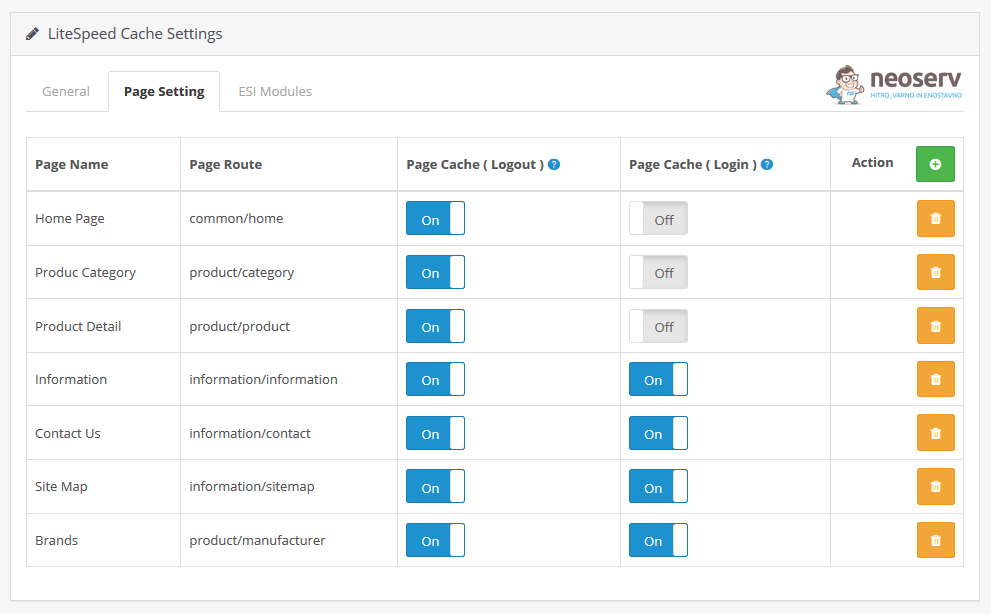
If you do not have any special requirements or are not a user with advanced knowledge of caching an online shop, we advise you not to change the default settings.
How do I clear the cache?
Have you made a change to your webshop, but after logging out of the administration it still shows you an unupdated version of the page? In this case, you can change the cache refresh settings accordingly, but of course you can also clear the cache by clicking on the button.
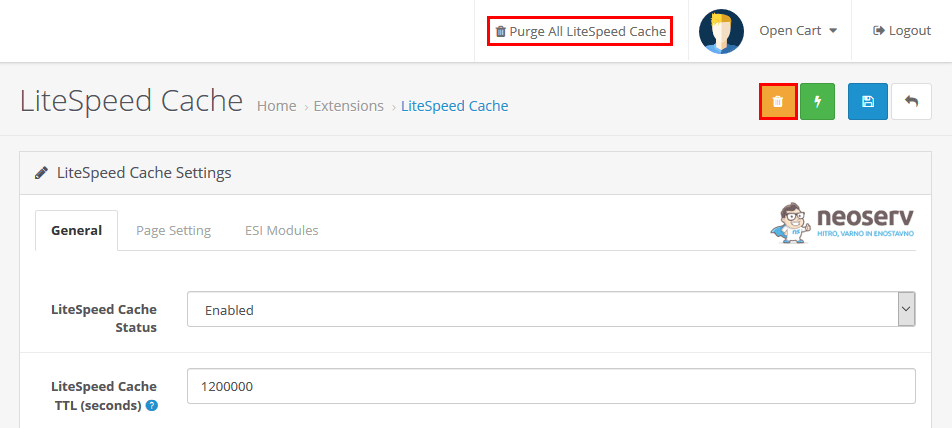
How? No matter where you are in the OpenCart administration, you can clear the cache by clicking on the Purge All LiteSpeed Cache button in the top bar. On the administration page, where you edit the LiteSpeed Cache settings, you also have an orange button in the top right corner. Clicking on it will have the same effect.
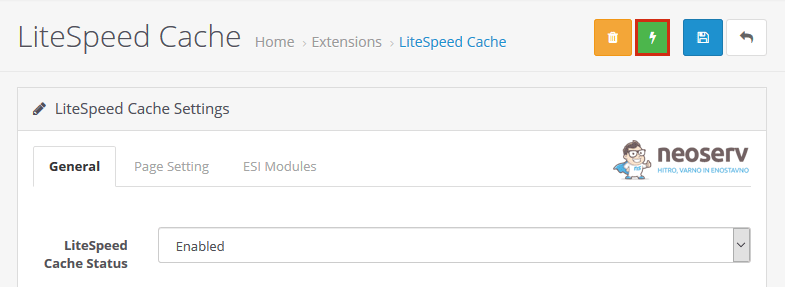
Once you have cleared the cache, we advise you to click on the green button with the lightning bolt icon to re-generate the static pages in the cache. This way, your webshop will be displayed to the first visitor much faster than it would have been otherwise.
The final word
We have seen for ourselves that the OpenCart webshop accelerated by the LiteSpeed Cache extension is indeed much faster. In the images below you can see how long the webshop takes to load without the caching extension and how long it takes when the LiteSpeed extension is installed.
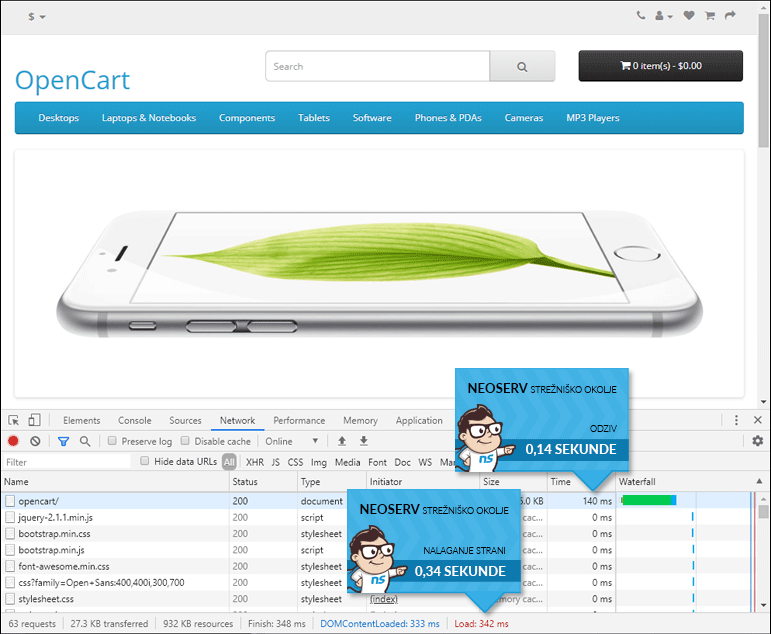
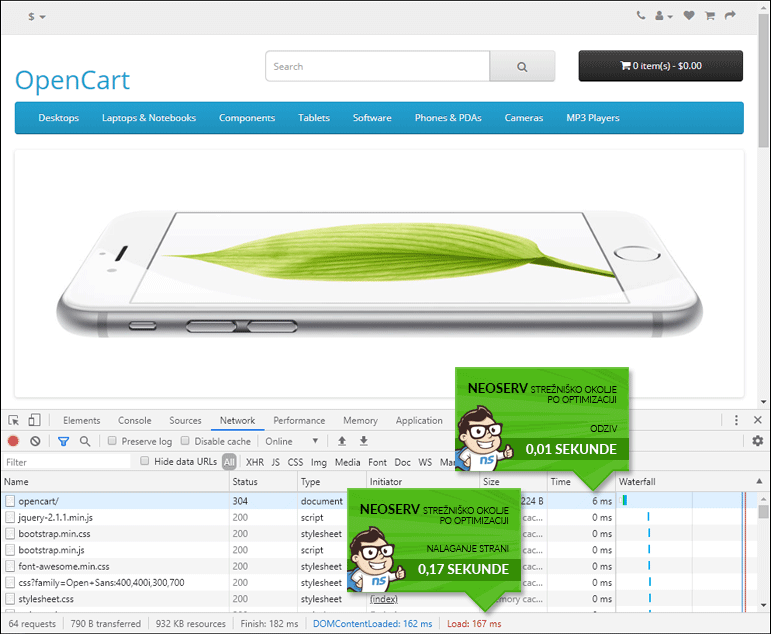
As you can see, the difference in loading time is significant, mainly due to the time to first byte (TTFB). Without the extension, the test webshop loads in 342 ms, while with the extension it loads in 167 ms, which is about 50% faster.
If you run an OpenCart webshop and are looking for ways to speed it up significantly, we definitely advise you to opt for TURBO hosting and take full advantage of LiteSpeed technology.

Finally, LiteSpeed technology is supported on all web hosting packages. If you have any further questions, we are of course at your disposal – at all times by e-mail info@neoserv.si, and on weekdays from 8 am to 6 pm by phone(059 335 000).
COMMENT THE POST
Your comment has been successfully submitted
The comment will be visible on the page when our moderators approve it.