


- Your cart is currently empty.
LiteSpeed Cache for Prestashop: Installation and Configuration


PrestaShop is one of the most popular systems for setting up an online shop. It is a free, open source solution that, according to Wikipedia, is currently used by around 300,000 online stores. The entire system has been translated into more than 75 languages, including Slovenian.
If you’ve been running PrestaShop for a long time, you’ve probably wondered how you could speed it up. Speed is extremely important for online shops, as it has a big impact on how long visitors stay, whether they complete their online purchase and so on. In addition, speed has an impact on visibility in Google search. Faster webshops rank higher in search engines and therefore receive more traffic.
We have great news for all of you who have chosen NEOSERV web hosting. Our hosting packages run on LiteSpeed web servers, which have speed as a key advantage. Below we’ll show you how you can easily speed up your PrestaShop store on your hosting package. We will use the free LiteSpeed Cache module.
Sitemap
1. Installing LiteSpeed Cache
The PrestaShop module LiteSpeed Cache acts as a connection between the webshop and the LiteSpeed web server. It allows static copies of dynamic pages to be stored on the server and then served to visitors. In this way, the loading time of the webshop is significantly reduced.
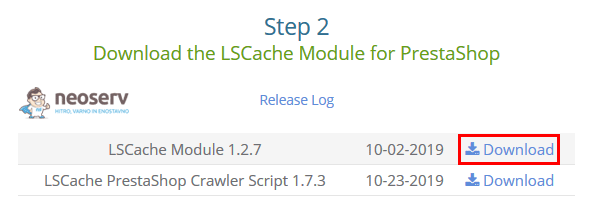
First of all, you need the module, which is available on the official LiteSpeed Technologies website. Click on Download to download the LSCache Module to your computer. The LiteSpeed Cache extension is available for PrestaShop versions 1.6.x and 1.7.x.
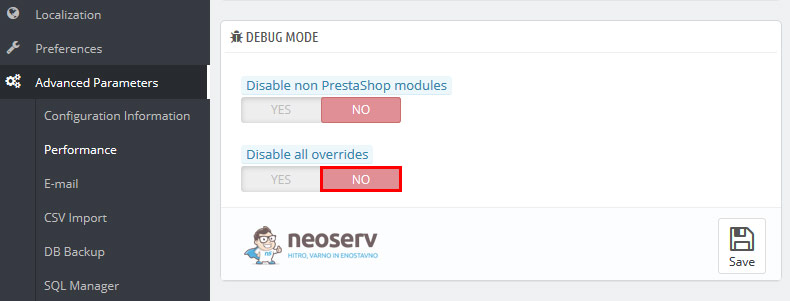
2. Log in to your PrestaShop administration and select Advanced Parameters –> Performance from the left menu. Make sure that the Disable all overrides (DEBUG MODE section) is set to NO.
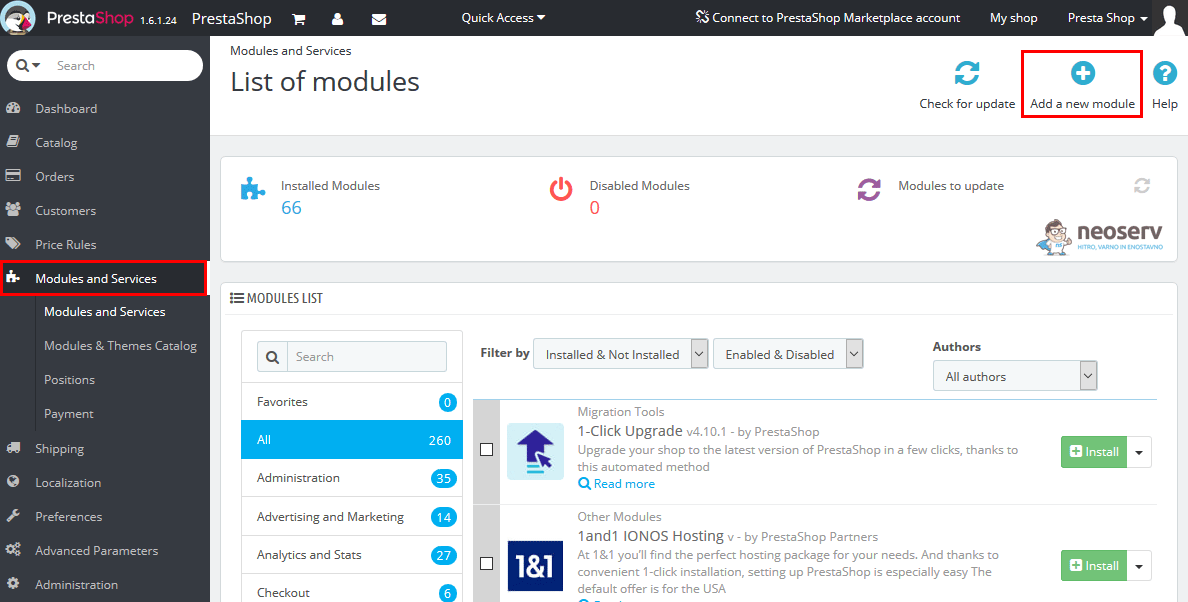
3. Select Modules and Services from the left menu and then click Add a new module in the top right corner.
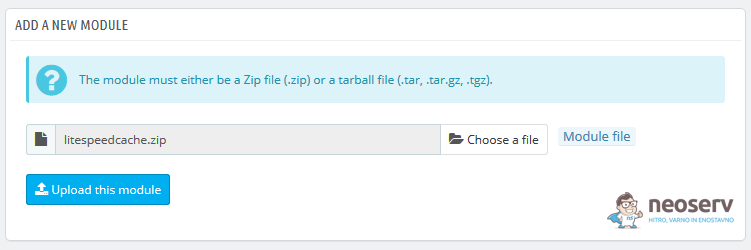
4. Then click on Choose a file and select the .ZIP file you downloaded to your computer in step 1. Install the module by clicking on Upload this module.
5. After installation, you will see a notification in a green box that the module has been successfully downloaded. Now it’s time to complete the installation by clicking the green Install button.
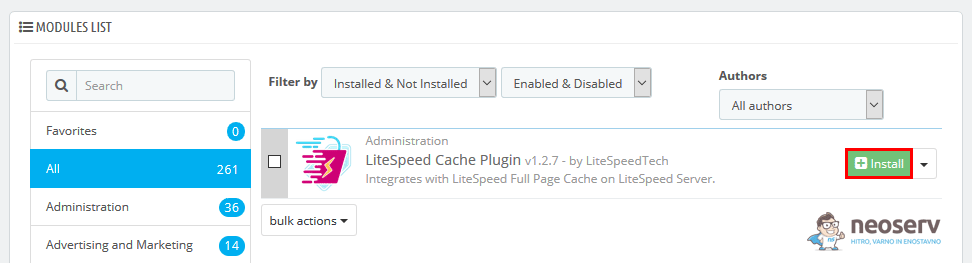
Wait a few seconds for the plugin to install on your PrestaShop system. After installation, you will be automatically redirected to a page where you can edit the module settings.
LiteSpeed Cache settings
Using the LiteSpeed Cache module for PrestaShop is extremely easy. In fact, all you have to do is to activate it.
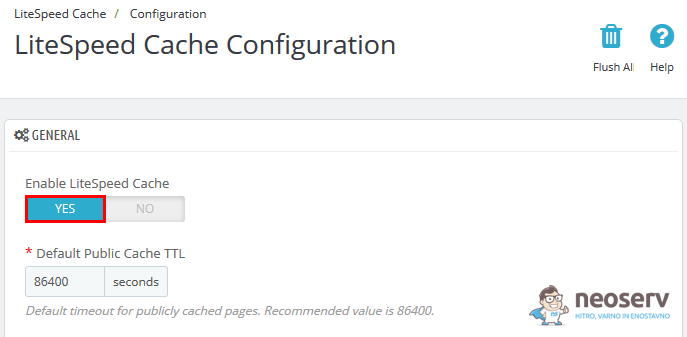
The rest of the settings are already optimally preconfigured for the vast majority of PrestaShop online stores. Of course, more advanced users can adjust the settings to suit their needs.
Worth mentioning is the Flush Product and Categories When Order Placed setting, where you can choose between different ways to clear the cache.

So, as shown in the picture above, you have the following options:
- Refresh the product when the quantity or stock level changes, and refresh the categories only when the stock level changes.
- Refresh the product and categories only when the stock status changes.
- Refresh the product when the stock balance changes, but do not refresh the categories when the stock balance or quantity changes.
- Always refresh the product and the categories when the quantity or the stock status changes.
3. How do I clear the cache?
To clear the cache, click on LiteSpeed Cache in the left menu of the PrestaShop administration. You now have four options:
1. Click on the Flush All PrestaShop Pages icon (top right) to clear the cache for all pages of the webshop.

2. Click the Flush Entire Cache Storage icon (top right) to clear the entire cache.

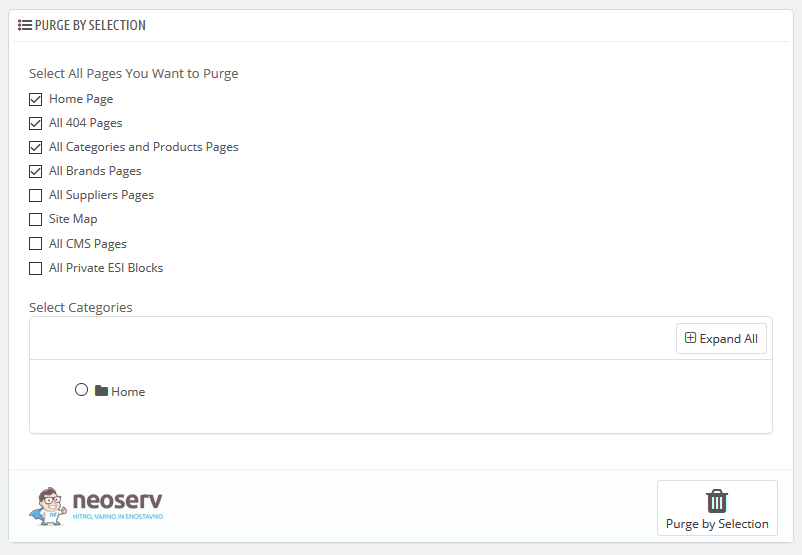
3. Under PURGE BY SELECTION, select only the specific parts of the webshop for which you want to clear the cache. You can also select individual categories by clicking on the Expand All button.
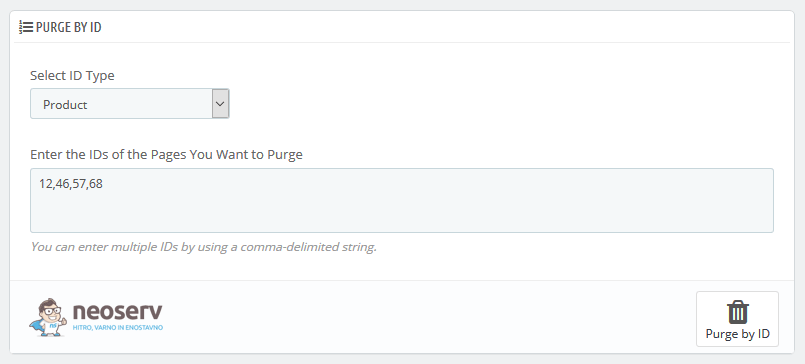
4. Under PURGE BY ID, you can clear the cache for selected products, categories, brands, etc. To do this, enter their IDs, separated by a comma, in the field below.
4. Final word
You are probably wondering how much faster PrestaShop works if the LiteSpeed Cache module takes care of efficient caching at server level. In the following screenshots you can see the loading time of a symbolic demo store before and after installing the module.
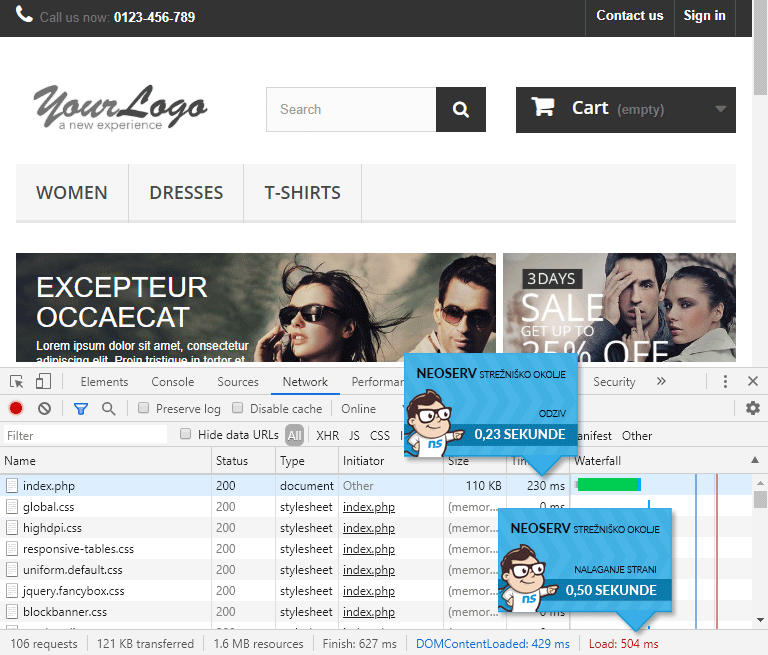
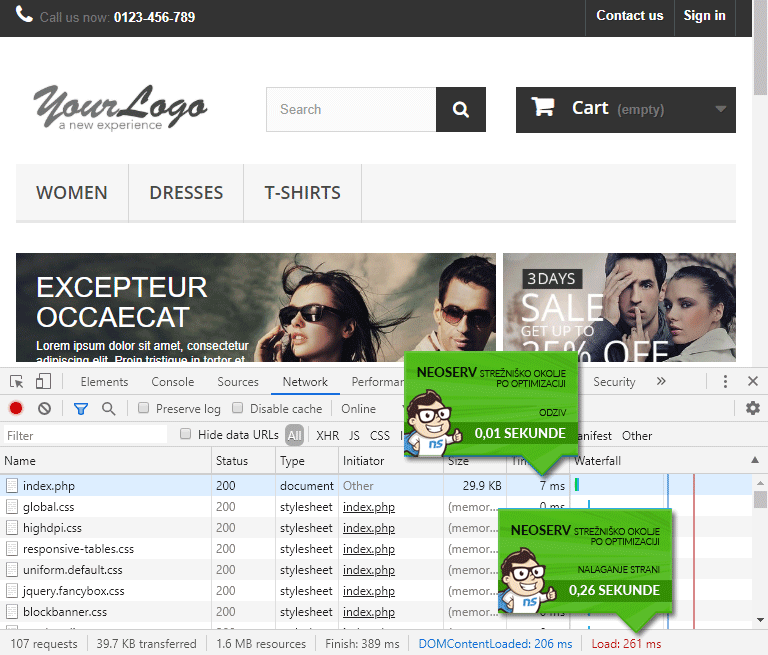
The difference is more than obvious. Before installing the module, the PrestaShop webshop took about half a second to load, but after installing it and simply activating LiteSpeed Cache, it loaded almost twice as fast.
If you are the owner of a large or highly visited webshop set up in PrestaShop, we definitely recommend you to try our TURBO hosting. This service is designed for more demanding customers, as it is an extremely powerful package with plenty of available server resources.

If you have any questions, we are always available at info@neoserv.si, or you can call us on 059 335 000 from 8am to 6pm. We’ll be happy to help you choose the right hosting package for you.
COMMENT THE POST
Your comment has been successfully submitted
The comment will be visible on the page when our moderators approve it.