


- Your cart is currently empty.
How to Manually Kill (Unresponsive) Processes


Processes in web applications such as WordPress, OpenCart, Magento, PrestaShop and many others sometimes become unresponsive (also called “stuck” or “looping”), which can cause a website to stop working. In this case, the process (or several processes) must be manually stopped, which is done via the terminal or command line.
There are various reasons for processes terminating unsuccessfully, e.g. network problems, database errors, website code errors, conflicts due to too many plugins, overload of the hosting package, etc. The problem usually leads to a situation where the application uses 100% of the allowed concurrent HTTP processes, which leads to the website not working.
In our experience, failed processes mostly occur when (automatic) upgrades are performed, e.g. when updating the WordPress core or plugins, or when editing major changes to the website. Such situations are extremely rare.
Table of contents
- Instructions for terminating processes via the command line
- An alternative to terminating all PHP processes
- Solution for developers: customising the code
Instructions for terminating processes via the command line
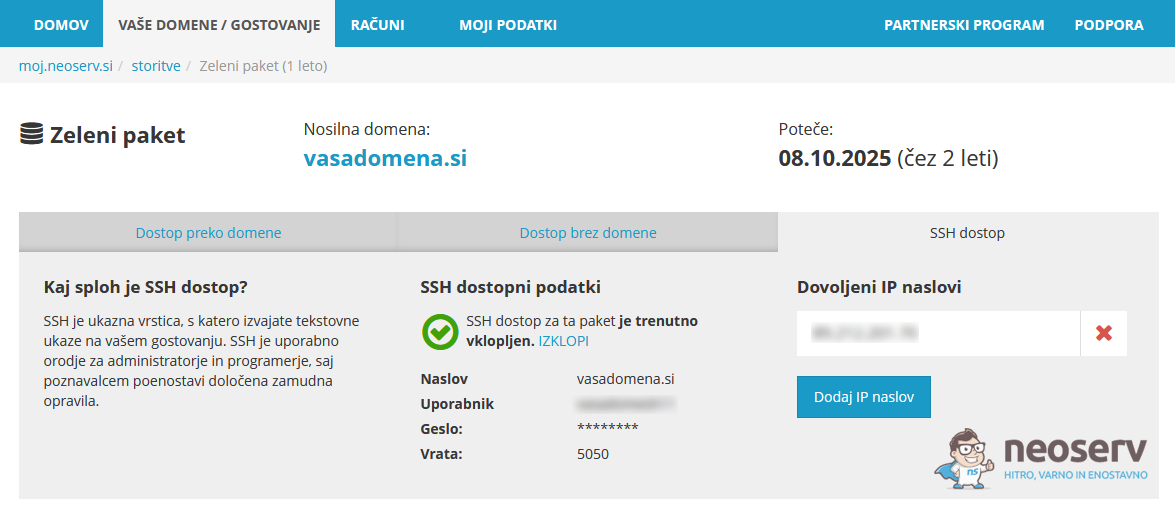
As processes are managed via the command line, you must first enable SSH access on your hosting package. This can be arranged in the My NEOSERV Subscription Centre (Reseller hosting subscribers must also enable SSH within WHM), which will cause the Terminal icon to appear in your cPanel.
1. Check the SSH activation instructions and enable SSH access on your hosting package.
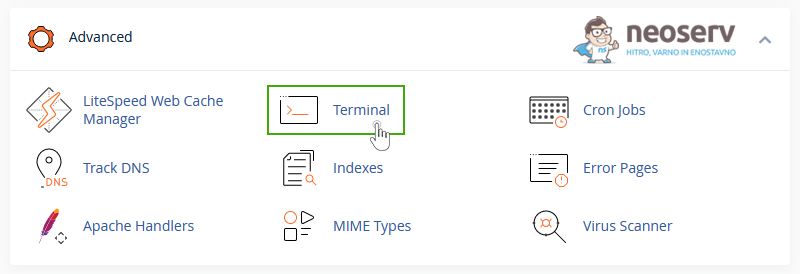
2. Log in to the cPanel control panel, find the Advanced section and click on the Terminal icon.
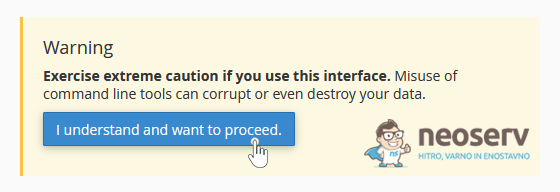
3. Click “I understand and want to proceed.” to confirm that you want to use the command line.
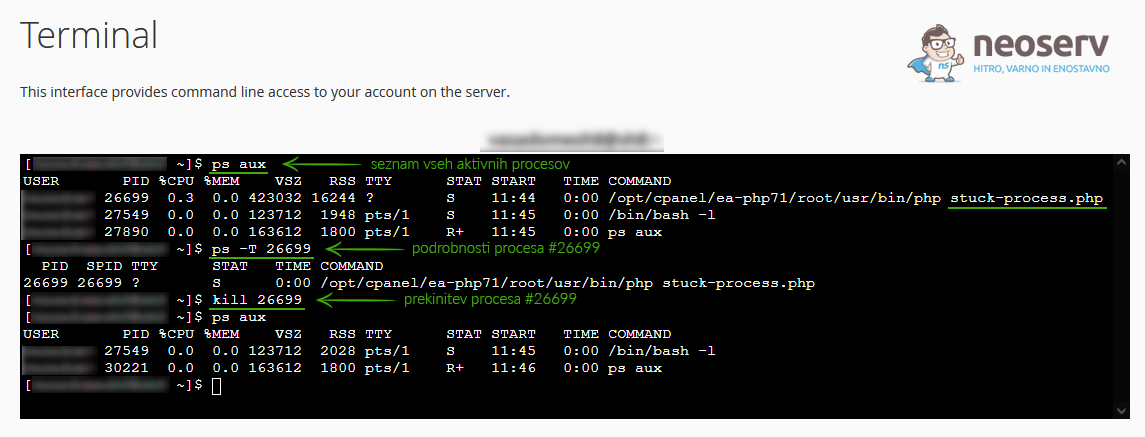
4. Use the following command to check the list of all active processes running on your hosting package.
ps auxPay particular attention to the %CPU and %MEM columns, which represent the percentage of the total allocated processing power and memory used by each process. Also of interest is the STAT column, which records the status of the process (R – running, S – sleeping, Z – zombie, T – stopped, W – paging).
5. Check the details of a specific process (e.g. threads or individual subprocesses) using the command below.
ps -T PIDIMPORTANT: Replace the PID record by the ID number of the actual process, which is located in the second column of the result returned by the previous command(ps aux).
6. When you have detected the unresponsive or troublesome process, terminate it with the following command.
kill PIDIMPORTANT: Again, replace the PID record with the ID number of the actual process.
Do you want to terminate all active PHP processes linked to your cPanel account? In this case, use the command below.
pkill phpDid you intend to fix the problem by uninstalling the application? The processes in the cPanel control panel will remain active even if you uninstall an application (e.g. WordPress), because they are running in working memory (RAM), which will still hold data until the processes are manually terminated.
Alternative to terminating all PHP processes
You can also terminate all PHP processes by changing the PHP version in the cPanel control panel.
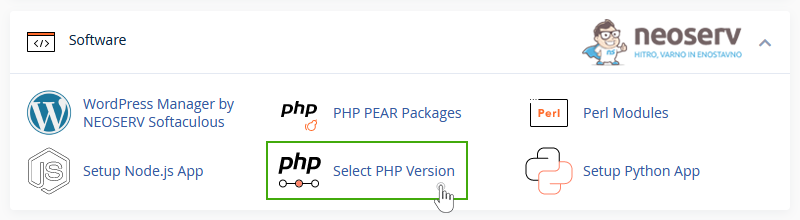
1. In the cPanel, locate the Software section and click on the Select PHP Version icon.
2. In the “Current PHP version” setting , select a different PHP version and confirm the change by clicking the Apply button.
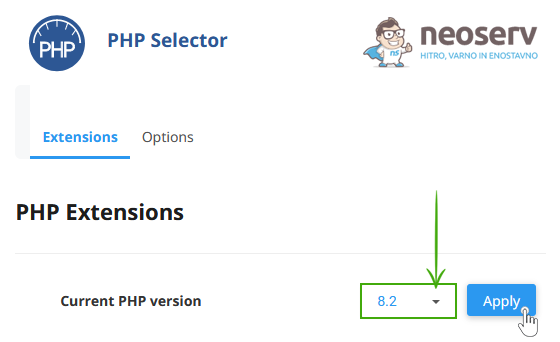
3. Since you have interrupted all active PHP processes, you can now re-select the previously configured PHP version and confirm it by clicking the Apply button.
Solution for developers: customize the code
A more advanced way of solving the problem is to locate the part of the code in your application that is causing the process to terminate incorrectly, and then fix or adapt the code accordingly. This solution requires much more technical knowledge and a good understanding of the software code, the architecture and the specifics of the application.
The adaptation of the programming code can therefore be arranged by the developers who are responsible for the development and maintenance of the website. In any case, this type of solution is recommended wherever possible, as it corrects the defect in the programming code and prevents the same problem from occurring again.
COMMENT THE POST
Your comment has been successfully submitted
The comment will be visible on the page when our moderators approve it.