


- Your cart is currently empty.
Moving WordPress to Another Folder: Step-by-Step Guide

Do you have a website and are thinking about updating or replacing it? To keep your existing site running smoothly while you build your new one, you can build and test it in a separate subfolder. What about when you want to replace your existing website with a new one? In today’s post, we’ll present a solution for this situation, for all of you who have a WordPress website.
Make a backup copy of WordPress
Before you carry out the procedure we will describe below, make a backup of your website and database. You can do this in a few steps via the cPanel control panel.
a. Backing up your files
Compress the files into a .ZIP archive using the File Manager tool available in the cPanel Control Panel.
- Open File Manager.
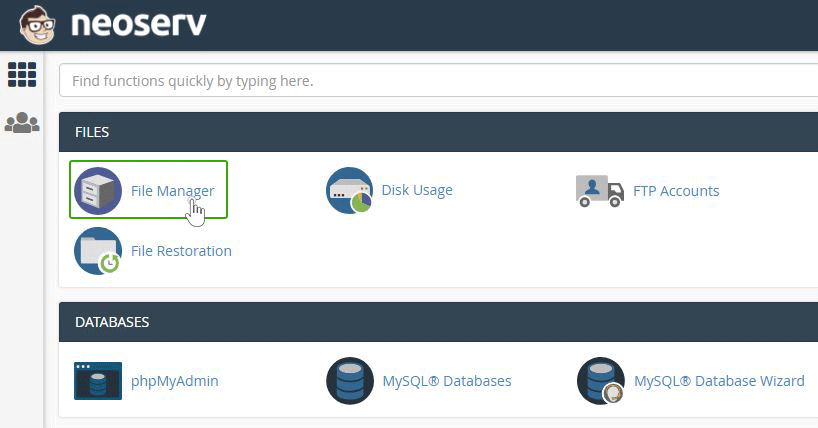
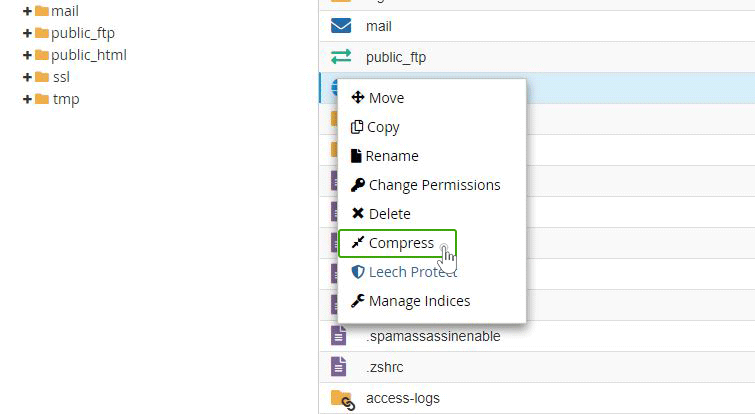
- Right-click on public_html, select Compress, .ZIP compression type and click on the Compress File(s) button.
- Highlight the newly created .ZIP file and click on the Download button.

- Save the .ZIP file on your computer.
b. Making a backup copy of the database
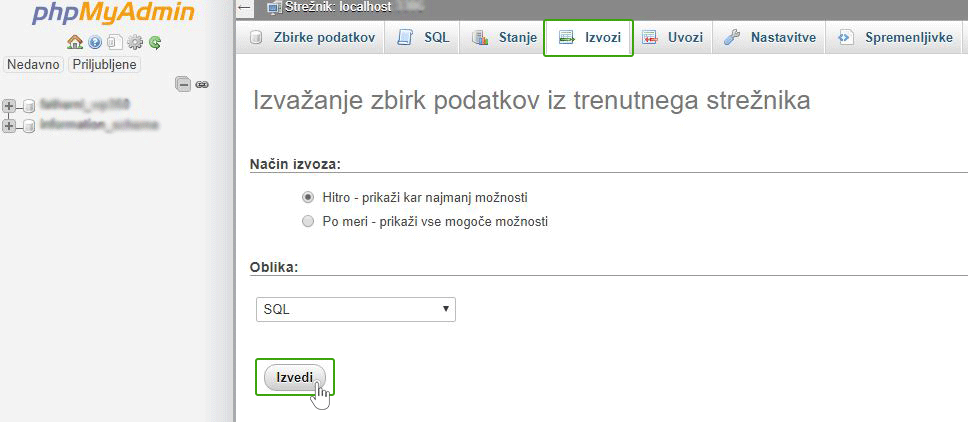
You can make a backup copy of your database (MySQL) using the phpMyAdmin tool, which is also available in the cPanel Control Panel, under Databases. You will find the option to export your database under the Export button. In the new window that opens, click on the Execute button to export your website’s database.
SETTING THE URL ADDRESS
Before you can actually migrate the files, you need to prepare an installation that will accept the new URL. For example, let’s assume you have created a new page in the subfolder vasa-stran.com/wordpress_nova.
- Log in to the administration of your new WordPress site.
- Select Settings -> General.
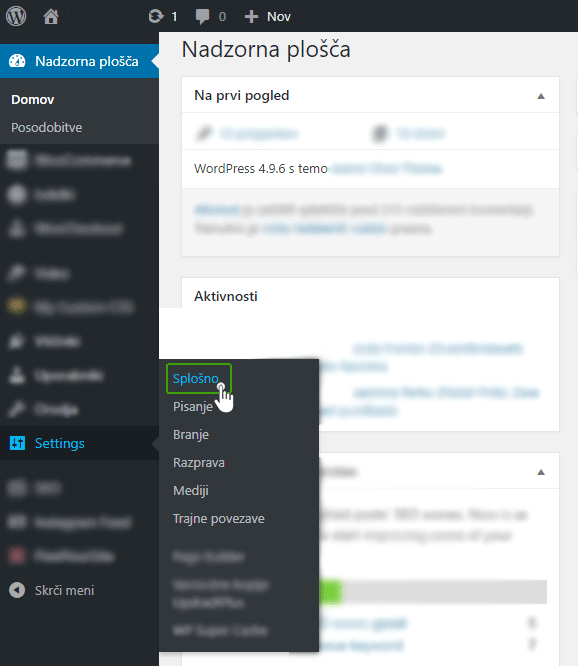
- In the WordPress Address (URL) section, change from vasa-stran.com/wordpress_nova to vasa-stran.com.
- Make the same change in the Site Address (URL) section.
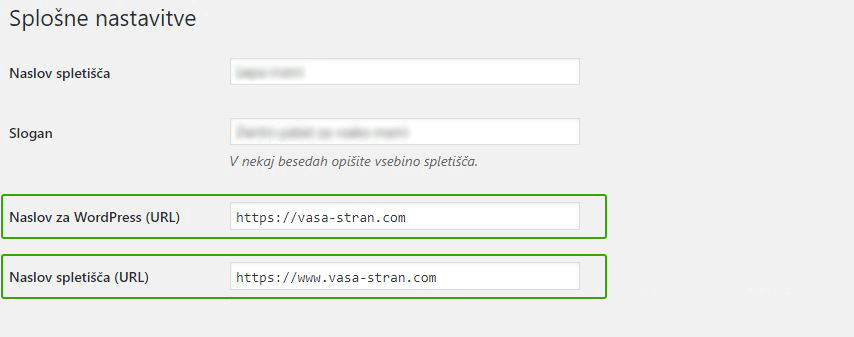
Moving a WordPress site from a subfolder to the main folder
- Log in to the cPanel control panel.
- In the Files section, click on the File Manager icon and select Settings. In the newly opened one, tick the Show Hidden Files option.
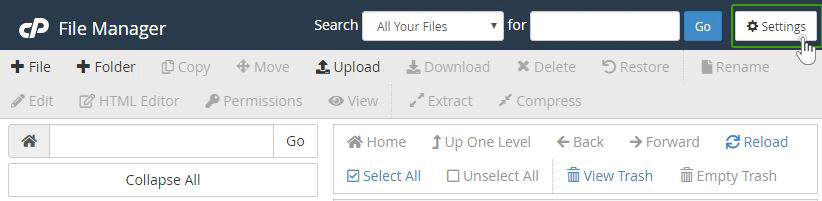
- In /public_html, delete all content except the folder where your redesigned site is located, in our case WordPress_new.
- Then find the folder where you have uploaded your new WordPress site. Let’s take the WordPress_nova folder as an example. You will see a list of files and folders in the right window. Select all that fall under the WordPress_nova folder and click on the Copy icon.
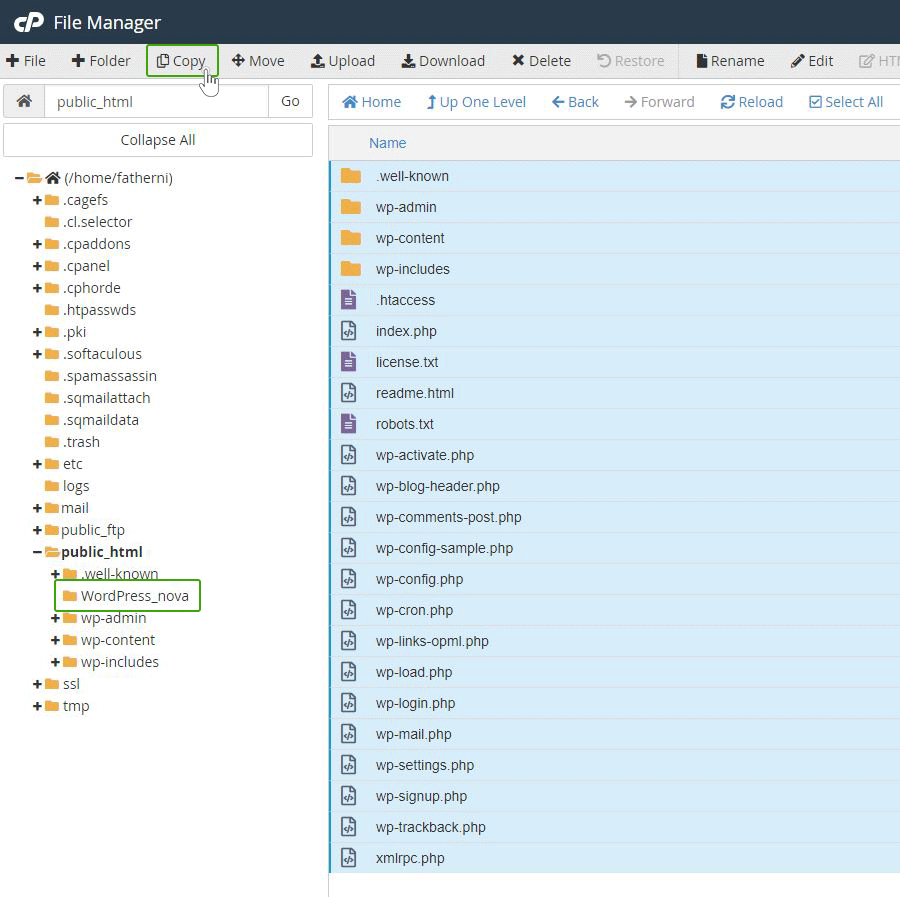
- A pop-up window will open where you download the copied content. This should appear as /public_html/WordPress_nova. Remove /WordPress_nova from the selected path so that it will just be /public_html. Then click on the Copy Files button.
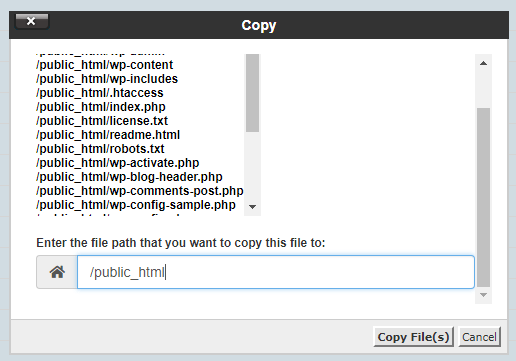
- This process will copy all the files into public_html. You will be moved back to the public_html folder. To do this, simply click on the Up One Level button.

- You should now see the same folders as you have in your WordPress_nova folder.
- Delete the WordPress_nova folder and all its contents.
UPDATE THE URL ADDRESS IN THE DATABASE
Log in to the administration of your new WordPress site. Under Settings -> Permalinks, make sure you have the appropriate link structure selected.
Finally, install the Better Search Replace plugin to fix the URLs in your database. Enter https://www.stran.si/WordPress_nova/ in the Search for field and https://www.stran.si/in the Replace with field .
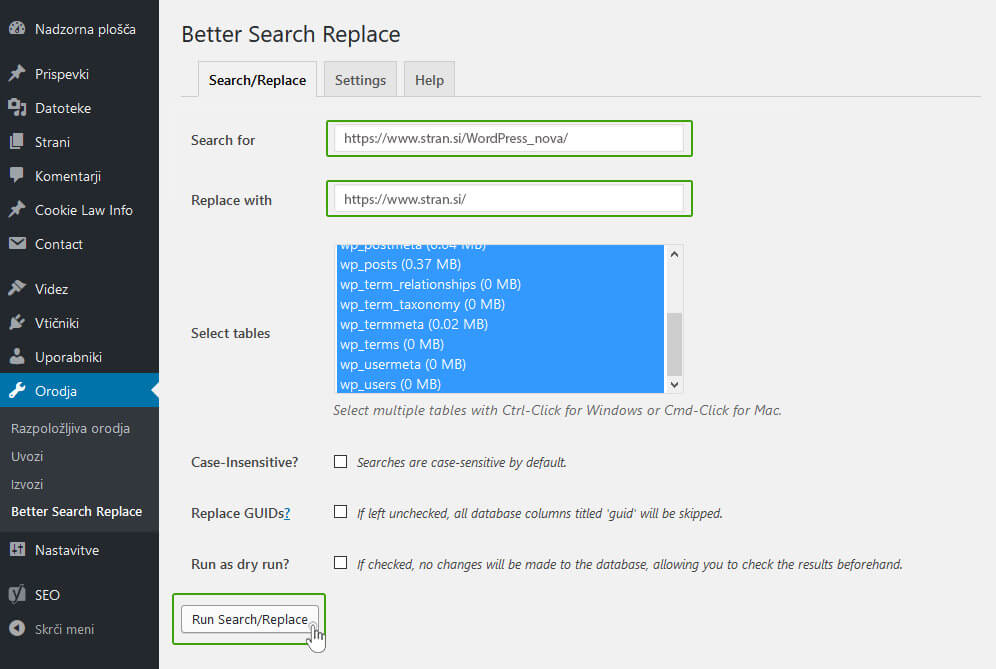
Please make sure that you enter the correct URL, depending on whether your site is on a secure HTTPS or non-secure HTTP connection, and whether you use the www prefix or not.
If you have followed all the steps, then you have successfully replaced your old website with the new one. Make sure your new WordPress site works as fast as possible. This is where the post How to speed up your WordPress website will help you.
COMMENT THE POST
Your comment has been successfully submitted
The comment will be visible on the page when our moderators approve it.