


- Your cart is currently empty.
13 Tips to Speed Up Your WordPress Website

Websites that load quickly have a positive impact on user experience, increase traffic to the site and rank higher in search results. In this post, we’ve outlined proven practices that will help you speed up your WordPress website.
We’ll answer your questions:
- Why is speed one of the key factors for a successful website?
- How fast is your website?
- What slows down a website?
- How to speed up WordPress in a few steps?
Why is speed one of the key factors for a successful website?
Research has shown that in 2000, 12 seconds was enough to convince a user with your content, but in 2017, this time has dropped to 7 seconds. Why is this important for you, the website owner? You need to convince the visitor with content in less time to keep them on your site and, in the case of an online shop, to make a purchase.
In practice, this means that if your page takes too long to load, the user will leave before it has fully loaded.
The results of a study conducted by StrangeLoop showed that a 1-second delay in loading time means 7% lower conversion, 11% fewer page views per user and a 16% decrease in user satisfaction.
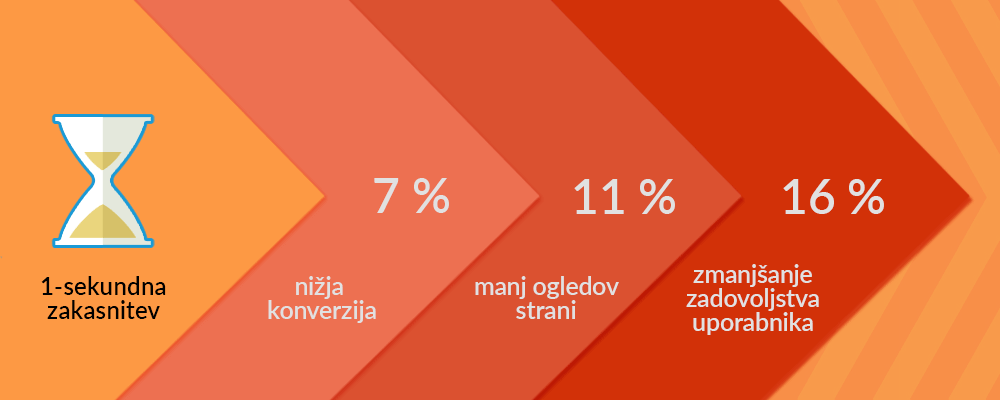
Don’t you find these statistics alarming? Let’s convert the above results into an example of an online shop.
If your online shop generates €200 of traffic per day, you could lose €5,000 per year just because of the slower performance due to the results shown in the survey above.
In addition to the loss of traffic, slow websites are also ‘penalised’ by Google. This is because they have a negative impact on the user experience and are therefore ranked lower than faster sites in Google’s search results. As a result, you will get fewer website visitors. That’s why you need a fast website. As soon as possible!
How fast is your website?
Many website owners believe that their website is fast enough and that the user experience is optimal. Unfortunately, this is often not the case. If you visit your own website frequently, your web browser saves the content and loads it instantly when you visit again. However, when a visitor visits for the first time, it won’t load as quickly if you haven’t optimised it properly.
To check how fast your website is at the moment, you can test it with one of the following tools:
When you get the results, you may wonder what is a good score or what you need to pay attention to. In practice, a web page should load in less than 2 seconds. No matter what score you get, every 10 milliseconds of improved responsiveness means a better user experience and a lower abandonment rate.
What slows down a website?
The results you get after testing will give you a number of suggestions for improvement. It is important that you understand what each suggestion means so that you can successfully speed up your website. For most of them, the following factors contribute to slow performance:
- Web hosting. Site speed is negatively affected if the server hosting your website does not use state-of-the-art technology or is located in a country where the majority of your web visitors do not come from. The server may also be slow if it hosts too many users (1000+) or is not optimised for fast performance.
- WordPress settings. If your website doesn’t use caching, it can overload the server, causing the site to slow down or even stop working temporarily.
- Size. Especially non-optimised images take up most of the page space. Below we will look at how you can optimise them accordingly.
- Bad plugins. If you use plugins from untested authors, they can cause slower performance.
- External scripts. Adverts, loading fonts that are not part of WordPress and other external scripts and elements linked to your site can have the same negative impact.
Now that you know what can slow down your site, it’s time to roll up your sleeves and optimise each of these elements accordingly.
How to speed up WordPress in a few steps?
Speeding up a WordPress site may sound complicated, but don’t worry, you can get significantly better results without any coding knowledge. Follow these steps to get faster performance.
1. Choosing the right hosting
As mentioned in this post, the choice of hosting is a very important factor that also affects speed. In addition to state-of-the-art equipment, including SSDs, powerful processors and sufficient working memory, and the location of your server, it’s important to choose the right package for your WordPress site. At NEOSERV, we offer all of the above at a great price. The quality of our services is also evidenced by the testimonials of our satisfied customers.
2. Use PHP 7
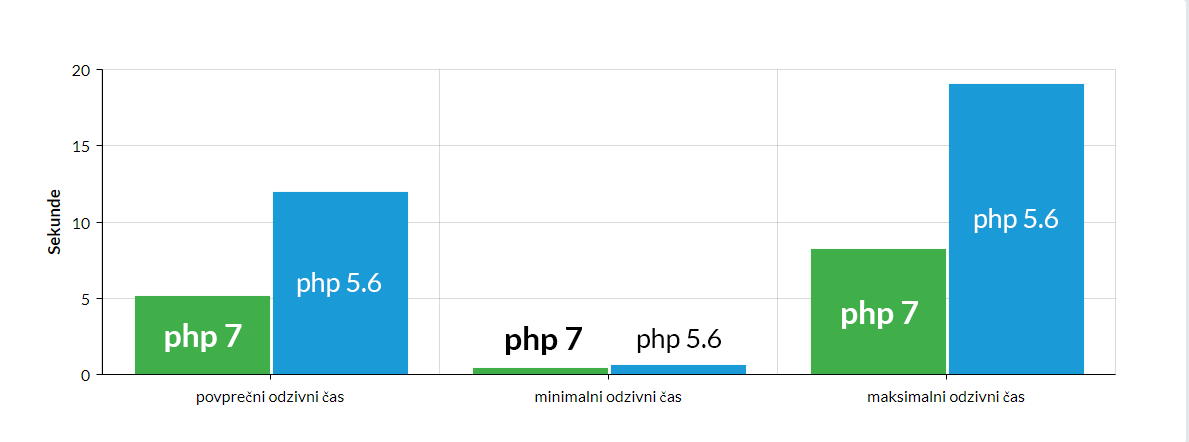
Websites using PHP 7 run up to 2x faster than the previous PHP 5.6. PHP 7.1 is even slightly faster, and the current fastest is PHP 7.3.
We also tested the average, minimum and maximum response times of a WordPress website. The results confirm the above theory that websites run up to 2x faster on PHP 7 than on PHP 5.6.
If you have arranged hosting for your WordPress site with NEOSERV, then you will be able to change the PHP version in three simple steps via the cPanel control panel.
1. Log into your control panel and click on Select PHP Version in the Software section.

2. In the new window, select at least PHP 7.0.
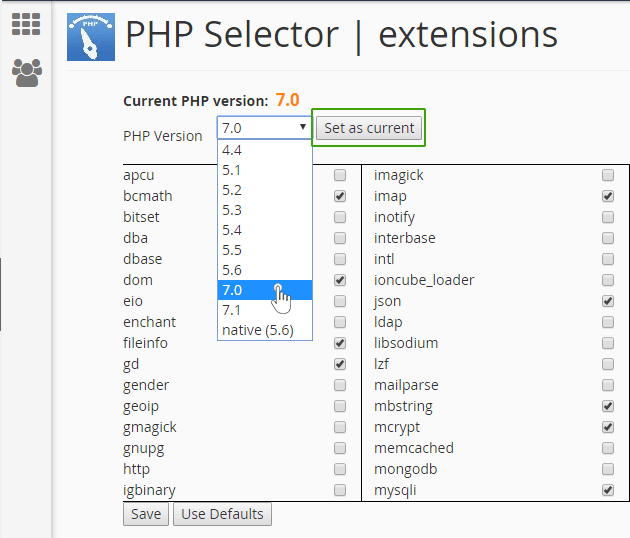
3. Click on the Set as current button.
After changing PHP, it is important to check that your website is still working without errors. Some older graphical templates and plugins do not support PHP 7.
3. Install a caching plugin
The WordPress system always loads a page in chunks, which requires time-consuming processes. Each process involves individual steps, which slow down even further when multiple people visit your site at the same time. To remedy this situation, use the caching plugin to speed up your page by up to 5x.
How does this plugin work? Instead of always going through the whole loading process when a web page is visited, the plugin makes a copy of the page when it is first launched and then offers the user a cached version at regular intervals.

As you can see in the image above, the web page is displayed to the user after completing five steps:
- When the user visits the WordPress site, the HTTP server uses the PHP module to process the WordPress PHP files.
- PHP accesses the MySQL database where all the website’s data is stored.
- From this data and the data in the theme’s .php files, PHP generates HTML files.
- The HTML files are then forwarded to the user by the HTTP server.
- The user’s browser then makes, given the HTTP files, requests for the CSS/JS and image files required in the HTML document.
In case you use a caching plugin, you get rid of time-consuming steps. Only three more steps are needed to display the page.
There are many caching plug-ins available. Some of the most popular and effective are:
- WP Super Cache (free),
- W3 Total Cache (free),
- WP Rocket (paid).
We recommend using the WP Super Cache plugin because it is the easiest to use and in most cases produces the best results.
4. Image optimisation
Images provide a good user experience, effectively divide the content on a website and the saying that they say more than 1000 words is very true. Images are therefore one of the most important elements, but if they are not properly optimised, they can do more harm than good. It is the non-optimised images that are most often the problem behind slow page performance.
If you use an image taken with a digital camera or a mobile phone, it can exceed a few MB in size. It may not sound like much, but a well-optimised (sub)page does not exceed more than a few MB in total. With proper optimisation, you can reduce the size of the image by up to 10x, depending on the image format. We advise you to use JPG/JPEG and PNG formats for your web presentation.
PNG is an uncompressed image format that loses a minimal amount of quality when compressed. The disadvantage of this format is that it takes up more space. This means that such an image takes longer to load.
JPG or JPEG, on the other hand, loses quality when compressed (the image becomes more grainy), but in most cases the size of the image file is significantly reduced.
So how do I decide which image format to choose?
- If your image has a lot of different colours, use JPG or JPEG.
- If you have a simpler image with fewer colours or need a transparent background, use PNG.
If your image exceeds two thousand vertical and horizontal pixels and is not a cover or background image, it should be reduced in size. You can check in your WordPress site’s graphic template what size is recommended for images in blog posts, subpages, etc. You can optimise your images with one of the TinyPNG or Kraken.io tools.
For comparison, we have taken an image of 500×500 px. We saved them in PNG and JPEG format and optimised them with the above tools:
| UN-OPTIMISED IMAGE | TINYPNG | KRAKEN | |
|---|---|---|---|
| JPEG | 65 Kb | 51 Kb | 54 Kb |
| PNG | 133 Kb | 126 Kb | 125 Kb |
As you can see in the image below, the two tested images retained their quality after optimisation.

5. Reloading images
As we have written, images are one of the most important elements of a website, but also one of the most detrimental to the speed of a website. A technique called Lazy loading images ensures that the size and quantity of images does not significantly affect the loading speed of the page.
This technique makes sure that when a visitor visits your page, the images are loaded continuously as they move around the page. By using a plugin that implements Lazy loading images you will significantly speed up your WordPress site. Some of the most popular plugins for slow loading images include:
6. Optimize JavaScript and CSS
JS(JavaScript) and CSS optimisation removes redundant space and characters in the code that do not affect the performance of the page. Similar JS and CSS files are also merged. This way, the web page takes up less space and loads faster.
Make sure you have a backup copy of your site and database before you start this process. In rare cases, merging files can cause errors on the website. Once you have backed up your site, install and activate the appropriate plug-in and perform JavaScript and CSS optimisation.
The most popular plugins for optimising JavaScript and CSS include:
7. Make sure WordPress, templates and plugins are updated regularly
WordPress updates regularly to add new features, fix security issues and bugs, and ultimately improve the performance of the system. To make sure your site gets the full benefits of WordPress, you need to make sure you’re always using the latest version. It is also important that you use the latest versions of all its components, i.e. the graphic template and all installed plugins.
To find out more about why WordPress updates are also extremely important from a security point of view, read How to save an infected WordPress website?
8. Set rules for displaying blog posts
WordPress has a pre-configured feature that displays the full content of your blog posts to the user. If you display them on your homepage, it will load more slowly. The same applies to archived posts.
An additional disadvantage of this type of display is that it shows the user the full content immediately and does not redirect them to a sub-page of the post. As a result, the number of views and the time spent by users on your site is reduced.
To reduce the loading of the homepage and archive, set the user to see only a summary of the posts. In Settings, select the Reading section.
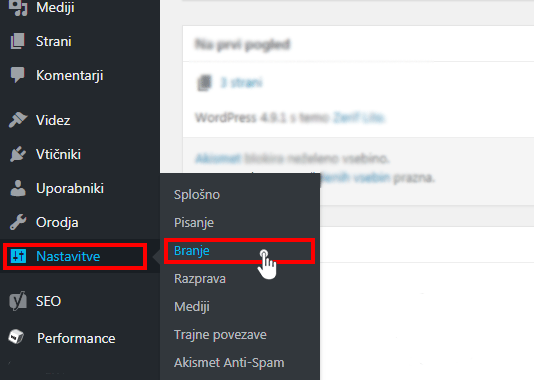 In the For each article in a feed , show field, select Summary and click the Save changes button.

9. Distribute the comments on the pages
This point is important for those of you who get a lot of comments on your posts. This is great news, of course, but it also has an impact on the loading speed of the website.
You can arrange the display of comments in Settings, where you select the Discussion section.
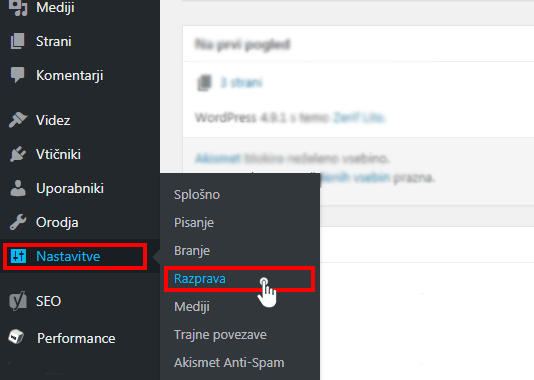
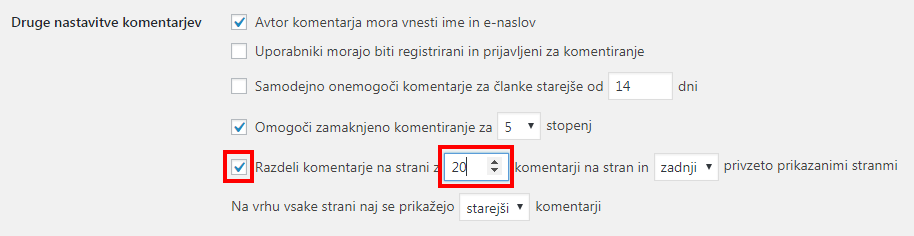
In the next window, enter the desired number of comments and click on the Save changes button.
10. Use the CDN
In today’s post, we mentioned the importance of hosting your website on a server located in the country where most of your visitors come from. The main reason is, of course, the speed of page loading. But what if a large proportion of your visitors come from different countries? The solution is a CDN(Content Delivery Network) service, which allows you to show the page to the visitor in the same amount of time, regardless of their location.
A CDN is a network made up of servers located all over the world. Each server stores a static part of the page – images, CSS and JavaScript. So when you use a CDN, the user is uploaded a static part of the page from the server closest to the user. Additionally, the server where your page is loaded will also work faster, as the CDN will do much of the work for it. To use the CDN service, we recommend the paid MaxCDN plugin or the free Jetpack.
11. Don’t upload video content directly to your page
WordPress allows you to upload video content directly to your website. We strongly advise against this, as each time you play video content, you will put a strain on the bandwidth of the server hosting your site. This will not only slow down your site, but may also cause it to become inoperable.
Upload your video content to dedicated platforms such as YouTube, Vimeo, DailyMotion and others. Just add the URL to the video content you want to your WordPress site. This way, your users will be able to watch the video without interrupting the site.
12. Optimised graphic template for fast performance
When choosing a graphic template for your site, choose one that is optimised for fast performance. Sometimes it is better to choose a simple template that does not include elements and functionality that you do not need. The following criteria can help you make your choice:
a. Simplicity,
b. compatibility with browsers,
c. supported plug-ins,
c. multilingual options,
d. page builder interface,
e. technical support from the authors,
f. SEO optimisation,
g. reviews and opinions.
13. Use relevant plugins
WordPress offers a number of plugins, but in this post we’ll focus on the ones related to images. We’ll look at which ones are best suited for page loading speed if you’re using the image slider and gallery on your site.
The image slider is one of the most popular elements on a page, especially on WordPress landing pages. It is important to use the appropriate plugin for this. To help you choose, we’ve compiled a list of the most popular dedicated plugins and compared the characteristics that have the biggest impact on the speed of your website.
| PLUGIN NAME | PAGE LOAD TIME | NUMBER OF REQUESTS | SIZE OF THE WEB PAGE |
|---|---|---|---|
| LayerSlider | 2,44 seconds | 34 | 1.072 Kb |
| Soliloquy | 1.55 seconds | 30 | 1.040 Kb |
| Revolution Slider | 2,59 seconds | 33 | 1.100 Kb |
| Silder level | 2,44 seconds | 33 | 1.100 Kb |
You can view the images on this page in the gallery. We compared three popular gallery plugins and compared the elements that have the biggest impact on page load speed.
| PLUGIN NAME | PAGE LOAD TIME | NUMBER OF REQUESTS | PAGE SIZE |
|---|---|---|---|
| NextGEN | 2,20 seconds | 38 | 559 Kb |
| Envira Gallery | 1,26 seconds | 28 | 1.080 Kb |
| Foo Gallery | 2.21 seconds | 27 | 386 Kb |
Conclusion
If you’ve got this far and followed the tips above, then you’ve definitely sped up your website. We advise you to double-check how fast your website works after you have made the changes. We are confident that you will be satisfied with the results.
The first step to getting your website up and running quickly is proper hosting. Order yours today and start building a successful WordPress website.
COMMENT THE POST
Your comment has been successfully submitted
The comment will be visible on the page when our moderators approve it.