


- Your cart is currently empty.
Node.js Application on Web Hosting: A Developer’s Guide

More and more web applications are being developed with the help of artificial intelligence (ChatGPT, Claude, Cursor, etc.). The code works perfectly on your computer, but when you want to deploy it, questions arise: Does my hosting plan support it? Where do I upload the files? Why isn’t the website loading?
In this article, you’ll learn how to set up a Node.js application on NEOSERV web hosting, such as an API built with Express or Fastify. We’ll walk you through the installation process, configuration and the most common issues you might encounter. We’ve tested all the steps described here on our servers using the Green and Turbo hosting plans.
Contents
- Which Hosting Plans Support Node.js
- How Does a Node.js Application Run on Our Servers
- Step 1: Create an Application in cPanel
- Step 2: Upload Your Code and Install Dependencies
- Step 3: Configure Environment Variables
- Step 4: Restart the Application
- Example: A Minimal Express Application
- Logs and Debugging
- Hosting Plan Limits for Node.js Applications
- Common Errors and Solutions
- Tip for Vibe Coders: What to Tell Your AI Assistant
- Choosing the Right Hosting Plan for a Node.js Application
Which Hosting Plans Support Node.js
You can run Node.js applications on the Green, Blue and Red hosting plans, Reseller Hosting plans and all Turbo Hosting plans. The White and Orange plans do not support Node.js applications.
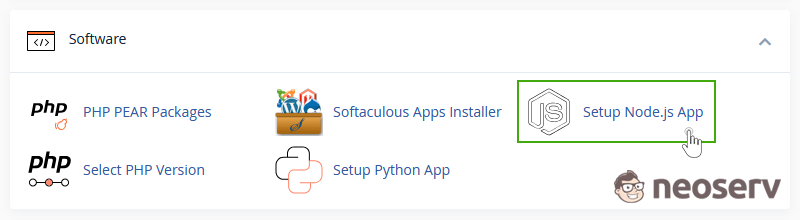
The quickest way to check whether your hosting plan supports Node.js is to look for the Setup Node.js App icon in the Software section of cPanel. If the icon is missing, you can upgrade your plan at any time and pay only the price difference.
Node.js versions 6 to 24 are available. For new projects, we recommend Node.js 22 or 24 (long-term support versions).
How Does a Node.js Application Run on Our Servers
It is important to understand how this works, as it explains most of the issues developers encounter:
- The application is started by the LiteSpeed web server on the first visit. You do not need to start it manually using
node app.jsornpm start. - The application runs as a single process that handles all requests. Once running, it does not stop during periods of inactivity.
- If the application crashes, the server automatically restarts it on the next visit. Startup takes approximately 0.7 seconds (1–2 seconds for Next.js).
- The server determines the port. The
PORTenvironment variable is not set, so useapp.listen(process.env.PORT || 3000). The server forwards requests to your application regardless of the port number. - A single application can handle 12 concurrent requests, while additional requests are queued. This is sufficient for typical web applications, as most requests are processed in just a few milliseconds.
Step 1: Create an Application in cPanel
1. In cPanel, click Setup Node.js App and then CREATE APPLICATION.
2. Fill in the following fields:
- Node.js version: e.g. 22,
- Application mode: Production,
- Application root: the folder containing your application, e.g.
myapi(located in your home directory, outsidepublic_html, so the files are not publicly accessible), - Application URL: the address where your application will be accessible, e.g.
yourdomain.com/apior a subdomain, - Application startup file: the file that starts your application, e.g.
app.js(specified in themainfield or thestartscript inpackage.json).
3. Click CREATE.
cPanel creates the application folder and a dedicated virtual environment. When you open the application’s URL, the message It works! and the Node.js version are displayed.
At the top of the application page, you’ll find a command for activating the virtual environment, for example:
source /home/user/nodevenv/myapi/22/bin/activate && cd /home/user/myapiPlease note: Two applications must not use the same Application URL. cPanel will not warn you, and the second application will silently take over the first application’s URL.
Step 2: Upload Your Code and Install Dependencies
Upload the application files to the application folder (via File Manager, FTP or Git). Do not upload the node_modules folder. The application folder contains a symbolic link named node_modules that points to the virtual environment created by cPanel.
Install the dependencies via SSH or the Terminal app in cPanel:
source /home/user/nodevenv/myapi/22/bin/activate
cd ~/myapi
npm install
You can also install dependencies through the Setup Node.js App interface using the Run NPM Install button.
The npm command in the virtual environment always installs packages into the application whose environment you have activated, regardless of your current directory. If you have multiple applications, always activate the correct environment before running npm install.
The node_modules directory counts towards your hosting plan’s file limit (e.g. 150,000 files for the Green plan). Avoid installing unnecessary packages and exclude development dependencies by running npm install --omit=dev.
Step 3: Configure Environment Variables
Enter passwords, API keys and database credentials in Setup Node.js App → Environment variables (e.g. DB_PASS, OPENAI_API_KEY) and click SAVE. The application accesses them through process.env.DB_PASS. The NODE_ENV variable is automatically set to production in Production mode.
If you use a .env file (with the dotenv package), store it in the application folder, never in public_html.
Step 4: Restart the Application
The server does not automatically detect code changes. After each change, restart the application using the RESTART button in Setup Node.js App or by running the following command:
touch ~/myapi/tmp/restart.txtWhen restarting, the application receives the SIGTERM signal, allowing it to close database connections before shutting down.
Example: A Minimal Express Application
const express = require('express');
const app = express();

app.get('/api/hello', (req, res) => {
  res.json({ message: 'Hello!' });
});

app.listen(process.env.PORT || 3000);Important: The application receives the full request path, including the prefix specified in the Application URL field. If the application is accessible at yourdomain.com/api, the Express route must be /api/hello, not /hello. If you want to define routes without repeating the prefix, use a router:
const router = express.Router();
router.get('/hello', (req, res) => res.json({ ok: true }));
app.use('/api', router);
For applications hosted on a subdomain (e.g. api.yourdomain.com), no prefix is required.
Logs and Debugging
Errors are logged to the stderr.log file in the application folder. This file contains everything you output using console.error, as well as uncaught errors. Output from console.log is not saved, so use console.error or write to a separate log file for important messages.
Hosting Plan Limits for Node.js Applications
A Node.js application shares your hosting plan’s resources with everything else running on it (websites, email and cron jobs). The Green hosting plan has the limits shown in the table below.
| Resource | Green | What This Means for Node.js |
|---|---|---|
| CPU | 1 core | The core is shared by all applications and PHP websites on the hosting plan. |
| Memory | 1 GB | An Express application uses approximately 75–100 MB. |
| Processes and threads | 100 | Every process and thread counts towards the limit. An Express application uses 7–11 threads, while some tools use several dozen (see below). |
| Number of files | 150,000 | Includes files in node_modules. |
All of the above resources are shared by all processes on your hosting plan: Node.js applications, PHP (e.g. WordPress), PM2, cron jobs and even your SSH session. When the process and thread limit is reached, PHP websites on the same hosting plan return a 503 error and SSH login fails until resources become available again.
Why do some tools create so many threads? Node.js and tools written in Rust (Next.js, Vite) detect all the server’s CPU cores, not just the one allocated to your hosting plan, and create threads accordingly. Therefore:
- Build the frontend (Vite, Vue, React) on your own computer and upload only the build output.
- On the Green, Blue and Red hosting plans, run Next.js only with
output: "standalone".
For more details, see our article Next.js or Vue/React Application with a Node.js Backend.
You can find the limits for other hosting plans in our Terms of Use. Turbo hosting plans offer significantly more resources.
Common Errors and Solutions
▪️ The page returns a 404 error or “Cannot GET /…”. The application routes do not include the prefix specified in the Application URL field (see the example above).
▪️ Error 503. The application crashes during startup. Check the stderr.log file in the application folder. The most common causes are a missing dependency (Cannot find module) or a missing environment variable.
▪️ The application returns a 503 error and spawn EAGAIN, uv_thread_create or “Resource temporarily unavailable” appears in stderr.log. Your hosting plan’s process and thread limit has been reached. Check whether other applications or build processes are running on your hosting plan. Run Next.js in standalone mode.
▪️ Code changes are not reflected. Restart the application.
▪️ The application uses ES modules ("type": "module", import). ES modules work without any additional configuration, even when the startup file has an .mjs extension.
▪️ The application is written in TypeScript. Compile the code on your computer (npm run build or tsc) and set the compiled file as the startup file, e.g. dist/server.js. Do not use ts-node or tsx in production.
▪️ Responses are delayed when handling many concurrent slow requests. The application can handle 12 concurrent requests, while additional requests are queued. Make slow external calls (e.g. AI API requests) asynchronously and set appropriate timeouts.
Tip for Vibe Coders: What to Tell Your AI Assistant
When preparing your application for deployment on our web hosting with the help of an AI assistant, you can give it the following instructions:
I will deploy my application on cPanel web hosting with CloudLinux "Setup Node.js App" and the LiteSpeed web server.

- The server should listen on process.env.PORT || 3000, not on a fixed port.

- The application will be accessible at /api (Application URL), so Express routes must include /api or the router must be mounted using app.use('/api', router).

- Log errors using console.error (console.log output is not saved).

- Read passwords and API keys from process.env, not from the code.

- Compile TypeScript to JavaScript and use the compiled file as the startup file.

- The frontend should call the API using a relative path (e.g. /api/...), not localhost:3000.

- For MySQL, use mysql2 with a connection pool (connectionLimit 5) and utf8mb4.

- For Next.js, use output: "standalone".

- For Prisma, use engineType = "client" and @prisma/adapter-mariadb (without the Rust engine).

- For Socket.io, configure the path under the application's URL (e.g. /api/socket.io) on both the server and the client.
Choosing the Right Hosting Plan for a Node.js Application
Web Hosting with Node.js support is ideal for web applications, APIs, bots, webhooks and smaller projects.
We recommend Turbo Hosting for Next.js applications with server-side rendering, multiple applications on a single hosting plan, applications with WebSocket connections and processes that need to run continuously (PM2). Turbo hosting plans offer significantly more resources while remaining just as easy to manage.
We recommend a VPS Server when you need:
- continuous workloads (data processing, analytics),
- a large number of concurrent users or long-lived connections (e.g. chat rooms, games),
- custom system packages, Docker or advanced server configurations,
- a development or testing environment.
With a VPS server, you get full root access and can customize the entire system to meet your application’s needs.
COMMENT THE POST
Your comment has been successfully submitted
The comment will be visible on the page when our moderators approve it.