


- Your cart is currently empty.
Next.js or Vue/React Application with a Node.js Backend
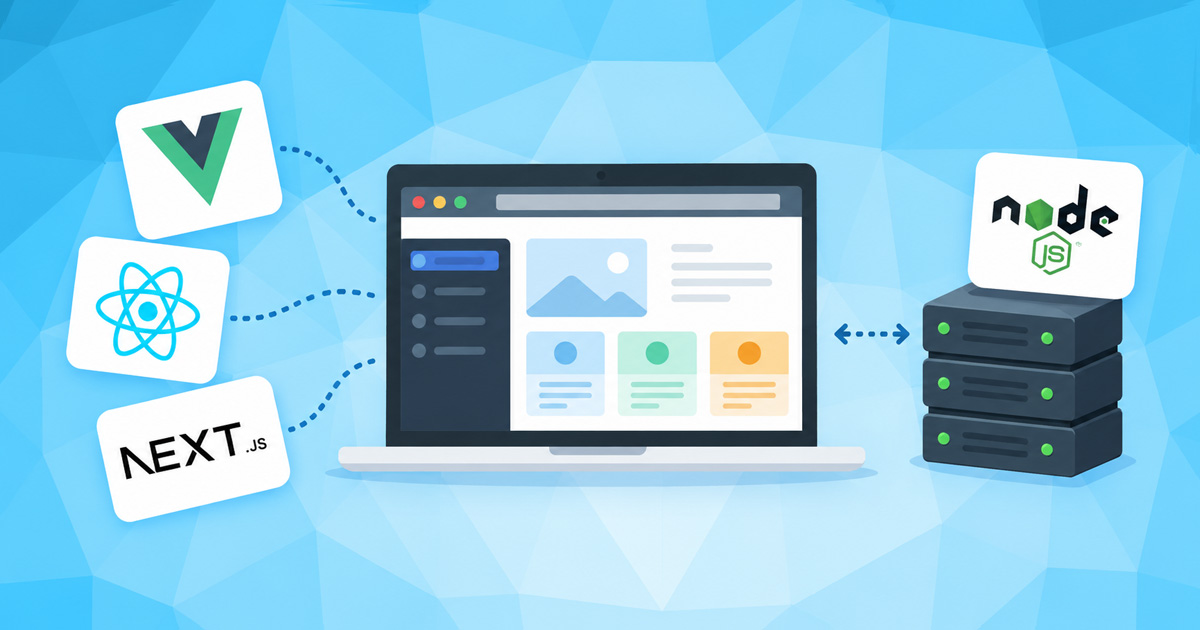

AI assistants most often suggest one of two architectures for web applications: a frontend built with Vue, React or Svelte (using Vite) and a separate Node.js API (Express, Fastify) or Next.js, which combines both in a single application.
You can host both on our hosting plans. In this article, you’ll learn how to do so and what to watch out for with each plan. We tested the procedures with Vue 3 + Vite, Express and Next.js 16 on the Green and Turbo plans.
Table of Contents
- At a glance: what works on each hosting plan?
- Vue, React or Svelte frontend with a Node.js API
- Next.js
- Pre-deployment checklist
At a glance: what works on each hosting plan?
| Green, Blue, Red | Turbo | |
|---|---|---|
| Vue/React/Svelte (static files) | yes, build on your computer | yes, build on your computer |
| Node.js API (Express, Fastify) | yes | yes |
| Next.js | yes, only with output: "standalone" |
yes |
| Building on the server | not recommended | yes |
Vue, React or Svelte frontend with a Node.js API
How is the application set up on the server
| Component | Where is it? | How does it run? |
|---|---|---|
| Frontend | public_html/app/ (static files) |
LiteSpeed serves the files directly, without Node.js |
| API | Node.js application at yourdomain.com/app-api |
Setup Node.js App |
| Database | MySQL database or SQLite file in the API directory |
Because the frontend and API are on the same domain, the browser does not require CORS configuration, which is one of the most common issues when deploying an application.
Step 1: Build the frontend on your computer
Do not build the frontend on the server. The node_modules directory contains tens of thousands of files and uses a lot of memory. On the Green plan, a Vite build cannot complete because of the process limit (the command hangs). You only need to upload the build output to the server.
Before building, set the path where the application will be accessible in vite.config.ts (or vite.config.js):
export default defineConfig({
  plugins: [vue()],      // or react()
  base: '/app/',         // directory name in public_html; use '/' for the domain root
})
If you use a router (Vue Router, React Router), it should use the same base path:
// Vue Router
createRouter({ history: createWebHistory(import.meta.env.BASE_URL), routes })

// React Router
<BrowserRouter basename={import.meta.env.BASE_URL}>
The frontend should call the API using a relative path, not http://localhost:3000:
const res = await fetch('/app-api/players')Then build the application:
npm run buildUpload the contents of the dist/ directory (not the directory itself) to public_html/app/.
Vite 8 requires Node.js 22.12 or newer on your computer. With an older version, the build stops with the error “Cannot find native binding”.
Step 2: Configure rewrites for the router
When a user refreshes a page at an address such as yourdomain.com/app/players, the server must return index.html. Otherwise, the user gets a 404 error. Add an .htaccess file to public_html/app/:
RewriteEngine On
RewriteBase /app/
RewriteRule ^index\.html$ - [L]
RewriteCond %{REQUEST_FILENAME} !-f
RewriteCond %{REQUEST_FILENAME} !-d
RewriteRule . /app/index.html [L]
If the application is in the domain root, replace /app/ with /. The server applies the new .htaccess file after a few seconds.
Step 3: Deploy the API
Deploy the API as a Node.js application in Setup Node.js App, as described in our article Node.js Application on Web Hosting:
- Application root: e.g.
app-api - Application URL:
yourdomain.com/app-api
Important difference from Python applications: A Node.js application receives the full path. If the frontend calls /app-api/players, the Express route must be /app-api/players or you must mount the router using app.use('/app-api', router).
The API can also run on the same domain as a WordPress site. API requests reach your application while WordPress remains unchanged.
What if the frontend and API are on different domains
If the frontend is at yourdomain.com and the API is at api.yourdomain.com, enable CORS in the API (using the cors package):
const cors = require('cors');
app.use(cors({ origin: 'https://yourdomain.com' }));
Next.js
Why use standalone mode
Next.js is normally started with next start. We do not recommend this on the Green, Blue and Red plans: Next.js detects all the server’s CPUs and creates more than 70 threads, while the Green plan allows a total of 100 processes and threads. When the limit is reached, other websites on the plan also stop working (e.g. WordPress returns a 503 error).
In standalone mode, Next.js creates a small, self-contained server that uses approximately 11 threads and 100 MB of memory while providing the same functionality.
Step 1: Configure next.config
// next.config.js (or next.config.ts)
module.exports = {
  output: 'standalone',
};
If the application will not be at the domain root, also add basePath (e.g. basePath: '/shop') and trailingSlash: true. However, we recommend deploying Next.js on its own domain or subdomain (e.g. shop.yourdomain.com), where basePath is not needed.
Step 2: Build the application on your computer
npm install
npm run build
The build creates the .next/standalone directory. For deployment, you need:
| What? | Where to upload? |
|---|---|
contents of .next/standalone/ |
~/mojnext/ |
.next/static/ directory |
~/mojnext/.next/static/ |
public/ directory (if it exists) |
~/mojnext/public/ |
Do not upload the project’s node_modules directory. The required packages are already included in .next/standalone/node_modules.
Step 3: Create the application in Setup Node.js App
- Application root:
mojnext, - Application URL: the application’s domain or subdomain,
- Application startup file:
server.js(created by Next.js in the standalone directory).
Do not use the Run NPM Install button, as the packages are already included. Enter environment variables (e.g. API keys) in Setup Node.js App.
After each new build, upload the files again and restart the application.
Building on the server
On Turbo plans, you can build Next.js directly on the server (npm install and npm run build in the virtual environment).
On the Green, Blue and Red plans, building on the server fails by default and the error messages can be misleading (e.g. “Failed to fetch font from Google Fonts” or spawn EAGAIN). If you still want to build the application on the server, add the following to next.config:
experimental: { cpus: 1 },and run the build with a limit of one CPU:
taskset -c 0 npx next buildThe build will succeed this way, but it will be slower than on your computer and no other resource-intensive tasks should run on the plan during the build.
Pre-deployment checklist
Before deploying your application, check the following:
- The
basesetting invite.configmatches the directory inpublic_html. - The frontend calls the API using a relative path, not
localhost. - The
public_html/app/directory contains an.htaccessfile for the router. - You have uploaded only the build output to the server, without
node_modulesor the source code. - Next.js uses
output: "standalone". - Passwords and keys are stored in environment variables, not in the frontend code (anything in the frontend can be seen by any visitor). In Next.js, variables starting with
NEXT_PUBLIC_are visible in the browser. - An SSL certificate (https) is enabled for the domain.
If you need help with the setup, we’re here for you. For larger Next.js applications, we recommend Turbo Hosting.
COMMENT THE POST
Your comment has been successfully submitted
The comment will be visible on the page when our moderators approve it.