


- Your cart is currently empty.
PHPMailer or SMTP: Which to Use for Sending Emails


Do you have an online shop and often get complaints from customers that they haven’t received your emails? That they ordered a product from you but the invoice never arrived in their inbox? I guess the first thing you advised them to do was to check theirSpam folder, because that’s where the message might have ended up.
How nice it would be if we could just avoid such things… We have good news for you! With a simple “trick”, you can make the vast majority of sent emails end up where they belong – in your Inbox. And you can be sure that this will have a very positive impact on your business. Not only will more orders be fulfilled and fewer service extensions forgotten (e.g. in annual billing), but you’ll also save a lot of valuable time.
Table of contents:
1. Problems sending emails with PHPMailer
PHPMailer is one of the most popular open source PHP libraries for sending emails. It was originally launched in 2001, but of course it has been regularly upgraded and updated since then. Due to its popularity among PHP developers, it is also used by most CMS systems such as WordPress, Joomla, Drupal, Magento, PrestaShop, OpenCart, etc.
The main problem with PHPMailer is that outgoing emails are sent without authentication. Even though it may be a perfectly authentic or valid message, the incoming server may mark it as spam and it will end up in the Spam folder or even not be delivered. Authentication will therefore be necessary for messages to end up in the Inbox.
For example, Google and Microsoft rely on Sender Score, which rates senders from 0 to 100. Gmail delivers mail to Spam when the Sender Score drops below 40, while Microsoft is even stricter, with a score as low as 60.
Sending emails using PHPMailer can quickly lead to Sender Score giving the sender’s server a low score. This means that the more emails you send this way, the faster they will end up in your spam folder.
2. Sending emails via SMTP
The solution to the problem described above is to use the SMTP protocol, which allows outgoing e-mail to be authenticated. This protocol is used by e-mail clients to send a request to send e-mail to an incoming mail server. The e-mail is only sent to it when the server authenticates the sender and acknowledges the request.
Sending e-mail via the SMTP protocol means significantly higher deliverability. According to some data, up to 80% less of the emails sent end up in the Spam folder. The chance of it ending up in the promotions folder will also be much lower using SMTP.
If you run an online shop, you probably send a lot of automated emails to your customers, such as:
- a confirmation message when a new user registers,
- invoice/receipt when ordering a product,
- notification that a product has been dispatched to the postal service,
- a thank you for your trust after receiving the order,
- notification regarding the renewal of the subscribed service.
Please use the SMTP protocol to ensure that all messages are delivered to your inbox. We also advise you to use SMTP together with SSL/TLS. In this case, the information sent will be encrypted, which will mean an additional likelihood of successful delivery of the e-mails due to the improved security.
3. How do I send email using SMTP?
When using any popular system for setting up an online shop, you can arrange for emails to be sent to your customers via the SMTP protocol. Read on to find out how to do this most easily.
WordPress (WooCommerce)
Direct connection to an SMTP server is made possible by the WordPress SMTP Mailer plugin. Once you’ve edited all the settings, you can send a test email through the plugin to check that it works properly.
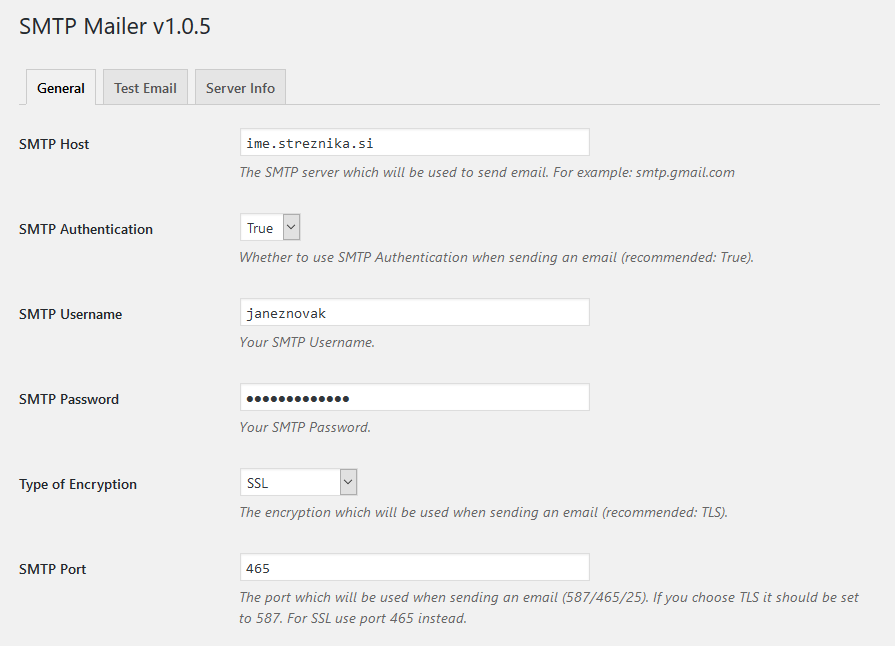
SMTP Mailer is compatible with all the most well-known plugins that allow you to send emails via web forms (Contact Form 7, Jetpack Contact Form, Visual Form Builder, Fast Secure Contact Form, Formidable Forms, etc.).
WP Mail SMTP by WPForms is also a very popular WordPress plugin that allows you to easily arrange the sending of emails via the SMTP protocol. It currently has more than one million active installations and a high average user rating (4.4 out of 5).
3.2. Joomla!
CMS Joomla! has the possibility to use the SMTP protocol built into the core of the system. In the administration, in the top left corner, hover over System and select Global Configuration. Select the Server tab and in the Mailer setting, select SMTP.
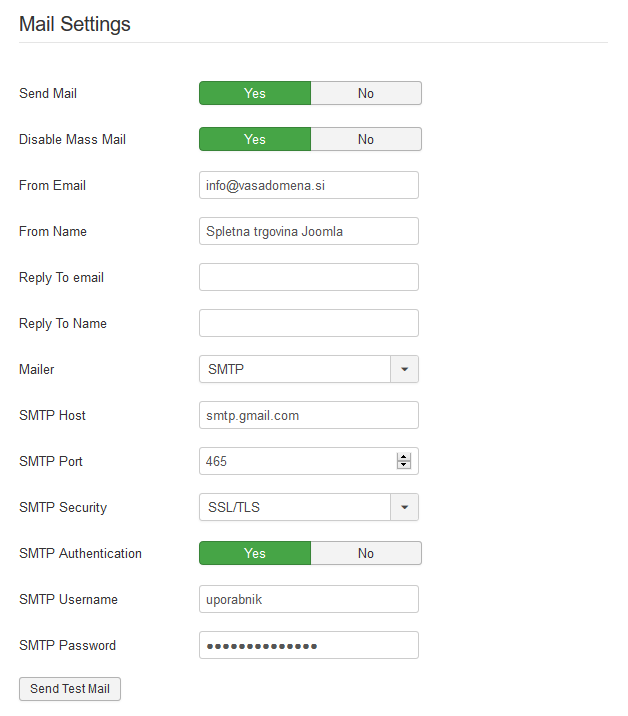
In the picture above, you can see an example of the SMTP settings you would use if you were sending emails via a paid Gmail (G Suite) email account.
3.3. Magento
The Magento webshop itself does not allow the use of the SMTP protocol, so an extension needs to be installed. Magento 2 users are advised to use the SMTP Extension by Mageplaza.
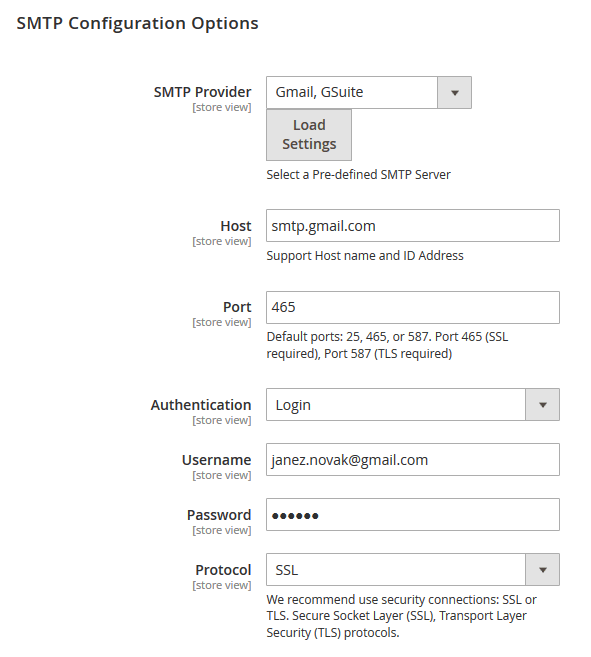
If you are using Magento 1.9, we recommend using the free SMTP Pro Email extension by ASchroder.
3.4. OpenCart
The OpenCart system allows you to set up sending emails via SMTP without using an extension. In the administration, select System from the left menu and click on Settings. Open the Mail tab where you will be able to manage your email settings.
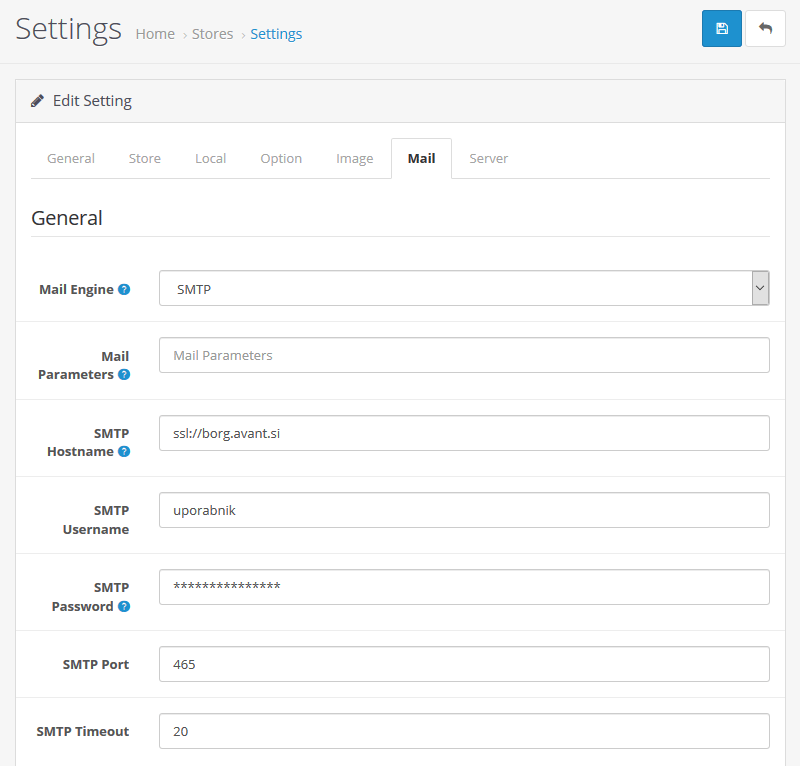
If you have an SSL certificate installed on your domain, prefix the SMTP Hostname setting with ssl:// before the server name.
3.5. PrestaShop
PrestaShop also has the SMTP settings option added to the core of the system, which means that you do not need to install an additional module. In the left administration menu, hover over Advanced Parameters and click on the E-mail link.
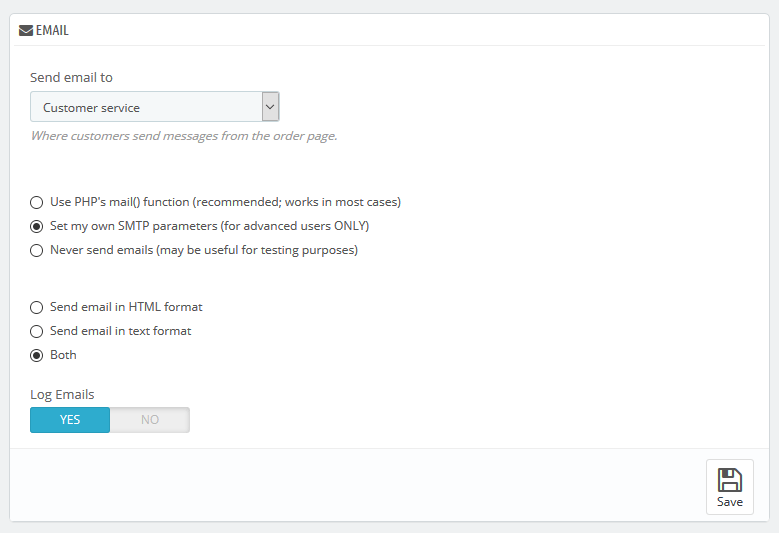
As shown in the image above, select the second option “Set my own SMTP parameters (for advanced users ONLY)“. You will then see additional settings below.
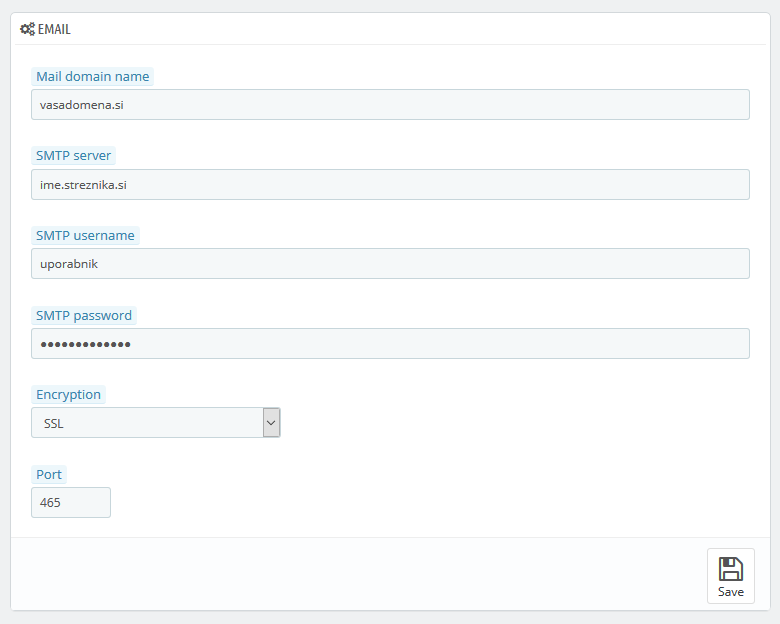
Enter your domain name, SMTP server name, username and password in the fields provided. If you are using an SSL certificate, select SSL when setting the encryption and enter the network port.
Do you offer your visitors the possibility to send product recommendations via a Recommendation Form in your online shop? If the default PHPMailer will take care of sending the recommendations, the emails will most likely end up in the Spam folder. Use the SMTP protocol and simply avoid the problem.
COMMENT THE POST
Your comment has been successfully submitted
The comment will be visible on the page when our moderators approve it.