


- Your cart is currently empty.
How to Prevent Recommendation Form Abuse

Online attackers take every opportunity to abuse a website or its data. We’ve blogged before about how they carry out an attack via a contact or sign-up form and how they sign up for newsletters. You are also not safe if you use a Recommendation form on your website. These forms are mostly used by online shop owners who want to highlight their shop, product, promotion, etc.
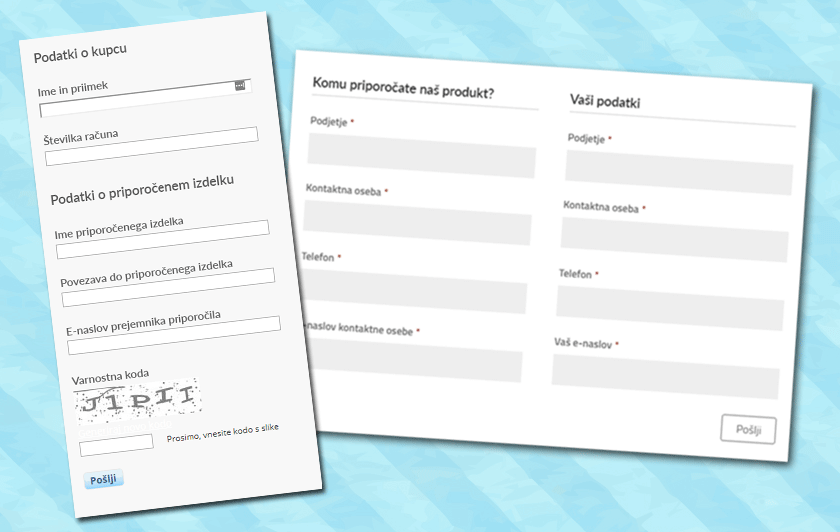
Why is it harmful to fill in a recommendation form unsolicited?
The most obvious inconvenience of this type of problem is that you will start receiving fake recommendations from malicious scripts that will fill your email inbox. This will fill your inbox with bogus, useless data. Removing them is a time-consuming process that can incur additional costs. Even if you remove all bogus recommendations from your database, it is necessary to disable their further receipt, otherwise your database will quickly become full of bogus data again.
How do I resolve unsolicited completion of the recommendation form?
There are two ways to resolve the situation:
- We advise you to simply remove the recommendation form from your website. Its usefulness is negligible, as website visitors rarely fill them in. However, it may cause you the inconvenience we have described above.
- If you still want to keep this form on your site, you should protect it accordingly. The easiest way to do this is to add the reCAPTCHA test to it. There are two versions available:
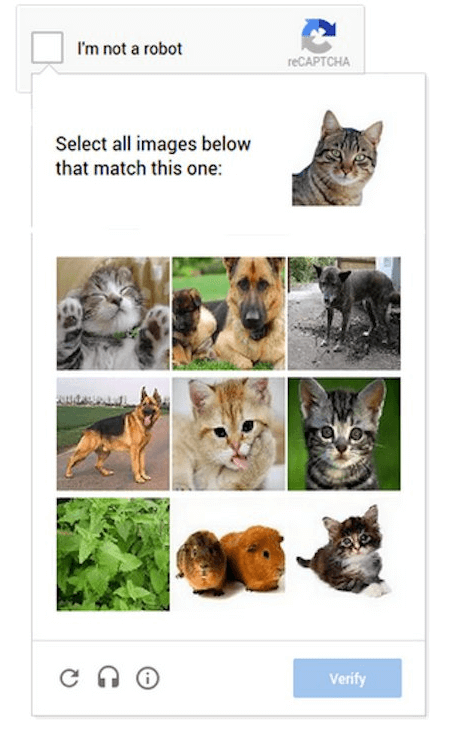
A. Check the option that you are not a robot. An additional test may appear, asking you to identify certain elements in the image.
B. Invisible reCAPTCHA.
Setting up a reCAPTCHA test
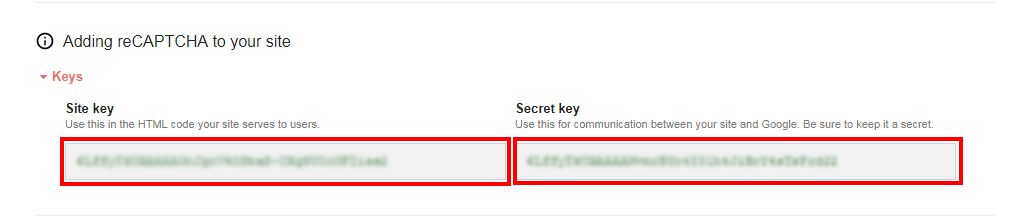
To set up a reCAPTCHA test, you first need to generate a Site Key and a Secret Key. This is done in five steps:
1. Log in to the reCAPTCHA administration using your Gmail account. If possible, use the email address associated with your domain.
2. Under Register a new site, add a description in the Label field, you can use the title of your website.
3. Select the type of reCAPTCHA test you want to use on the recommendation form.
4. Under Domains, add the domain of your website.
5. Accept the terms and conditions and click on the Register button.
6. Once you have obtained the Site Key and Secret Key, add them to your website and set the recommendation form to show the user the reCAPTCHA test.
The way you add both keys and the settings on the form depend on the system your site is built on. In this post, we’ll look at how to use it in WordPress, in combination with the Contact Form 7 plugin.
1. In the admin area of your WordPress site, click on Contact to edit the recommendation form you’re using.
2. Click on the reCAPTCHA icon.
3. Select the desired settings and click on the Insert Tag button.
4. Specify the position of the reCAPTCHA test on the recommendation form.
5. Click on the Save button, you have successfully installed the reCAPTCHA test.
If you encounter other forms of unwanted form filling, the following posts will help you:
COMMENT THE POST
Your comment has been successfully submitted
The comment will be visible on the page when our moderators approve it.