


- Your cart is currently empty.
Python Application with WebSocket, SSE and uvicorn
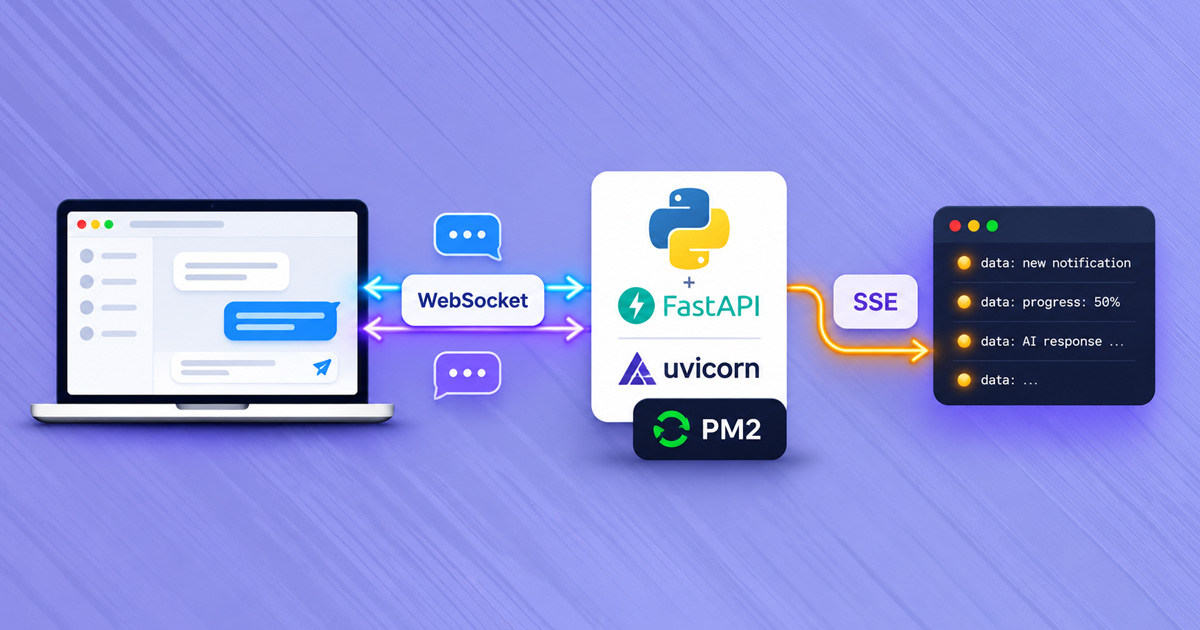

Live notifications, progress updates for long-running tasks and AI model responses displayed as they are generated: applications use WebSocket or SSE (Server-Sent Events) for all of these. Customers often ask whether these technologies also work on web hosting.
The short answer is yes, but not through the standard “Setup Python App” configuration. In this article, you will learn why and how to deploy your application so that WebSocket and SSE work properly.
Table of Contents
- Why the Standard Setup Is Not Enough
- The Solution: Uvicorn as a Standalone Process
- Which Port to Use
- Step 1: Prepare the Application and Virtual Environment
- Step 2: Start Uvicorn With PM2
- Step 3: Forward Requests With .htaccess
- Tips for Stable Real-Time Connections
- What Is Suitable for Web Hosting
Why the Standard Setup Is Not Enough
A Python application created in Setup Python App communicates with the web server through WSGI (using the a2wsgi adapter for FastAPI). This means:
- WebSocket does not work. WSGI does not support it, so the server returns a 404 error.
- SSE and response streaming are delayed. Responses are sent in chunks of approximately 8 KB, so short events arrive all at once at the end.
- Each open connection occupies one of the application’s maximum of 8 worker processes.
This is not a problem for regular API calls. For real-time connections, however, you need an application running as a standalone ASGI server (uvicorn).
The Solution: Uvicorn as a Standalone Process
The setup consists of three parts:
- uvicorn runs as your own process on the local address
127.0.0.1and a port assigned to your account, - PM2 automatically restarts uvicorn if it fails,
- the
.htaccessfile instructs the LiteSpeed web server to forward requests from your domain to uvicorn.
Visitors can therefore access the application through a regular URL such as https://yourdomain.com/..., while uvicorn cannot be accessed directly from outside.
With this setup, all FastAPI features work: WebSocket, SSE without delays, lifespan and startup events, and BackgroundTasks that execute after a response is sent.
Which Port to Use
Each account has its own assigned port. Display it with this command:
echo $((20000 + $(id -u)))Use only this port and always bind to 127.0.0.1, never 0.0.0.0.
Step 1: Prepare the Application and Virtual Environment
In Setup Python App, create an application (e.g. myapi) and install the packages as described in our article Python Application on Web Hosting. Make sure requirements.txt also includes uvicorn[standard].
You can leave the application in Setup Python App because you still need its virtual environment. Set its URL to a path you will not use (e.g. /myapi-wsgi).
Step 2: Start Uvicorn With PM2
PM2 is a process manager that automatically restarts an application if it fails. Install it in your home directory (via SSH):
export PATH=/opt/alt/alt-nodejs22/root/usr/bin:$PATH
mkdir -p ~/pm2 && cd ~/pm2
npm install pm2
Start uvicorn (replace myapi, 3.11 and the port with your own values):
export PATH=/opt/alt/alt-nodejs22/root/usr/bin:$PATH
export PM2_HOME=~/pm2/.pm2
export OPENBLAS_NUM_THREADS=1 OMP_NUM_THREADS=1
PORT=$((20000 + $(id -u)))
~/pm2/node_modules/.bin/pm2 start ~/virtualenv/myapi/3.11/bin/uvicorn \
 --name myapi \
 --interpreter ~/virtualenv/myapi/3.11/bin/python \
 --cwd ~/myapi \
 -- main:app --host 127.0.0.1 --port $PORT
~/pm2/node_modules/.bin/pm2 save
Check that it is running with ~/pm2/node_modules/.bin/pm2 list and curl http://127.0.0.1:$PORT/.
To make sure PM2 starts automatically after a server reboot, add a cron job. Instructions are available in our article Background Tasks, Cron and PM2.
Step 3: Forward Requests With .htaccess
In the directory where the application should be accessible (e.g. public_html/api/ or the root directory of a subdomain), add an .htaccess file (replace the port with your own):
RewriteEngine On
RewriteCond %{HTTP:Upgrade} websocket [NC]
RewriteRule ^(.*)$ ws://127.0.0.1:21073/$1 [P,L]
RewriteRule ^(.*)$ http://127.0.0.1:21073/$1 [P,L]
The first rule is required for WebSocket. Without it, WebSocket connections cannot be established even though regular requests work.
Tips for Stable Real-Time Connections
For reliable real-time connections, follow these recommendations:
- Send heartbeats. A connection is terminated if no data passes through it for 10 minutes. With SSE, send a
: pingcomment every 30–60 seconds. For WebSocket connections, uvicorn sends a ping every 20 seconds by default. - Handle reconnections. Open connections may be interrupted during server maintenance.
EventSource(SSE) reconnects automatically, while WebSocket reconnections must be handled by your code. - SSE in FastAPI:
from fastapi.responses import StreamingResponse
import asyncio

@app.get("/events")
async def events():
  async def gen():
    while True:
      yield "data: new notification\n\n"
      await asyncio.sleep(30)
  return StreamingResponse(gen(), media_type="text/event-stream")
What Is Suitable for Web Hosting
A continuously running uvicorn process consumes memory from your hosting plan even when nobody visits the site, and it counts towards the plan’s resource limits (for example, the Green plan includes 1 GB of memory and 20 concurrent processes). On the Green plan, uvicorn with PM2 permanently uses approximately 130 MB of memory and 16 of the 100 allowed processes and threads.
For applications that need to run continuously, we therefore recommend Turbo Hosting, which offers more memory, CPU cores and concurrent processes (e.g. the T1 plan: 4 cores, 6 GB and 100 processes).
Suitable:
- live notifications and updates for a small number of users,
- processing progress updates and streaming AI model responses,
- APIs that require
lifespanor background tasks.
Not suitable (under the Terms of Use; we recommend a VPS for these):
- public chat rooms (chat servers) and online games,
- applications with continuous CPU usage (data processing, web scraping),
- large numbers of concurrent persistent connections.
For such projects, we recommend a VPS Server, which gives you access to an entire virtual server and flexible configuration options.
COMMENT THE POST
Your comment has been successfully submitted
The comment will be visible on the page when our moderators approve it.