


- Your cart is currently empty.
Python Application on Web Hosting: A Developer’s Guide

With AI tools such as ChatGPT, Claude and Cursor, developing web applications is more accessible than ever. Even without extensive programming knowledge, you can quickly create a working application or API. But development is only the first step – the application then needs to be properly configured and published on web hosting.
In this article, you will learn how to deploy a Python application using Flask, Django or FastAPI on our web hosting. We have tested all the steps below on our servers.
Contents
- Which Hosting Plans Support Python
- How Does a Python Application Run on Our Servers
- Step 1: Create an Application in cPanel
- Step 2: Upload Your Code and Install Dependencies
- Step 3: Connect Your Application Using passenger_wsgi.py
- FastAPI Features Supported via a2wsgi
- Hosting Plan Limits for Python Applications
- Common Errors and Solutions
- Tip for Vibe Coders: What to Tell Your AI Assistant
- Choosing the Right Hosting Plan for a Python Application
Which Hosting Plans Support Python
You can run Python applications on our Green, Blue and Red plans, on Reseller Hosting plans and on all Turbo Hosting plans. The White and Orange plans do not support Python applications.
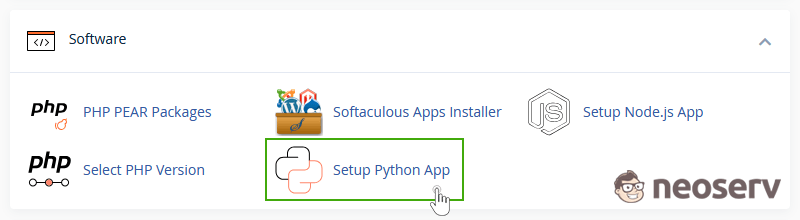
The quickest way to check whether your plan supports Python is in cPanel: the Software section should contain the Setup Python App icon. If it is missing, you can upgrade your plan at any time and pay only the price difference.
Python versions from 2.7 to 3.13 are available. For new projects, we recommend Python 3.11 or 3.12.
How Does a Python Application Run on Our Servers
Understanding this is important because it explains most of the issues developers encounter:
- The application does not run continuously as it does on your computer (
python main.pyoruvicorn main:app). The LiteSpeed web server starts it on the first visit. - It loads the application from
passenger_wsgi.pyand then creates multiple worker processes to handle requests. - Communication uses the WSGI standard. Flask and Django use it by default, while FastAPI requires a small adapter (more on this below).
- If the application receives no requests for a few minutes, it shuts down to conserve resources. The next request automatically starts it again, which takes approximately 0.5–1.5 seconds. Subsequent requests are fast again.
Step 1: Create an Application in cPanel
1. In cPanel, click Setup Python App and then CREATE APPLICATION.
2. Fill in the fields:
- Python version: e.g. 3.11,
- Application root: the folder containing your application, e.g.
myapi(located in your home directory, outsidepublic_html, so the files are not publicly accessible), - Application URL: the address where your application will be available, e.g.
yourdomain.com/apior a subdomain, - Application startup file: leave the default (
passenger_wsgi.py). - Application Entry point: leave the default (
application).
3. Click CREATE.
cPanel creates the application folder, a dedicated virtual environment and a test passenger_wsgi.py file. When you open the application URL, you will see “It works!”.
At the top of the application page, you will find the command to activate the virtual environment, for example:
source /home/username/virtualenv/myapi/3.11/bin/activate && cd /home/username/myapiStep 2: Upload Your Code and Install Dependencies
Upload the application files to the application folder (using File Manager, FTP or Git). Do not upload the venv, .venv or __pycache__ folders because the virtual environment is created on the server.
Install the packages via SSH or the Terminal application in cPanel:
source /home/username/virtualenv/myapi/3.11/bin/activate
cd ~/myapi
pip install --upgrade pip
pip install -r requirements.txt
Create the requirements.txt file on your computer using pip freeze > requirements.txt. You can also install packages in the Setup Python App interface (the “Configuration files” field and the “Run Pip Install” button).
To connect to a MySQL/MariaDB database, use the PyMySQL package instead of mysqlclient. Read more in our article Python Applications and MySQL.
The virtual environment counts towards your plan’s file limit. Do not install packages your application does not need.
Step 3: Connect Your Application Using passenger_wsgi.py
In passenger_wsgi.py, you define how the web server starts your application. The required code depends on the framework you use. Below are examples for Flask, Django and FastAPI.
Flask
from app import app as applicationapp is the name of the app.py file containing app = Flask(__name__).
Django
import os
os.environ.setdefault("DJANGO_SETTINGS_MODULE", "myproject.settings")
from django.core.wsgi import get_wsgi_application
application = get_wsgi_application()
In settings.py, add your domain to ALLOWED_HOSTS, set DEBUG = False and use python manage.py collectstatic to collect static files into a folder inside public_html.
FastAPI (and Other ASGI Applications, e.g. Starlette, Quart)
FastAPI is an ASGI application, so it requires the a2wsgi adapter. Install it with pip install a2wsgi.
Important: You will often find the short version application = ASGIMiddleware(app) online. On our servers (and on all LiteSpeed servers), requests get stuck when using this version.
Use the code below, which creates a separate adapter for each worker process:
import os, sys
sys.path.insert(0, os.path.dirname(__file__))

from a2wsgi import ASGIMiddleware
from main import app  # FastAPI application from main.py

_mw = {"pid": None, "app": None}

def application(environ, start_response):
    # one adapter per worker process
    if _mw["pid"] != os.getpid():
        _mw["pid"] = os.getpid()
        _mw["app"] = ASGIMiddleware(app)
    return _mw["app"](environ, start_response)
Restart the application after every code change (the RESTART button in Setup Python App or the touch ~/myapi/tmp/restart.txt command).
FastAPI Features Supported via a2wsgi
| Feature | Supported? |
|---|---|
REST API, async functions, Pydantic, /docs |
yes |
| Database connections (SQLAlchemy, SQLite, MySQL) | yes |
@app.on_event("startup") and lifespan |
no, neither is executed |
BackgroundTasks |
partially: tasks run, but the user waits for the response until they finish |
| WebSocket | no |
| Response streaming and SSE | with a delay (the response is sent in chunks of approximately 8 KB) |
For most AI-generated applications (REST API + database + frontend), this is perfectly sufficient. To learn what to do when you need WebSocket, SSE or background jobs, read our article Python Application with WebSocket, SSE and uvicorn.
Hosting Plan Limits for Python Applications
A Python application shares your plan’s resources with everything else hosted on it (websites, email and cron jobs). The Green plan has the following limits:
| Resource | Green | What does this mean for Python? |
|---|---|---|
| CPU | 1 core | All applications and PHP websites on the plan share this core. |
| Memory | 1 GB | A single FastAPI worker process uses approximately 50 MB. The system stops a process that exceeds the limit. |
| Processes and threads | 100 | Every process and thread counts. Libraries such as numpy can create dozens of threads without configuration (see below). |
| Concurrent requests (EP) | 20 | The limit applies to all websites and applications on the plan. |
All processes on the plan share these resources: application worker processes, PM2, cron jobs and even your SSH session. When a limit is reached, the application returns a 503 error and SSH login may fail until processes are freed up.
You can find the limits for other plans in our Terms of Use. Turbo Hosting plans provide significantly more resources.
Common Errors and Solutions
▪️ The page keeps loading indefinitely or returns a 503 error. With FastAPI, you are using the short ASGIMiddleware(app) version. Use the code above instead. Another possible cause is code that starts a thread, event loop or server during startup. If your main.py contains uvicorn.run(app, ...), it must be inside an if __name__ == "__main__": block. The same applies to threading.Thread(...).start() and similar code executed on import.
▪️ The application returns a 503 error and stderr.log contains pthread_create failed or Resource temporarily unavailable. Libraries such as numpy, pandas and scikit-learn create one thread per server core by default when imported. The server has far more cores than your plan allows you to use (e.g. Green: 100 processes and threads combined). In Setup Python App → Environment variables, add OPENBLAS_NUM_THREADS = 1 and OMP_NUM_THREADS = 1, then restart the application. In the command line, cron jobs and PM2, set export OPENBLAS_NUM_THREADS=1 OMP_NUM_THREADS=1 before starting the application.
▪️ An application on a subpath (e.g. yourdomain.com/api) works at its base URL, but subpages return a 404 error from your WordPress website. If WordPress or another CMS runs on the same domain, its .htaccess rules intercept requests. Add RewriteEngine On to the .htaccess file in the application folder (e.g. public_html/api/.htaccess), outside the blocks created by CloudLinux.
▪️ A process suddenly stops without an error message. The application exceeded the plan’s memory limit (e.g. 1 GB on the Green plan), so the system stopped it. Avoid loading large datasets into memory at once; process them in chunks.
▪️ Error 500 or “Internal Server Error”. Check stderr.log in the application folder. The most common causes are a missing package (ModuleNotFoundError) or an incorrect file path.
▪️ Database tables are not created. Because startup and lifespan are not executed, call Base.metadata.create_all(engine) directly on import, for example at the end of database.py.
▪️ Code changes are not reflected. Restart the application.
▪️ The first visit after a long break is slow. This is expected: the application shuts down after a few minutes of inactivity and starts again on the next visit (approximately 0.5–1.5 seconds).
▪️ A 503 error appears when many visitors access the application at the same time. By default, the application handles up to 8 requests simultaneously. If your application has slow requests, optimise them. For heavily loaded applications, we recommend a Turbo Hosting plan or a VPS Server.
Tip for Vibe Coders: What to Tell Your AI Assistant
When preparing an application for deployment on our hosting with an AI assistant, you can give it the following instructions:
I will deploy the application on shared cPanel hosting with CloudLinux "Setup Python App" and the LiteSpeed web server (WSGI, passenger_wsgi.py file).

- Do not start uvicorn/gunicorn on import; uvicorn.run must only be inside if __name__ == "__main__".

- Connect FastAPI using a2wsgi; create the adapter lazily for each process (os.getpid()).

- Do not use lifespan/startup events; perform initialisation on import.

- Do not start threads, event loops or database connections on import.

- Use PyMySQL for MySQL and read passwords from a .env file.

- The frontend should call the API using a relative path (e.g. /api/...), not localhost:8000.

- For numpy/pandas, set OPENBLAS_NUM_THREADS=1 (the plan has a limited number of threads).

- Prepare requirements.txt.
Choosing the Right Hosting Plan for a Python Application
Web Hosting is ideal for web applications, APIs and smaller projects.
If your application needs a continuously running process (e.g. uvicorn for WebSocket or a background worker) or more concurrent visitors, we recommend Turbo Hosting. These plans offer significantly more resources (e.g. Turbo T1 plan: 4 CPU cores, 6 GB of memory and 100 concurrent processes; Green plan: 1 CPU core, 1 GB of memory and 20 concurrent processes), while remaining just as easy to manage.
We recommend VPS Hosting when you need:
- continuous workloads (data processing, analytics, AI models),
- many concurrent users or long-lived connections (e.g. chat applications),
- custom system packages or unrestricted server configuration,
- a development or testing environment.
On a VPS server, you get full (root) access and can customize the system entirely to your application’s needs.
COMMENT THE POST
Your comment has been successfully submitted
The comment will be visible on the page when our moderators approve it.