


- Your cart is currently empty.
How to Recognize Malicious Emails (Phishing / Spam)
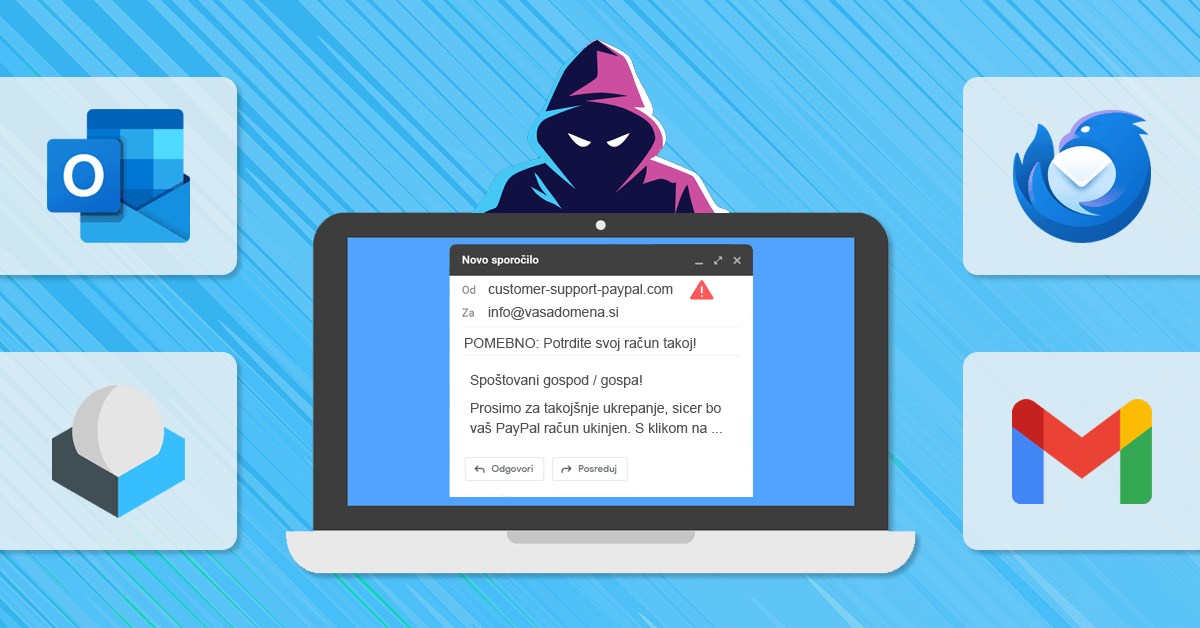

As a web hosting provider, we receive daily questions from our subscribers about certain emails that they are not sure whether they are authentic or not. In most cases, these are so-called phishing or spam messages, i.e. malicious emails designed to deceive the recipient. The most common goal of scammers is to obtain sensitive data such as passwords, credit card numbers or other personal information.
The increasingly sophisticated techniques of attackers are making it harder and harder to identify malicious emails. However, there are some signs that clearly indicate that an email is not authentic, contains a virus attachment or suspicious links. Below you will find out how to identify a malicious email to help you keep your personal, business and other sensitive information safe.
Sitemap
- 10 signs that an email is malicious
- How do I check the header to see who the real sender is?
- How to check the authenticity of web links?
- Secure email hosting with your own domain
10 signs of a malicious message
Phishing, which translates into English as phishing or online fishing, is one of the biggest cyber security risks facing individuals, businesses, banks, schools and other institutions. Attackers can steal your personal data or infect your device with malware with a single email.
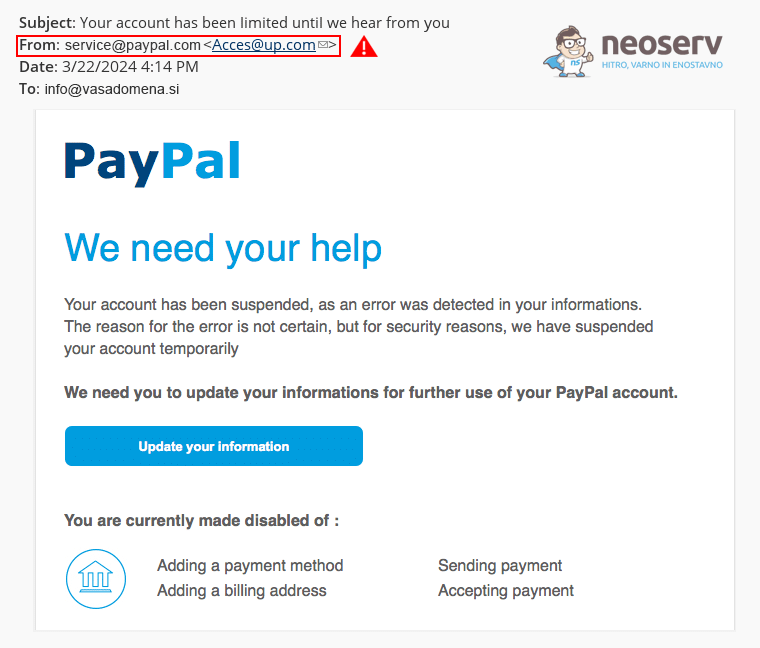
The best defence against fake and malicious emails is to know the signs that an email is malicious.
- A suspicious sender address. A malicious message may come from an address that looks legitimate but contains a small misspelling of the domain (e.g.
gougle.comorgoogle.corninstead ofgoogle.com). Fake domains are designed to mislead the recipient, as the change is often small enough that many people miss it. Always check the sender’s full address carefully before trusting a message. - Forged sender address. Attackers can spoof the email address that appears in the
Fromline of the email header to make it appear that the message is sent from a trusted address. However, this does not reflect the true origin of the message, as the sender’s real address is hidden. This is a more advanced phishing attack technique, which is detected by examining the entire header of the email message, where the actual sender is visible. We wrote more about this in the article section How to check the header for the real sender? - Fake web links. Malicious messages usually contain links that appear to lead to legitimate websites, but in reality redirect to malicious sites. Always check the link before clicking by hovering over the link and looking at the real URL that appears at the bottom of the email client. For a better illustration, check the section of the article: How to check the authenticity of web links?
- Threats or a false sense of urgency. Scammers often try to create panic with threats such as blocking your bank account, losing your financial resources or expiring your domain if you do not act immediately. This is intended to encourage a quick and reckless reaction. Before acting on such messages, take your time, consider the situation and think twice. Also be aware that financial institutions will never ask you for your password.
- Email domains do not match. If the sender presents themselves as a reputable company or financial institution, but the email address does not include their official domain, it is most likely a scam. For example, your bank will never send you a message via
gmail.com,yahoo.comornlb.ru. Legitimate companies and organisations almost always use their own domains for their email addresses. - Suspicious attachments. A malicious email often contains an attachment that looks like an important document (e.g. a file with the extension
.pdf,.docx,.txt,.zipor.rar), but is in fact malware. Such a message usually includes a warning that the attachment requires urgent and prompt action. If you were not expecting the attachment, please do not open it and check the situation with the sender first. - Too good to be true. Scammers often promise large rewards, unrealistically high amounts of money or other benefits to mislead the recipient. If the offer or the content of the message sounds too attractive and suspicious, you can be sure it is a scam.
- Unknown sender. If you receive an email from a person or company you have never dealt with before, be cautious. Take a moment to check for basic signs that could indicate an attempt to scam or misrepresent you in order to obtain your personal information.
- Misspellings and bad grammar. Malicious emails usually contain obvious spelling or grammatical errors. Credible companies usually check their communications carefully, so mistakes can be a sign that a message is fake. However, be aware that in the age of ChatGPT and similar AI technologies that help with translation and drafting, it is much harder to spot these signs of a malicious email.
- Generic greeting. Generic greetings that do not contain your first or last name are often used in malicious emails, as these messages are sent in bulk. If the message starts with a generic greeting such as“Dear user“,“Dear customer“,“Dear sir” or“Dear madam“, this may be a sign that a malicious email is being sent en masse.
How to verify the real sender in the header?
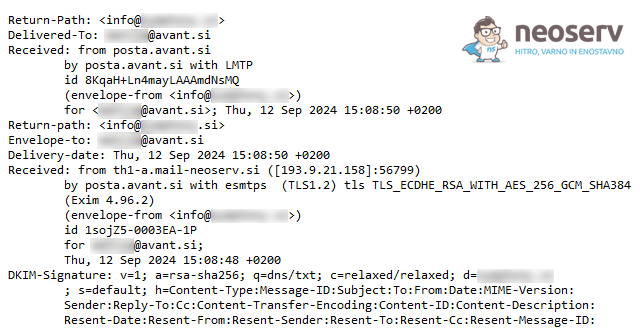
Even though the From field in your email client says that you received the message from support@google.com, the real sender could be someone else. If you suspect a malicious message, you can check who the real sender is by carefully reviewing the entire email header.
Here you can first learn about the header elements to look out for, and then see more detailed instructions on how to check the header for each email client: Microsoft Outlook, Mozilla Thunderbird, Roundcube, Gmail.
- Check the
Fromfield. This field is part of the visible header and shows the sender’s name and email address. Attackers often format the display name in such a way that the recipient does not see the fake email address at first glance, so check the full email address carefully to make sure that the domain is authentic. A misspelled domain (e.g.micros0ft.cominstead ofmicrosoft.com) is an obvious sign of phishing. - Check the
Reply-Tofield. This field determines where your reply to the message will be sent. Attackers can spoof this field to make it different from the sender’s address. If the email address in theReply-Tofield is different from the domain from which the message is supposed to be sent, this could be a sign of a scam. It is important that theReply-Tofield matches theFromfield. - Check the
Return-Pathfield. This field, also known as theBounce-Addressfield, contains the email address to which messages that cannot be successfully delivered are returned (e.g. when the recipient’s address does not exist or when a delivery error occurs). If theReturn-Pathfield differs significantly from the domains in theFromorReply-Tofield, this may indicate malicious activity. - Check the
Receivedfield. TheReceivedheader contains severalReceivedlines, which show the path the email took to reach you via the servers. The lowest of these lines shows the primary server from which the message was sent. If this is not connected to the alleged sender, it is a sign of deception. - Check the
Datefield. This field shows the time when the message was sent. If the date is illogical (e.g. in the future or in the past), this may be a sign that the message is spoofed or automated. Unusual or incorrect dates often accompany malicious messages. - Check SPF, DKIM, and DMARC. These records help to verify that the sender is genuine. If the email server from which the message was sent is not authorised to send on behalf of that domain, the checks will fail. You can check this in the header, where it will say
SPF: fail,DMARC: failor something similar, indicating that the message is bogus. - Check the IP address of the sender. The IP address of the sender’s server is also written in the header (usually in the
ReceivedorX-Originating-IPline). This IP address can be used to perform an IP lookup and check if the data matches that of the supposed sender. If the IP belongs to a suspicious or unknown location, this is an indication of the possibility of fraud.
Microsoft Outlook
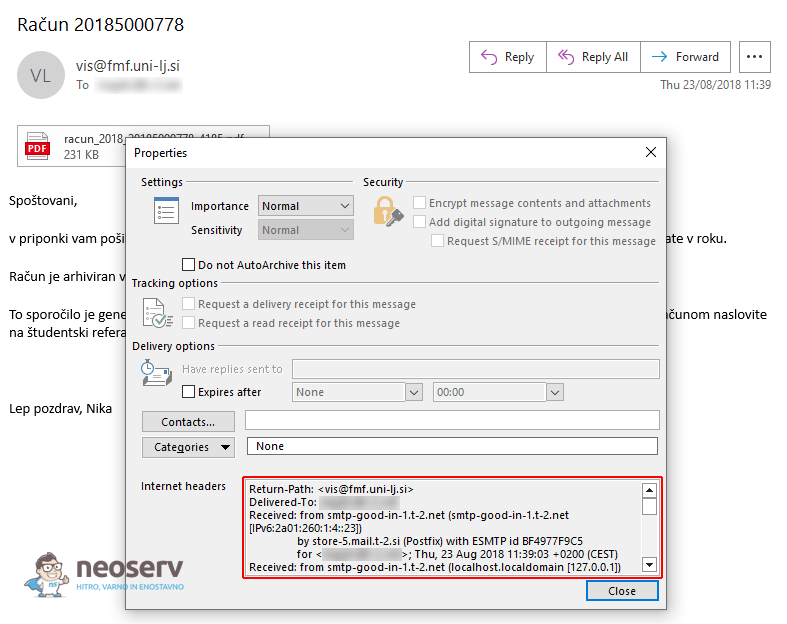
In Outlook, you can check the header of an email message as follows.
Outlook desktop application (for Windows)
1. Open the email message.
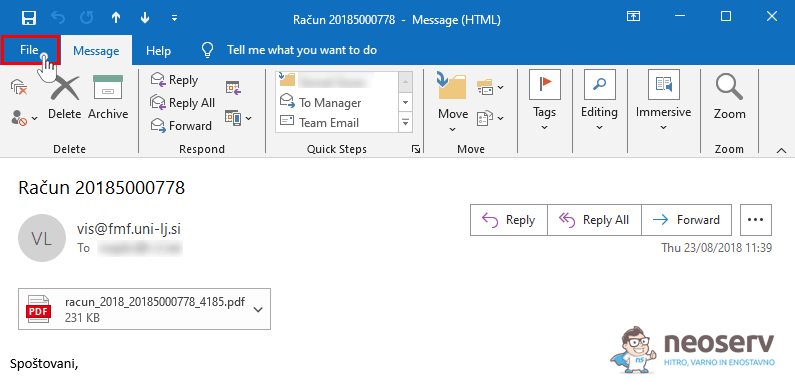
2. Click File in the top left corner.
3. Select Properties.
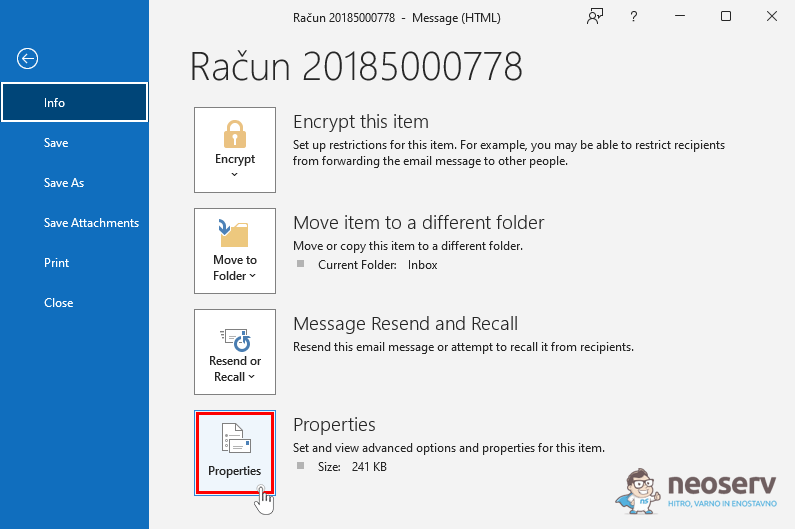
4. Check the Internet headers section for full details of the header.
Outlook Web Access (OWA)
1. Open the email message.
2. Click on the downward pointing arrow icon in the top right corner of the message.
3. Select View message details from the drop-down menu.
Outlook for Mac
1. In your Inbox or other folder, right-click on an email message.
2. Select View Source from the drop-down menu.
3. This will open the full source code of the email, including the header.
Mozilla Thunderbird
There are two ways to check the header of an email message in Mozilla Thunderbird.
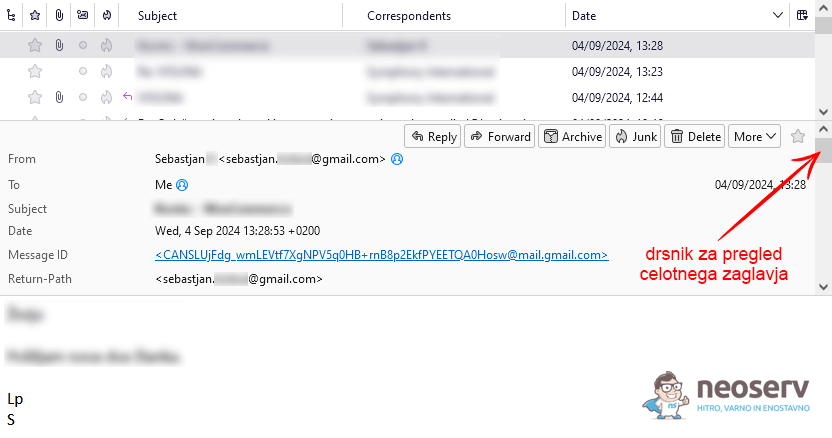
View all headers
1. Open the email message.
2. Click the View button on the menu bar, select Headers and then All.
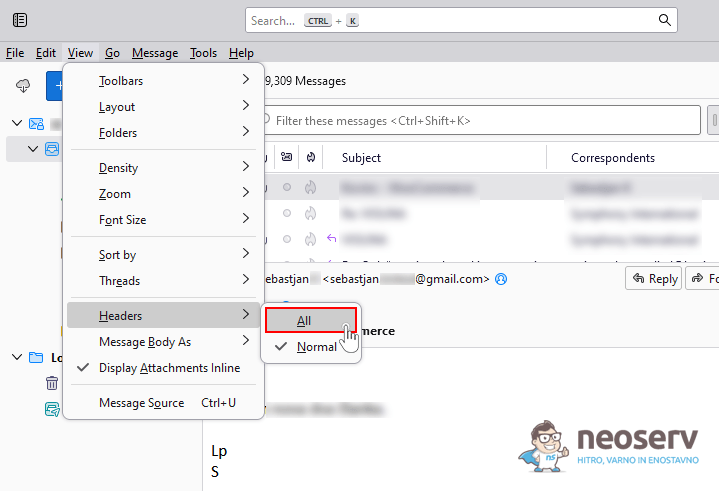
3. This will display the entire header of the email message above the body of the message.
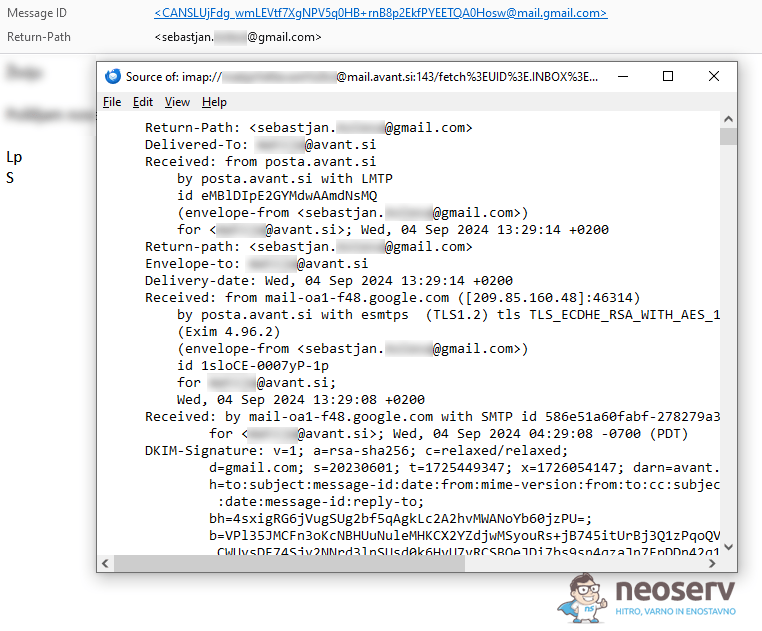
Displaying the source code of the e-mail message
1. Open the email message.
2. In the top right corner of the message, click More and then select View Source.
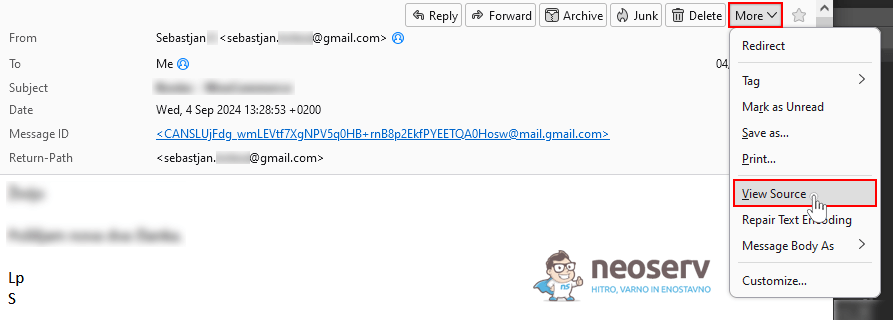
3. This will open the full source code of the email, including the header.
Roundcube (cPanel)
There are two ways to check the header of an email message in the Roundcube webmail client.
View all headers
1. Open the email message.
2. Click on the Headers link above the body of the message.
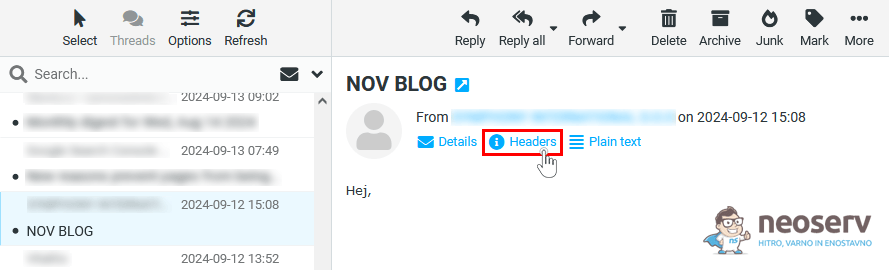
3. A new window will open where you can see the header of the e-mail message.
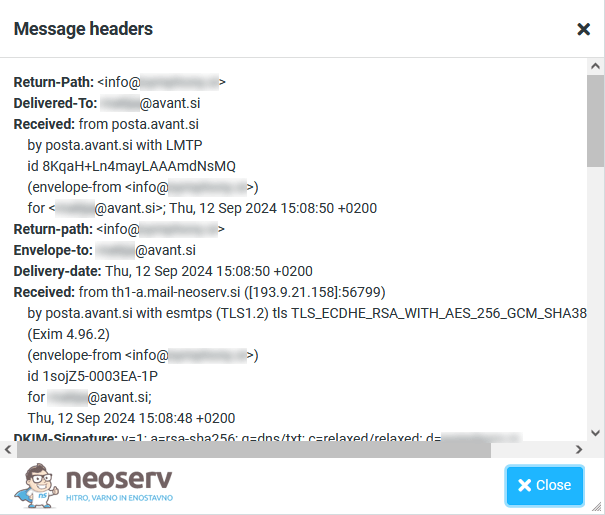
Showing the source code of the e-mail message
1. Open the email message.
2. In the top right corner of the message, click More and select Show Source.
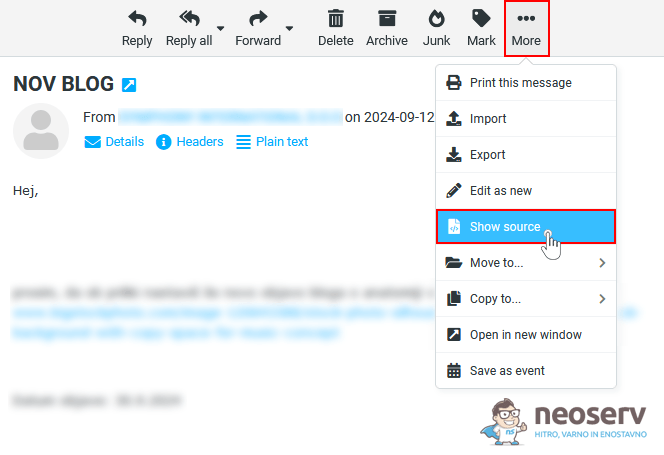
3. Roundcube will display the full source code of the email in a new tab.
Gmail
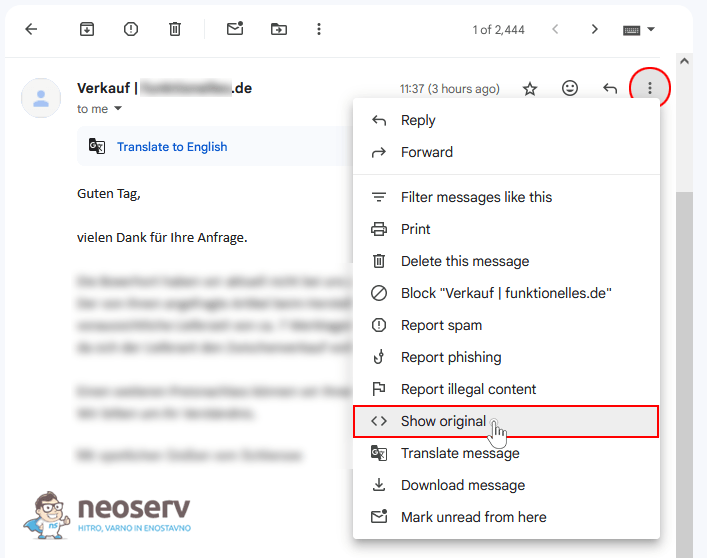
In the Gmail webmail client, you can view your email header as follows.
1. Open the email.
2. Click the three dots icon(⋮) in the top right corner of the message and select Show original.
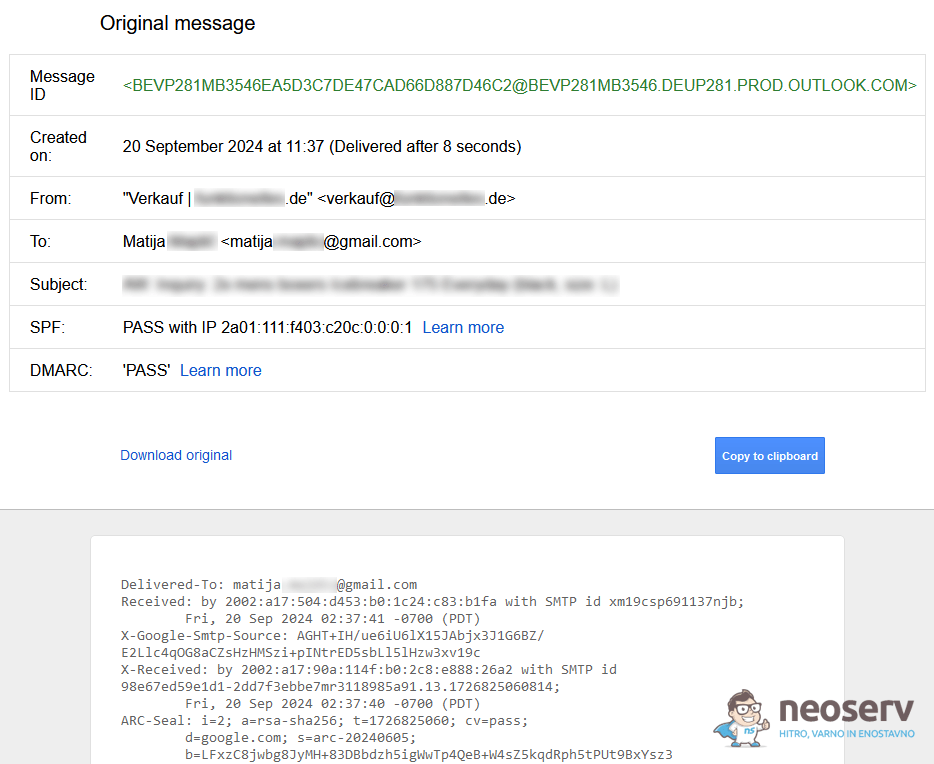
3. A new tab will open with the full source code of the message.
How do I check the authenticity of web links?
Online attackers often include malicious links in emails that appear authentic at first glance. These links look legitimate and safe on the surface, but in reality they lead to fake websites where fraudsters try to get your username and password, credit card number or other sensitive information. Clicking on a malicious link can also lead to a dangerous website that installs malware on your device.
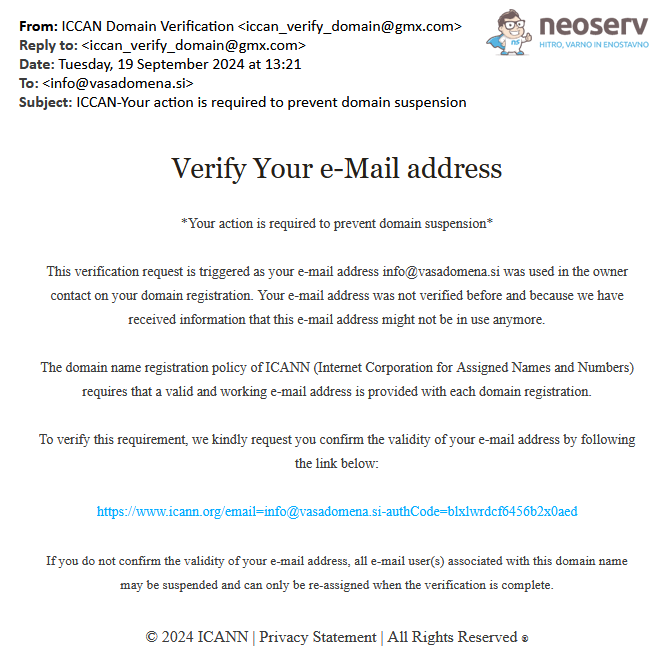
In the above message, the sender introduces itself as ICANN and asks the recipient to verify the email address, otherwise the registered domain will be suspended. Although the link in the message looks perfectly legitimate(https://www.icann.org/), it does not actually lead to the URL shown, but to a malicious page at a different URL.
Therefore, the displayed web address does not mean that clicking on the link will actually take you to that web address!
When you receive a suspicious email, always assume that the link is malicious. Be cautious and never click on a link until you are sure that it is safe to click. Use the tips below to help you determine authenticity and security.
- Check the link by hovering over it. Move your mouse over the web link, but do NOT click on it. In most email clients, the actual URL that clicking on the link would take you to will appear in the bottom left corner of the screen. Check that this link matches a legitimate website. Malicious or suspicious links often include unexpected extras or unusual domains (e.g. www.
bank-account-login.cominstead ofwww.bank.com).
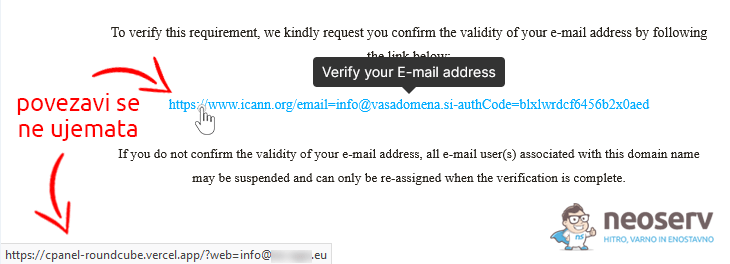
In the image above, you can see that the URL written in the body of the email does not match the URL that appears in the bottom left corner of the email client when you hover over the link. If the two links do not match, this is a clear sign that a phishing attempt is being made.
- Check the use of an SSL certificate (HTTPS). Before clicking on a suspicious link, check that the website is protected by an SSL certificate. If the link displayed in the bottom left corner of the email client starts with
https://, thewebsite has an SSL certificate installed, and if it starts withhttp://,no SSL certificate is installed. While the use of an SSL certificate and thehttps://link is not in itself a guarantee of the authenticity of the website, it is worth reiterating the importance of checking the domain name carefully. - Please check the domain name in a web search engine. Instead of clicking on a suspicious link in an email, check the domain manually first. Type it into Google and see if the website appears in the search results. If it is not in the results, there is a good chance that the site is malicious. Alternatively, you may find that the website will be visible in the search results, but there will be a security warning next to it (e.g. that the site contains malicious software code).
- Check the link with an online tool. There are dedicated tools on the web that allow you to enter a URL and check that the link is secure. Online solutions such as Google Safe Browsing, VirusTotal and URLVoid check the link and compare it against databases of known malicious sites.
Secure email hosting with your own domain
Malicious emails are becoming more sophisticated, but there are ways you can effectively protect yourself against them. In addition to being aware of the dangers and knowing how to identify phishing emails, at NEOSERV we also ensure your security by using advanced protections. Every email hosting package includes powerful anti-spam and phishing protection to prevent you from receiving unwanted and malicious messages.
In addition, we take care of daily email backups and offer encryption options to further protect your business communications. Email inboxes up to 100 GB, advanced protection and a free transfer of email inboxes from your legacy provider are just some of the benefits we have in store for you at great prices.
Investing in reliable email hosting means not only security, but also a professional presentation with your own domain. Choose one of NEOSERV’s email hosting packages to keep your emails secure, transparent, easy to use and accessible across all devices.
COMMENT THE POST
Your comment has been successfully submitted
The comment will be visible on the page when our moderators approve it.