


- Your cart is currently empty.
How to Reset WordPress Password When Access Is Lost

Have you been meaning to log in to your WordPress site for a while, but unfortunately you can’ t remember your password? Don’t worry, you can easily reset your password. All you need to know is which database belongs to your WordPress site and which email address your admin account is linked to. The process for retrieving this information is also quite simple.
Table of contents
- Which database does WordPress use?
- Which email address is my WordPress account linked to?
- How do I reset my WordPress password?
Which database does WordPress use?
The name of the database used by your WordPress website can be found in the wp-config.php file. How do I access it?
1. Log in to the cPanel control panel (login instructions).
2. Locate the FILES icon section and open the File Manager.
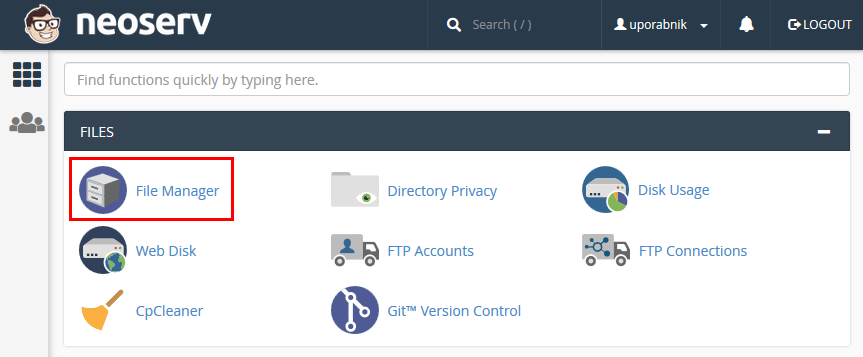
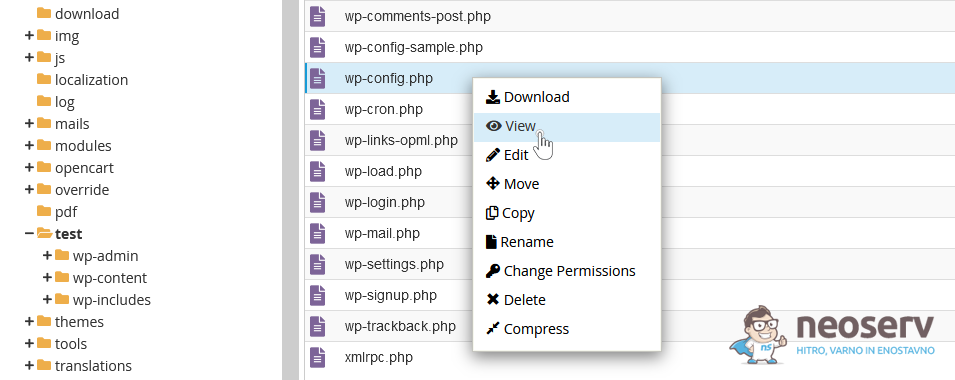
3. Open the folder where you installed WordPress, then right-click on the wp-config.php file and select View.
4. In the wp-config.php file, look for the DB_NAME line, where you will find the database name.
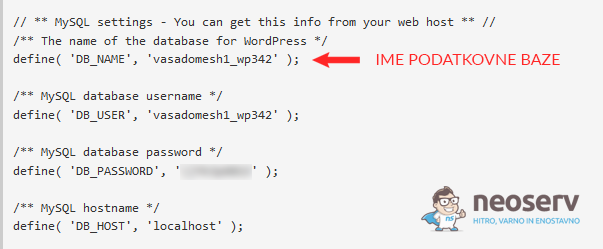
This completes the first part of the procedure. Remember the name of the database (or write it down somewhere), as you will need it in one of the next steps.
You can now close the wp-config.php content window by clicking on the cross in the top right corner.
Which email address is my WordPress account linked to?
You can also find this information via the cPanel dashboard, using the phpMyAdmin tool.
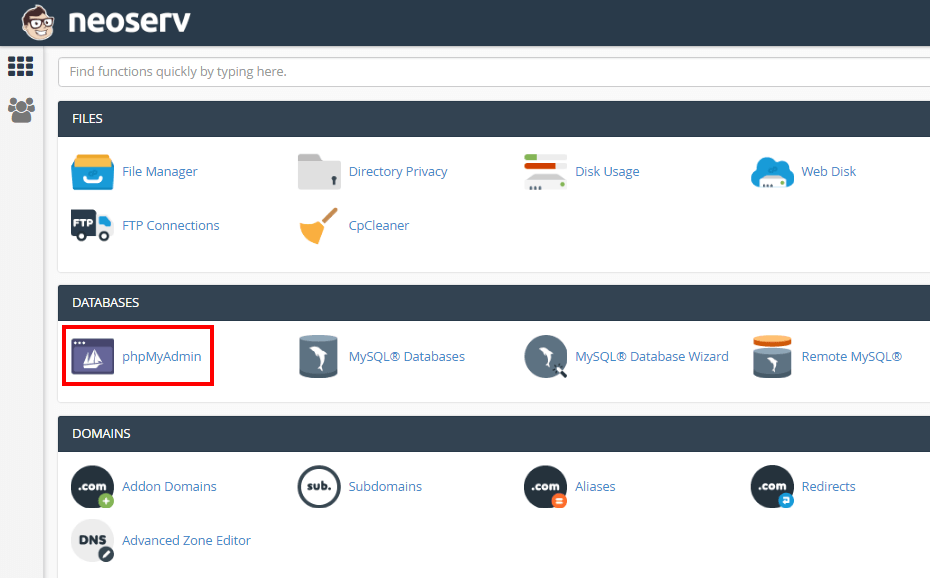
1. After logging in to the cPanel Control Panel, find the DATABASES section and open phpMyAdmin.
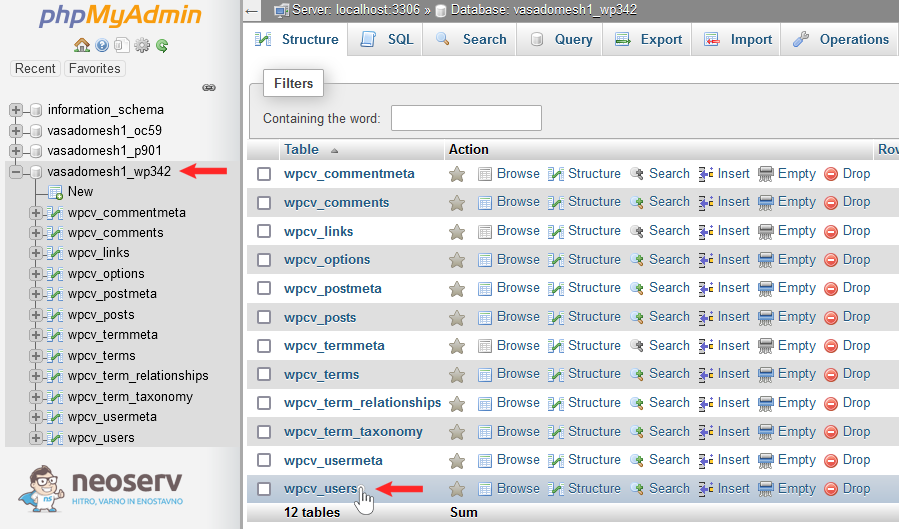
2. In the left menu of the phpMyAdmin tool, click on the corresponding database you found in one of the previous steps. Then click on the _users table (the table prefix is not important).
3. In the user_login column you will find the username and in the user_email column the email address associated with that user.
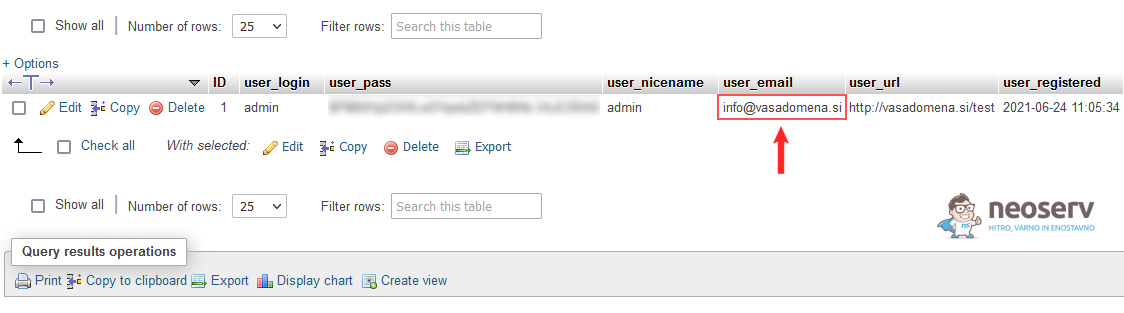
So, now you have found the email address that is tied to your username that you used to log in to the WordPress administration.
If you want to change the email address in the database, you can double-click on it, rename it and press enter on your keyboard. If it is a basic admin email address, you can do the same in the _options table, where the value admin_email is given.
How do I reset my WordPress password?
So now you know which email address your WordPress account is linked to. It’s time to reset your WordPress login password.
1. In your browser, open the WordPress administration login page: vasadomena.si/wp-admin
2. Click on the link below the login form: Forgot your password?
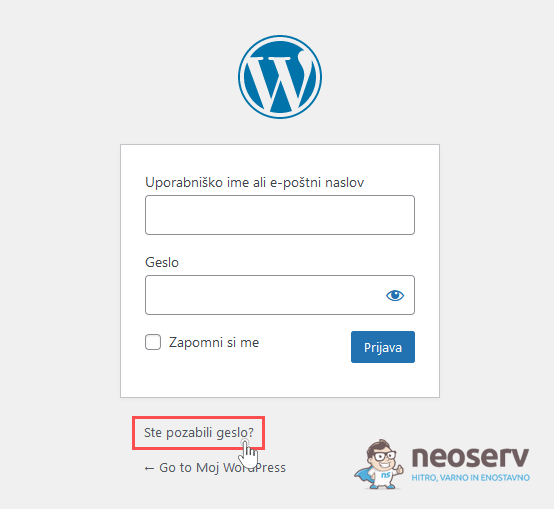
3. Enter your email address in the box and click Get new password.
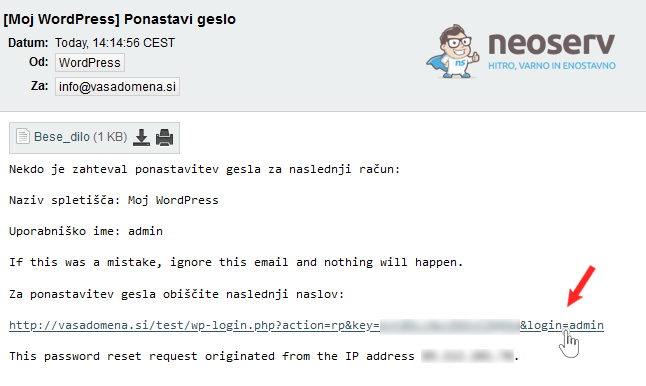
4. Open your email inbox, where you should have just received a message with a link to reset your WordPress password. Click on the link.
5. You will be presented with a box where you can enter your new password (set a strong password) and click on the Save Password button to save your new password.
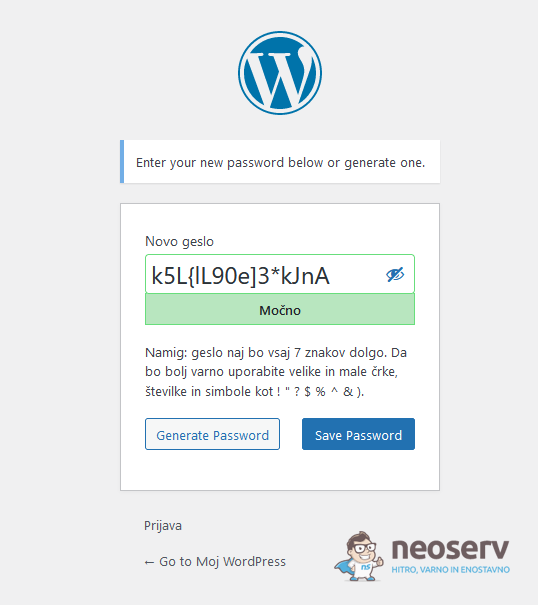
This will reset your password. You can visit the WordPress administration login page again and try to log in. You should now be able to log in successfully.
COMMENT THE POST
Your comment has been successfully submitted
The comment will be visible on the page when our moderators approve it.