


- Your cart is currently empty.
WooCommerce Optimization: wc-ajax=get_refreshed_fragments

WooCommerce is a hugely popular WordPress plugin that gives your website the functionality of an online shop. Many paid graphic templates, as well as many free ones, offer the possibility of using the WooCommerce plugin for an online shop.
In today’s post, we will focus on the webshop component: wc-ajax=get_refreshed_fragments. Many WooCommerce webshops spend a lot of time on the AJAX call.
When testing the speed of WooCommerce webshops, we found that the request takes about one second for most of them. For some it takes a little less, and for others it takes much longer, up to 5 seconds or even more.
See below how to check if the AJAX call wc-ajax=get_refreshed_fragments also takes a long time in your WooCommerce store. Then find out how you can fix this issue to speed up your online store.
Table of contents
- What is wc-ajax=get_refreshed_fragments?
- Admin AJAX calls and page loading
- How to fix the problem with wc-ajax=get_refreshed_fragments?
- Plugin to stop WooCommerce Admin AJAX calls
- Page speed testing
- Conclusion
1. What is wc-ajax=get_refreshed_fragments?
The AJAX call wc-ajax=get_refreshed_fragments is related to a shopping cart. WooCommerce retrieves information about the contents of the shopping cart when you visit any page of the online store, using the admin AJAX call. You can therefore see the script in the source code of every page of your WooCommerce store.
<script type='text/javascript'>
/* <![CDATA[ *//
var wc_add_to_cart_params = {"ajax_url":"\/wp-admin\/admin-ajax.php", "wc_ajax_url":"\/?wc-ajax=%%%endpoint%%%", "i18n_view_cart": "View cart", "cart_url": "https:\/\/www.vasadomena.si\/cart", "is_cart":"", "cart_redirect_after_add": "no"};
/* ]]> */
</script>
In most cases, calling AJAX is relatively time-consuming. Pingdom, an online tool for testing the loading speed of web pages, also clearly shows in our test that an AJAX request takes a considerable amount of time. As you can see in the image below, it takes more than 1 second to execute, which is certainly not insignificant.
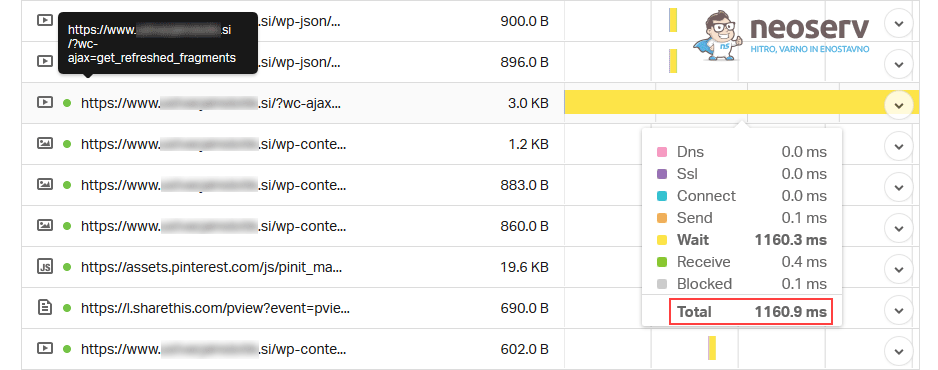
If you want to test how fast (or slow) a call is made in your WooCommerce store, you can also use the Pingdom tool yourself. Click on the link, enter the URL of your online store in the search box and select the server location closest to you. After running the test, look for wc-ajax=get_refreshed_fragments in the list of requests and hover over the yellow box.
2. Admin AJAX calls and page loading
WooCommerce uses an AJAX call to update the items and total value in the shopping cart without the need to refresh the page. Executing the request on every page can slow down the loading time significantly, while also consuming a lot of server resources. Another problem is that the plugin also executes the call on pages where there is no online shopping cart or products.
You can easily check that this is true yourself. In your WooCommerce store, visit the “About us” page or another page where there is no shopping cart or products. Then check the source code to see if the script we wrote above appears in the source code.
From this we can see that simply removing the shopping cart from a particular page of an online shop will not improve the loading speed. What we need to do is to disable shopping cart updates – on pages where there are no products or shopping carts displayed.
3. How to fix the problem with wc-ajax=get_refreshed_fragments?
The problem can be fixed by removing the script from the source code by modifying the functions.php file. You can change functions.php directly in the WordPress administration, via the cPanel dashboard or using an FTP client.
Instead of modifying the functions.php file in the base graphic template, create a child theme. This way, the changes will remain active even when you update the graphic template to a newer version.
You have three options to remove the WooCommerce AJAX script for cart fragmentation:
- Disable the cart script only on the landing page of the website.
- Disable the cart script on the site landing page and in posts.
- Disable the basket script on all pages except the webshop pages.
We will briefly describe the three options below and you can choose the one that suits your situation.
3.1. Disable the shopping cart script on the landing page
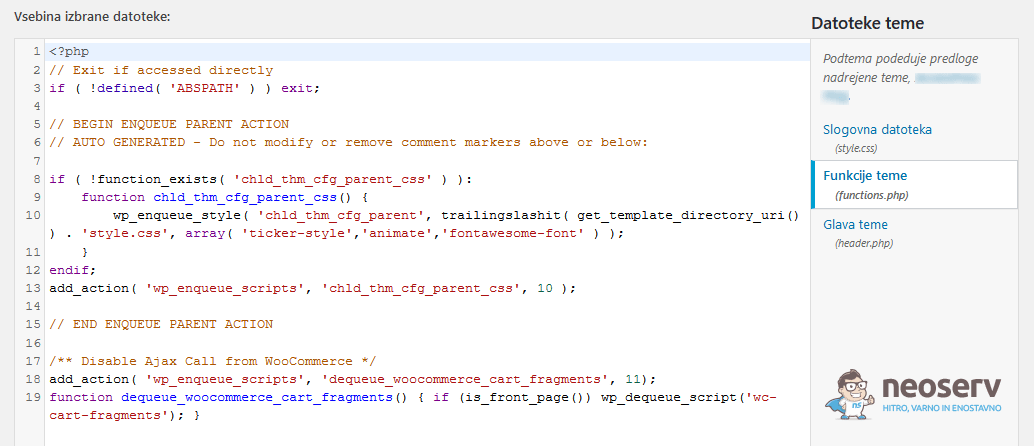
After logging in to the WordPress administration, hover over Appearance in the left menu and select Theme Editor. Then locate the functions.php file and add the following code to the very end.
/** Disable Ajax Call from WooCommerce */
add_action( 'wp_enqueue_scripts', 'dequeue_woocommerce_cart_fragments', 11);
function dequeue_woocommerce_cart_fragments() { if (is_front_page()) wp_dequeue_script('wc-cart-fragments'); }
Click the Update File button to save your changes.
Once the file is updated, navigate to WooCommerce -> Settings. In the Products tab, select the General section. Add a tick to the option Redirect to the cart page after successful addition.
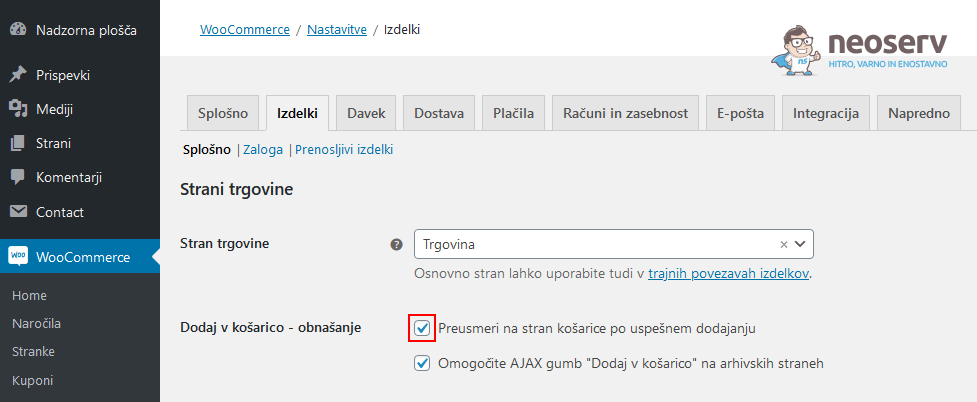
This will immediately redirect the visitor to the basket page when the product is added to the online basket.
3.2. Disable the script on the landing page and in posts
The above code will disable the AJAX shopping cart script only on the landing page of the website. If you want to disable the script on the post pages as well, add the code below to the functions.php file.
/** Disable Ajax Call from WooCommerce on front page and posts*/
add_action( 'wp_enqueue_scripts', 'dequeue_woocommerce_cart_fragments', 11);
function dequeue_woocommerce_cart_fragments() {
if (is_front_page() || is_single() ) wp_dequeue_script('wc-cart-fragments');
}
3.3 Disable script on all pages except store pages
WooCommerce is quite a demanding plugin, requiring a lot of server resources to load different styles and scripts. If you have only a few products added to your online store, but you have hundreds of blog posts, it makes sense to disable everything related to WooCommerce on the post pages. In other words, you can only allow WooCommerce scripts on those pages of the site that are actually related to the online store.
Add the following code to the functions.php file. This will first check if there is a WooCommerce plugin on your site, and then disable styles and scripts on all pages except Product Pages, Cart and Checkout.
/** Disable All WooCommerce Styles and Scripts Except Shop Pages*/
add_action( 'wp_enqueue_scripts', 'dequeue_woocommerce_styles_scripts', 99 );
function dequeue_woocommerce_styles_scripts() {
if ( function_exists( 'is_woocommerce' ) {
if ( ! is_woocommerce() && ! is_cart() && ! is_checkout() ) {
# Styles
wp_dequeue_style( 'woocommerce-general' );
wp_dequeue_style( 'woocommerce-layout' );
wp_dequeue_style( 'woocommerce-smallscreen' );
wp_dequeue_style( 'woocommerce_frontend_styles' );
wp_dequeue_style( 'woocommerce_fancybox_styles' );
wp_dequeue_style( 'woocommerce_chosen_styles' );
wp_dequeue_style( 'woocommerce_prettyPhoto_css' );
# Scripts
wp_dequeue_script( 'wc_price_slider' );
wp_dequeue_script( 'wc-single-product' );
wp_dequeue_script( 'wc-add-to-cart' );
wp_dequeue_script( 'wc-cart-fragments' );
wp_dequeue_script( 'wc-checkout' );
wp_dequeue_script( 'wc-add-to-cart-variation' );
wp_dequeue_script( 'wc-single-product' );
wp_dequeue_script( 'wc-cart' );
wp_dequeue_script( 'wc-chosen' );
wp_dequeue_script( 'woocommerce' );
wp_dequeue_script( 'prettyPhoto' );
wp_dequeue_script( 'prettyPhoto-init' );
wp_dequeue_script( 'jquery-block' );
wp_dequeue_script( 'jquery-placeholder' );
wp_dequeue_script( 'fancybox' );
wp_dequeue_script( 'jqueryui' );
}
}
}
Just add one of the three codes we mentioned above. If you choose the third option, also disable the Enable AJAX add to cart buttons on archives feature, which can be found in the WooCommerce -> Settings menu, Products tab, General section.
4. Plugin to stop WooCommerce Admin AJAX calls
If you are not familiar with modifying a theme file or creating a child theme, you can also use a free plugin. Install and activate the Disable Cart Fragments by Optimocha plugin via the WordPress administration.
The plugin is quite simple to use, as it doesn’t even have a settings page. Simply activating the plugin will disable the WooCommerce cart update script on all pages of the site. If you only want to disable the script on certain pages, add the code below to the wp-config.php file.
define('DISABLE_CART_FRAGMENTS', 'ID-1,ID-2,ID-3');ID-1, ID-2 and ID-3 are the IDs of the posts or pages. To find these, for example, open the list of posts (or pages) in the WordPress admin and then hover over Edit on each post. You will see the URL in the bottom left corner of the screen, which also contains a number representing the post/page ID.
Remember that you need to disable the Enable AJAX add to cart buttons on archives and enable the Redirect to the cart page after successful addition option in your WooCommerce settings.
5. Page speed testing
Once the code has been added or the aforementioned plugin has been activated, clear the cache if you are using a caching plugin on your website.
Then use the Pingdom web tool to check that the “wc-ajax=get_refreshed_fragments” item has been removed. Of course, do this on the page where you have turned off the script (e.g. the article page).
Conclusion
WooCommerce is one of the easiest ways to set up an online shop. From experience, we can say that a lot of users use WooCommerce as an add-on to a large blog or web portal.
If you also have a website where the functionality of the store is not primary, we definitely recommend that you disable the AJAX admin calls to automatically update your shopping cart. This will achieve faster loading of all subpages that are not linked to the online store.
Otherwise, i.e. if the shop is the most important functionality of your website, you will definitely need a script to update the basket items (without refreshing the page). In this case, we recommend three main things to get your webshop up and running as quickly as possible:
- fast web hosting on modern servers (SHARED hosting for simpler shops, TURBO hosting for more complex ones),
- using a high-quality graphic template,
- using an efficient caching plugin (e.g. WP Super Cache if you use a shared hosting package, or LiteSpeed Cache if you use a TURBO hosting package).
COMMENT THE POST
Your comment has been successfully submitted
The comment will be visible on the page when our moderators approve it.