


- Your cart is currently empty.
LiteSpeed Cache for WordPress: Installation and Configuration


Do you use NEOSERV web hosting and your website is based on WordPress? Maybe you run a WooCommerce store, which, as I’m sure you know, is one of the most popular WordPress extensions? It’s time to uninstall all the caching plugins you’re currently using and install LiteSpeed Cache instead.
LiteSpeed Cache is a WordPress plugin that provides extremely efficient caching at the server level. The prerequisite for its use is the LiteSpeed web server on which all our hosting packages are installed. The combination of LiteSpeed web server and LiteSpeed Cache plugin will make your website or shop fly – almost literally!
See below for detailed instructions on how to use the LiteSpeed Cache plugin for WordPress (version 7.3).
Sitemap
- Installing LiteSpeed Cache
- LiteSpeed Cache settings
- How to clear the cache?
- NEOSERV: LiteSpeed lightning fast hosting
Installing LiteSpeed Cache
You can install LiteSpeed Cache on your website via the WordPress administration.
- Log in to your website’s administration.
- In the side menu, hover over Plugins and click on Add Plugin.
- Type
LiteSpeed Cachein the search box and wait a moment for the system to find the plugin. - For the plugin in question, click on the Install Now button and wait a few seconds for the plugin to install.
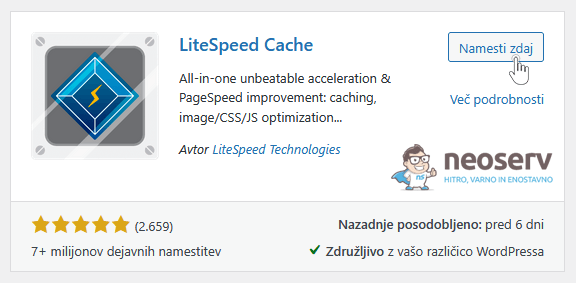
- Click on the Activate button to “run” the plugin.
Since the developers of the LiteSpeed Cache plugin have provided default settings that are suitable for most websites and shops, this is all you need to do. By installing and activating the plugin, you will enable page caching at server level.
LiteSpeed Cache settings
Although just activating the LiteSpeed Cache plugin will significantly speed up your website’s performance, you can reduce loading times even further with a few changes to the settings and image optimisation. So let’s take a look at what settings are available.
1. Dashboard
A quick glance at key information about how the system works. Statistics such as cache usage rate, number of optimised images, status of Quic.Cloud services and results of the latest optimizations are all in one place.
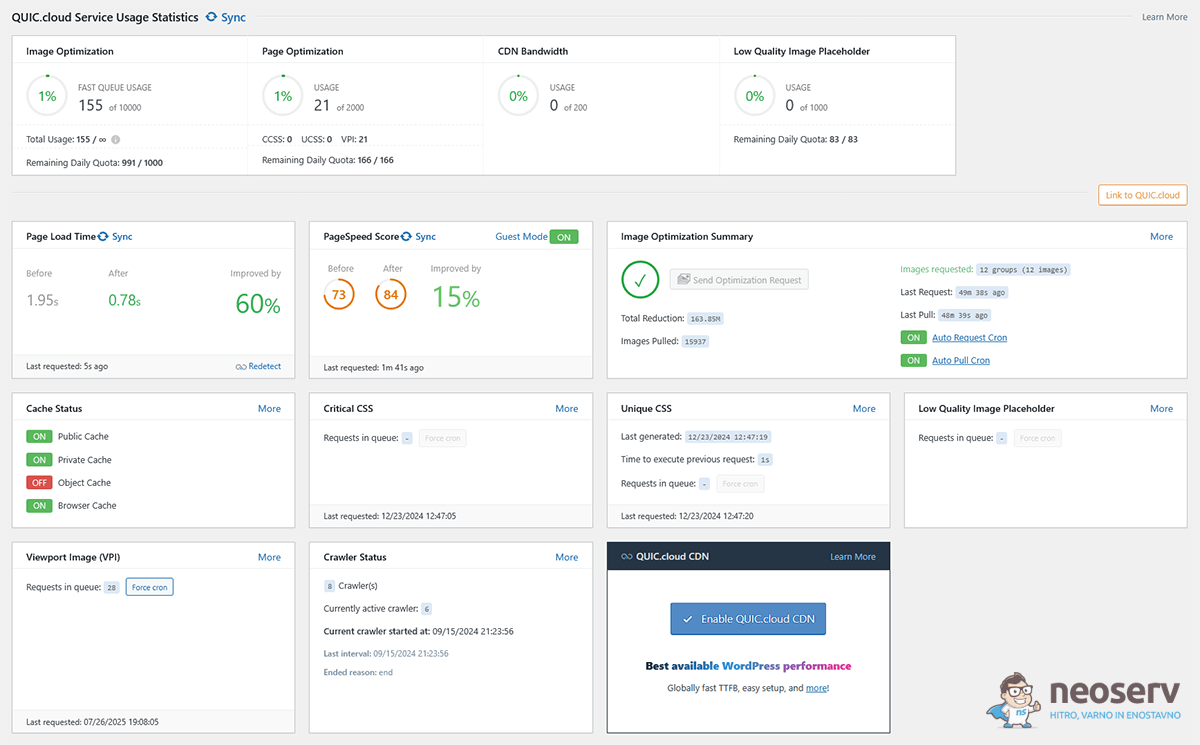
The overview also makes it easier to monitor active functionalities and potential problems, as you can quickly check that everything is configured properly. The dashboard is therefore useful for initial diagnostics and as a starting point for further adjustments to the plug-in.
For additional functionalities (global CDN, image optimisation and other cloud services) you can connect your domain to the QUIC.Cloud network. Click Enable QUIC.cloud CDN to get your API key. The connection is optional, but allows you to make better use of the full capabilities of the plugin.
2. Presets
Pre-prepared preset profiles that allow you to quickly configure the LiteSpeed Cache plugin according to the needs of your website.
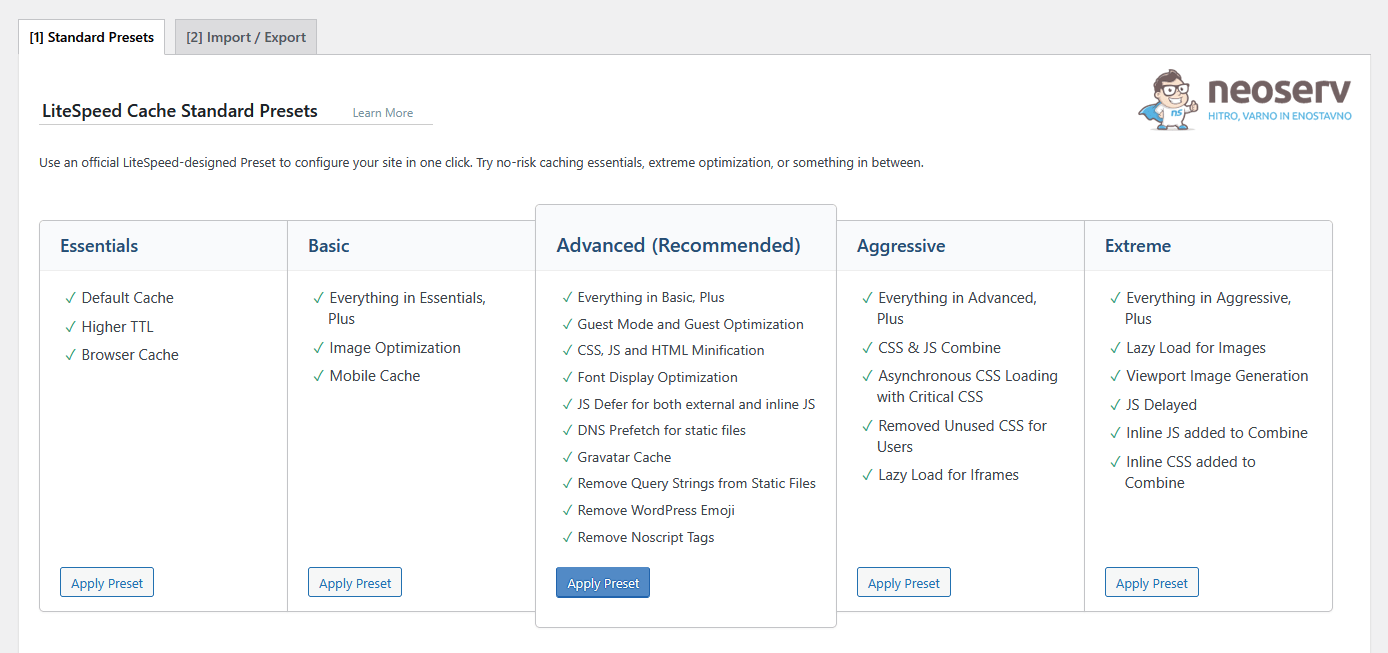
You can choose from the following profiles:
- Essentials – basic and safe optimisations suitable for almost any website.
- Basic – slightly more aggressive settings, but still safe enough for wider use.
- Advanced – the recommended choice, which includes most of the plugin’s capabilities without major risks.
- Aggressive – includes more advanced optimizations (e.g. CSS/JS merging), which can improve speed but requires compatibility testing.
- Extreme – the most aggressive profile with maximum optimizations, recommended only for advanced users or test environments.
Using a pre-made profile is easy, as you can apply the full set of settings with just one click. However, the selected profile does not have a permanent effect on the system – you can always change individual settings if you later decide on a more customised configuration.
3. General
Basic system settings of the LiteSpeed Cache plugin, such as connection to QUIC.cloud, control over notifications, automatic updates and the ability to display optimised content for guest users.

3.1 Online Services
Enables the connection between the website and the QUIC.cloud service, opening access to functionalities such as image optimisation, page optimisation and the use of a global CDN with more than 80 Points of Presence (PoPs). An API key activation is required to make it work, and you start the process by clicking on the Enable QUIC.cloud services button.
3.2 General Settings
Basic settings for the LiteSpeed Cache plugin:
- Automatically Upgrade – Automatically update the LiteSpeed Cache plugin when a new version is available.
- Guest Mode – allows new visitors to receive a cached version of the page on their first visit. Dynamic content is then loaded in the background via AJAX. This mode is particularly useful for improving loading speed on phones and tablets.
- Guest Optimization – adds additional (aggressive) optimizations for new visitors. Guest Mode must be enabled to work.
- Server IP – manually set the IP address of your server. This is useful if you want QUIC.cloud services to communicate directly via IP (instead of domain), which can reduce the number of DNS queries and speed up responsiveness.
- Notifications – display news and notifications within the WordPress Dashboard, such as information about new versions, patches, beta features and promotions.
3.3 Tuning
Additional settings for more precise control over the guest mode. Here you can exclude certain user agents or IP addresses:
- Guest Mode User Agents – set the user agents (e.g. browsers or bots) for which Guest Mode should be disabled.
- Guest Mode IPs – specify the IP addresses that will not use Guest Mode.
4. Cache
The heart of the LiteSpeed Cache plugin, where you configure everything related to caching. Proper configuration has a significant impact on page load speed and overall site performance.

4.1 Cache
Settings for managing the caching of web page content:
- Enable Cache – enables or disables the caching system. When disabled, all cached data is deleted from the cache.
- Cache Logged-in Users – enables private page caching for logged-in users.
- Cache Commenters – caches pages for users who have submitted a comment while it is still being validated.
- Cache REST API – cache requests sent via the WordPress REST API.
- Cache Login Page – cache the login page.
- Cache Mobile – create a separate cached version of the page for mobile devices.
- List of Mobile User Agents – list of user agents (e.g. Android, Kindle) that the system treats as mobile.
- Private Cached URIs – pages that will always be cached as private (e.g. pages with personal data).
- Force Cached URIs – pages that will be cached even if they are otherwise set to non-cacheable.
- Force Public Cache URIs – pages that will always be cached as public, regardless of other settings.
- Drop Query Strings – allows to ignore certain parameters in URLs (e.g. gclid, fbclid) to avoid creating duplicate caches for the same content.
4.2 TTL (Time To Live)
Specifies how long different types of content remain cached:
- Default Public Cache TTL – the time (in seconds) that public pages are kept in the cache.
- Default Private Cache TTL – time private pages are kept (e.g. for logged in users).
- Default Front Page TTL – time for storing the entry page of the website.
- Default Feed TTL – RSS feed retention time.
- Default REST TTL – time for storing data from REST API calls.
- Default HTTP Status Code Page TTL – time to feed status code pages (e.g. 404, 500).
4.3 Purge
Settings for automatic and manual cache purging:
- Purge All On Upgrade – automatically purge the entire cache when upgrading plugins, themes or WordPress core.
- Auto Purge Rules For Publish/Update – select which pages and archives are automatically purged when you publish or update a post.
- Serve Stale – display an old, still valid version of a cached page to visitors until a new copy is available.
- Scheduled Purge URLs – a list of URLs that will be automatically purged on a schedule.
- Scheduled Purge Time – the time of day when the scheduled purge of URLs from the above list is performed.
- Purge All Hooks– a list of WordPress events (e.g., changing themes, editing menus, changing taxonomies) when the entire cache is purged.
4.4 Excludes
Settings that allow you to exclude certain content from the cache:
- Do Not Cache URIs – URLs containing certain character strings will not be cached.
- Do Not Cache Query Strings – certain parameters in the URL ( query string) will be excluded from caching.
- Do Not Cache Categories – the desired categories will not be cached.
- Do Not Cache Tags – the desired tags will not be cached.
- Do Not Cache Cookies – the cookies entered will not be cached.
- Do Not Cache User Agents – certain user agents (e.g. browsers, robots) will be excluded from caching.
- Do Not Cache Roles – certain user roles (e.g. Administrator, Editor) will be excluded from caching.
4.5 ESI (Edge Side Includes)
Settings to enable caching of dynamic parts of the page also for logged in users:
- Enable ESI – cache public pages for logged-in users and upload dynamic content via ESI blocks.
- Cache Admin Bar – Cache the Admin Bar to be displayed to logged in users.
- Cache Comment Form – cache the form for submitting comments on a page.
- ESI Nonces – list of security one-time tokens (nonces) that are converted into ESI blocks.
- Vary Group – user roles for which separate versions of the cached pages are created if they have access to different content.
4.6 Object
Object caching settings that improve the speed of operation by using external temporary storage systems:
- Object Cache – use of an external object cache (e.g. Memcached or Redis).
Redis is a powerful object caching system that stores data directly in memory, significantly speeding up the performance of a website. Instead of WordPress re-processing the same data every time it’s displayed, Redis simply fetches it from memory, which means faster loading and less load on the server. Redis is available for free on Turbo hosting packages – just a few clicks to activate it in the cPanel dashboard (instructions).
- Method – caching method: either Memcached or Redis.
- Host – address or IP of the Memcached/Redis server, can also be the path to the UNIX socket.
- Port – port for Memcached
(11211) or Redis(6379), set to0when using UNIX socket. - Default Object Lifetime – default time (in seconds) how long objects are kept in cache.
- Username – username to connect to the server (available when SASL is installed).
- Password – password to connect to the server.
- Redis Database ID – ID of the database used by Redis.
- Global Groups – list of object groups that are cached at the network level.
- Do Not Cache Groups – list of groups that should not be cached.
- Persistent Connection – the use of persistent(keep-alive) connections to speed up cache performance.
- Cache WP-Admin – caching in the administration part of WordPress (may result in outdated data).
- Store Transients – store temporary data(transients) in the database when Cache WP-Admin is disabled.
4.7 Browser
Settings for caching static files in the visitor’s browser:
- Browser Cache – cache static files (e.g. CSS, JS, images) directly in the user’s browser, reducing the number of repeated requests to the server.
- Browser Cache TTL – time (in seconds) for how long the browser should keep cached files before requesting them again from the server.
4.8 Advanced
Advanced settings for adjusting cache behaviour (for advanced users only):
- AJAX Cache TTL – cache certain AJAX requests.
- Login Cookie – cookie to identify logged in users when multiple web applications are installed on the same domain.
- Vary Cookies – a list of third-party cookies that affect caching.
- Improve HTTP/HTTPS Compatibility – optimises caching performance when a website uses both HTTP and HTTPS connections.
- Instant Click – caches a page as soon as the cursor hovers over a link. Speeds up the load speed after a click, but puts more load on the server.
5. CDN
A CDN ( Content Delivery Network) allows a website to load faster by serving static content (images, CSS, JS, etc.) through servers closer to the visitor. This increases the page load speed and reduces the load on the origin server. LiteSpeed Cache allows the use of QUIC.cloud‘s own solution, as well as integration with external CDNs such as Cloudflare, KeyCDN and Bunny CDN.

5.1 QUIC.cloud
Integration with the official LiteSpeed CDN allows support for dynamic and static content, image optimisation, DDoS protection and HTTP/3 usage. Settings include connection to a QUIC.cloud account and key management, as well as a selection of services (e.g. image optimisation, CSS merging, JS minification, etc.).
5.2 Cloudflare
Support for the use of Cloudflare includes the possibility to synchronise IP addresses and to manage them via the API if the appropriate data (email, API key, domain) is entered. It also allows cache clearing via a plug-in.
5.3 Other Static CDN
Settings for the use of other external CDNs serving static resources. Allows redirecting URLs of static resources to a CDN domain (e.g. cdn.example.com), which speeds up page loading. It also supports the use of multiple domains(CDN mapping), the inclusion of resource paths(Include Directories) and the exclusion of certain files or extensions.
6. Image Optimization
Image optimisation is done through QUIC.cloud, which allows you to reduce the size of images using compression without noticeably affecting their quality. This improves the loading speed of the website. The LiteSpeed plugin also generates WebP or AVIF versions of images (if enabled), which are adapted to modern browsers.

6.1 Image Optimization Summary
Showing the current status of image optimisation and the possibility to perform additional actions:
- Send Optimization Request – sends images to the QUIC.cloud server for optimization.
- Pull Images – Pulls already optimised images back to the website.
- Clean Up Unfinished Data – removes data left over from interrupted optimization processes.
- Storage Optimization – automatically creates a backup copy of each image before optimization.
- Image Thumbnail Group Sizes – display the registered dimensions of the thumbnails being processed.
- Remove Original Image Backups – permanently deletes backups of the original (non-optimised) images.
- Use Original Files / Use Optimized Files – allows to switch between original and optimized versions of images.
- Soft Reset Optimization Counter – resets the counter of the current image ID position (useful when changing WebP/AVIF settings).
- Destroy All Optimization Data – removes all optimization data, including optimized images and request history.
6.2 Image Optimization Settings
Settings for controlling the operation of image optimisation:
- Auto Request Cron – automatically send requests via a cron job.
- Optimize Original Images – optimise the original images with a backup of the original before performing the optimization.
- Remove Original Backups – automatically delete backups of original images after optimization (irreversible).
- Optimize Losslessly – compress images with original quality preserved (file size is slightly larger in this case).
- Preserve EXIF/XMP data – preserve image metadata (e.g. GPS, copyright, keywords).
- Next-Gen Image Format – enable creation of WebP or AVIF versions of images for faster page loading (AVIF is a paid feature via QUIC.cloud).
- WebP/AVIF Attribute To Replace – set which attributes are replaced with optimized images (WebP/AVIF).
- WebP/AVIF For Extra srcset – replaces WebP/AVIF also in extra srcset attributes.
7. Page Optimization
Settings to optimize the output of HTML, CSS, JavaScript and presentation elements. Proper configuration allows pages to load faster, improves user experience and improves test results with tools such as PageSpeed Insights, GTmetrix and Pingdom.

7.1 CSS Settings
Settings for optimising and grouping CSS files and managing their loading:
- CSS Minify – removes unnecessary characters from CSS (e.g. spaces and comments) to reduce file size.
- CSS Combine – combines inline CSS and local CSS files into one file.
- Generate UCSS – uses QUIC.cloud to generate unique CSS on a page (removes unused CSS).
- UCSS Inline – include unique CSS directly in the HTML to reduce the number of requests. Bypasses the “Load CSS Asynchronously” setting.
- CSS Combine External and Inline – when “CSS Combine” is enabled, combines external CSS with internal and local CSS into a single file.
- Load CSS Asynchronously – Loads CSS asynchronously to prevent page display blocking. Access to QUIC.cloud is required for this to work.
- CCSS Per URL – Generate critical CSS on a per URL basis (instead of per post type).
- Inline CSS Async Lib – Include an asynchronous CSS library directly in the code to prevent page view blocking.
- Font Display Optimization – adds font-display to @font-face rules to specify how fonts should be displayed during loading (e.g. swap to allow display of a fallback font until the main font is loaded).
7.2 JS Settings
Settings to reduce, merge and delay loading of JavaScript files to improve page performance and lower FID(First Input Delay):
- JS Minify – reduces the size of JavaScript files and embedded JS code by removing unnecessary characters (e.g. spaces and comments).
- JS Combine – combines all local JavaScript files into one file. Improves speed, but may cause page performance errors with certain themes or plugins.
- JS Combine External and Inline – when included with “JS Combine“, also combines external JS resources and embedded(inline) JS code. This helps maintain the correct order of script execution and reduces the risk of errors.
- Load JS Deferred – delays the loading of JavaScript files to display the page content first. Two options are available:
- Deferred: JS is loaded after the page has been parsed.
- Delayed: JS is loaded only at the first user interaction (e.g. click, mouse move).
The Load JS Deferred setting usually improves the load time and the “FID” and “Speed Index” metrics (Pingdom, GTmetrix, PageSpeed), but may cause display or page performance errors.
7.3 HTML Settings
A set of settings to optimise HTML and reduce unnecessary loading of content from external sources:
- HTML Minify – reduces the size of HTML code by removing unnecessary spaces and comments.
- DNS Prefetch – allows DNS records for external domains to be prefetched, reducing latency when first accessing these resources.
- DNS Prefetch Control – automatically enables DNS prefetch for all URLs in the document (images, CSS, JS …).
- DNS Preconnect – establishes a connection to a specific resource before the content is actually loaded.
- HTML Lazy Load Selectors – enables delayed display of off-screen HTML elements with a specific CSS selector.
- HTML Keep Comments – keeps selected comments when the “HTML Minify” feature is enabled.
- Remove Query Strings – removes parameters (e.g.
?ver=1.2.3) from internal static resources. - Load Google Fonts Asynchronously – Load Google Fonts asynchronously using the Web Font Loader library, leaving the rest of the CSS unchanged.
- Remove Google Fonts – completely prevent Google Fonts from loading on all pages.
- Remove WordPress Emoji – stops loading WordPress emoji scripts. System emoji are displayed instead.
- Remove Noscript Tags – removes all
<noscript>tags from HTML code.
7.4 Media Settings
A set of settings to optimise the loading and display of media content:
- Lazy Load Images – Allows images to load on the page only when they reach the viewport.
- Basic Image Placeholder – specifies a basic base64 image to be displayed as a temporary placeholder while the main images are loaded.
- Responsive Placeholder – enable responsive placeholder images with the same dimensions as the original images, provided that the width and height attributes are specified.
- Responsive Placeholder SVG – defines an SVG as a placeholder image that is automatically converted to a base64 placeholder when generated locally.
- Responsive Placeholder Color – specifies the color of the SVG placeholder image.
- LQIP Cloud Generator – uses the QUIC.cloud service to generate low quality image previews (LQIP) that improve the visual impression during image upload.
- LQIP Quality – defines the quality of the LQIP placeholder (1-20), higher values mean better resolution and larger file size.
- LQIP Minimum Dimensions – images smaller than the configured size do not receive an LQIP preview.
- Generate LQIP In Background – enable LQIP generation in background via cron job, which does not slow down page loading.
- Lazy Load Iframes – content in iframes is loaded only when it enters the viewport.
- Add Missing Sizes – automatically adds missing width and height attributes to images, reducing page layout shifts (CLS).
- WordPress Image Quality Control – sets the compression quality of images in WordPress (in percentages).
7.5 VPI (ViewPort Images)
Settings to optimize the loading of images according to the visible part of the page:
- Viewport Images – when the “Lazy Load” feature is enabled, it detects images that are visible immediately when the page is opened ( above the fold) and excludes them from the delayed load.
- Viewport Images Cron – enable automatic generation of visible image data via a cron job.
7.6 Media Excludes
Settings to exclude certain media content from LazyLoad or LQIP (low resolution preview) generation:
- Lazy Load Image Excludes – images listed in the list will not be subject to delayed loading. Useful for images in the (top) visible part of the page.
- Lazy Load Image Class Name Excludes – images with certain class names will be excluded fromLazy Load.
- Lazy Load Image Parent Class Name Excludes – images whose parent elements have the specified classes will be excluded fromLazy Load.
- Lazy Load Iframe Class Name Excludes – iframe elements with specified classes will be excluded from Lazy Load.
- Lazy Load Iframe Parent Class Name Excludes – iframe elements whose parent elements contain specified classes will be excluded.
- Lazy Load URI Excludes – Pages whose titles match the specified rules will be excluded from delayed loading of images and iframes.
- LQIP Excludes – Low-resolution preview (LQIP) versions will not be generated for images in this list.
7.7 Localization
Settings for localisation of external resources such as engravers and scripts from other domains:
- Gravatar Cache – caches gravatar images locally to speed up loading.
- Gravatar Cache Cron – enable automatic refresh of the gravatar cache by a cron job.
- Gravatar Cache TTL – specifies how long (in seconds) gravatar images are kept in the cache.
- Localize Resources – localizes external resources (e.g. images from Facebook) to be loaded from the website server.
- Localize Files – list of external HTTPS resources (e.g. JS script) you want to localize.
7.8 Tuning
Advanced options for fine-grained optimization management of JS files and pages:
- JS Delayed Includes – a list of JS files or scripts that will be delayed loading.
- JS Excludes – a list of JS files or scripts that will not be minimized or merged.
- JS Deferred / Delayed Excludes – JS resources that will be excluded from deferred or delayed loading.
- Guest Mode JS Excludes – resources that will not be optimised in guest mode.
- URI Excludes – disable optimization on the specified pages.
- Optimize for Guests Only – enable optimization for guests only (unregistered users).
- Role Excludes – select the user roles that will be excluded from all optimizations.
7.9 Tuning – CSS
Advanced options for fine-grained optimisation management of CSS files and styles:
- CSS Excludes – list of CSS files or inline CSS code that will not be minimised or merged.
- UCSS File Excludes and Inline – excluded files will be embedded directly and will not be included in UCSS(Unused CSS – removed unused styles).
- UCSS Selector Allowlist – CSS selectors that will always be included in UCSS.
- UCSS URI Excludes – lists of URLs for which UCSS will not be generated.
- Separate CCSS Cache Post Types – create separate CCSS(Critical CSS – critical styles for the top of the page) for each content type (e.g. pages, posts).
- Separate CCSS Cache URIs – create a separate CCSS for specific paths or URLs.
- CCSS Selector Allowlist – CSS selectors that will always be included in the CCSS.
- Critical CSS Rules – manually enter CSS rules for the top of the page(above the fold) if asynchronous CSS loading is enabled.
8. Database
Tools for cleaning, optimising and controlling the size of the WordPress database. Regular removal of unusable data improves the speed of the website and reduces the load on the server.
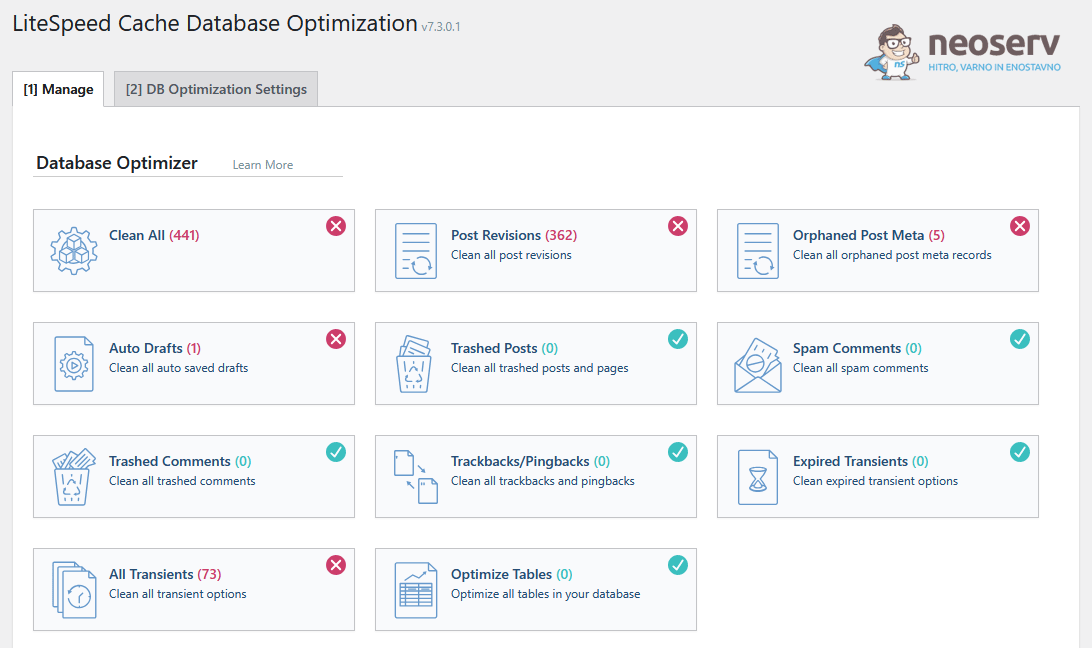
8.1 Manage
Tools for deleting unnecessary records in the database and optimising tables:
- Clean All – deletes all types of detected redundant data (e.g. revisions, drafts, comments).
- Post Revisions – deletes old versions of posts and pages.
- Orphaned Post Meta – removes meta data that is no longer associated with any content.
- Auto Drafts – deletes automatically saved drafts.
- Trashed Posts – deletes posts and pages from the trash.
- Spam Comments – removes all spam comments.
- Trashed Comments – deletes all comments that are in the trash.
- Trackbacks/Pingbacks – removes outdated trackback notifications.
- Expired Transients – deletes expired temporary data used to temporarily store information.
- All Transients – deletes all temporary data, regardless of its status.
- Optimize Tables – performs optimization (e.g. data cleaning and compression) of all tables in the database.
- Database Table Engine Converter – allows you to convert tables from MyISAM to InnoDB, which can improve database performance and stability.
- Database Summary – list of automatically loaded settings and their sizes in the database.
8.2 DB Optimization Settings
Settings for more precise management of the cleanup of commit revisions:
- Revisions Max Number – the maximum number of revisions to keep per commit.
- Revisions Max Age – the age (in days) below which revisions are retained when purging.
9. Crawler
Tools for managing and controlling the operation of a web crawler, which automatically scans and caches the content of a web page for faster display to visitors.

A crawler is a program that systematically visits websites, analyses them and caches their data. This reduces the load on the server, speeds up the loading of the website and improves the user experience by showing visitors ready-made versions of the pages.
Read also: How does LiteSpeed Cache Crawler for WordPress work?
9.1 Summary
An overview of the current state of the crawler and its implementation:
- Current server load – display the current average server load.
- Reset position – manually reset the spider position to start the review.
- Manually run – option to manually run the crawler.
- Cron Name, Run Frequency, Status, Activate, Running – information about the schedule and execution status of the spider.
- Status – status of individual tasks:
- Waiting to be Crawled,
- Already Cached,
- Successfully Crawled,
- Blocklisted.
- Watch Crawler Status – a terminal that displays real-time data on how a crawler is crawling a web page.
Important: To use the crawler, you must first set up a Custom Sitemap.
9.2 Map
A list of URLs that the crawler retrieves from the XML sitemap, including the current status:
- Cache Hit – URL is already cached.
- Cache Miss – The URL is not yet cached, the crawler still needs to process it.
- Blocklisted due to not cacheable – URL is blocklisted (not cacheable).
- Blocklisted – URL is blocklisted and will not be visited by the crawler.
In the top right corner there are two buttons that are used to manage the crawler data:
- Clean Crawler Map – deletes the list of URLs and their status information.
- Refresh Crawler Map – refreshes the list of URLs from the XML map.
9.3 Blocklist
A list of URLs that are blocked from being crawled by the crawler for various reasons.
9.4 Settings
Settings for the crawler to work:
- Crawler – enable/disable crawler cron job (allows automatic execution).
- Crawl Interval – time in seconds after which the crawler rescans the entire sitemap.
- Custom Sitemap – path to the XML sitemap or sitemap index.
- Server Load Limit – the maximum allowed average load on the server while the crawler is executing.
- Role Simulation – the ability for the crawler to simulate a logged in user with a specific role and thus cache content that only that user can see.
- Cookie Simulation – the ability for the crawler to use specific cookies to simulate access to content that depends on those cookies.
For more information on how the crawler is set up and works, please see our blog article: How does LiteSpeed Cache Crawler for WordPress work?
10. Toolbox
LiteSpeed Cache plugin settings and tools that allow you to manage and manually clean different parts of the cache. They also provide control over deleted content and additional options to optimise site performance.

10.1 Purge
A section for manual purging of different parts of the cache:
- Purge Front Page – purges the cache for the home page only.
- Purge Pages – purges the cache for all normal pages.
- Purge 403 Error – purges the cache of pages that show a 403 error (access denied).
- Purge 404 Error – purges the cache of pages showing a 404 error (page does not exist).
- Purge 500 Error – purges the cache of the page showing error 500 (internal server error).
- Purge All – LSCache – purges all cached entries created by the LiteSpeed Cache plugin.
- Purge All – CSS/JS Cache – purges all minified and merged CSS and JavaScript files.
- Purge All – deletes all cached content created with LiteSpeed Cache, except critical CSS and LQIP.
- Empty Entire Cache – completely purges all caches, including those not directly linked to LiteSpeed Cache.
- Purge By… – allows to manually purge the cache according to a selected criterion: category, post ID, tag, URL.
10.2 Import / Export
Tools for downloading, restoring and resetting the LiteSpeed Cache plugin configuration:
- Export – export all current LiteSpeed Cache settings to a backup file or transfer to another website.
- Import – import settings from a file that overwrites all current plugin configurations.
- Reset All Settings – reset all settings to default values.
10.3 View .htaccess
View and manage the .htaccess file, which is important for server configuration:
- Frontend .htaccess Path – the path to the
.htaccessfile for the frontend of the website. - Backend .htaccess Path – the path to the
.htaccessfile for the backend part of the website. - Current .htaccess Contents – display the contents of the
.htaccessfile.
10.4 Heartbeat
Settings for the WordPress Heartbeat API, which triggers various tasks and refreshes (e.g. saving drafts) using AJAX:
- Frontend Heartbeat Control – enable/disable Heartbeat interval control on the frontend (users).
- Frontend Heartbeat TTL – time interval (in seconds) for Heartbeat on the frontend.
- Backend Heartbeat Control – enable/disable Heartbeat interval control in the backend (administration).
- Backend Heartbeat TTL – time interval (in seconds) for Heartbeat in the backend of the website.
- Heartbeat Editor – enable/disable Heartbeat control within the backend content editor.
- Heartbeat Editor TTL – time interval (in seconds) for Heartbeat in the content editor.
Note: Disabling the Heartbeat API may reduce the load on the server, but may also cause some AJAX-based WordPress tasks to run incorrectly.
10.5 Report
Settings and information to generate a WordPress configuration report used for support and troubleshooting:
- System Information – details of system settings including server, paths and key constants.
- Passwordless Link – a feature to generate a passwordless link for LiteSpeed support team access, allowing secure remote help without sharing a password. The DoLogin Security plugin must be installed to use.
- Notes – a field for additional information or comments that can assist the support team in troubleshooting.
10.6 Debug Settings
Settings to help find and fix bugs in the LiteSpeed Cache plugin and optimisation processes:
- View Site Before Optimization – preview the website before performing optimizations.
- View Site Before Cache – preview the site before caching.
- Disable All Features – enable/disable all LSCache features and optimizations for debugging purposes.
- Debug Log – logging of debug logs (OFF – off; ON – on; Admin IP Only – only for requests from specified IPs).
- Admin IPs – list of IP addresses that are allowed to execute debug commands from the browser.
- Debug Level – selection of the level of detail of logging (Basic – basic logging; Advanced – more detailed logging).
- Log File Size Limit – the maximum allowed size of the debug log file in MB.
- Collapse Query Strings – enable/disable collapse of query strings in the debug log.
- Debug URI Includes – list of URLs to be logged in the debug log.
- Debug URI Excludes – a list of URLs that the debug log excludes from being logged.
- Debug String Excludes – a list of strings that prevent debug logging if they are present in the log.
10.7 Log View
The LiteSpeed log view allows the management and analysis of the plugin operation logs:
- Debug Log – debug log.
- Purge Log – a record of actions when the cache has been emptied.
- Crawler Log – log of crawler actions.
- Clear Logs – clear all logs.
- Copy Log – copy the contents of the selected log.
10.8 Beta Test
Allows you to test development or beta versions of the LiteSpeed Cache plugin before they are officially released. The functionality is intended to test new features and detect potential bugs, and is therefore recommended mainly for experienced users and in test environments.
How do I clear the cache?
To clear the cache, select Toolbox from the menu on the left. You will see that you have several options when it comes to clearing the cache.
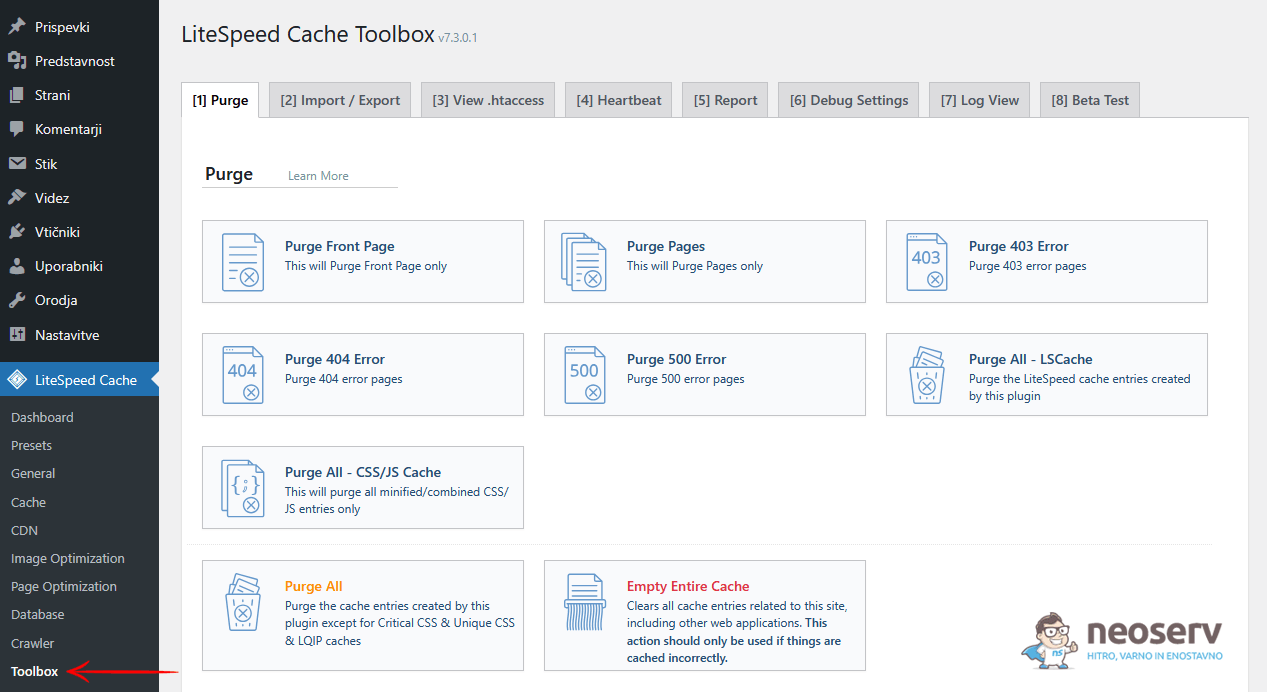
Among the options for clearing the cache, the following are worth highlighting:
- Purge Front Page: only the front page of the website is purged.
- Purge Pages: purges all pages (but not articles, categories, products, etc.).
- Purge All – LSCache: purges all entries created by the LS Cache plugin.
- Purge All – CSS/JS Cache: purge all minified/merged CSS and JS entries.
- Purge All: purge all entries created with the LS Cache plugin, except critical CSS and LQIP.
- Empty Entire Cache: empties the entire website cache, including from linked applications.
The plugin also allows you to clear the cache by category, post ID, tag or URL.
There is also a shortcut to clear the cache in the WordPress administration. Hover over the LiteSpeed Cache plugin icon, which can be found in the bar at the top of the administration. Then select one of the three cache clearing options: Purge All / Purge All – LSCache / Purge All – CSS/JS Cache.
NEOSERV: LiteSpeed flash hosting
As you can see, the LiteSpeed Cache plugin for WordPress has a lot of settings. Some of them will come in handy, others won’t. Whatever your website and whatever your understanding of the settings, we encourage you as a NEOSERV hosting subscriber to try the plugin out.

But before you install and activate it, make sure that your existing caching plugin is deactivated – if you use it at all, of course. Then quickly check the speed of your website, which should be much faster with the default settings.
Want to know more about the LiteSpeed Cache WordPress plugin and its settings? Here are detailed instructions in English, published on the official LiteSpeed Technologies website.
COMMENT THE POST
Your comment has been successfully submitted
The comment will be visible on the page when our moderators approve it.