


- Your cart is currently empty.
How to Downgrade WordPress to an Older Version

We often stress how important it is to keep WordPress core, plugins and graphical templates up-to-date with the latest version. Newer versions not only bring new or improved functionality and compatibility with the latest version of PHP, but are also extremely important from a security point of view. In fact, many updates also include security patches.
However, there may be times when you want to revert WordPress back to the way it was before. It could be that our website stopped working after a core update, or it could be that a plugin update led to a critical error. Even when updating the graphical template, many things can go wrong, especially if it’s a major update that involves significant changes.
Below we’ll look at how to revert each segment of WordPress – the core, the plugin, the graphical template – back to the previous or older version. We will first present a solution using two WordPress plugins, followed by a manual“downgrade” process.
Once again, the most secure WordPress is the one that is regularly updated. Therefore, the problem of reverting to an older version should only be a temporary fix. Once you have fixed the cause of the problem, update all elements of the website again.
Table of contents
- Make sure you have a backup first
- Upgrade to older versions with the WordPress plugin
- Upgrade to older versions by manual process
- Final word
1. Make sure you have a backup first
Before you get to work and start reverting your website, plugin or graphic template to an older version, make a backup of your files and folders and database. That way, if something goes wrong during the process, you can worry free.
If you host your website on our server, you don’t need to worry about making backups, as they are available to you via the cPanel control panel. As we make backups on a daily basis, you can choose one of the many dates in the past to which you would like to restore your website.
Detailed instructions on how to manage your backups can be found here.
2. Upgrade to an older version with the WordPress plugin
If, despite the error that occurred when you updated your system, your WordPress administration is still working normally, there are two plugins that can help you. The first (WP Downgrade) is designed to revert the WordPress core to an older version, and the second (WP Rollback) is designed to revert the plugins and graphical template.
Core
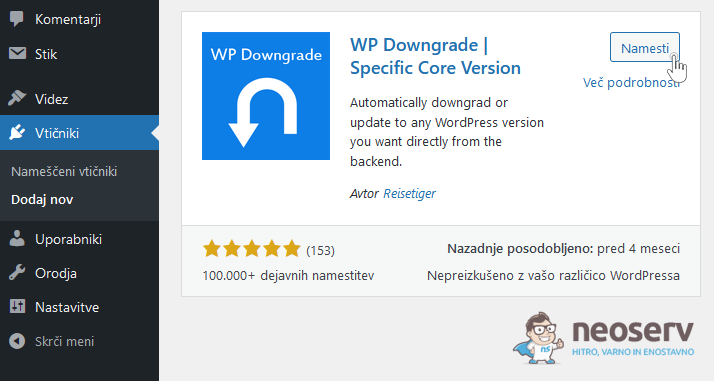
1. Within the WordPress administration, install and activate the plugin – WP Downgrade.
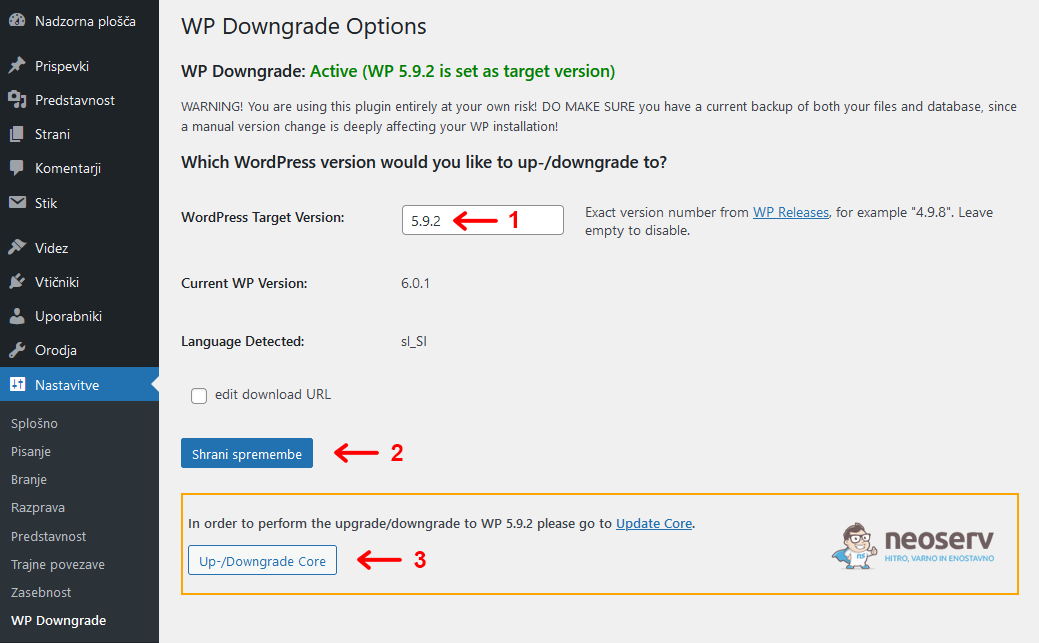
2. Open the WP Downgrade plugin settings and enter the WordPress core version you want to install in the box above. Click Save Changes, then click Up-/Downgrade Core.
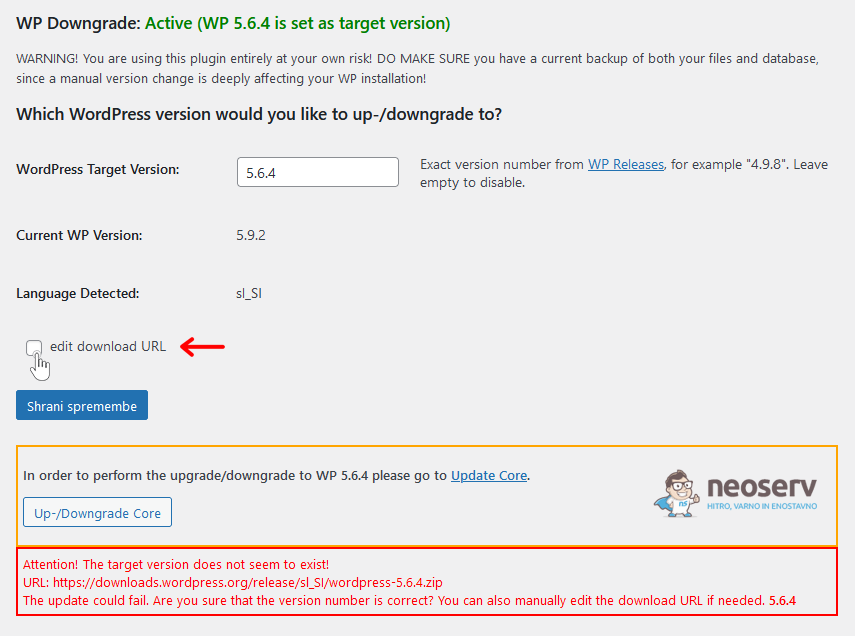
NOTE: If the system cannot find the version you entered, you will have to enter the path to the ZIP file manually. In this case, click on the edit download URL button and enter the link you find on the WordPress Releases page (for SLO versions, click here).
Right-click on“zip” in the list of the selected version to copy the link ( Copy Link), and then paste the link ( Paste Link) in the edit download URL box mentioned above.
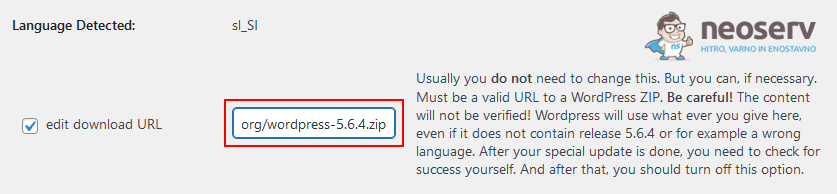
Save your changes and click on the Up-/Downgrade Core button to start the version change process.
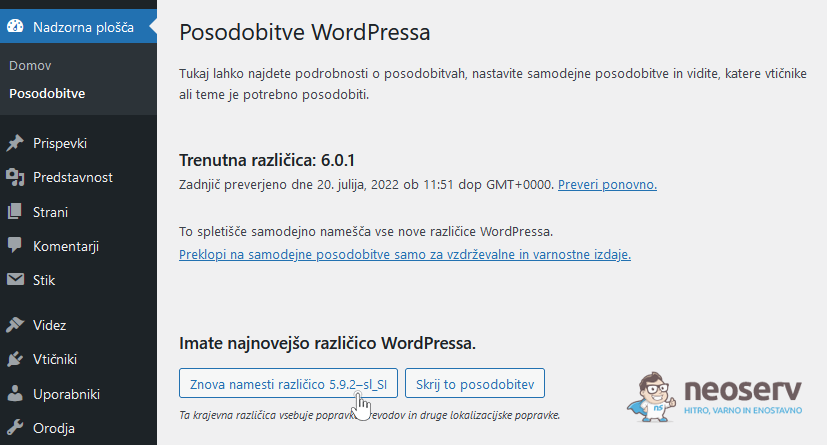
3. You will be redirected to the updates page. Click on the Reinstall version X.Y.Z button and wait for the required version of WordPress to download and install.
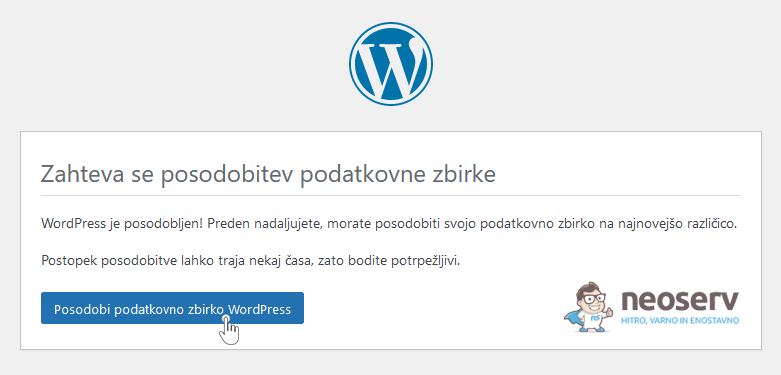
4. You will most likely see a notification box asking you to update your database. Click on the Update WordPress Database button.
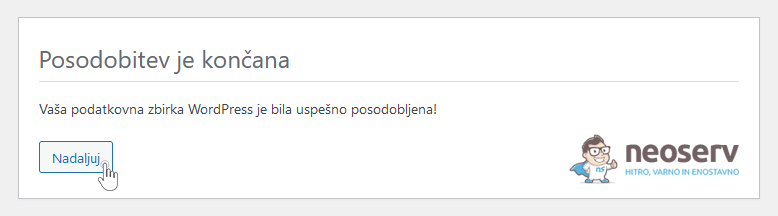
5. You will be notified when the database update has been successfully completed. Close the notification by clicking Continue.
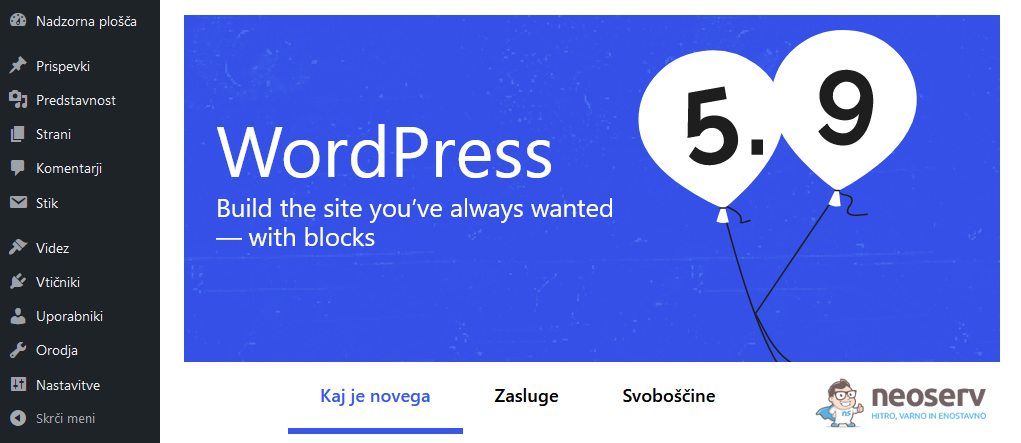
So, you now have an older version of the WordPress core installed and activated. If the whole process has been completed without errors, you should see a page showing what new features have been introduced by the installed version.
Plugins
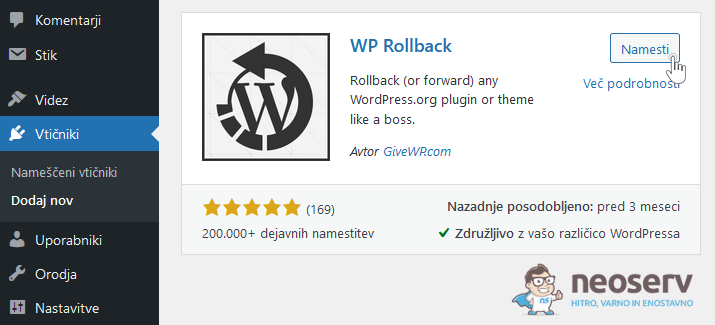
1. Within the WordPress administration, install and activate the plugin – WP Rollback.
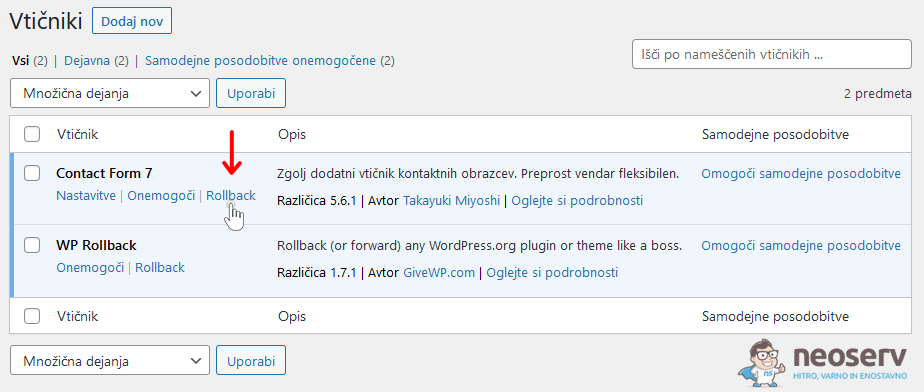
2. On the plugins list page , find the plugin you want to rollback to and click on the Rollback label next to it.
3. A list will appear and you can select the version of the plugin you want and then click on the Rollback button.
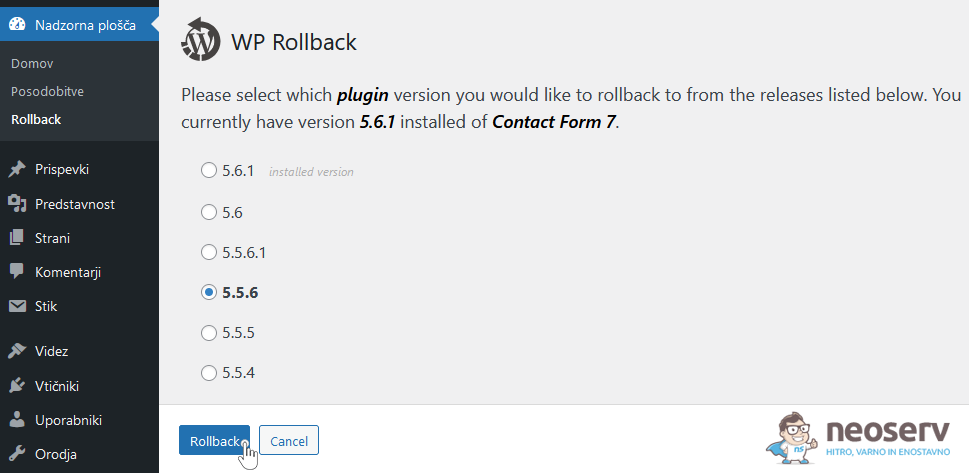
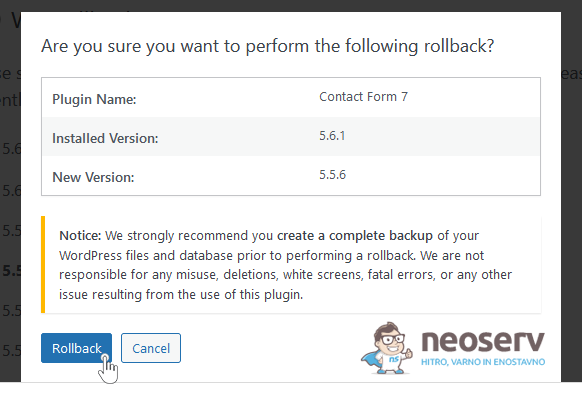
4. Click the Rollback button again to confirm your request to revert the plugin to an older version.
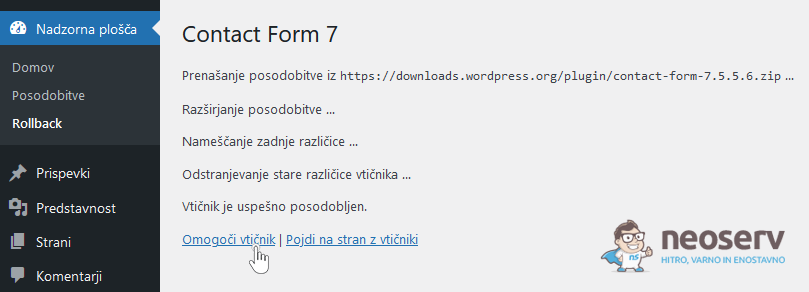
5. Wait a moment for the plugin to install, then click Enable plugin to activate it.
Graphical template
1. If you don’t already have the free WordPress plugin WP Rollback, install and activate it.
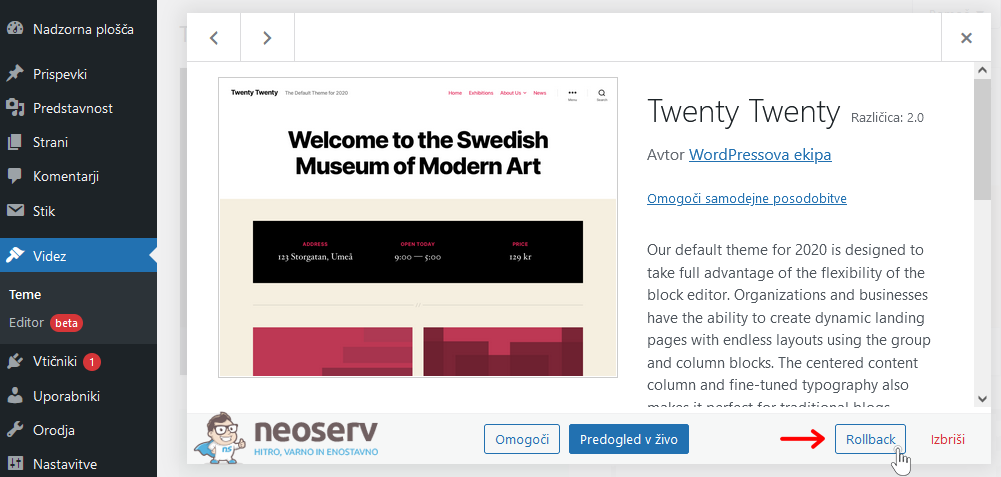
2. On the list of installed templates page, click on the graphical template you want to revert to an older version, then click on the Rollback button found in the bottom right corner.
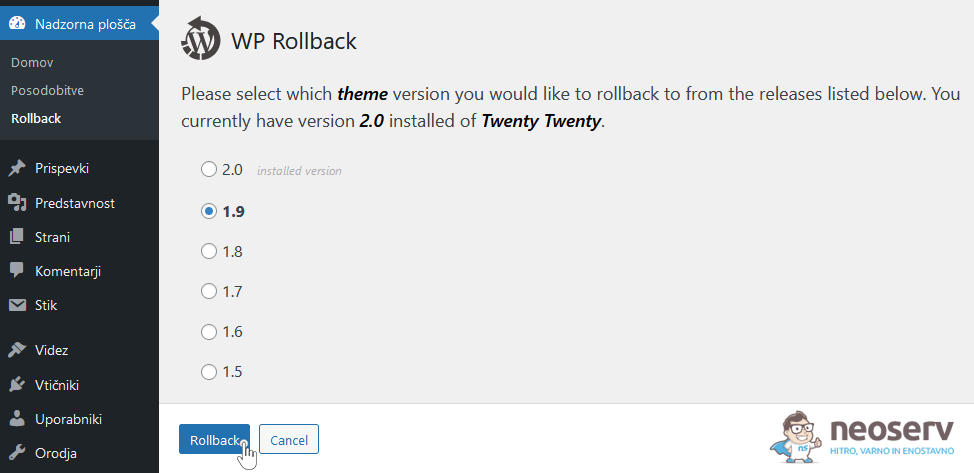
3. In the list of possible versions of the graphic template , select the one you want and click on the Rollback button.
4. Click the Rollback button again to confirm your request to revert the graphic template to an older version.
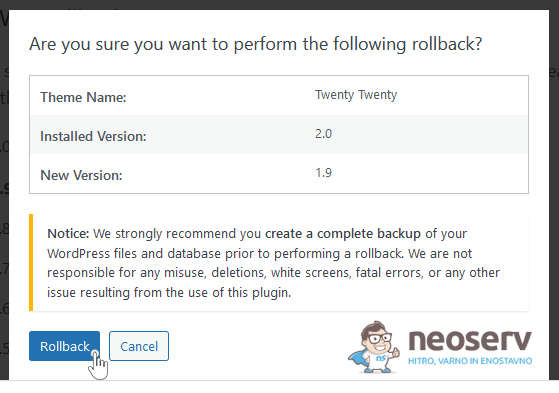
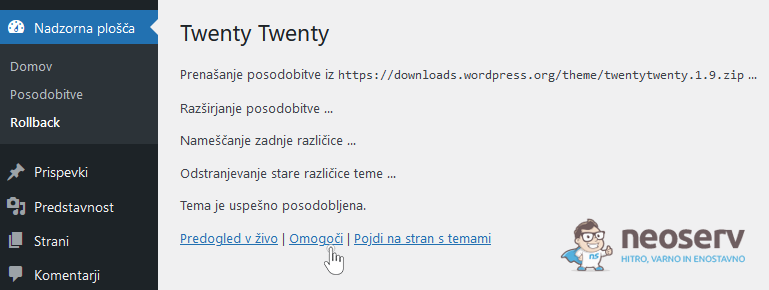
5. Wait a moment for the graphic template to install, then click Enable to activate the template.
3. Upgrade to an older version using a manual process
Did your WordPress site encounter an error when updating the core, plugin or graphic template and you can no longer access the administration? If this is the case, you will need to revert to an older version manually – using an FTP client or via the cPanel control panel.
Kernel
Are you proficient in using the WP-CLI tool? In this case, you can use the following command to revert the WordPress core to an older version (adjust the WordPress core version in the command accordingly) instead of the procedure described below.
wp core update --version=5.9.2 --force1. Download the desired WordPress version to your computer. A list of all versions can be found on the WordPress Releases page (versions that have been translated into Slovenian can be found here). For the version you have selected, click on the“zip” sign to start downloading the file to your computer.
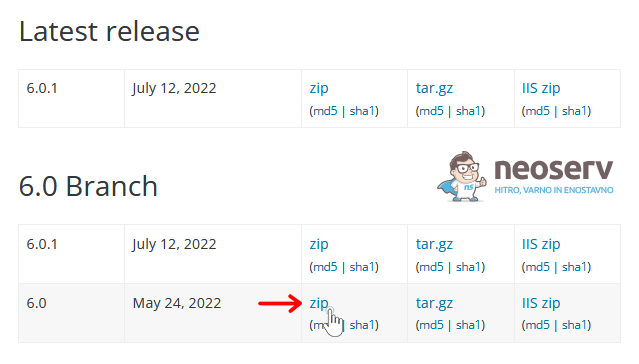
2. Extract or expand the archive file (e.g. on your Desktop) that you have downloaded to your computer.
3. Open the base folder of the extended file – wordpress – and delete the wp-content folder in it.
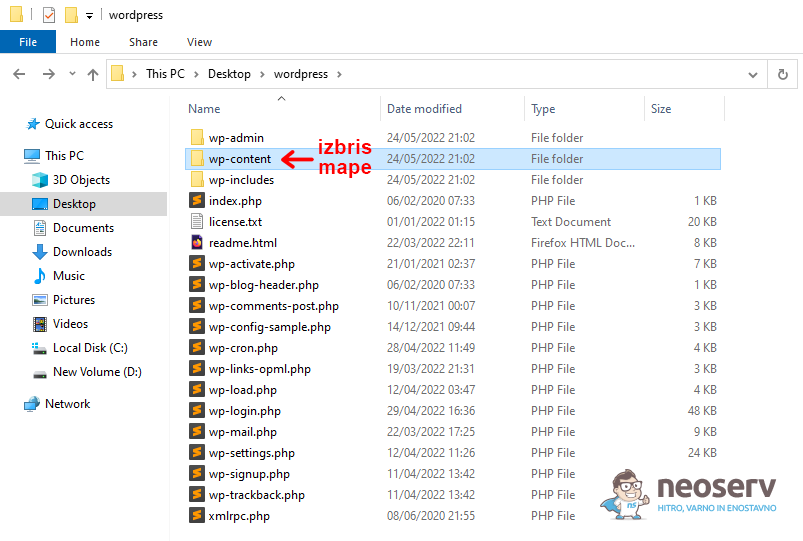
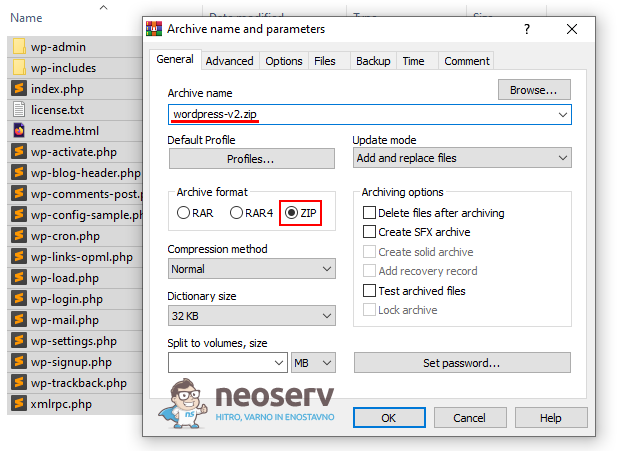
4. Then mark all remaining folders and files and re-archive them into a ZIP file (e.g. named wordpress-v2.zip).
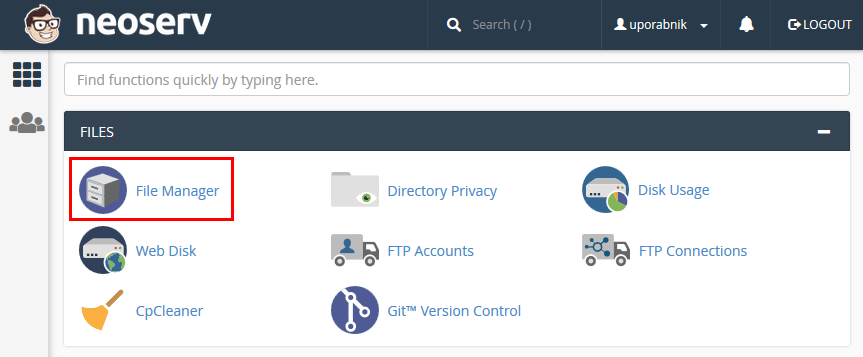
5. Log in to the cPanel control panel (login instructions), find the FILES icon section and click on File Manager.
6. The File Manager will open. Click in the folder where you have your WordPress website installed. Delete the entire contents of the directory, except for the wp-content folder and the .htaccess and wp-config.php files.
It is very important that you do not delete the wp-content folder as it contains all your plugins, graphic templates, images and some other files. You should also not delete the wp-config.php file, as it contains important information, e.g. for connecting your website to a database.
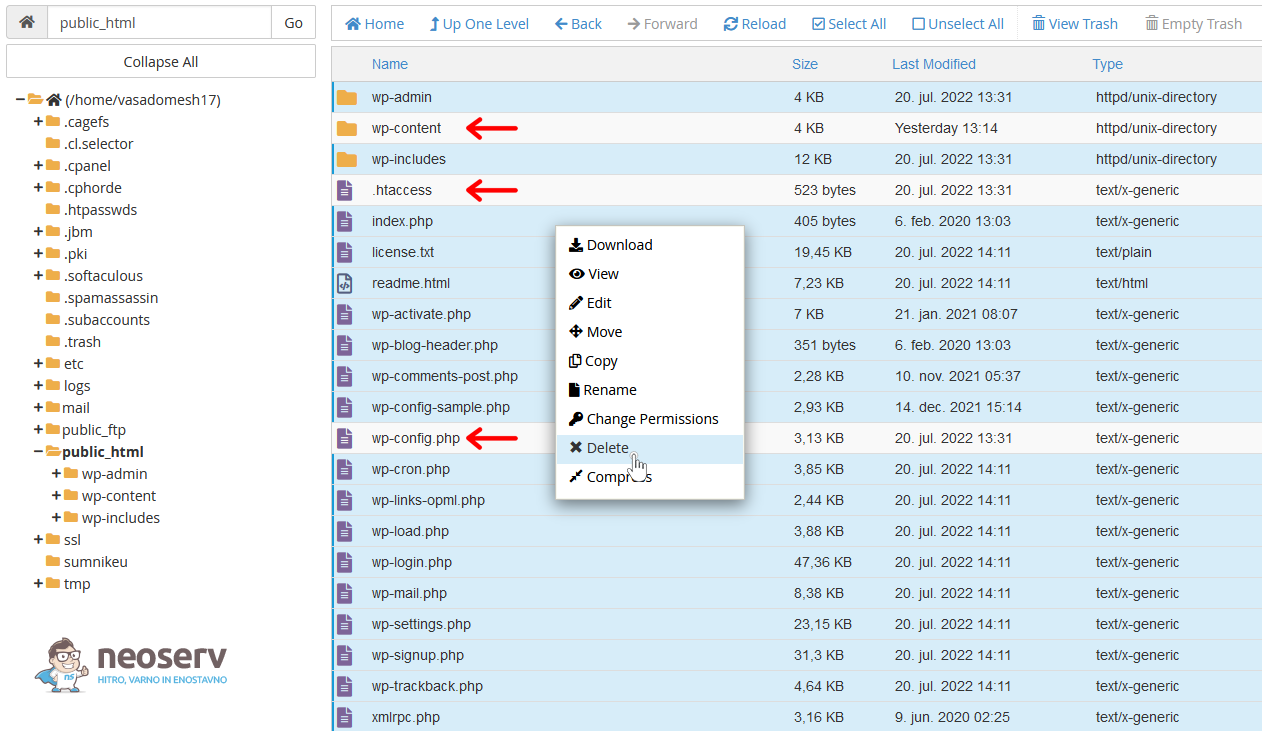
If you see a box called Trash after clicking Delete, tick the“Skip the trash and permanently delete the files” checkbox and click the Confirm button.
7. Click the Upload button (at the top of the File Manager tool), then click Select File. Select the ZIP file you created in step 4 (in our case: wordpress-v2.zip).
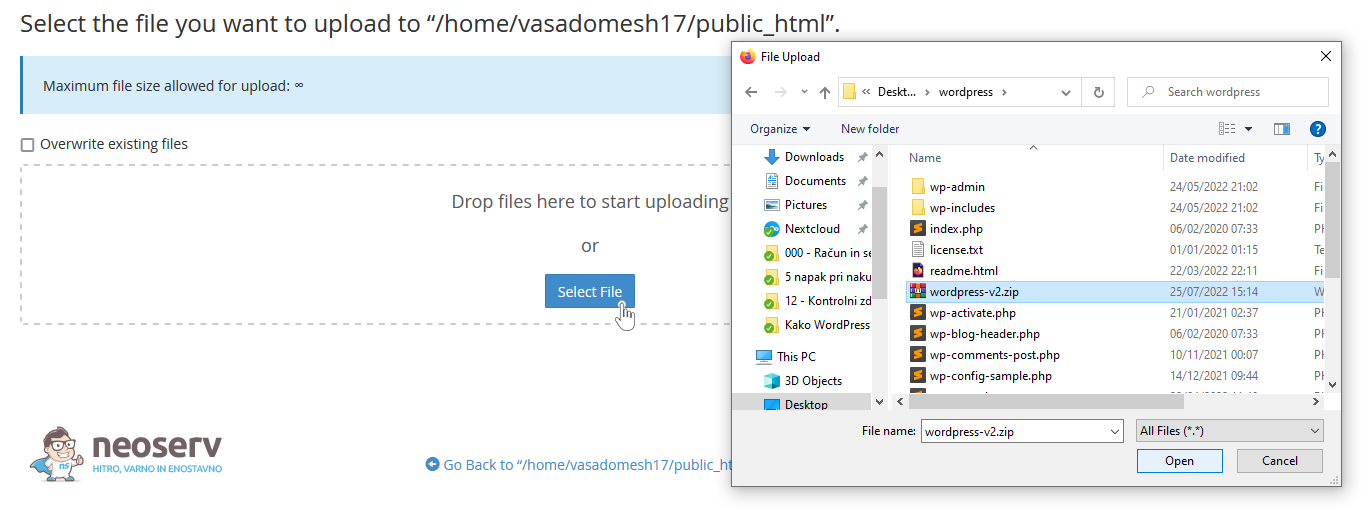
8. Wait a moment for the file to be uploaded to the server. Once downloaded, click on the Go back to “/home/…” link.
9. Right-click on the file that has just been downloaded and select Extract to extract the ZIP file.
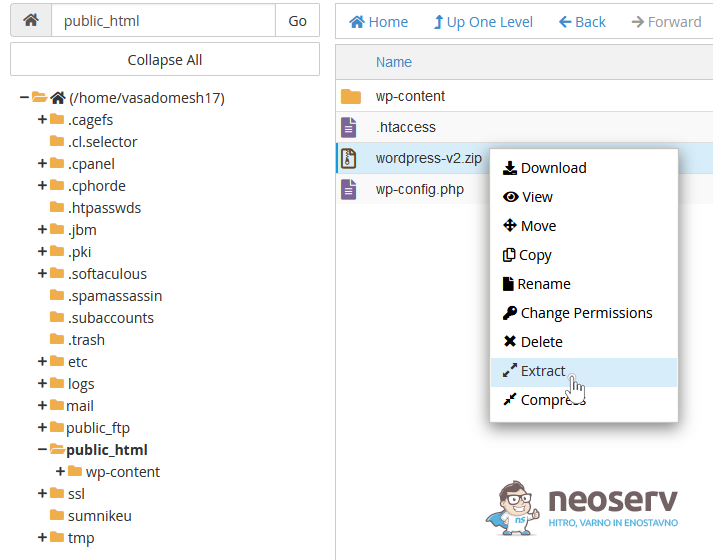
10. A pop-up window will open. Make sure that the file extension path you have entered is correct, then click the Extract Files button to confirm your choice. When the extension is complete, close the pop-up window by clicking Close. You can now delete the wordpress-v2.zip file in File Manager.
11. Try logging in to the WordPress administration. You will most likely encounter a request to update the database. Proceed by clicking on the Update WordPress database button.
12. When the WordPress database update has completed successfully, close the notification by clicking Continue.
You will be redirected to the administration of your WordPress website. This completes the process of reverting the WordPress core to an older version.
Plugins
Let’s assume that the problem that is causing you to no longer be able to log in to the WordPress administration is caused by an update to the Contact Form 7 plugin.
1. Log in to the cPanel control panel (login instructions) and click on the File Manager icon in the FILES section.
2. Click on the wp-content/plugins folder where the WordPress plugins are installed. Right-click on the folder of the problematic plugin and select Rename.
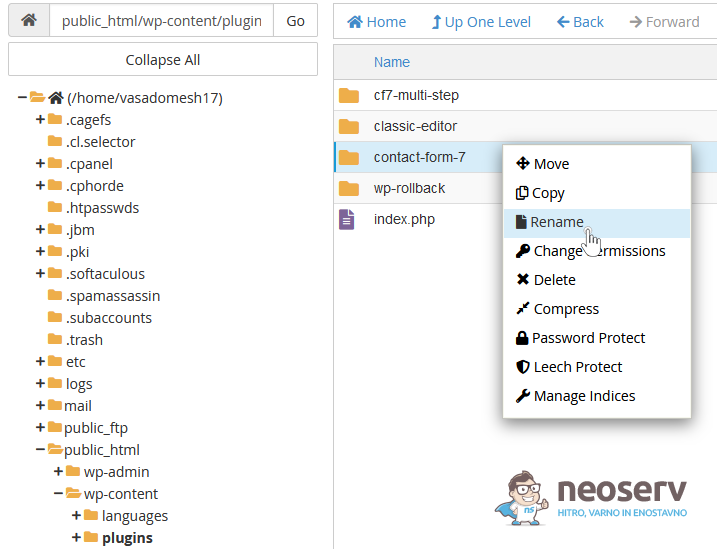
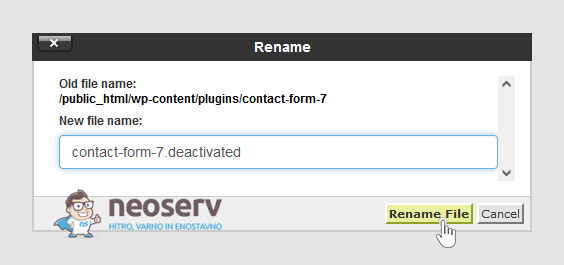
Rename the plugin as you wish, e.g. add the extension .deactivated. Confirm by clicking the Rename File button.
4. Download an older version of the plugin to your computer. If it’s a free plugin available in the WordPress repository, first click on the Avanced View button on the plugin page.
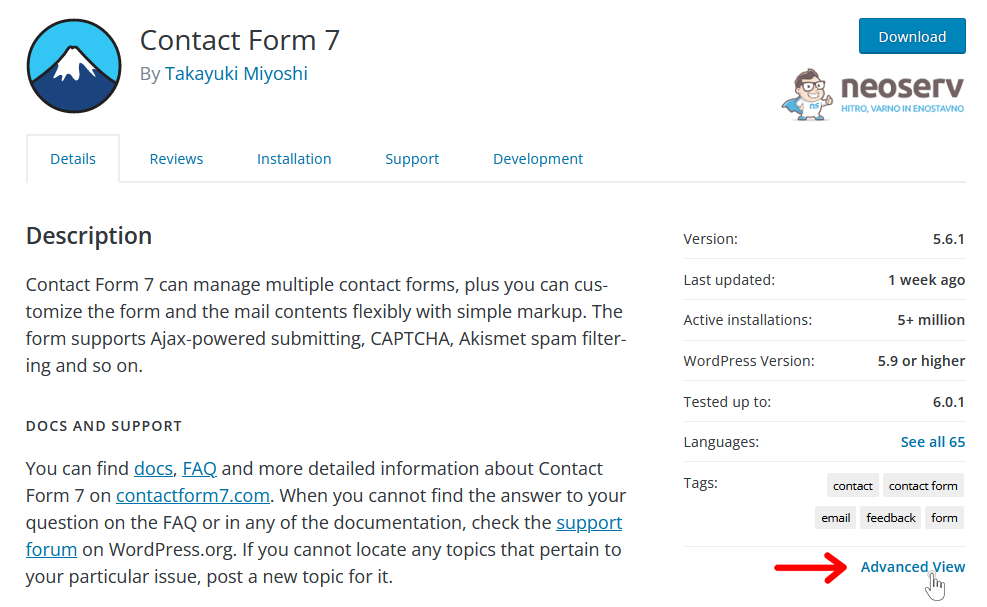
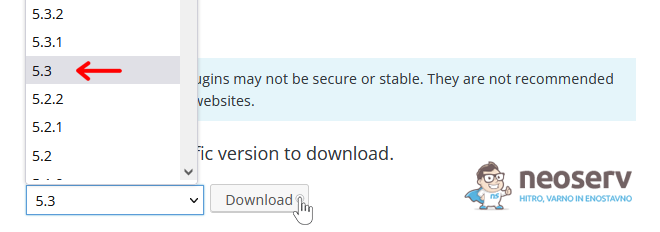
5. Scroll to the bottom of the page where you will see the Please select a specific version to download box. Select the version you want and click on the Download button to download it to your computer.
6. In the File Manager (in the plugins directory), click on Upload at the top, then click on the blue Select File button. Select the plugin ZIP file you downloaded to your computer in the previous step. Confirm by clicking Open.
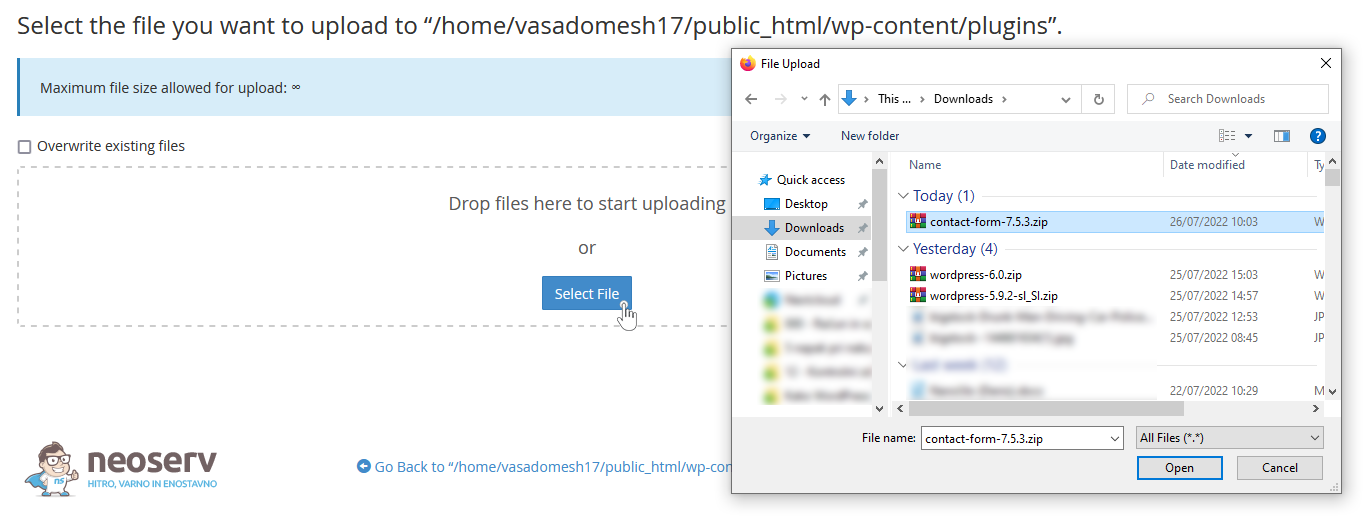
7. Wait a moment for the plugin to be downloaded to the server. Then click on the Go back to “/home/…” link.
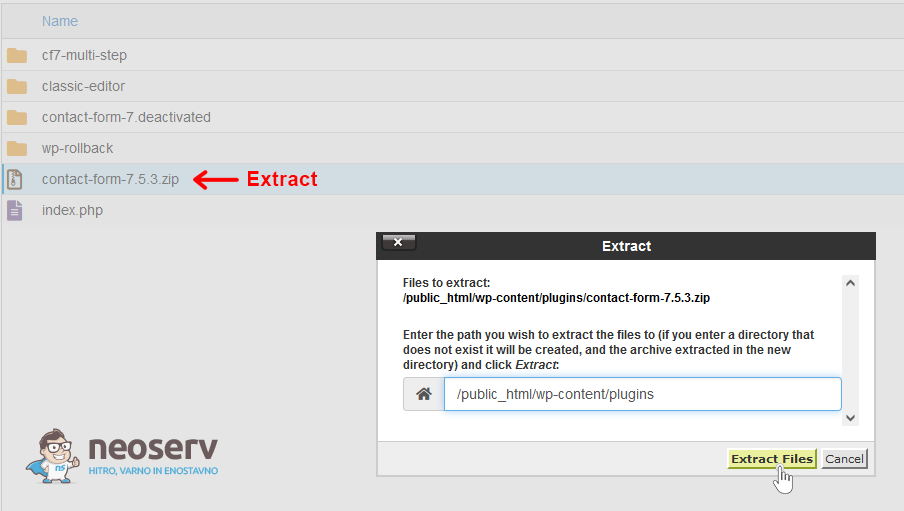
8. Right-click on the ZIP file you have just downloaded and select Extract. In the pop-up window, check that the path displayed is correct, then confirm by clicking Extract Files.
9. Log in to the WordPress administration and check the page with the list of installed plugins.
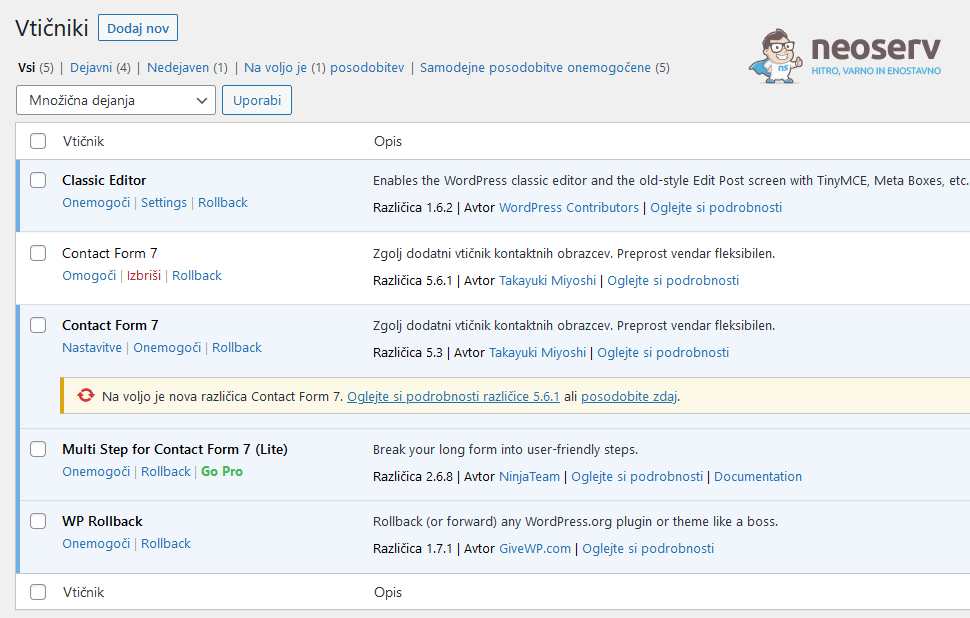
As you can see in the screenshot above, the older version of the plugin you have installed on your website will most likely already be activated.
Graphic template
1. log into the cPanel control panel (login instructions), locate the FILES icon section and click on File Manager.
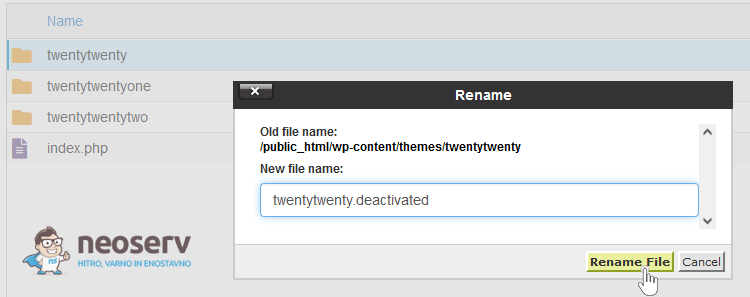
2. Navigate to the directory where the WordPress graphical templates are installed – wp-content/themes. Right-click on the folder of the problematic template and select Rename.
Rename the graphic template folder as you wish, e.g. with the extension .deactivated. Confirm by clicking the Rename File button.
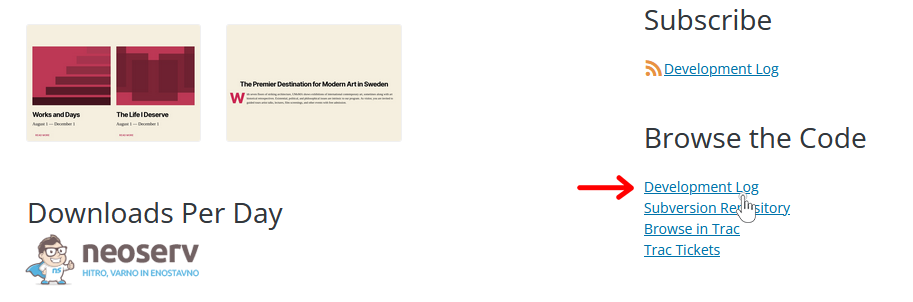
4. Download an older version of the graphic template to your computer. If it’s a free template available in the WordPress repository, first open the template’s presentation page. Then, at the bottom of the right-hand menu, look for the Browse the Code section, where there is a Development Log link. Open this link in a new tab.
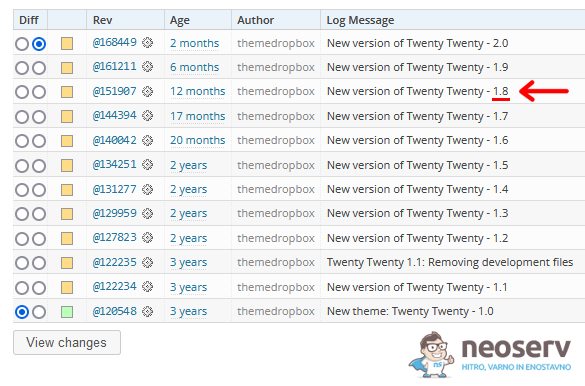
5. Here you will find a list of versions. Find the version you want to revert your WordPress graphical template to and note it down.
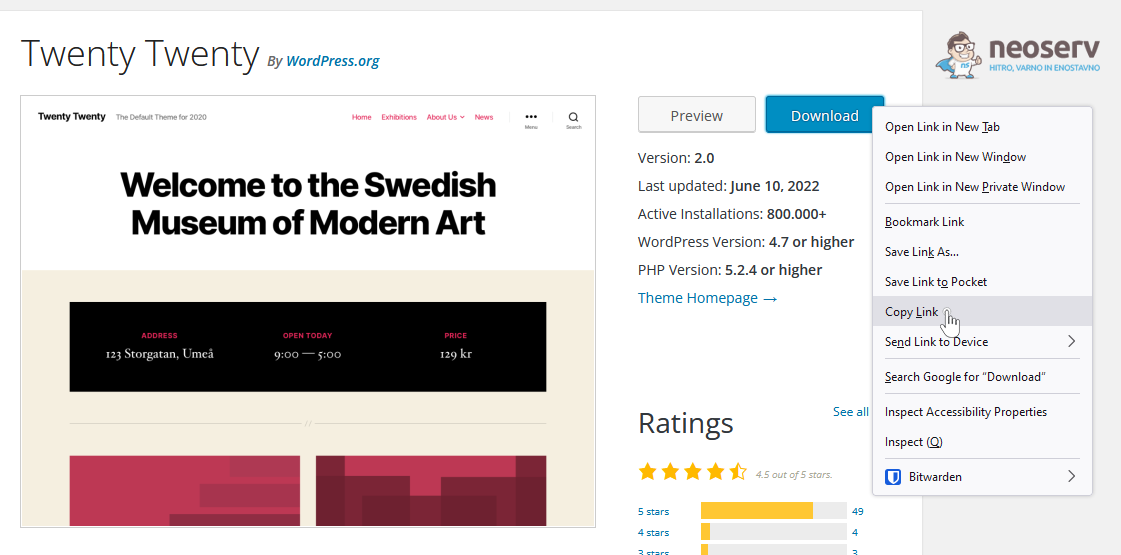
6. Scroll back to the presentation page of the graphic template, then right-click on the blue Download button and select the Copy Link option.
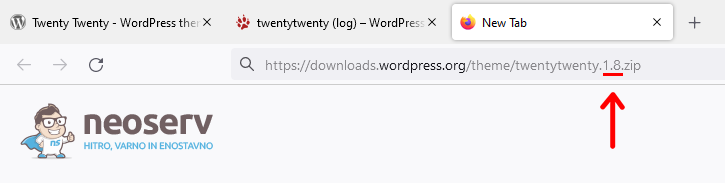
Paste the link you copied in the previous step into the URL input bar of your web browser, then change the version of the file in the link itself. So correct it to the version you remembered in step 5. Press ENTER to download the older version of the graphic template to your computer.
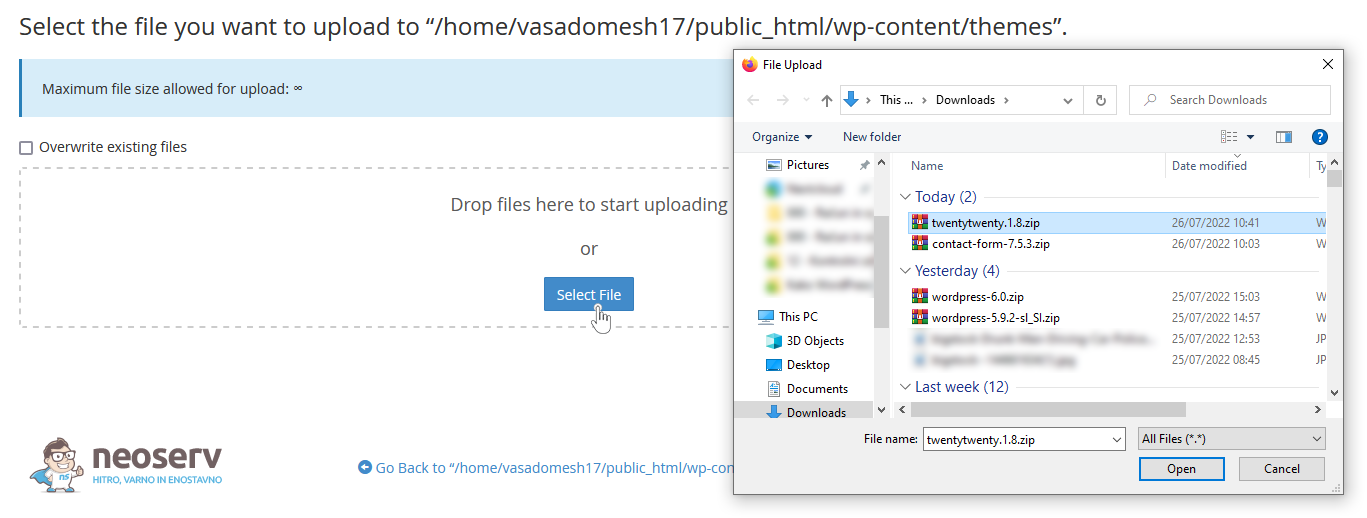
8. In the File Manager (in the Graphics Templates directory), click on Upload at the top and then on Select File. Select the ZIP file of the graphic template you downloaded to your computer in the previous step.
9. Wait a moment for the graphic template to be uploaded to the server. Then click on Go back to “/home/…”.
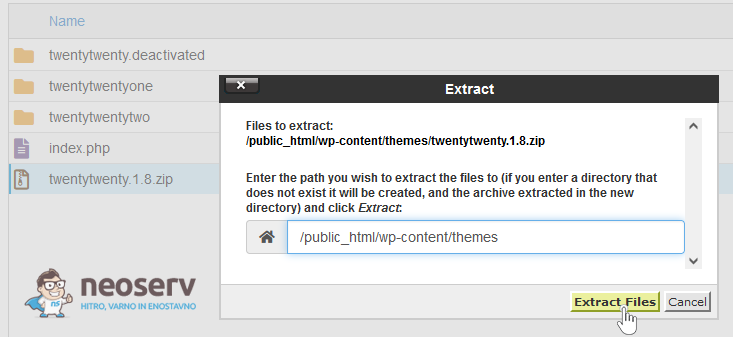
10. Right-click on the ZIP file and select Extract. In the pop-up window, check that the displayed path is correct and confirm by clicking on the Extract Files button.
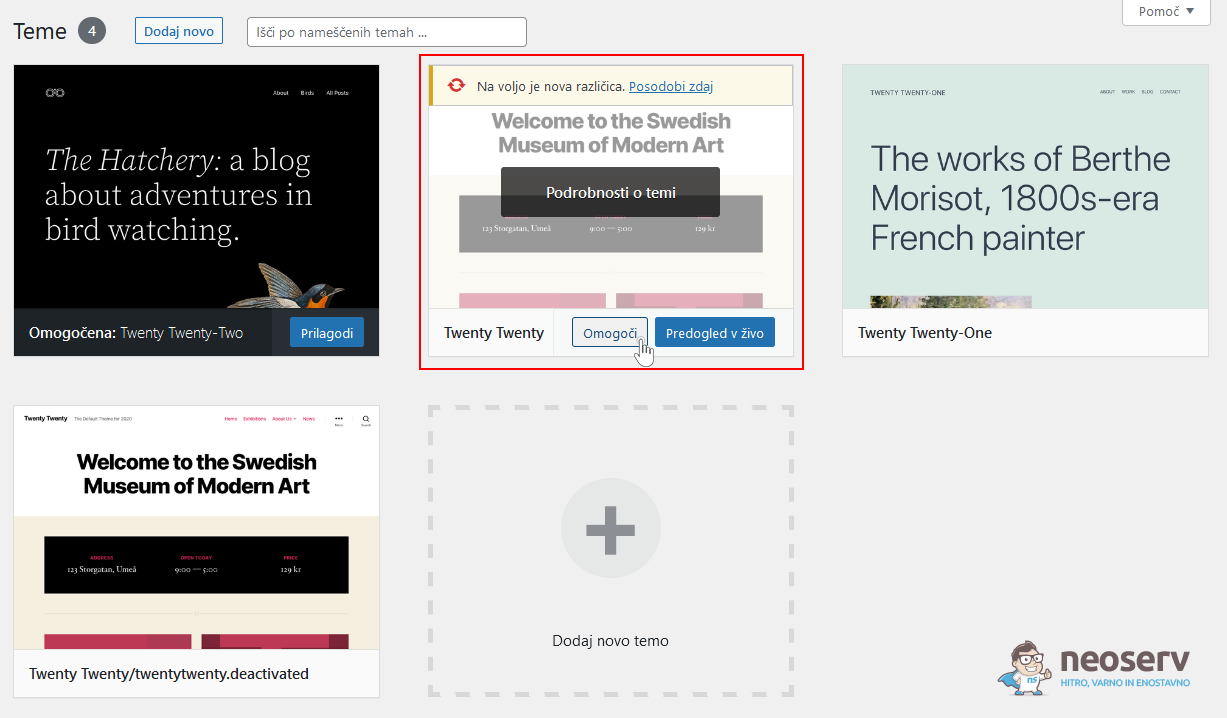
11. Log in to the WordPress administration and check the page with the list of installed graphic templates. Hover your mouse over the graphic template you’ve reverted to an older version and activate it by clicking the Enable button.
Are you using a paid graphic template that is not available in the WordPress repository and don’t know how to get to an older version? Your best bet is to contact the template author directly. Alternatively, you can use a backup of files from a day, a week, a month, etc.
4. Final word
The process of reverting a WordPress core, plugin or graphical template to an older version depends mainly on whether or not your WordPress administration is working. If you can access the administration, the easiest way to do this is to use a dedicated plugin (WP Downgrade or WP Rollback). Otherwise, when the administration is not working, you’ll have to go through a slightly longer manual process.
Have you already done it and managed to revert WordPress to an older version? Great! But remember that an un-updated website can be dangerous, so make sure you fix the bug and update to the latest version as soon as possible.
Do you have a website hosted on a NEOSERV server? If so, it may be even easier to simply restore the website from backups. They are available in your cPanel control panel and you can choose from a number of copies made on different days. Detailed instructions can be found here.
If you are not yet hosted on a NEOSERV server but would like to be, please contact us at info@neoserv.si or call us on 059 335 000. We will transfer your website and associated email boxes to our server free of charge and there will be no downtime. Not sure why choose us? Find out the main reasons. We promise you’ll be delighted with our services.
COMMENT THE POST
Your comment has been successfully submitted
The comment will be visible on the page when our moderators approve it.