


- Your cart is currently empty.
How to Connect a Private GitHub Repository with cPanel

The cPanel dashboard functionality – Git™ Version Control – allows developers to easily host Git repositories in their cPanel account. Git can be used to maintain any set of files, e.g. website files, a software development project or just simple text files.
Git™ Version Control is an extremely useful tool for developers as it makes the process of cloning a repository much simpler and beginner-friendly. See below how to connect a private GitHub repository to cPanel.
Table of contents
- Creating an SSH key in cPanel
- Adding the public part of the key to GitHub
- Linking cPanel to a private GitHub repository
1. Creating an SSH key in cPanel
First, you need to create an SSH key named id_dsa in the cPanel control panel. To learn how to create an SSH key in just a few steps, read How to manage SSH keys in cPanel.
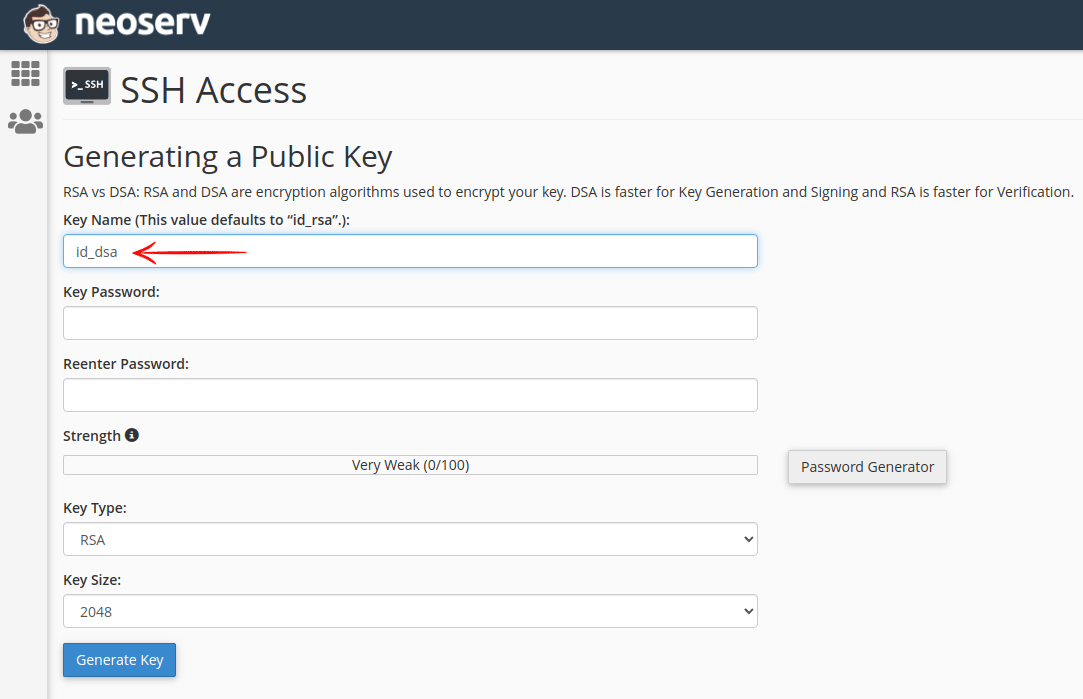
The SSH key you will use to connect between your private GitHub repository and your cPanel account must not include a password. This is because GitHub does not support password-protected SSH keys.
2. Adding the public part of the key to GitHub
The next step is to add the public part of the SSH key you created in step 1 to your GitHub account.
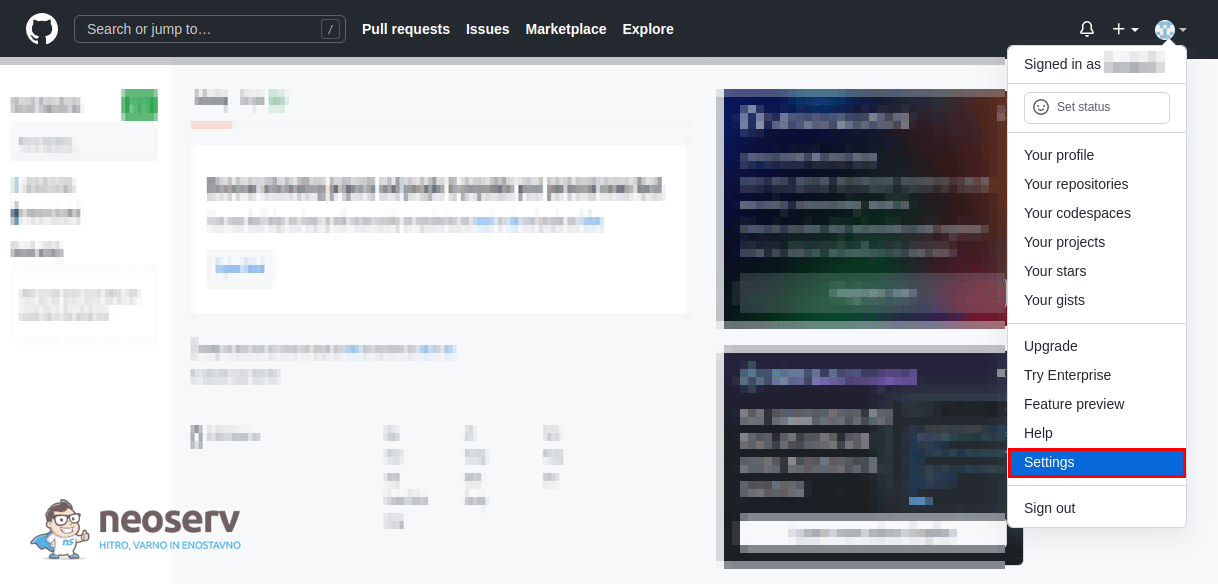
1. After signing in to GitHub, click on your profile icon in the top right corner and navigate to your account settings by clicking on Settings.
2. Click on SSH and GPG keys in the left menu, then click on the green New SSH key button to add your public key.
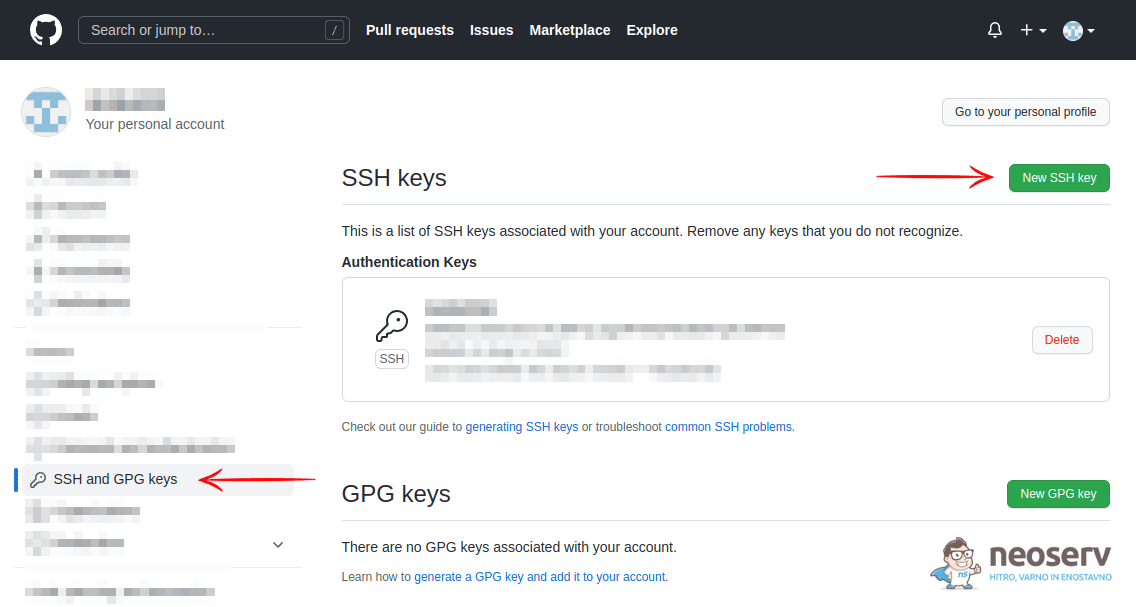
By adding the public part of the SSH key to GitHub, you have given your cPanel account access to the private GitHub repository.
3. Connecting cPanel to the private GitHub repository
The only final step left is to connect your cPanel account to the private GitHub repository.
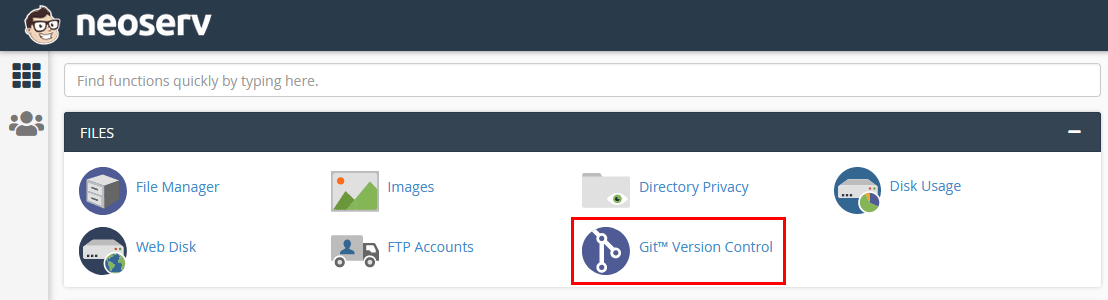
1. Log into the cPanel Control Panel and click on the Git™ Version Control icon in the FILES icon section.
2. On the right-hand side, click the blue Create button, then edit the following settings:
- Clone a Repository – the Clone a Repository feature should be enabled;
- Clone URL – enter a URL of the form:
git@github.com:<user_name>/<repository_name>.git; - Repository Path – enter the path where you want to clone the contents of your GitHub repository;
- Repository Name – enter the name of the “local” repository (does not affect functionality).
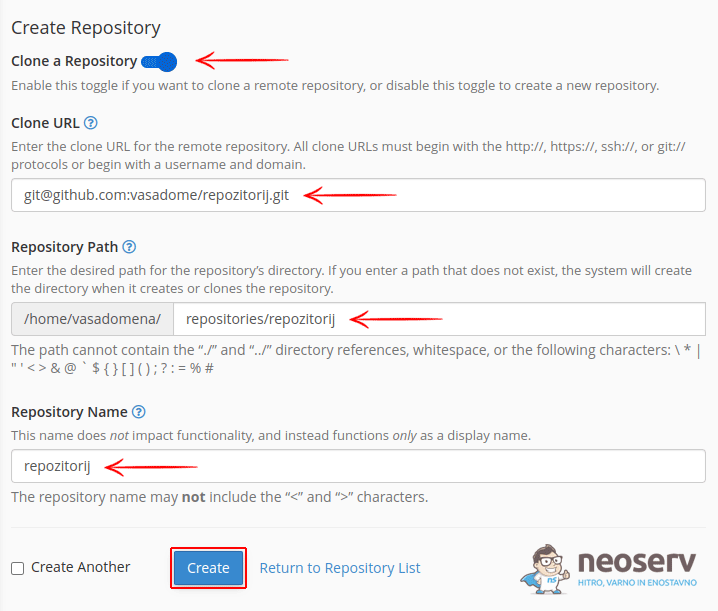
3. Once you have entered all the above information, all you have to do is click the blue Create button to clone the contents of your private GitHub repository to cPanel.
Remote command-line access to the server ( Shell Access) is not required to connect cPanel itself to your private GitHub repository. You would need it if you wanted to perform command line operations such as Pull, Push, Commit, etc. You can read more about handling SSH in this article.
COMMENT THE POST
Your comment has been successfully submitted
The comment will be visible on the page when our moderators approve it.