


- Your cart is currently empty.
How to Add a Domain in Google Search Console
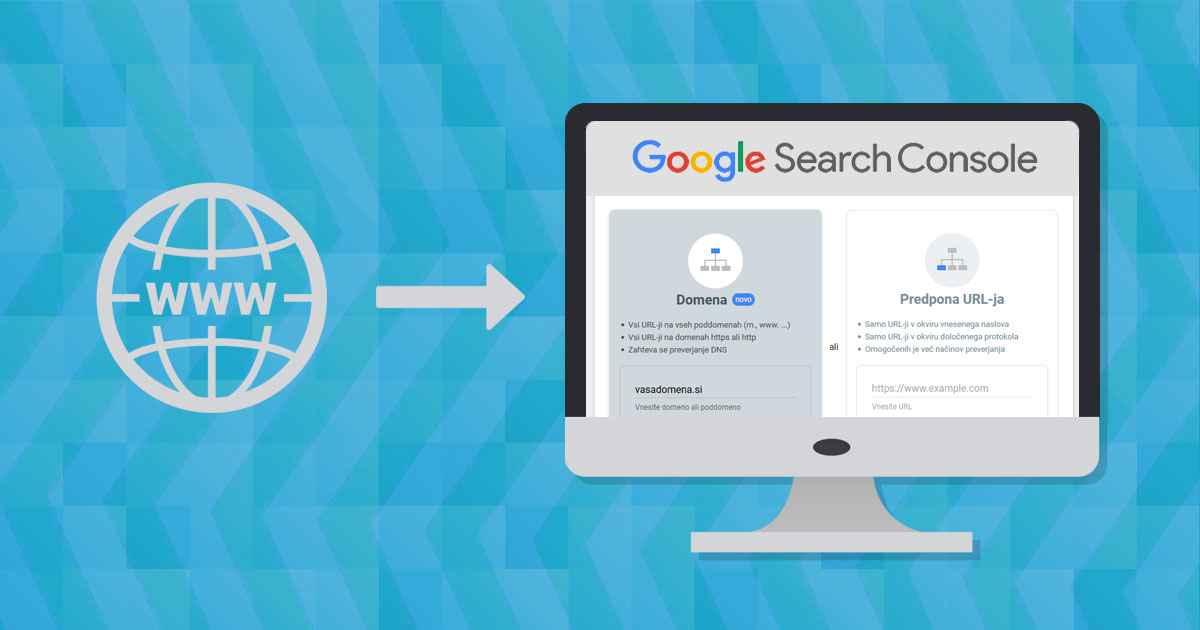

To take full advantage of Google Search Console, you’ll first need to add your domain to it. Once you’ve added your domain, you’ll need to verify that you actually own it or have access to it.
There are two ways to connect your website to the GSC Dashboard:
- The first is to add a domain, which means that you will have an overview of all subdomains (e.g. the version of the website with and without www) and both protocols (http and https) under a separate brand ( Property). The data for all versions will be merged or aggregated.
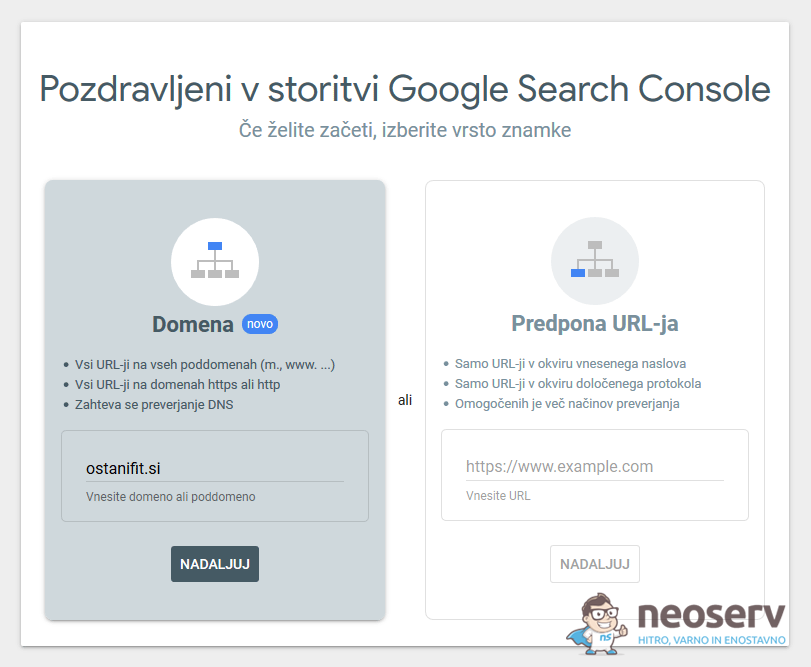
- The second is to add a specific version of the web address, for example a combination of the secure https protocol and the www subdomain. In this case, you will only receive data for the web page at https://www.vasadomena.si/ (but not e.g. also for http://vasadomena.si/).
If you have no particular reason to add a specific version of the web address, we advise you to choose the first option and link the whole domain to the GSC. Again, the following instructions show an example where we have added a domain to Google Search Console in this way.
The process of adding a domain to Google Search Console
The instructions below show how to add ostanifit.si. Once you have followed the procedure, replace the domain with your own – i.e. with the specific domain you want to add to the GSC.
1. Log in to Google Search Console with your Google (or Gmail) account.
2. Enter your domain in the box on the left and click NEXT.
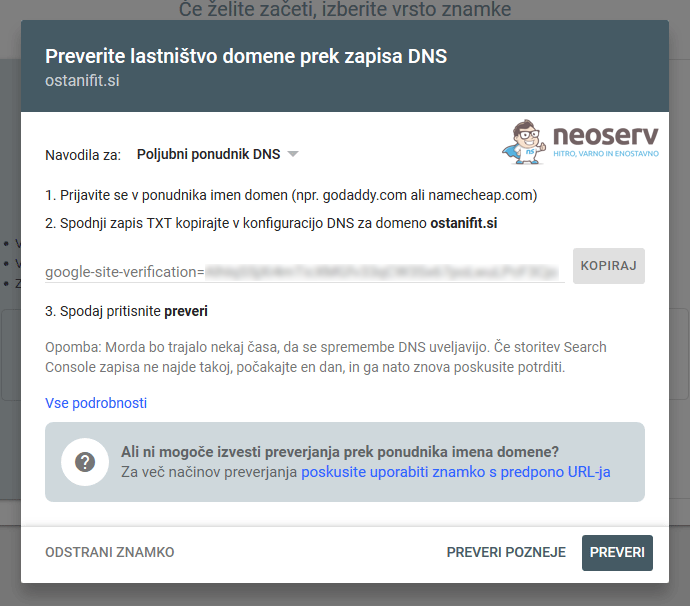
3. Google will report a DNS record (TXT) that you need to add to your domain’s DNS settings.
- Open a new tab in your web browser and log in to the cPanel control panel (login instructions).
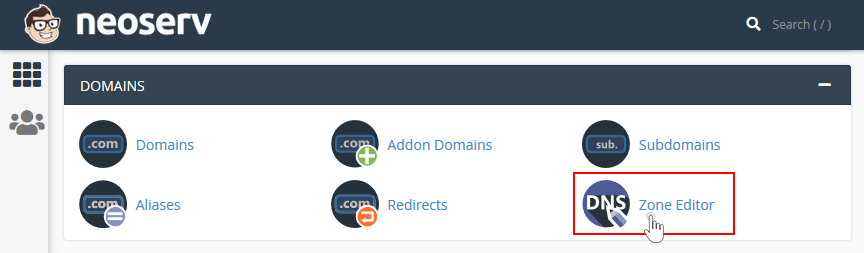
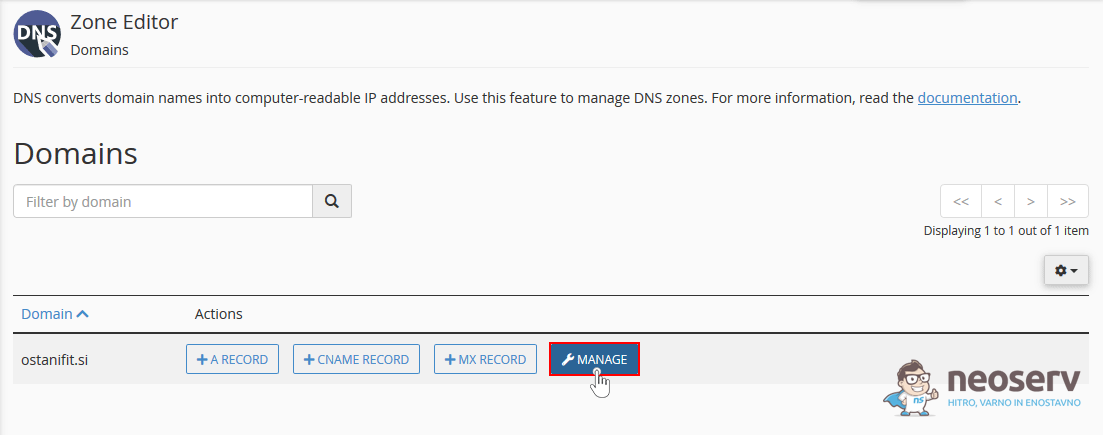
- Find the DOMAINS icon section and click on Zone Editor.
- In the list of domains next to the domain you want to add to the GSC, click on the blue MANAGE button.
- Above the list of DNS records on the right hand side, click on the blue + ADD RECORD button. Enter your domain in the field on the left (Name), select TXT as the DNS record type, and copy the verification code reported to you by Google in the record value field(Record). Then click on the blue ADD RECORD button to the right of the box where you entered the code.
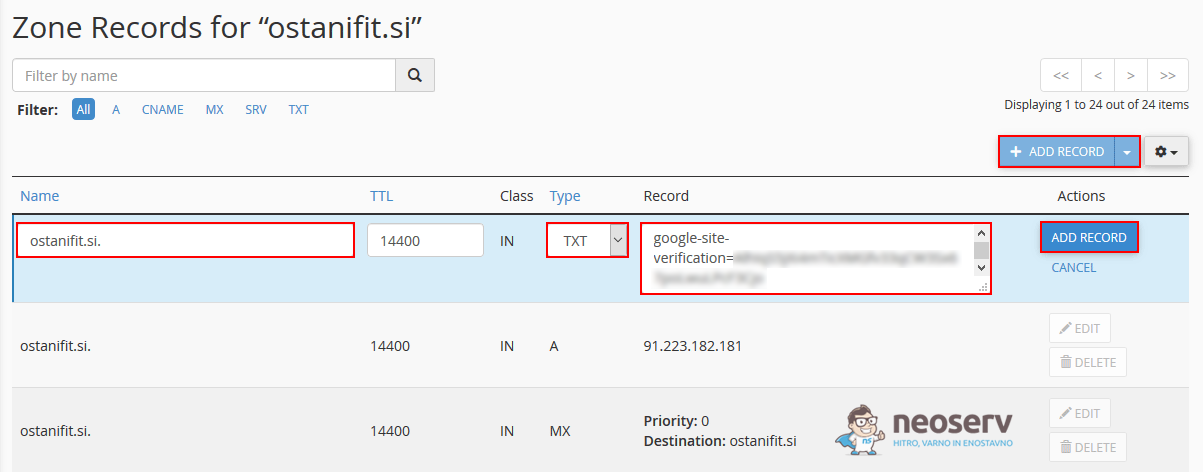
- You will be notified that a new TXT record has been successfully added to the domain.

4. Return to the tab where you are adding the domain to Google Search Console and click on the VERIFY button in the bottom right corner (see Figure 2 for instructions). You should see a notification that the ownership of the domain has been successfully verified.
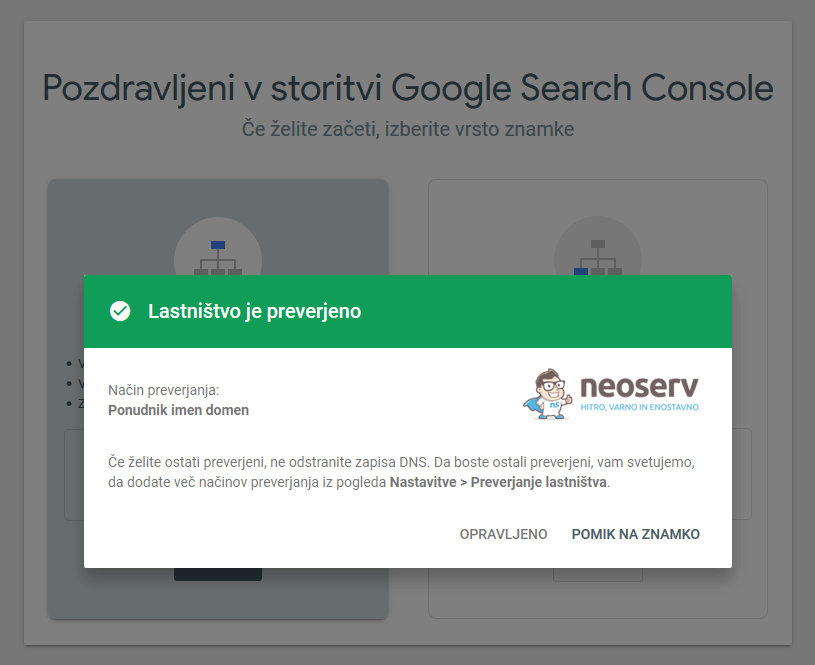
If you get a message that the ownership of the domain is not verified, wait a few minutes and try again. If the domain is still not successfully verified, make sure you have followed the instructions carefully and entered the TXT record correctly in the DNS record editor (Zone Editor).
5. Click on the HOW TO BRAND link to display the main page of the domain or brand you have just added.
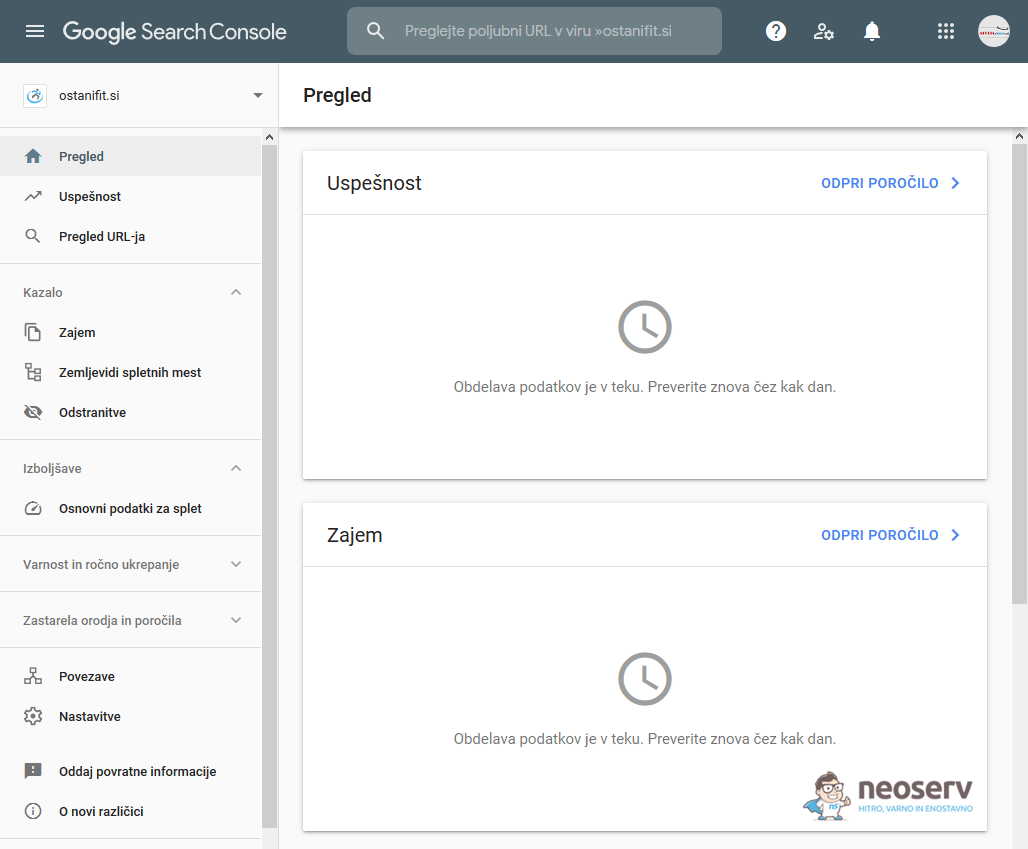
Congratulations! You have successfully connected your website to the Google Search Console. Now the best thing to do is to add your site map to it and then wait a day or so for the first results and statistics to be visible in GSC.
If you decide to add a specific version of the web address (e.g. https://vasadomena.si/) at the beginning of the process, you can verify the brand in other ways than just adding a new TXT record. One option is, for example, by uploading a file provided by Google to the website’s umbrella folder. Another option is to verify it via a Google Analytics code that you have entered into the website and that you have obtained from the same Google account.
COMMENT THE POST
Your comment has been successfully submitted
The comment will be visible on the page when our moderators approve it.