


- Your cart is currently empty.
How to Install WordPress via Softaculous

The most popular website building tool , WordPress, can be installed in a variety of ways. In the cPanel control panel, you have the option to install WordPress via Softaculous. Check below how to successfully install a WordPress site using Softaculous in easy steps.
Installing a WordPress site step by step
- Log in to the cPanel control panel.
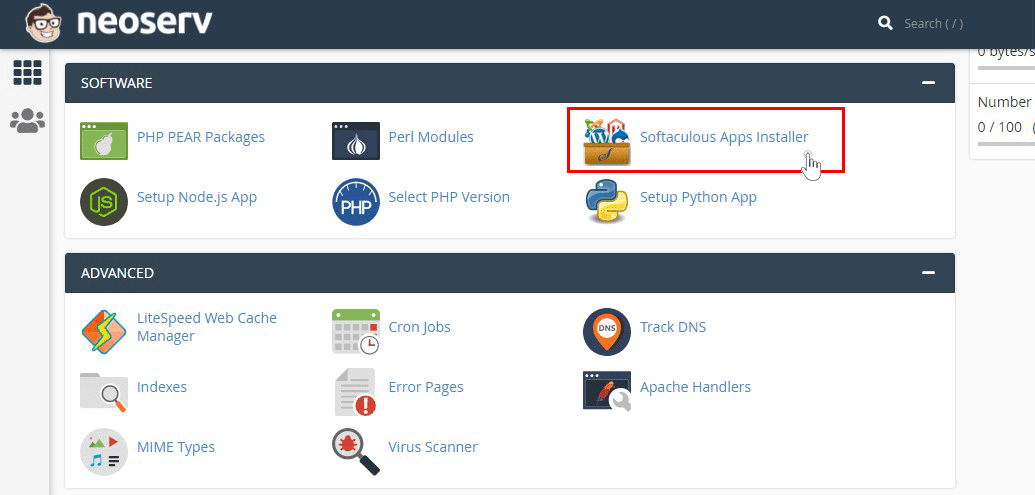
- Under SOFTWARE, click on Softaculous Apps Installer.
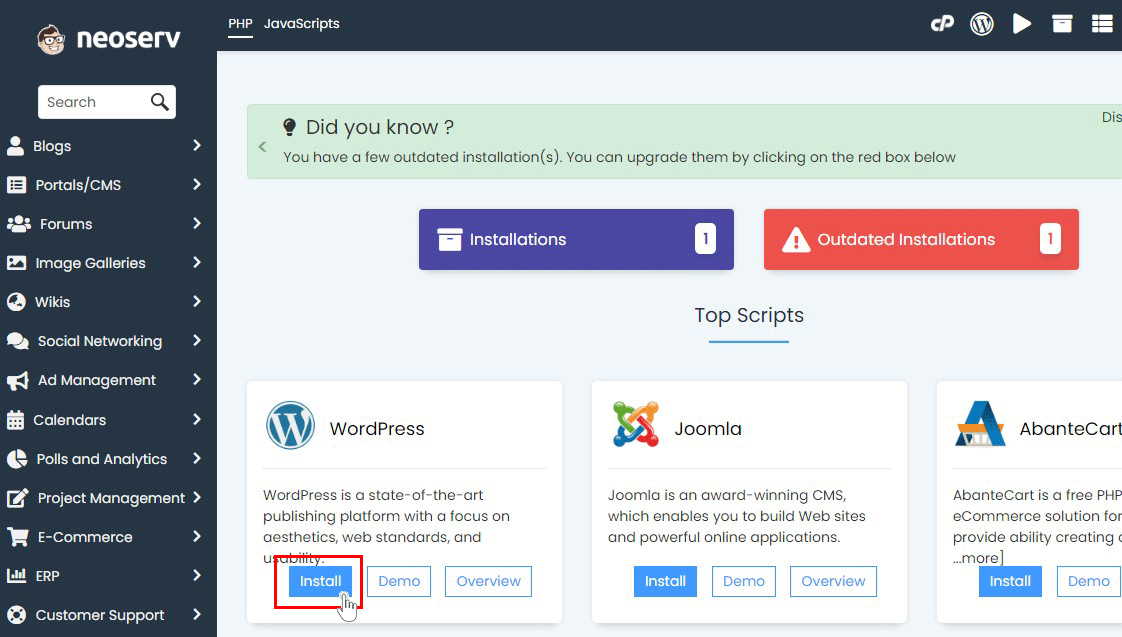
- In the newly opened window, click Install next to the WordPress icon.
- In the Software Setup section, enter the following settings:
- Choose Protocol: select a secure HTTPS:// connection.
- Choose Domain: select the domain where you want to install WordPress
- In Directory: in most cases, leave this field blank. If you want to install WordPress in a subdirectory, for example: mojadomena.si/shop, then enter “shop” in the In Directory field.
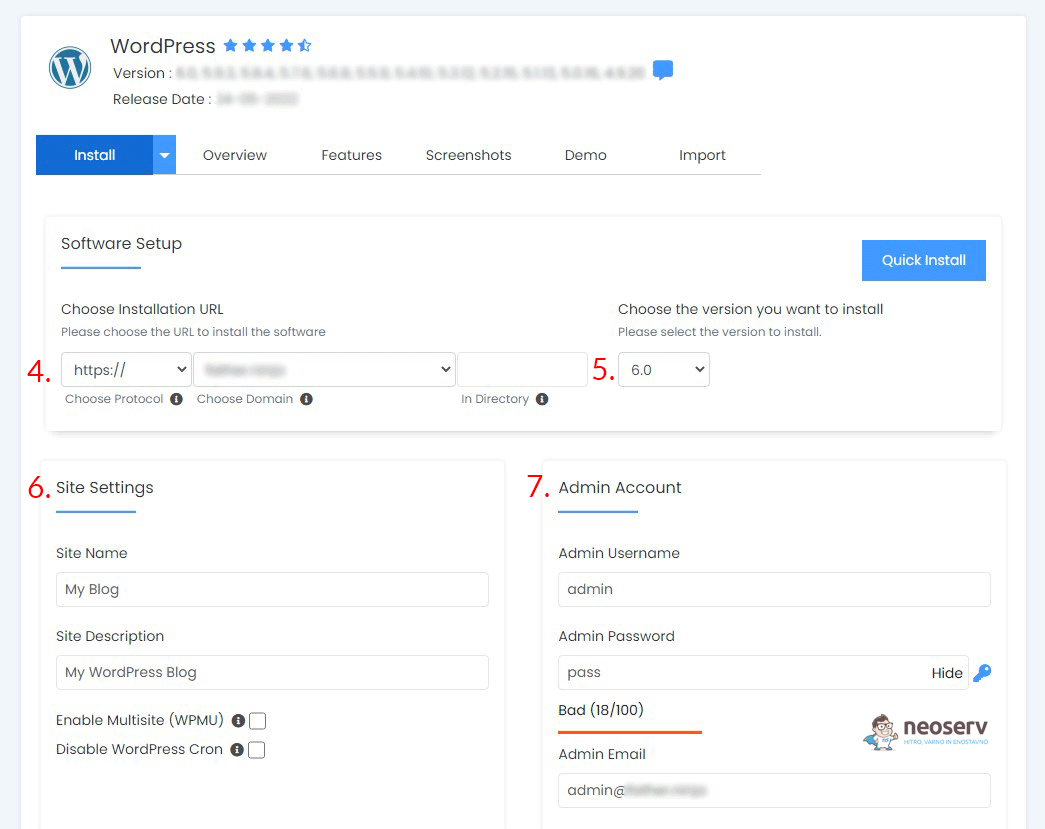
- Select your version of WordPress. We recommend that you always choose the latest version.
- In the Site Settings section, enter the name and a short description of the site. You can change this information later in the WordPress administration.
- Fill in the details in the Admin Account section:
- Admin Username: the username of the administrator. For security reasons, we advise you to change the default name to “admin”.
- Admin Password: set a secure password to access the WordPress administration. For more information on why it’s important to choose a secure password and how to set one, check out the post Secure username and password in WordPress.
- Admin Email: enter the email address where you want to receive all email notifications related to your WordPress site. Even if you forget your WordPress password, you will receive instructions on how to reset it at the email address you enter in this field.
- Choose Language: select the default language of your WordPress site
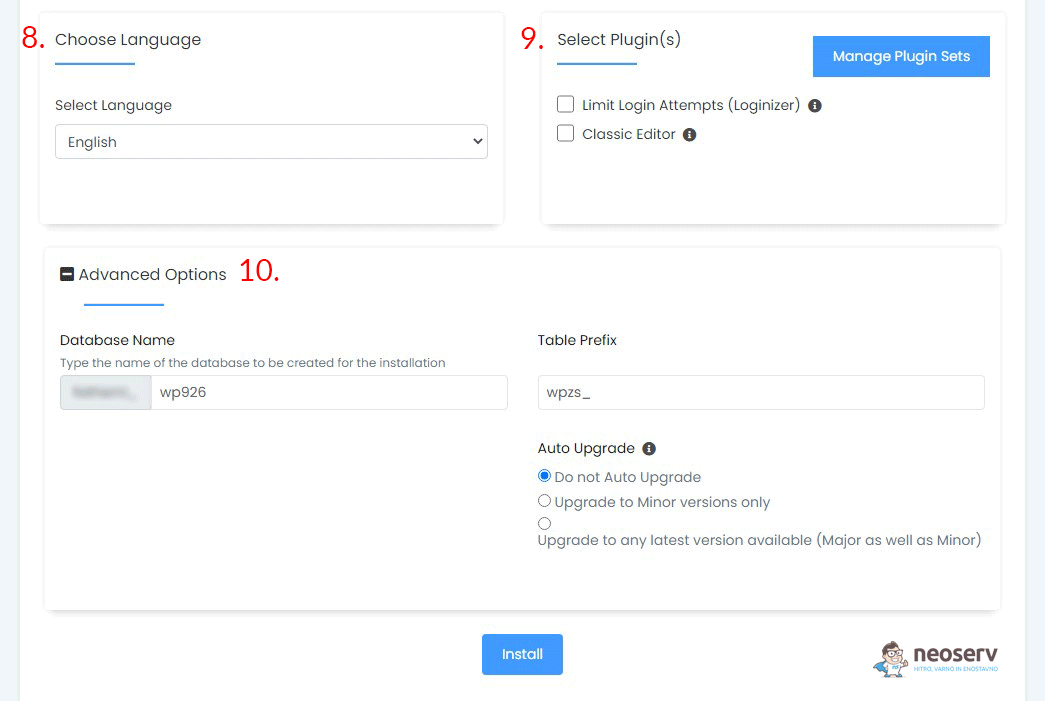
- Select Plugin(s): select the plugins to be loaded with the WordPress site. You will be able to upload additional plugins later, via the WordPress administration.
- You do not need to set anything in the Advanced Options section. For more security, you can change the database name, the table prefix, or select the automatic updates option.
- Choose a graphical template. You can change it later in the WordPress administration if you wish.
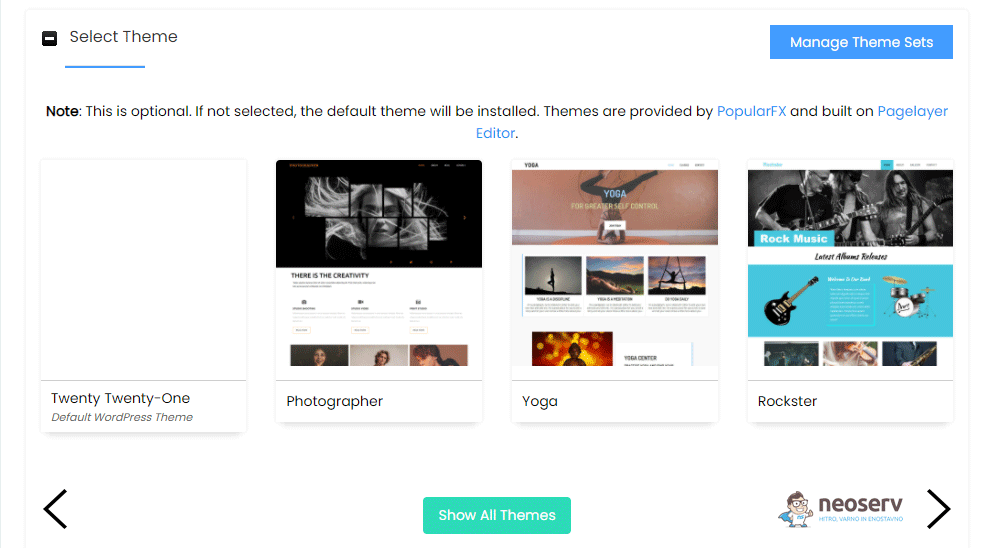
- Once you have entered and configured all the information, click on the Install button.
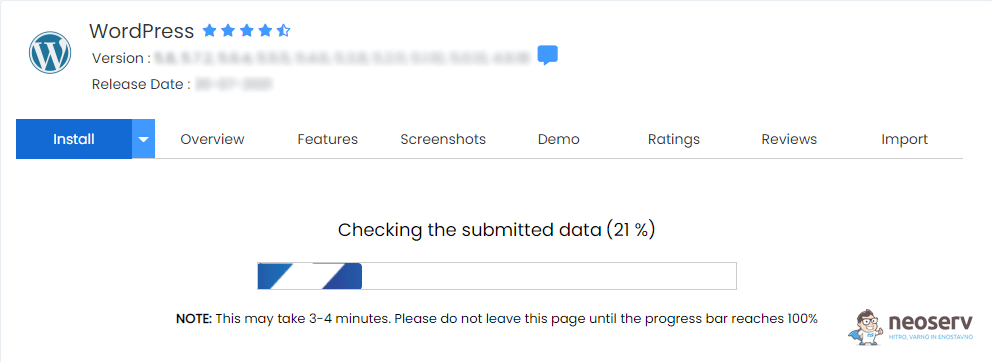
The installation of your WordPress site will begin. The progress bar will show the status of your installation and will refresh when the installation is complete. Do not close your browser during the process, as this will cause errors during the WordPress installation.
Congratulations, the software was installed successfully.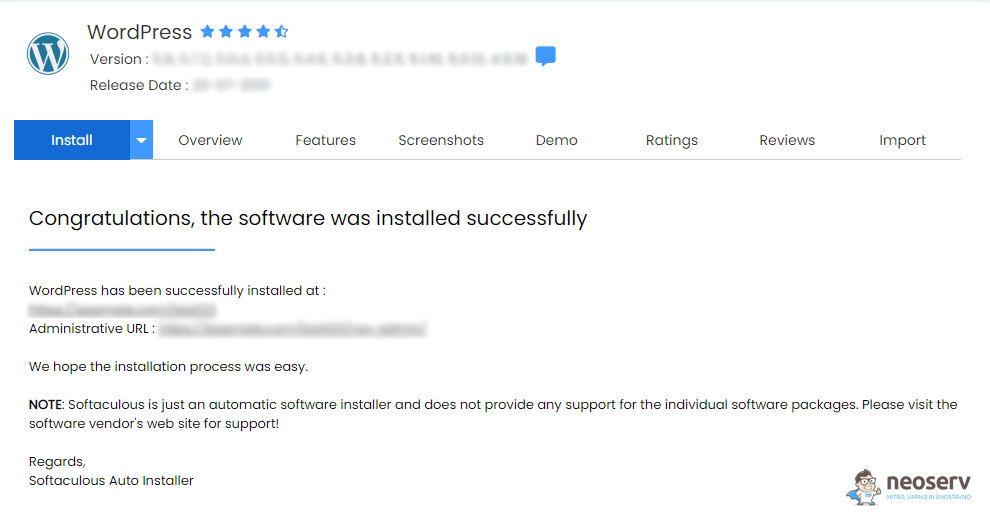
Click on Return to Overview and you will see your newly installed WordPress site in the Current Installations section.
COMMENT THE POST
Your comment has been successfully submitted
The comment will be visible on the page when our moderators approve it.